Introduzione
Use this guide to replace the battery in your iPhone 15 Plus.
iPhone batteries are rated to hold 80% of their capacity for up to 1000 charge cycles. If your iPhone needs to be charged more often or runs slower, it might be time to replace the battery.
You'll need replacement battery and back glass adhesive to complete this repair.
If your battery is swollen, take appropriate precautions.
Note: Due to Apple's parts pairing restrictions, on iOS 17.6 and earlier, you may receive warnings about your replacement part and lose access to battery health data, but your new battery will otherwise work normally. On iOS 18 and newer, calibrate authentic Apple batteries using Repair Assistant.
Cosa ti serve
-
-
Unplug any cables from your phone.
-
Hold the power and either volume buttons and slide to power off your phone.
 Chiedi a FixBot
-
-
-
If your screen or back glass is badly cracked, lay overlapping strips of packing tape over the glass to protect yourself and make disassembly easier.
-
-
-
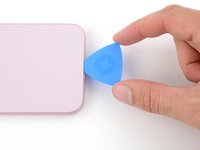
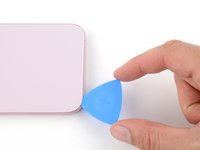
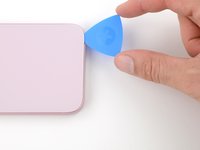
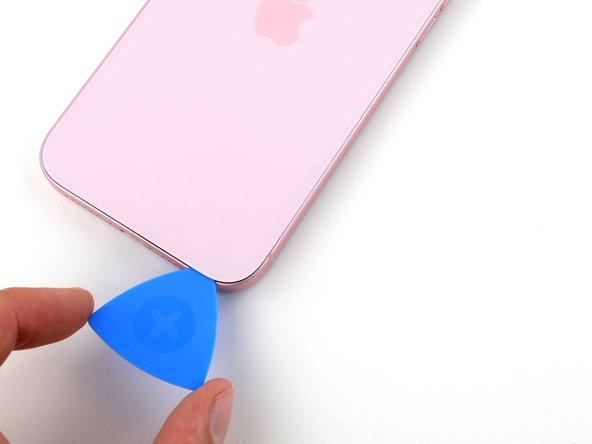
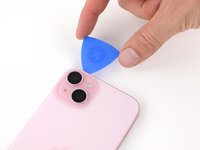
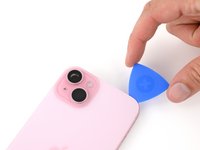
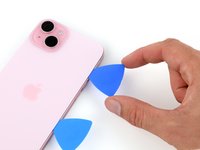
Measure 3 mm from the tip and mark the opening pick with a permanent marker.
-
-
-
Use a P2 pentalobe driver to remove the two 7.7 mm-long screws on either side of the charging port.
-
-
-
Use a hair dryer or heat gun to heat the bottom edge of the back glass until it's hot to the touch.
-
-
-
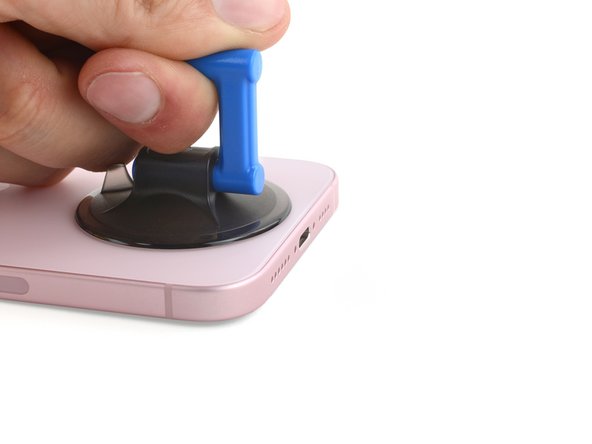
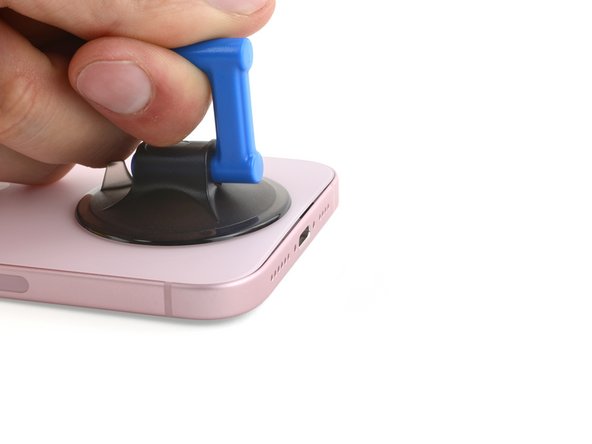
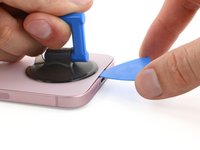
Apply a suction handle to the bottom edge of the back glass.
-
Pull up on the handle with a strong, steady force to create a gap between the back glass and the frame.
-
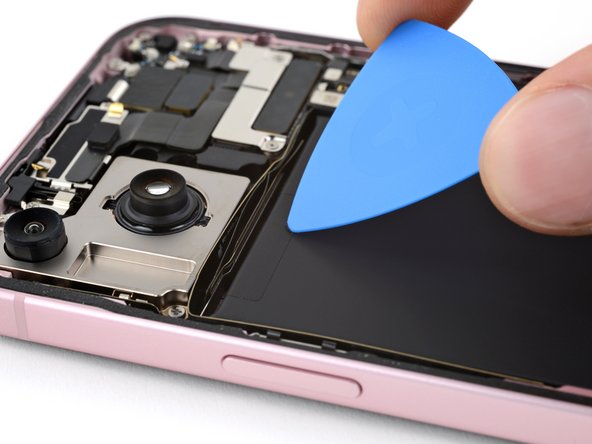
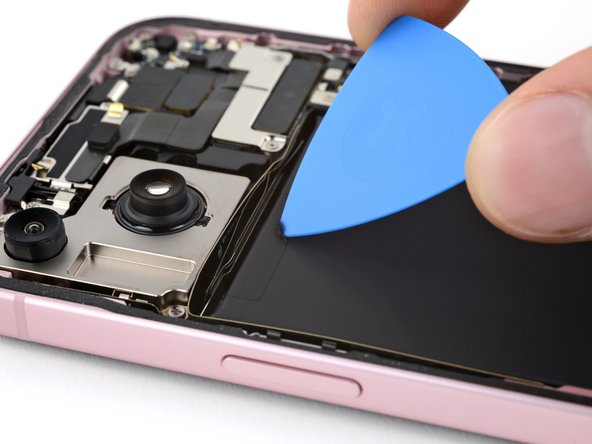
Insert the tip of an opening pick into the gap.
-
-
-
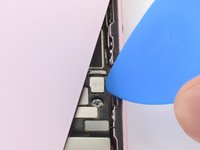
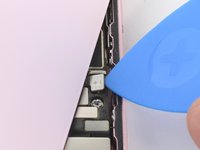
There's a delicate cable connecting the back glass to the phone, right next to the volume up button. Don't insert your pick here to avoid slicing the cable.
-
There are multiple spring contacts around the perimeter of the phone. Be extra careful not to insert your pick deeper than suggested in each step to avoid bending these contacts.
-
-
-
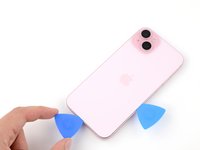
Slide your pick back and forth along the bottom edge to separate the adhesive.
-
Leave your pick inserted in the bottom right corner to prevent the adhesive from re-sealing.
-
-
-
Heat the right edge of the back glass until it's hot to the touch.
-
-
-
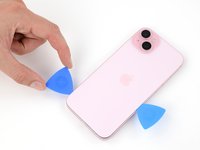
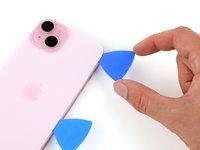
Rotate your pick around the bottom right corner and slide it halfway up the right edge or until you feel a hard stop at a clip securing the back glass.
-
Leave this pick inserted to prevent the adhesive from resealing.
-
-
-
Heat the left edge of the back glass until it's hot to the touch.
-
-
-
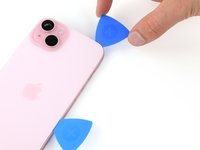
Insert a second opening pick at the bottom edge.
-
Rotate the second pick around the bottom left corner.
-
Slide this pick up to the top left corner to separate the adhesive.
-
Leave this pick inserted to prevent the adhesive from resealing.
-
-
-
Heat the top edge of the back glass until it's hot to the touch.
-
-
-
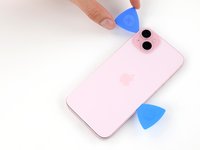
Rotate your second opening pick around the top left corner and slide it to the top right corner to separate the adhesive.
-
Leave this pick in place to prevent the adhesive from resealing.
-
-
-
Heat the top right corner of the back glass until it's hot to the touch.
-
-
-
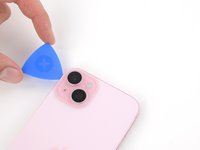
Rotate the second opening pick around the top right corner and slide it to the volume up button to separate the adhesive.
-
-
-
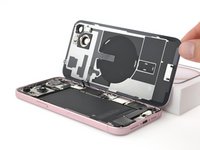
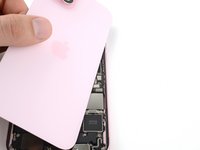
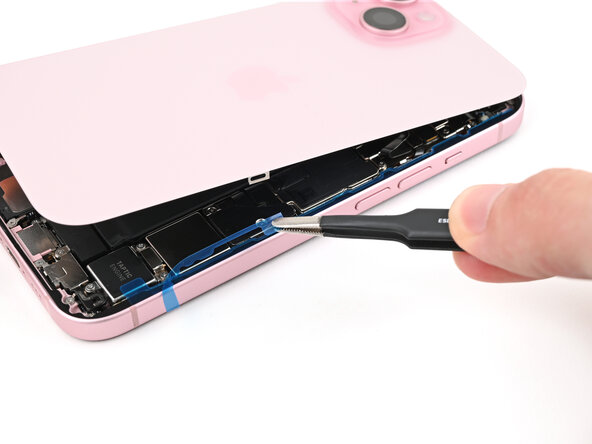
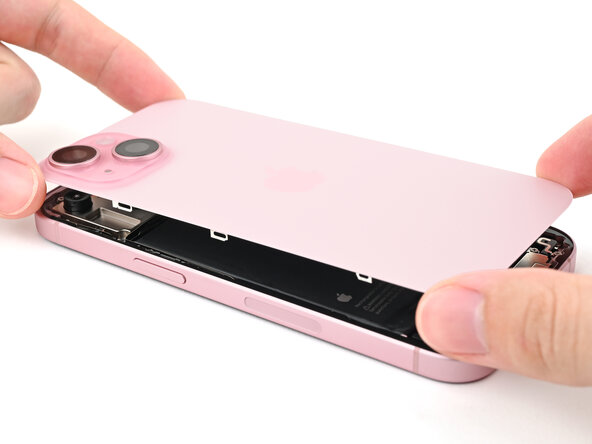
Gently swing open the back glass to the right of the phone.
-
Rest the back glass against a raised surface so it doesn't strain the cable.
-
-
Strumento utilizzato in questo passaggio:FixMat$36.95
-
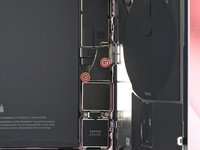
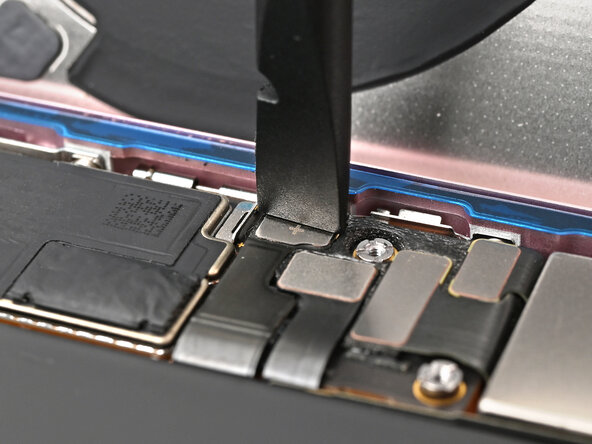
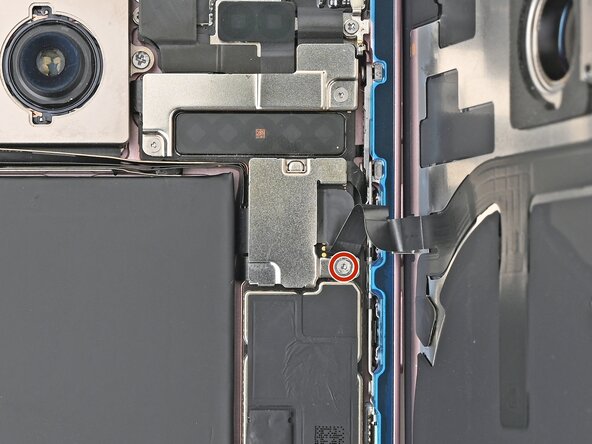
Use a tri-point Y000 driver to remove the two 1.3 mm-long screws securing the lower connector cover.
-
-
Strumento utilizzato in questo passaggio:Tweezers$4.99
-
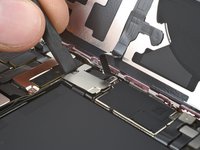
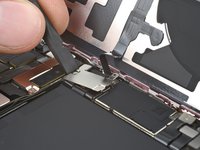
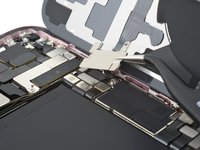
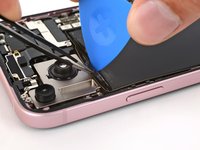
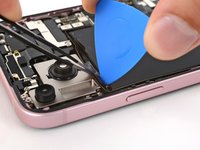
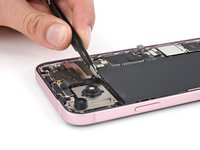
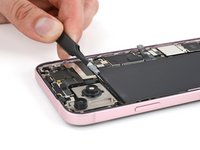
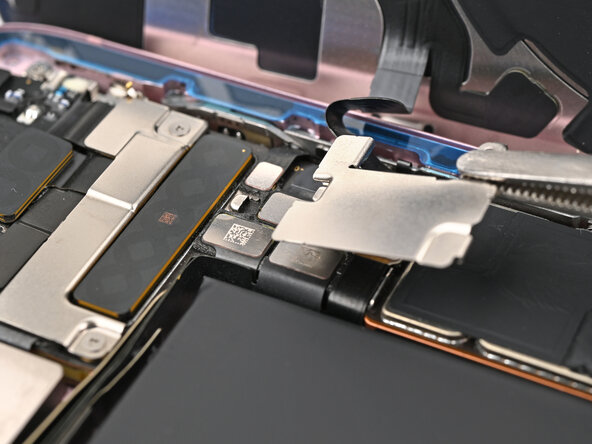
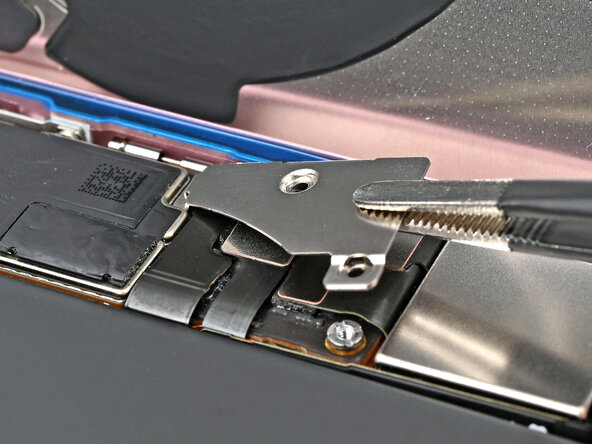
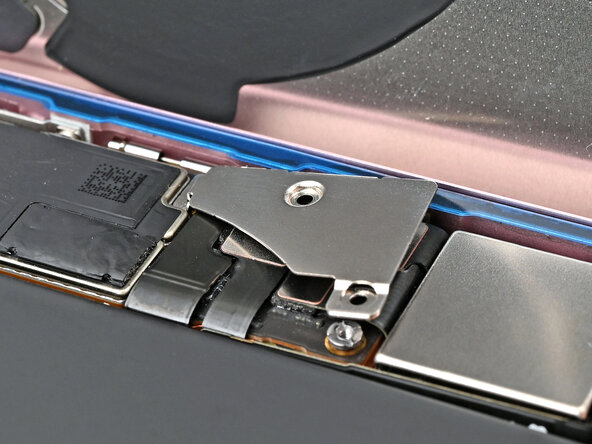
Use tweezers to slide the cover toward the top of the phone to unlatch it from the logic board.
-
Remove the cover.
-
-
-
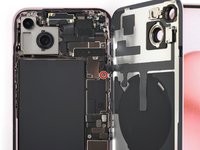
Hold the back glass upright with one hand and rotate the bottom edge to the left to reveal the battery press connector just below the volume buttons.
-
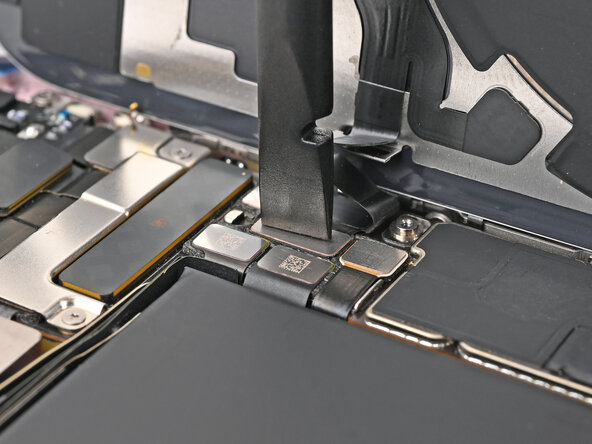
Use the tip of an opening pick to pry up and disconnect the battery press connector from the logic board.
-
-
-
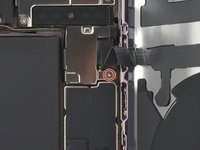
Use your tri-point Y000 driver to remove the 0.9 mm-long screw securing the middle connector cover.
-
-
-
-
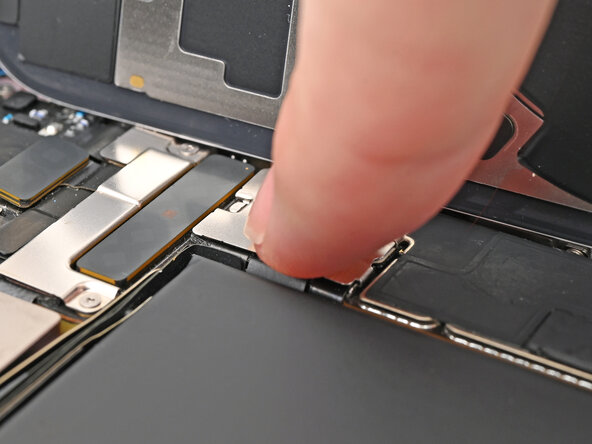
Use the flat end of a spudger or your finger to push the cover toward the bottom of the phone and unclip its top edge.
-
Remove the cover.
-
-
-
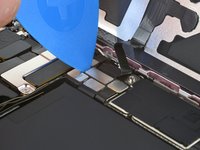
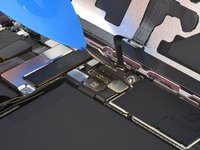
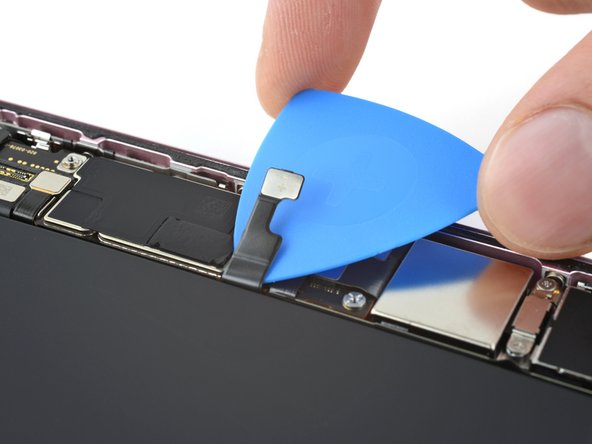
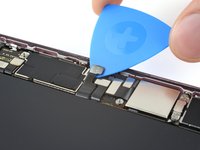
Use an opening pick to pry up and disconnect the wireless charging coil and NFC connector.
-
-
-
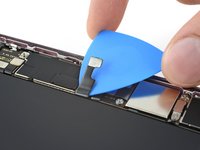
Slide an opening pick under the battery cable to separate it from the logic board.
-
-
Strumento utilizzato in questo passaggio:Tweezers$4.99
-
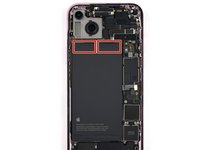
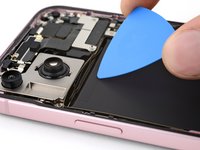
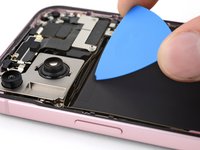
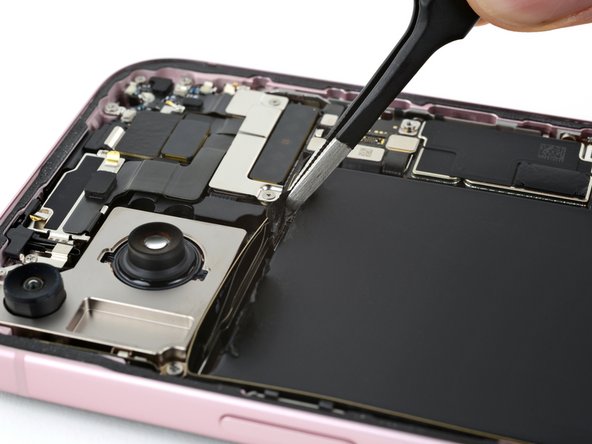
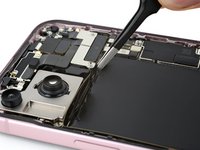
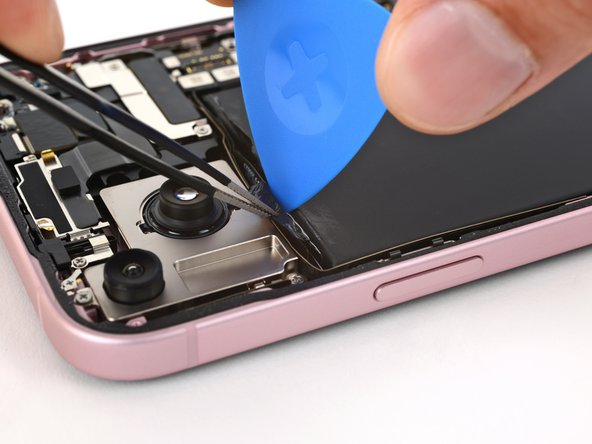
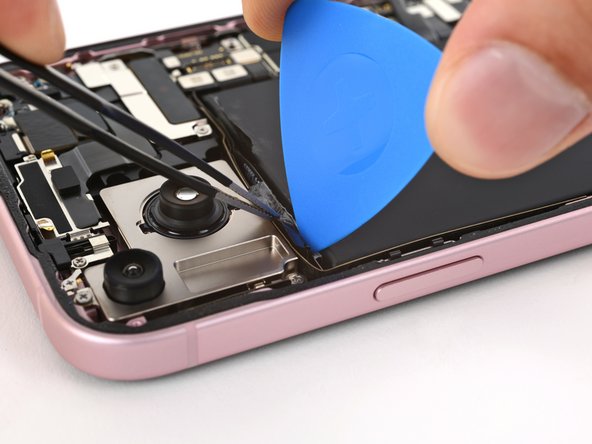
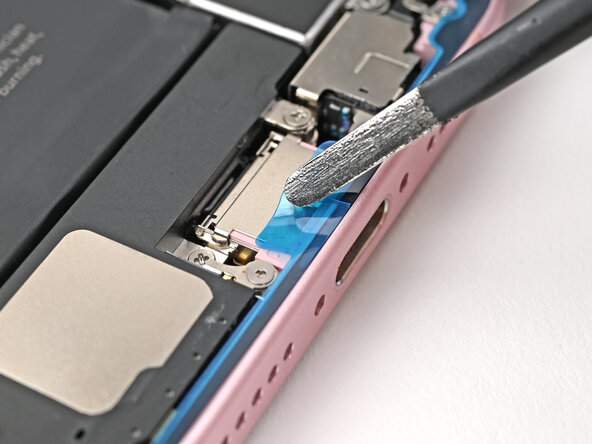
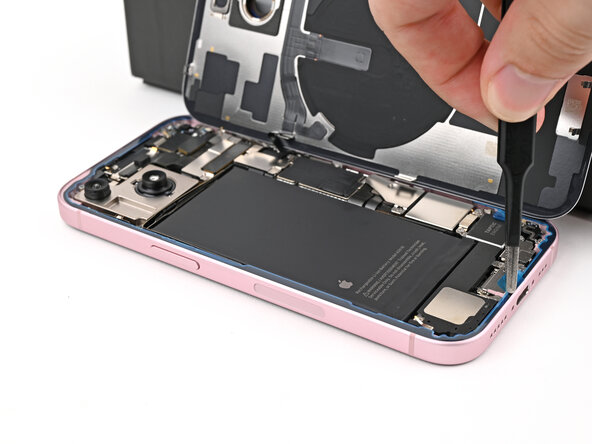
Use the tip of an opening pick to scrape up an edge of each stretch release pull tab from the top of the battery until you can grip the tab with blunt nose tweezers.
-
-
-
Use blunt nose tweezers to grip a pull tab and peel it from the battery.
-
Repeat for the other pull tab.
-
-
-
Hold one of the pull tabs away from the battery with tweezers.
-
Use an opening pick to slice the adhesive securing the strip to the top edge of the battery.
-
Repeat for the other pull tab.
-
-
-
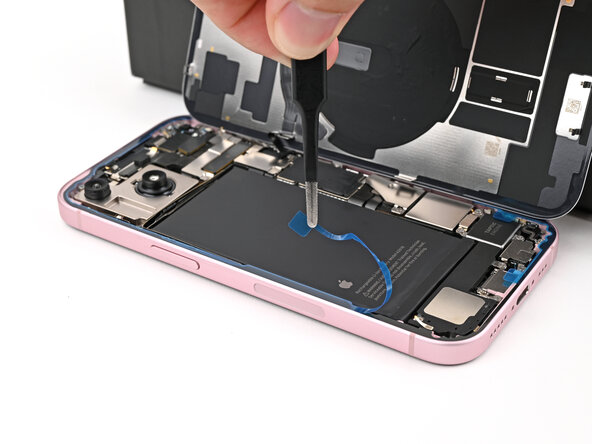
Use your blunt nose tweezers to grip the entire length of an adhesive strip's pull tab.
-
Twist your tweezers to roll the adhesive strip over itself and pull it slowly, evenly, and at a low angle out from under the battery.
-
Repeat for the other strip.
-
-
-
Prop up the right edge of the phone (the side with the volume buttons).
-
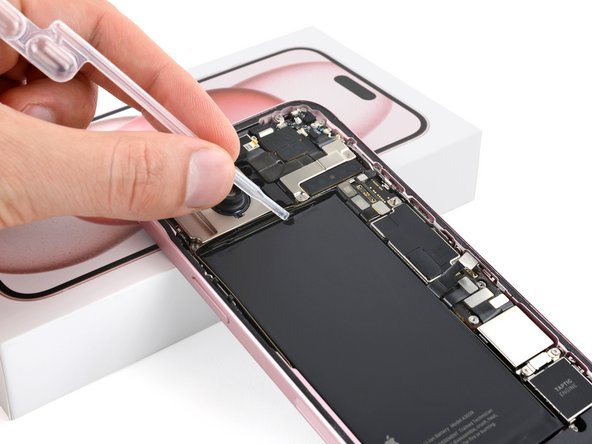
Use a pipette or syringe to apply a few drops of highly-concentrated isopropyl alcohol (over 90%) to the inside edge of the battery.
-
Prop up the top edge of the phone and repeat this for the upper edge of the battery.
-
Wait one minute for the isopropyl alcohol to flow under the battery and soften the adhesive.
-
-
Strumento utilizzato in questo passaggio:Plastic Cards$2.99
-
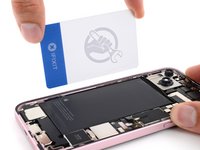
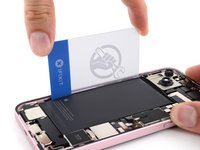
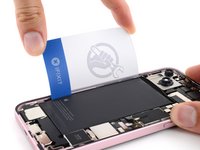
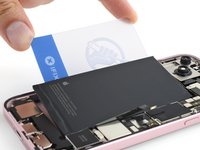
Insert the long edge of a plastic card between the left edge of the battery and the frame.
-
Hold the phone steady and pry the battery up.
-
-
-
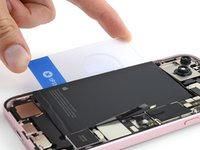
Slide the plastic card deeper under the battery until you can pry it up.
-
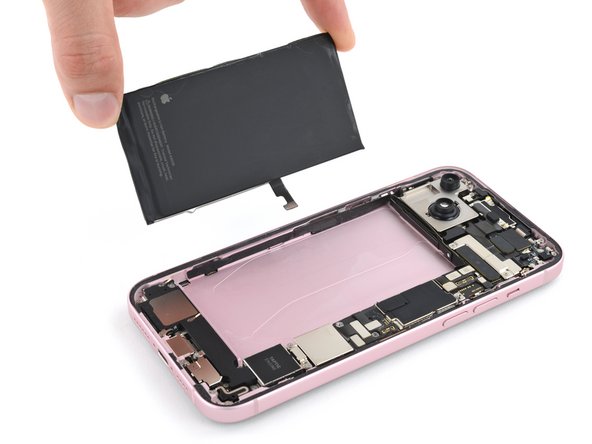
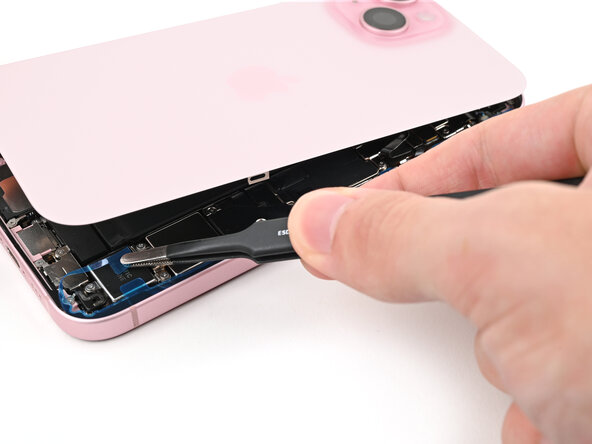
Lift the battery until you can grab it with your fingers.
-
-
-
Congratulations on completing disassembly! The remaining steps will show you how to reassemble your device.
-
-
-
If there's any large pieces of residual battery adhesive remaining, use a pair of tweezers to peel them off the iPhone frame.
-
Use coffee filters or a lint‑free cloth and high‑concentration (>90%) isopropyl alcohol to wipe off any remaining battery adhesive residue from the iPhone frame.
-
-
-
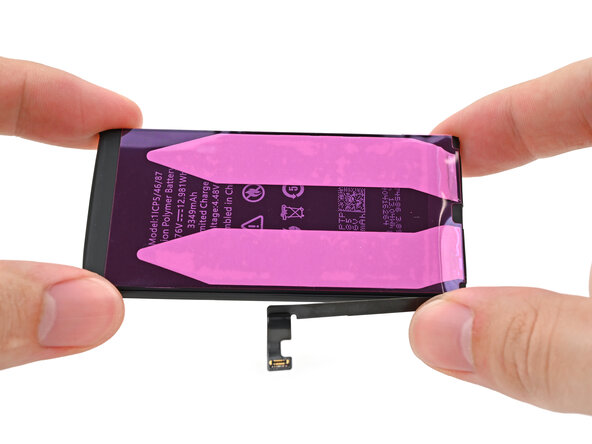
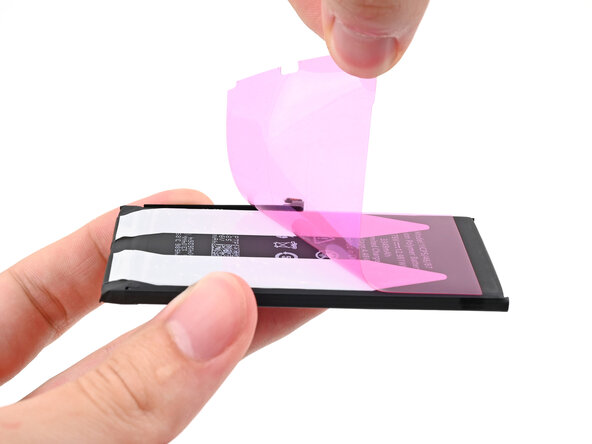
If your replacement battery comes with a plastic sleeve, peel it off and remove it.
-
-
-
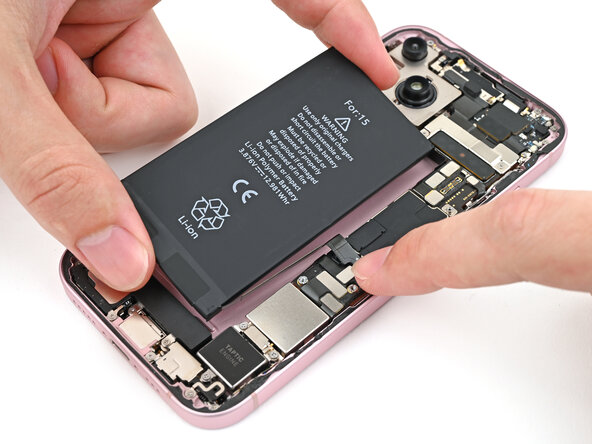
Hold the battery over its place in the iPhone and connect its press connector.
-
With the battery connected, lower it into place and use your fingers to press it into the frame.
-
After the battery is set, use the tip of a spudger to pry up and disconnect the battery cable press connector.
-
-
-
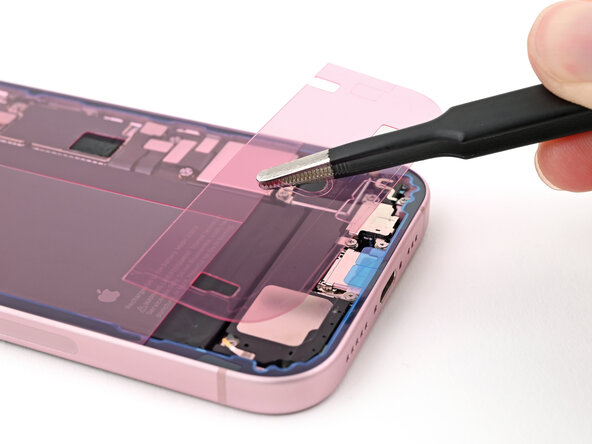
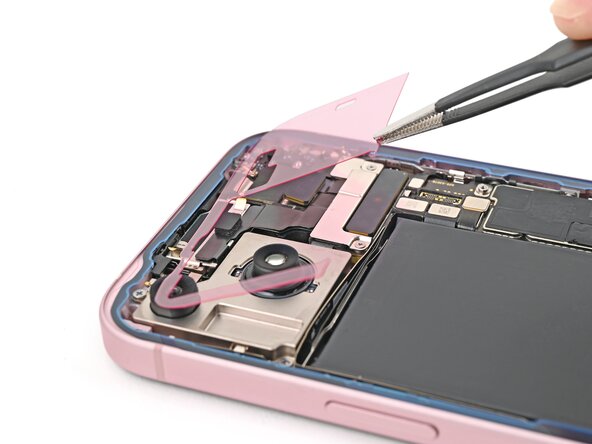
Use the pointed end of a spudger to press and roll the adhesive until you can grip it with a pair of tweezers.
-
Use the tweezers to pull the adhesive off of the phone.
-
-
-
Wrap a microfiber or lint-free cloth around the pointed end of a spudger and apply a few drops of high-concentration (greater than 90%) isopropyl alcohol to the cloth.
-
Wipe in one direction along the perimeter of the frame to clean the adhesive residue.
-
Wait a few minutes before proceeding to make sure any excess alcohol has evaporated.
-
-
-
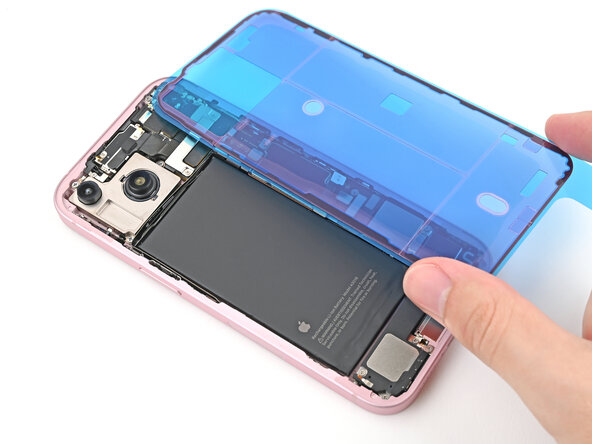
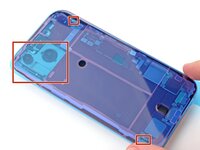
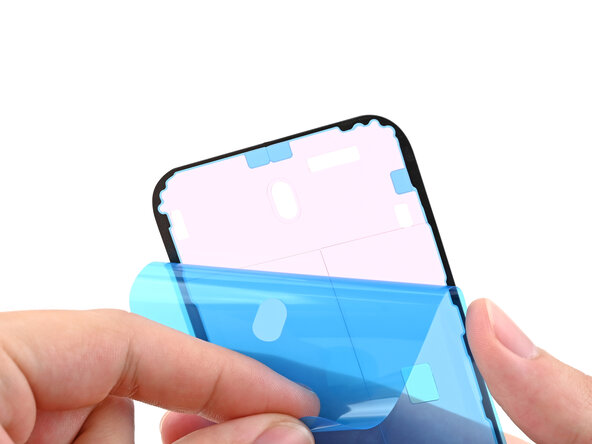
Lay the adhesive next to the phone and use features like cutouts for spring contacts and the rear camera to make sure the adhesive is oriented correctly.
-
-
-
Use the pull tab to begin peeling the back liner off the adhesive starting from the bottom, but don't remove the liner all the way.
-
Hold the liner out of the way and align the adhesive with the bottom edge of the iPhone.
-
Lay the bottom edge of the adhesive into its recess in the frame, making sure the iPhone's spring contacts are aligned with their cutouts in the liner.
-
-
-
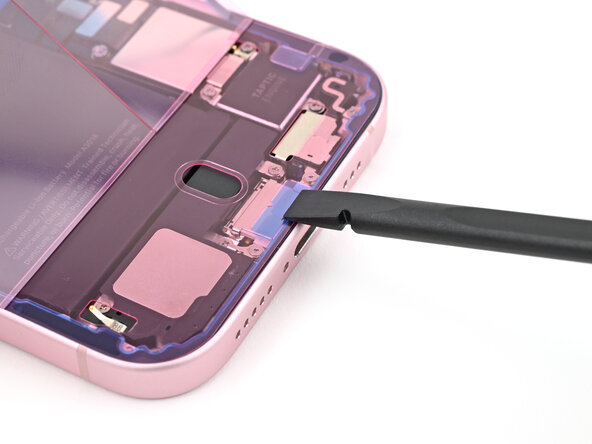
When the adhesive is aligned, use the flat end of a spudger or your finger to press it down firmly along the bottom edge.
-
-
-
Continue peeling the back liner off of the adhesive while pressing the adhesive into place along the edges of the iPhone's frame.
-
-
-
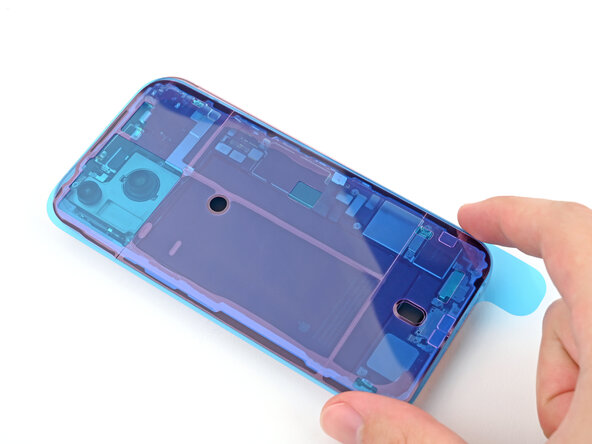
Make sure the liner is aligned properly by checking that all spring contacts and the rear camera are in their cutouts. If they aren't, remove the adhesive and start over with a new sheet.
-
Use the flat end of a spudger to press the adhesive into place around the perimeter of the frame.
-
-
-
Prop up the back glass along the right edge of the iPhone, using a box or similar sturdy object to support the screen.
-
Use the flat end of a spudger or your finger to connect the wireless charging coil press connector, then the battery press connector.
-
-
-
Place the middle connector cover over the wireless charging coil press connector so it slightly overhangs the slot on the logic board for the bottom clip.
-
-
-
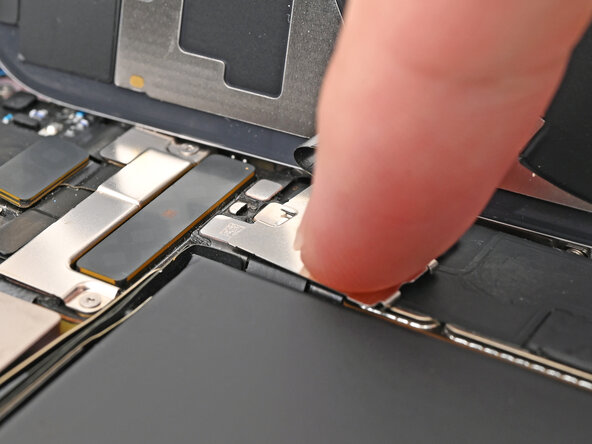
Use your finger to press the cover down on the logic board.
-
While pressing it down, slide the cover upward so both metal clips slot into their spots in the logic board.
-
-
-
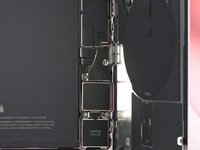
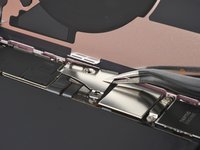
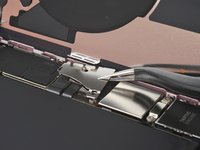
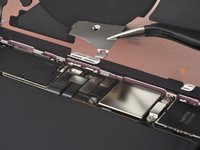
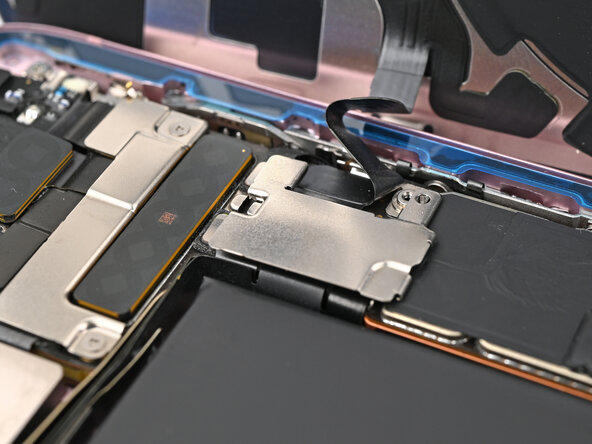
Use tweezers to hook the top of the lower connector cover into its slot on the logic board.
-
Lay the lower connector cover over the press connectors.
-
-
-
Use a tri-point Y000 screwdriver to install the 0.9 mm‑long screw securing the middle connector cover.
-
Use a tri-point Y000 screwdriver to install the two 1.3 mm‑long screws securing the lower connector cover.
-
-
-
Use tweezers or your fingers to separate the pull tabs at the bottom of the frame, near the charging port.
-
-
-
Remove the narrow liner covering the adhesive along the left and top edges of the frame.
-
-
-
Hold the back glass over the phone without letting it touch the adhesive, so you can access the remaining liners along the right edge of the phone.
-
Use a pair of tweezers or your fingers to remove the remaing liners along the right edge of the phone.
-
-
-
Lay the back glass straight down onto the frame and press until the clips engage.
-
Press around the perimeter of the back glass to engage all the clips.
-
-
-
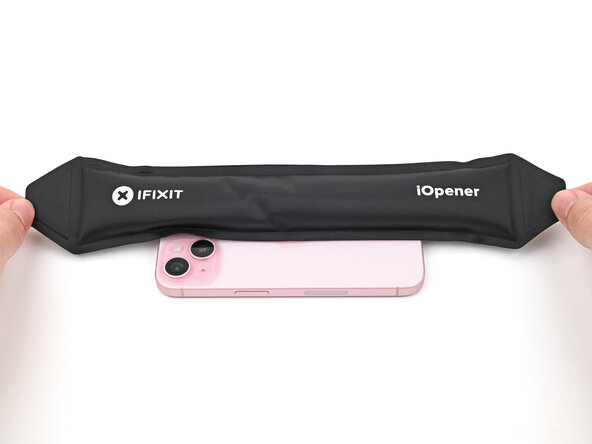
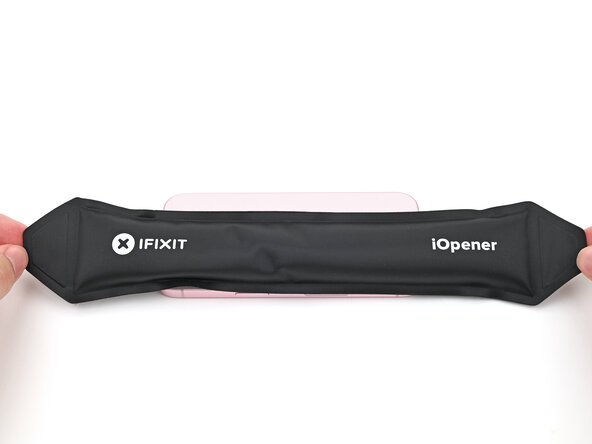
To help the adhesive bond, apply heat to the edges of the back glass using an iOpener, hair dryer, or heat gun until it's hot to the touch.
-
Firmly press around the perimeter of the back glass. If you have screen vise clamps, use them to strengthen the bond of your new adhesive. If not, keep reading for more ways to secure the back glass.
-
-
-
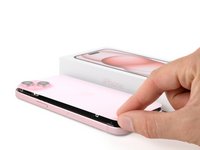
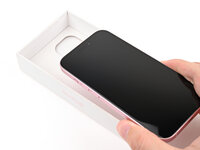
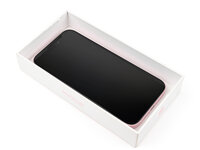
If you have the box your iPhone came in, take the lid and place it on a flat surface.
-
Place your iPhone screen-side-up in the lid of your box with the camera bump in its recess.
-
Find something close to the size of your iPhone, but taller than the sides of the box. Stack it on top of the iPhone, followed by a few heavy objects.
-
Leave the objects in place for at least thirty minutes. The lighter the objects, the longer they should be left. Ideally, leave them stacked overnight.
-
-
-
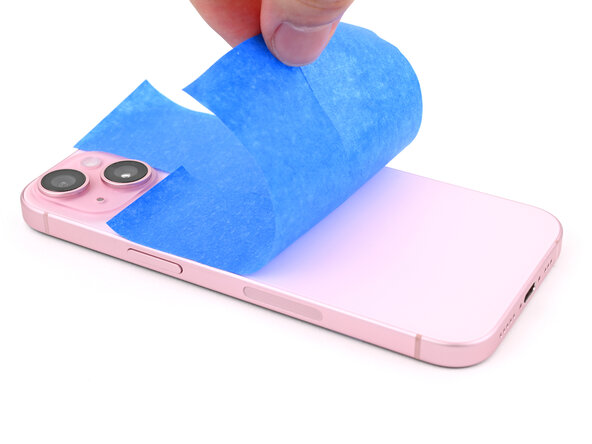
Place the iPhone screen-side-down on a soft, flat surface.
-
Apply tape to the back glass to protect its finish.
-
-
-
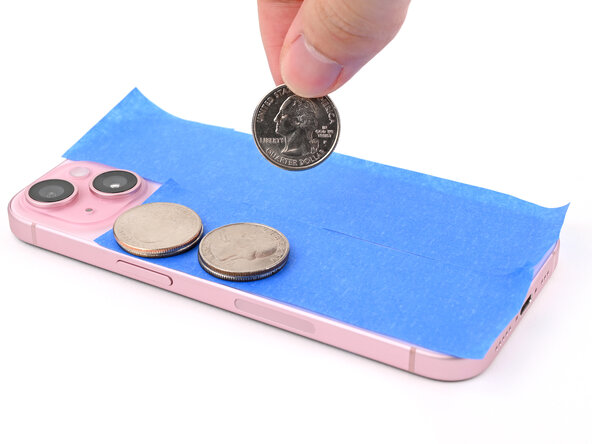
Place evenly spaced layers of coins or similarly thick objects on the tape along the edges of the back glass.
-
Stack them to a consistent height taller than the camera bump.
-
-
-
Stack multiple books or other heavy objects on your iPhone.
-
Leave the objects in place for at least thirty minutes. The lighter the objects, the longer they should be left. Ideally, leave them stacked overnight.
-
-
-
Use a P2 pentalobe driver to install the two 7.7 mm‑long screws on either side of the charging port.
-



































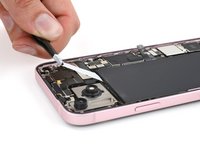

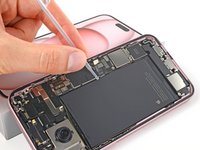
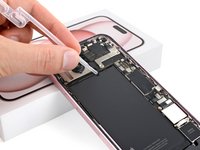










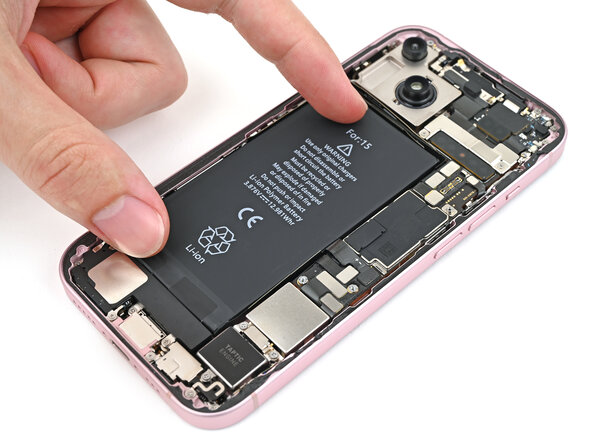


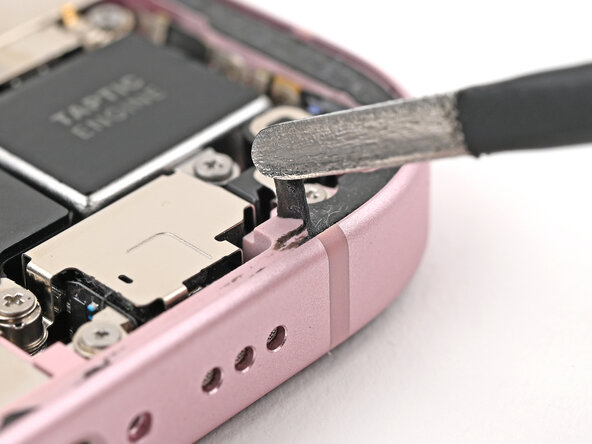

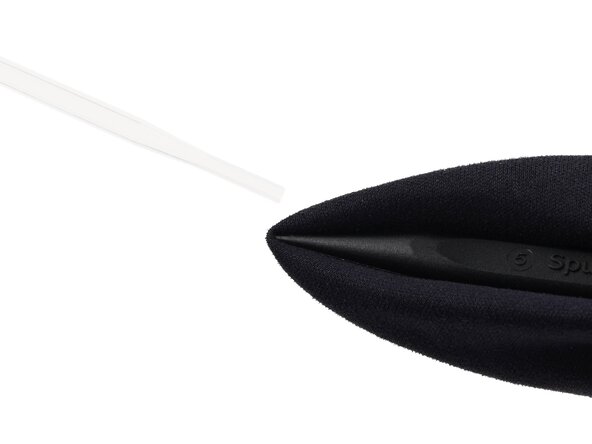







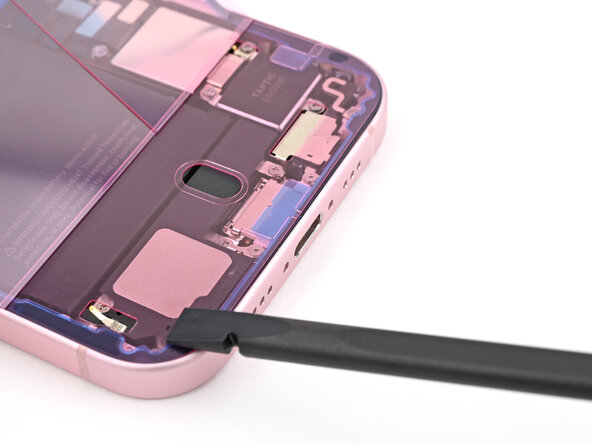


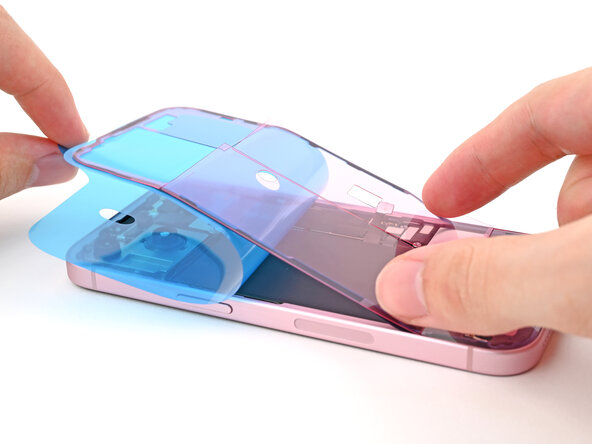

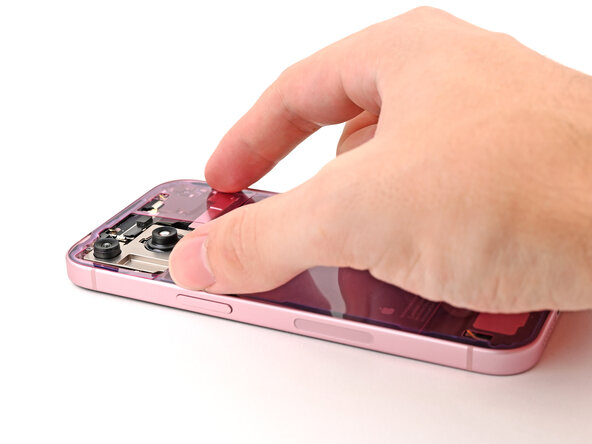


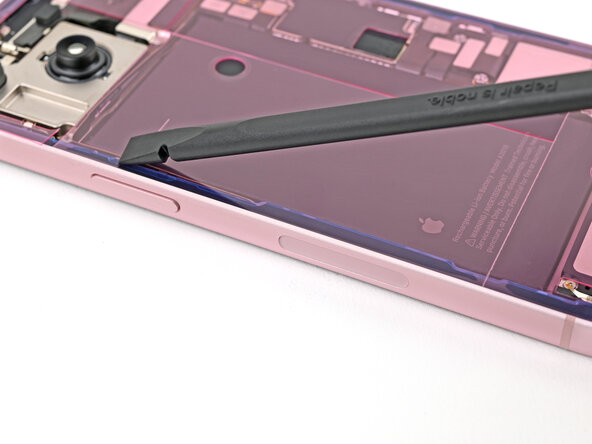





























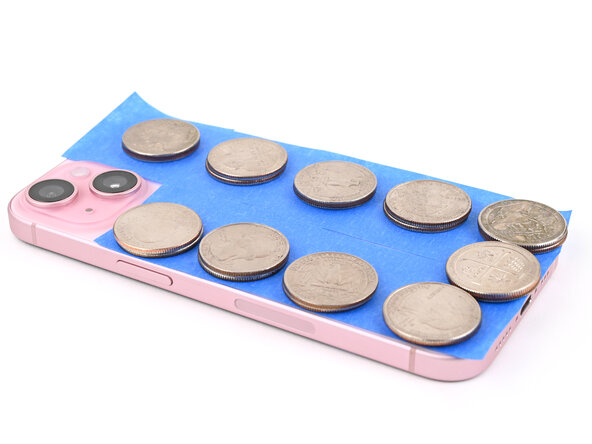
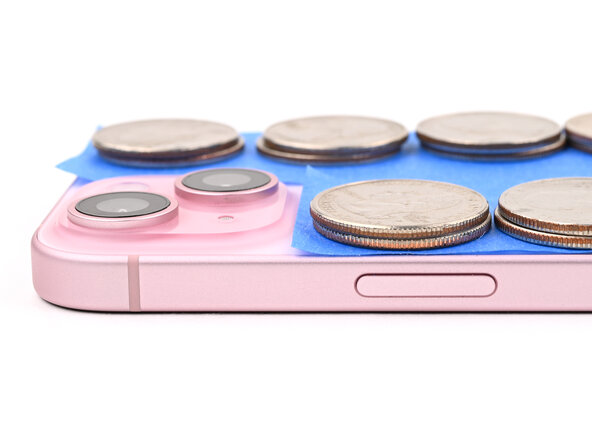





After your repair, depending on the replacement part, you may be able to calibrate it using Apple's Repair Assistant, available as of iOS 18. Update your device, navigate to Settings → General →About → Parts & Service History, tap Restart & Finish Repair, and follow the onscreen prompts.
For optimal performance, calibrate your newly installed battery after completing this guide.
Take your e-waste to an R2 or e-Stewards certified recycler.
Repair didn’t go as planned? Try some basic troubleshooting, or ask our Answers community for help.
Annulla: non ho completato questa guida.
Altre 10 persone hanno completato questa guida.

Team

3Commenti sulla guida
I guess I don't get the rationale here. We come to iFixit, ostensibly to save money. Apple will replace the battery of virtually any iPhone for $69-$99, right? So, I buy an iFixit battery kit for $50. Then I have to purchase a heat gun or hair dryer, another $20-$25, then the back panel adhesive (which I can't find here for a 15 plus), so that's another $6, then I possibly need some 90% isopropyl alcohol for the battery adhesive (which is also a run to a store with time and money spent), and those things alone come to $85-$90. Which brings me to the point: Why would I bother to do a 1 hour (minimum) repair with all the fiddlies, and all the possibility of messing it up, when for about $10 service cost above the iFixit cost, I can just have a CERTIFIED GUARANTEED repair done at Apple. Right?
Everyone has a hair dryer in the house. And the apple repair is mor like 99 than 69, at least in my country. And I would pay no problem but they expect me to leave the phone and after that they order the battery and until it is delivered and repaired it takes a total of 10 days or so time where I don’t have my phone. Last time I just bought a new phone because of this but I got the ifixit battery replaced for a friend and he was very happy that it took 2 hours and he has the phone available same day. So yea… maybe it is not for you but it certainly is for a lot of people. Thank you ifixit for having an alternative.
So, do I not need to order a new adhesive seal for the back glass when my device is reassembled?
How about Step 19? Those photos don’t clearly illustrate the process of sliding that bracket up to remove it? Please be more clear with your photos if there is a specific “process” to be followed. You did a great job a few steps later with the other bracket.
I’ve done this before so it won’t be so confusing, but, I can imagine someone who’s never done this being super confused and worried they’re going to mess up their iPhone because of us unclear instructions.
To those saying this saves you no money due to the tools - fine, don’t do it. Go pay Apple extra $50 to have them do it. The tools that come with this kit are practically given away compared to the price of a battery alone and the heat gun or hair dryer can easily be substituted with anything that can heat up enough to soften the adhesive. I’ve used heating pads and microwaveable rice bags to do this.
Just read the instructions, be patient, and GO SLOW.
