Salta al contenuto principale
Unisciti alla Community delle riparazioni - Crea un account

Google Pixel 7 Pro Motherboard Replacement

Cosa ti serve

  1. Google Pixel 7 Pro Motherboard Replacement, Safety precautions: passo 1, immagine 1 di 2 Google Pixel 7 Pro Motherboard Replacement, Safety precautions: passo 1, immagine 2 di 2
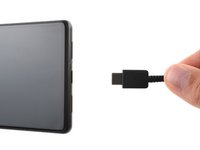
    • Allow your battery to drain below 25% before starting this repair. A charged battery may catch fire if damaged.

    • Fully power off your phone and unplug any cables.

    Chiedi a FixBot

    Aggiungi Commento

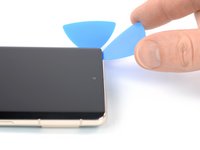
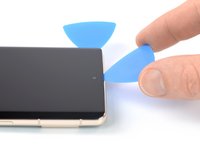
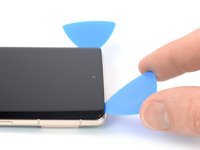
  2. Google Pixel 7 Pro Motherboard Replacement, Screen removal information: passo 2, immagine 1 di 3 Google Pixel 7 Pro Motherboard Replacement, Screen removal information: passo 2, immagine 2 di 3 Google Pixel 7 Pro Motherboard Replacement, Screen removal information: passo 2, immagine 3 di 3
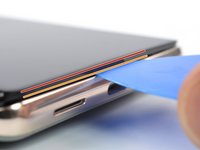
    • The screen of the Google Pixel 7 Pro is held in place by plastic clips and adhesive. Note the following:

    • Screen seam: This seam separates the screen from the rest of the phone. Do not pry at this seam.

    • Bezel seam: This is where the plastic bezel designed to protect the screen meets the frame. It's held in place by plastic clips. This is where you should pry.

    • During the removal procedure, make sure to insert your opening picks in the right position to avoid separating the screen from its safety frame.

    • Only insert the pick up to ~3.5 mm during the removal procedure to avoid damaging the internals and to avoid interfering with the plastic clips.

    • There are several plastic clips around the whole screen. If your opening pick gets blocked during the screen removal procedure, you've inserted your pick too deep underneath the screen.

    Chiedi a FixBot

    Aggiungi Commento

  3. Google Pixel 7 Pro Motherboard Replacement, Anti-Clamp instructions: passo 3, immagine 1 di 3 Google Pixel 7 Pro Motherboard Replacement, Anti-Clamp instructions: passo 3, immagine 2 di 3 Google Pixel 7 Pro Motherboard Replacement, Anti-Clamp instructions: passo 3, immagine 3 di 3
    Strumento utilizzato in questo passaggio:
    Clampy - Anti-Clamp
    $24.95
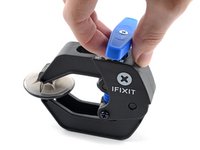
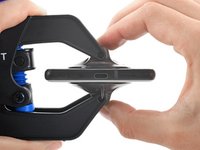
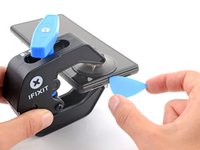
    • The next three steps demonstrate the Anti-Clamp, a tool we designed to make the opening procedure easier. If you aren't using the Anti-Clamp, skip down three steps for an alternate method.

    • For complete instructions on how to use the Anti-Clamp, check out this guide.

    • If your screen is cracked, cover it with a layer of clear packing tape to help the suction cup adhere.

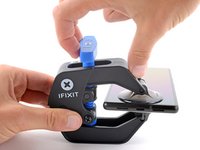
    • Pull the blue handle backwards to unlock the Anti-Clamp's arms.

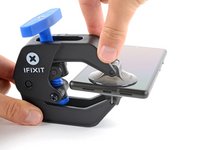
    • Slide the arms over either the left or right edge of your phone.

    • Position the suction cups near the bottom edge of the phone—one on the front, and one on the back.

    • Squeeze the cups together to apply suction.

    • If you find that the surface of your phone is too slippery for the Anti-Clamp to hold onto, you can use tape to create a grippier surface.

    Chiedi a FixBot

    Aggiungi Commento

  4. Google Pixel 7 Pro Motherboard Replacement: passo 4, immagine 1 di 3 Google Pixel 7 Pro Motherboard Replacement: passo 4, immagine 2 di 3 Google Pixel 7 Pro Motherboard Replacement: passo 4, immagine 3 di 3
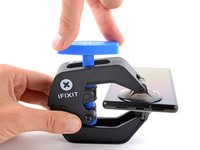
    • Pull the blue handle forward to lock the arms.

    • Turn the handle clockwise 360 degrees or until the cups start to stretch.

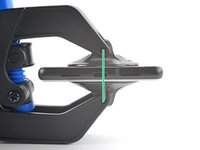
    • Make sure the suction cups remain aligned with each other. If they begin to slip out of alignment, loosen the suction cups slightly and realign the arms.

    Chiedi a FixBot

    Aggiungi Commento

  5. Google Pixel 7 Pro Motherboard Replacement: passo 5, immagine 1 di 3 Google Pixel 7 Pro Motherboard Replacement: passo 5, immagine 2 di 3 Google Pixel 7 Pro Motherboard Replacement: passo 5, immagine 3 di 3
    • Heat an iOpener and thread it through the arms of the Anti-Clamp.

    • You can also use a hair dryer or heat gun—but extreme heat can damage the display and/or internal battery, so proceed with care.

    • Fold the iOpener so it lays on the bottom edge of the phone.

    • Wait one minute to give the adhesive a chance to release and present an opening gap.

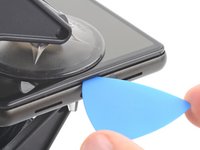
    • Insert an opening pick under the screen frame when the Anti-Clamp creates a large enough gap.

    • If the Anti-Clamp doesn't create a sufficient gap, apply more heat to the area and rotate the handle clockwise half a turn.

    • Don't crank more than a half a turn at a time, and wait one minute between turns. Let the Anti-Clamp and time do the work for you.

    • Skip the next two steps.

    Chiedi a FixBot

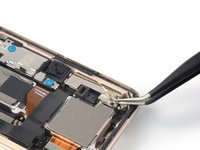
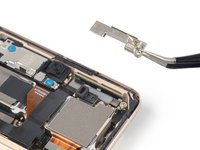
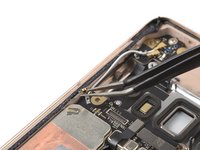
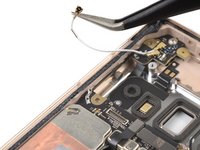
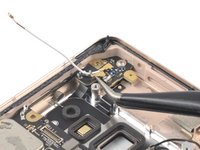
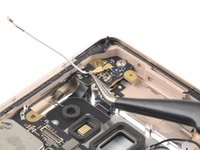
    Aggiungi Commento

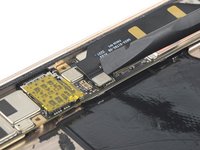
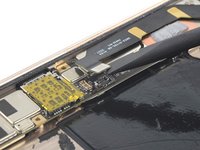
  6. Google Pixel 7 Pro Motherboard Replacement, Loosen the display adhesive: passo 6, immagine 1 di 1
    • Apply a heated iOpener to the screen to loosen the adhesive underneath. Apply the iOpener for at least 3 minutes.

    • A hair dryer, heat gun, or hot plate may also be used, but be careful not to overheat the device. The edge should feel slightly too hot to the touch.

    Chiedi a FixBot

    Aggiungi Commento

  7. Google Pixel 7 Pro Motherboard Replacement, Insert an opening pick: passo 7, immagine 1 di 3 Google Pixel 7 Pro Motherboard Replacement, Insert an opening pick: passo 7, immagine 2 di 3 Google Pixel 7 Pro Motherboard Replacement, Insert an opening pick: passo 7, immagine 3 di 3
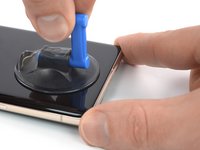
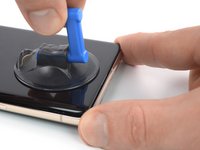
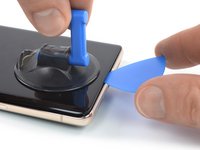
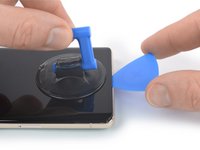
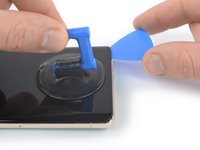
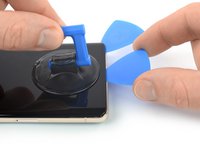
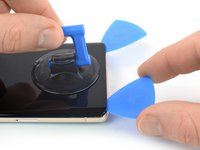
    • Once the screen is warm to the touch, apply a suction handle to the bottom edge of the screen.

    • If your display is badly cracked, covering it with a layer of clear packing tape may allow the suction cup to adhere. Alternatively, very strong tape may be used instead of the suction cup. If all else fails, you can superglue the suction cup to the broken screen.

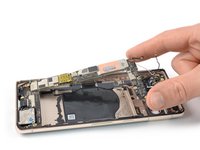
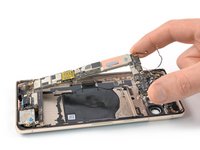
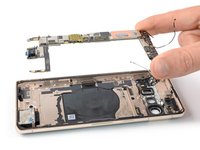
    • Lift the screen including its safety frame with the suction handle to create a small gap between the screen and the phone assembly.

    • Depending on the age of your phone, this may be difficult. If you're having trouble, apply more heat to the bottom edge and try again.

    • Insert an opening pick into the gap.

    Chiedi a FixBot

    Aggiungi Commento

  8. Google Pixel 7 Pro Motherboard Replacement, Prevent damage to your phone: passo 8, immagine 1 di 2 Google Pixel 7 Pro Motherboard Replacement, Prevent damage to your phone: passo 8, immagine 2 di 2
    • To avoid damaging your phone, don't insert your pick more than ~2.5 mm as you separate the screen adhesive. Note the following areas:

    • The screen cable is a little less than halfway up the left edge of the phone. Be very careful here to avoid tearing the cable.

    • There are many spring contacts around the perimeter of the phone. Be very careful in these areas to avoid bending the contacts.

    Chiedi a FixBot

    Aggiungi Commento

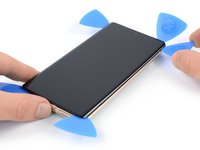
  9. Google Pixel 7 Pro Motherboard Replacement, Slice the bottom edge adhesive: passo 9, immagine 1 di 2 Google Pixel 7 Pro Motherboard Replacement, Slice the bottom edge adhesive: passo 9, immagine 2 di 2
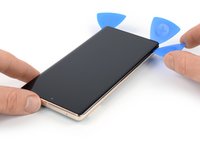
    • Slide the opening pick to the bottom right corner of the screen to slice its adhesive.

    • Leave the opening pick in place to prevent the adhesive from resealing.

    Chiedi a FixBot

    Aggiungi Commento

  10. Google Pixel 7 Pro Motherboard Replacement: passo 10, immagine 1 di 2 Google Pixel 7 Pro Motherboard Replacement: passo 10, immagine 2 di 2
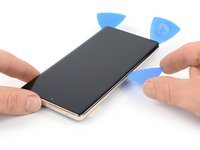
    • Insert a second opening pick at the bottom edge and slide it to the bottom left corner of the screen to slice the adhesive.

    • Leave the opening pick in place to prevent the adhesive from resealing.

    • There's a plastic clip in the bottom left corner that will block your opening pick. Only use the tip of the opening pick (~1 mm) to work your way around it.

    Chiedi a FixBot

    Aggiungi Commento

  11. Google Pixel 7 Pro Motherboard Replacement, Release the left clips: passo 11, immagine 1 di 3 Google Pixel 7 Pro Motherboard Replacement, Release the left clips: passo 11, immagine 2 di 3 Google Pixel 7 Pro Motherboard Replacement, Release the left clips: passo 11, immagine 3 di 3
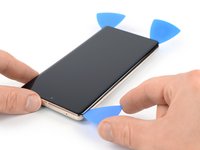
    • Insert a third opening pick underneath the bottom left corner of the screen.

    • Slide the opening pick along the left edge of the screen to slice the adhesive and to release the plastic clips.

    • Leave the opening pick in the top left corner to prevent the adhesive from resealing.

    Chiedi a FixBot

    Aggiungi Commento

  12. Google Pixel 7 Pro Motherboard Replacement, Slice the top edge adhesive: passo 12, immagine 1 di 3 Google Pixel 7 Pro Motherboard Replacement, Slice the top edge adhesive: passo 12, immagine 2 di 3 Google Pixel 7 Pro Motherboard Replacement, Slice the top edge adhesive: passo 12, immagine 3 di 3
    • If the adhesive becomes hard to cut, it has most likely cooled down. Use your iOpener or heat gun for 1-2 minutes to reheat it.

    • When you slice near the front facing camera, insert only the tip of the opening pick (~2.5 mm) to avoid damaging or smearing the camera.

    • Insert a fourth opening pick at the top left corner of the screen.

    • Slide the opening pick along the top edge of the phone to slice the adhesive.

    • Leave the opening pick in the top right corner to prevent the adhesive from resealing.

    Chiedi a FixBot

    Aggiungi Commento

  13. Google Pixel 7 Pro Motherboard Replacement, Release the right clips: passo 13, immagine 1 di 3 Google Pixel 7 Pro Motherboard Replacement, Release the right clips: passo 13, immagine 2 di 3 Google Pixel 7 Pro Motherboard Replacement, Release the right clips: passo 13, immagine 3 di 3
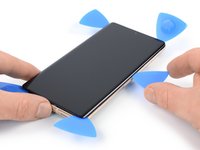
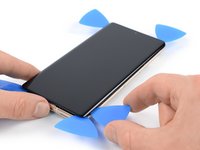
    • Insert a fifth opening pick and slide it along the right edge of the phone to slice the remaining adhesive and release the right plastic clips.

    • Do not try to remove the display all the way yet, the screen is still connected to the phone assembly by a flex cable.

    Chiedi a FixBot

    Aggiungi Commento

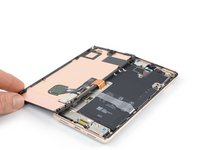
  14. Google Pixel 7 Pro Motherboard Replacement, Open up the phone: passo 14, immagine 1 di 3 Google Pixel 7 Pro Motherboard Replacement, Open up the phone: passo 14, immagine 2 di 3 Google Pixel 7 Pro Motherboard Replacement, Open up the phone: passo 14, immagine 3 di 3
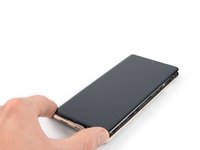
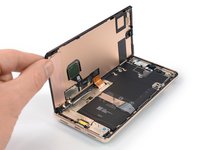
    • Lift the right edge of the screen up and towards the left side of the device, like opening a book.

    • Don't twist the screen or move it too far away from the frame to avoid straining or damaging the flex cable.

    • Rest the screen upside down and parallel to the frame.

    Chiedi a FixBot

    Aggiungi Commento

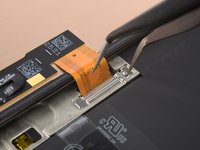
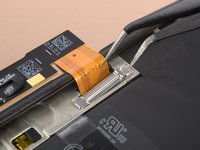
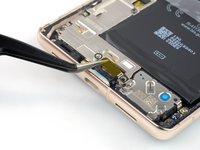
  15. Google Pixel 7 Pro Motherboard Replacement, Release the display cable bracket: passo 15, immagine 1 di 2 Google Pixel 7 Pro Motherboard Replacement, Release the display cable bracket: passo 15, immagine 2 di 2
    Strumento utilizzato in questo passaggio:
    Tweezers
    $4.99
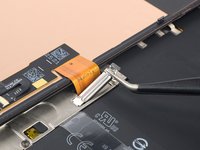
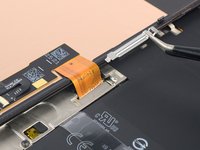
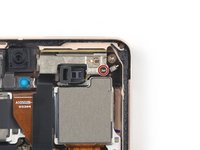
    • The display cable bracket sits tightly and requires some force to release it.

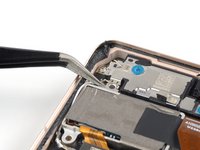
    • Insert one arm of a pair of tweezers into the opening at the upper end of the display cable bracket.

    • Push the bracket inwards and pry up to release it.

    Chiedi a FixBot

    Aggiungi Commento

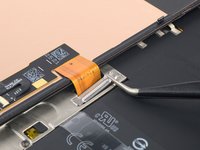
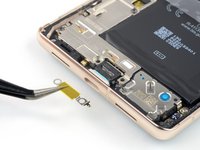
  16. Google Pixel 7 Pro Motherboard Replacement, Remove the display cable bracket: passo 16, immagine 1 di 3 Google Pixel 7 Pro Motherboard Replacement, Remove the display cable bracket: passo 16, immagine 2 di 3 Google Pixel 7 Pro Motherboard Replacement, Remove the display cable bracket: passo 16, immagine 3 di 3
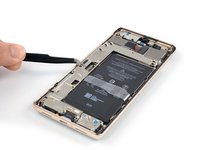
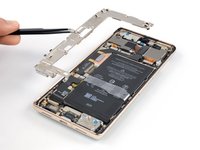
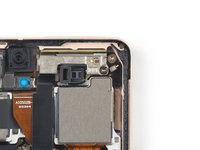
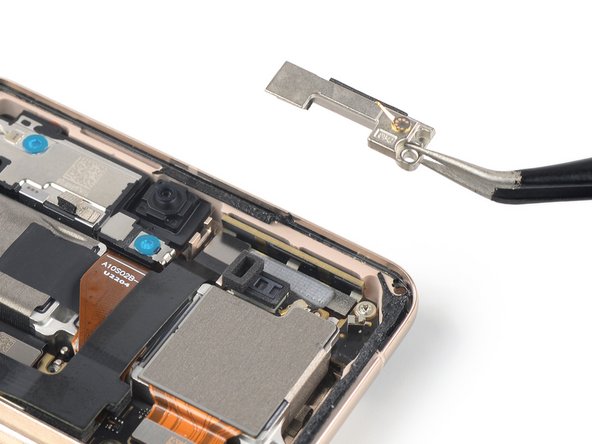
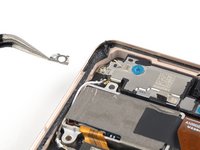
    • Use a pair of tweezers to remove the display cable bracket by pulling it from underneath the midframe and in direction of the camera.

    Chiedi a FixBot

    Aggiungi Commento

  17. Google Pixel 7 Pro Motherboard Replacement, Disconnect the display cable: passo 17, immagine 1 di 2 Google Pixel 7 Pro Motherboard Replacement, Disconnect the display cable: passo 17, immagine 2 di 2
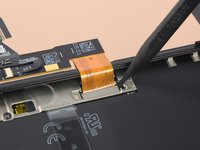
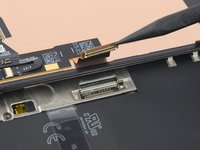
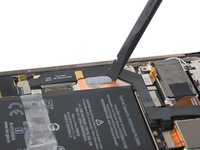
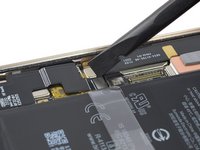
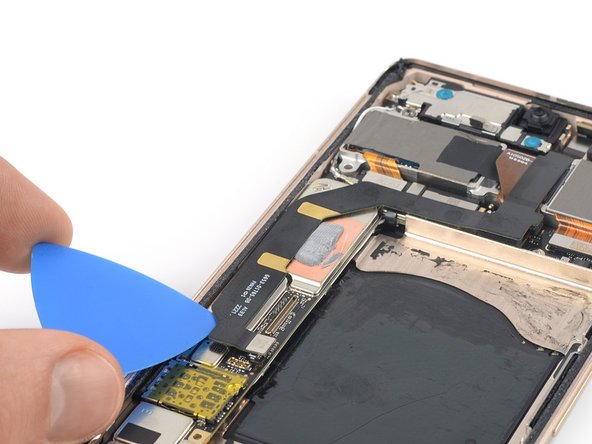
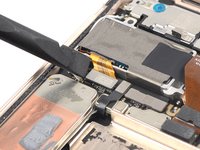
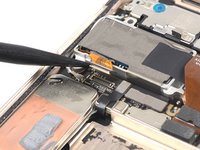
    • Use a spudger to disconnect the display flex cable by prying the connector straight up from its socket.

    • To re-attach press connectors like this one, carefully align and press down on one side until it clicks into place, then repeat on the other side. Do not press down on the middle. If the connector is misaligned, the pins can bend, causing permanent damage.

    Chiedi a FixBot

    Aggiungi Commento

  18. Google Pixel 7 Pro Motherboard Replacement, Screen information: passo 18, immagine 1 di 1
    • The back of the Pixel's screen is very fragile. Even a small scratch or dent can damage the screen.

    • To prevent damaging your screen or replacement screen:

    • When handling your screen, grip it by its edges.

    • When placing the screen on your work area, make sure nothing is touching the bottom of the screen. Consider placing it on a soft, lint-free cloth.

    Chiedi a FixBot

    Aggiungi Commento

  19. Google Pixel 7 Pro Motherboard Replacement, Separate the screen: passo 19, immagine 1 di 1
    • Separate the screen from the phone assembly.

    • During reassembly:

    • Check that all screws are tightened and there are no loose parts.

    • Reconnect the screen and test your phone to make sure it works. Power it back down and continue reassembly.

    • Apply new adhesive where it's necessary after cleaning the relevant areas with isopropyl alcohol (>90%).

    • Follow this guide if you're using custom-cut adhesives for your device.

    • Follow this guide in case you're using a pre-cut adhesive card.

    • During the boot-up process after reassembly, the screen will go through a calibration sequence. Do not touch the screen during this process, as it could result in improper touch calibration and create touch issues.

    Chiedi a FixBot

    Aggiungi Commento

  20. Google Pixel 7 Pro Motherboard Replacement, Peel off the graphite foil: passo 20, immagine 1 di 3 Google Pixel 7 Pro Motherboard Replacement, Peel off the graphite foil: passo 20, immagine 2 di 3 Google Pixel 7 Pro Motherboard Replacement, Peel off the graphite foil: passo 20, immagine 3 di 3
    Strumento utilizzato in questo passaggio:
    Tweezers
    $4.99
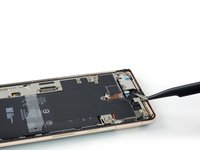
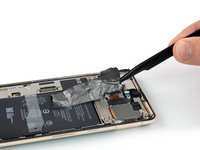
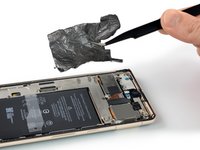
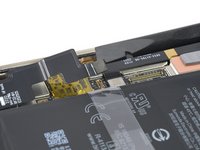
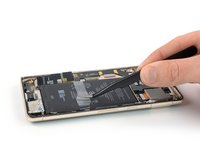
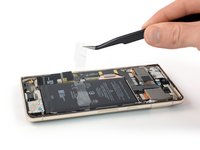
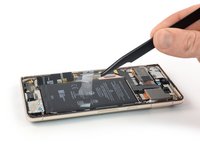
    • Use a pair of tweezers to carefully peel the graphite foil off the battery and midframe.

    • Take care not to puncture or bend the battery with your tool—a punctured or bent battery may leak dangerous chemicals or cause a fire.

    • If you're having a hard time peeling off the foil, you can apply a heated iOpener to the back of the device for two minutes to loosen its adhesive.

    Chiedi a FixBot

    Aggiungi Commento

  21. Google Pixel 7 Pro Motherboard Replacement, Unfasten the charging port bracket screws: passo 21, immagine 1 di 2 Google Pixel 7 Pro Motherboard Replacement, Unfasten the charging port bracket screws: passo 21, immagine 2 di 2
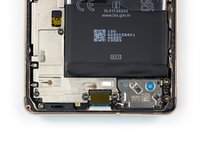
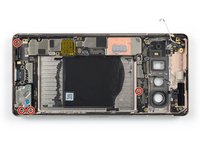
    • Use a Torx T3 screwdriver to remove the two 5.1 mm-long screws securing the charging port bracket.

    Chiedi a FixBot

    Aggiungi Commento

  22. Google Pixel 7 Pro Motherboard Replacement, Remove the charging port bracket: passo 22, immagine 1 di 2 Google Pixel 7 Pro Motherboard Replacement, Remove the charging port bracket: passo 22, immagine 2 di 2
    • Use a pair of tweezers to remove the charging port bracket.

    Chiedi a FixBot

    Aggiungi Commento

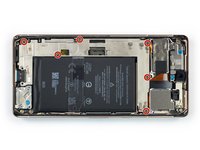
  23. Google Pixel 7 Pro Motherboard Replacement, Unfasten the midframe screws: passo 23, immagine 1 di 2 Google Pixel 7 Pro Motherboard Replacement, Unfasten the midframe screws: passo 23, immagine 2 di 2
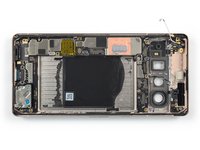
    • Use a Torx T3 screwdriver to remove the six 5.1 mm-long screws securing the midframe.

    Chiedi a FixBot

    Aggiungi Commento

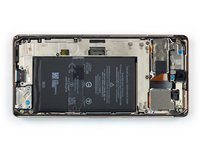
  24. Google Pixel 7 Pro Motherboard Replacement, Remove the midframe: passo 24, immagine 1 di 3 Google Pixel 7 Pro Motherboard Replacement, Remove the midframe: passo 24, immagine 2 di 3 Google Pixel 7 Pro Motherboard Replacement, Remove the midframe: passo 24, immagine 3 di 3
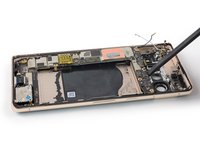
    • Use a pair of tweezers to remove the midframe.

    • During reassembly check the condition of the thermal pad. If it's damaged, remove the pad, clean the area with high-concentration (greater than 90%) isopropyl alcohol and a microfiber or lint-free cloth, and apply a new thermal pad.

    Chiedi a FixBot

    Aggiungi Commento

  25. Google Pixel 7 Pro Motherboard Replacement, Disconnect the battery cable: passo 25, immagine 1 di 2 Google Pixel 7 Pro Motherboard Replacement, Disconnect the battery cable: passo 25, immagine 2 di 2
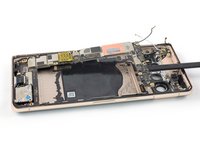
    • Use a spudger to disconnect the battery cable by prying the connector straight up from its socket.

    Chiedi a FixBot

    Aggiungi Commento

  26. Google Pixel 7 Pro Motherboard Replacement, Heat the battery's adhesive: passo 26, immagine 1 di 1
    • Apply a heated iOpener to the back of the device to loosen the adhesive underneath. Apply the iOpener for at least 3 minutes.

    • A hair dryer, heat gun, or hot plate may also be used, but be careful not to overheat the device. The edge should feel slightly too hot to the touch.

    Chiedi a FixBot

    Aggiungi Commento

  27. Google Pixel 7 Pro Motherboard Replacement, Separate the battery pull tabs: passo 27, immagine 1 di 3 Google Pixel 7 Pro Motherboard Replacement, Separate the battery pull tabs: passo 27, immagine 2 di 3 Google Pixel 7 Pro Motherboard Replacement, Separate the battery pull tabs: passo 27, immagine 3 di 3
    Strumento utilizzato in questo passaggio:
    Tweezers
    $4.99
    • Use tweezers, or your fingers, to peel the plastic pull tabs away from the battery.

    Chiedi a FixBot

    Aggiungi Commento

  28. Google Pixel 7 Pro Motherboard Replacement, Separate the battery's adhesive: passo 28, immagine 1 di 1
    • Grip the pull tabs, and slide it up until you can feel it contact adhesive underneath.

    • Lift straight up to pull the battery away from its adhesive.

    • Work slowly. It's easy to lose your grip and accidentally pull the tab up from under the battery. It can be helpful to use gloves for more grip.

    • If you're having difficulty separating the adhesive, apply more heat and wait for the adhesive to loosen.

    • If available, have a friend help hold the phone down while you lift.

    • If you lose or tear the release strip, or the adhesive is too strong, follow the next step for an alternative method.

    Chiedi a FixBot

    Aggiungi Commento

  29. Google Pixel 7 Pro Motherboard Replacement, How to remove a stuck battery: passo 29, immagine 1 di 3 Google Pixel 7 Pro Motherboard Replacement, How to remove a stuck battery: passo 29, immagine 2 di 3 Google Pixel 7 Pro Motherboard Replacement, How to remove a stuck battery: passo 29, immagine 3 di 3
    • Follow this step if you couldn't loosen the battery using the battery release strip.

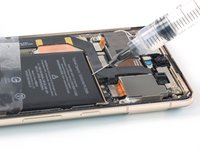
    • Apply a few drops of high concentration (90% or higher) isopropyl alcohol into the gap at the top edge of the battery.

    • Don't apply too much alcohol, or you'll loosen the NFC antenna and charging coil underneath the battery.

    • Wait about one minute for the alcohol solution to weaken the adhesive.

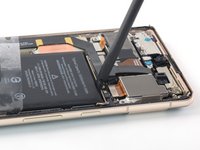
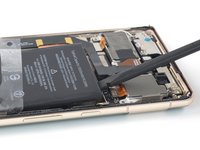
    • Use the flat end of a spudger or an opening pick to gently lift the top edge of the battery until you can grab it with your fingers.

    • Don't use excessive force on the battery. Slow, consistent pressure is all that's required to free it from the frame.

    • Take care not to puncture or bend the battery with your tool—a punctured or bent battery may leak dangerous chemicals or cause a fire.

    Chiedi a FixBot

    Aggiungi Commento

  30. Google Pixel 7 Pro Motherboard Replacement, Remove the battery: passo 30, immagine 1 di 2 Google Pixel 7 Pro Motherboard Replacement, Remove the battery: passo 30, immagine 2 di 2
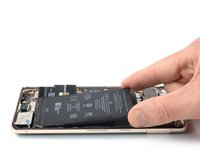
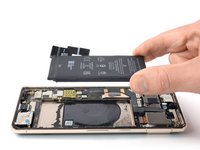
    • Tilt the battery out of the device to separate the rest of the adhesive.

    • Remove the battery.

    • Do not reinstall a damaged or deformed battery, as doing so is a potential safety hazard.

    • To secure the replacement battery:

    • Apply pre-cut adhesive adhesive or double-sided tape to the battery well at the places where the old adhesive was located, not directly onto the battery.

    • Temporarily reconnect the battery to the motherboard to help align it correctly. Disconnect the battery after it's seated.

    • Make sure that the battery sits in the center of the battery well and there's an even gap around the battery.

    • Press the new battery firmly into place.

    Chiedi a FixBot

    Aggiungi Commento

  31. Google Pixel 7 Pro Motherboard Replacement, Unfasten the mmWave antenna bracket screw: passo 31, immagine 1 di 2 Google Pixel 7 Pro Motherboard Replacement, Unfasten the mmWave antenna bracket screw: passo 31, immagine 2 di 2
    • Use a Torx T3 screwdriver to remove the 5.1 mm-long screw securing the mmWave antenna bracket.

    Chiedi a FixBot

    Aggiungi Commento

  32. Google Pixel 7 Pro Motherboard Replacement, Remove the mmWave antenna bracket: passo 32, immagine 1 di 2 Google Pixel 7 Pro Motherboard Replacement, Remove the mmWave antenna bracket: passo 32, immagine 2 di 2
    Strumento utilizzato in questo passaggio:
    Tweezers
    $4.99
    • Use a pair of tweezers to remove the mmWave antenna bracket.

    Chiedi a FixBot

    Aggiungi Commento

  33. Google Pixel 7 Pro Motherboard Replacement, Disconnect the mmWave antenna cable: passo 33, immagine 1 di 2 Google Pixel 7 Pro Motherboard Replacement, Disconnect the mmWave antenna cable: passo 33, immagine 2 di 2
    • Use a spudger to disconnect the mmWave antenna cable by prying the connector straight up from its socket.

    Chiedi a FixBot

    Aggiungi Commento

  34. Google Pixel 7 Pro Motherboard Replacement, Loosen the mmWave antenna cable: passo 34, immagine 1 di 3 Google Pixel 7 Pro Motherboard Replacement, Loosen the mmWave antenna cable: passo 34, immagine 2 di 3 Google Pixel 7 Pro Motherboard Replacement, Loosen the mmWave antenna cable: passo 34, immagine 3 di 3
    • The mmWave antenna cable is held in place by mild adhesive.

    • Slide an opening pick underneath the mmWave antenna cable starting at its bottom end.

    • Use the opening pick to separate the mmWave antenna cable from the motherboard.

    Chiedi a FixBot

    Aggiungi Commento

  35. Google Pixel 7 Pro Motherboard Replacement, Remove the mmWave antenna assembly: passo 35, immagine 1 di 3 Google Pixel 7 Pro Motherboard Replacement, Remove the mmWave antenna assembly: passo 35, immagine 2 di 3 Google Pixel 7 Pro Motherboard Replacement, Remove the mmWave antenna assembly: passo 35, immagine 3 di 3
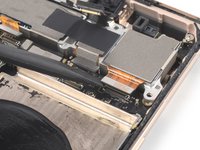
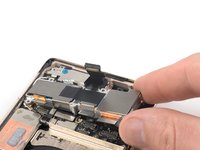
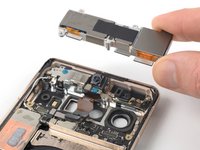
    • Use a pair of tweezers to lift the mmWave antenna including its cable out of its recess.

    • Remove the mmWave antenna assembly.

    Chiedi a FixBot

    Aggiungi Commento

  36. Google Pixel 7 Pro Motherboard Replacement, Remove the thermal paste: passo 36, immagine 1 di 3 Google Pixel 7 Pro Motherboard Replacement, Remove the thermal paste: passo 36, immagine 2 di 3 Google Pixel 7 Pro Motherboard Replacement, Remove the thermal paste: passo 36, immagine 3 di 3
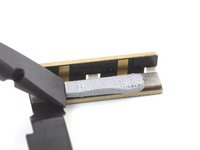
    • Use the flat end of a spudger to scrape the thermal paste off the mmWave antenna.

    • Clean any remaining thermal paste with isopropyl alcohol and either a coffee filter or a lint-free cloth.

    • Repeat the cleaning process for the thermal paste on the mmWave antenna bracket.

    • During reassembly, follow this guide for reapplying thermal paste onto the mmWave antenna.

    Chiedi a FixBot

    Aggiungi Commento

  37. Google Pixel 7 Pro Motherboard Replacement, Unfasten the rear camera assembly screws: passo 37, immagine 1 di 2 Google Pixel 7 Pro Motherboard Replacement, Unfasten the rear camera assembly screws: passo 37, immagine 2 di 2
    • Use a Torx T3 screwdriver to remove the two 5.1 mm-long screws securing the rear camera assembly.

    Chiedi a FixBot

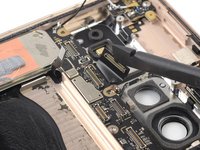
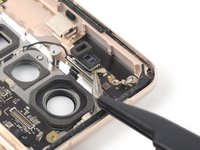
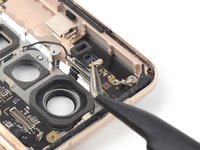
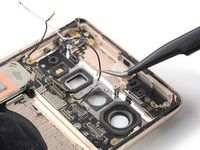
    Aggiungi Commento

  38. Google Pixel 7 Pro Motherboard Replacement, Remove the spring: passo 38, immagine 1 di 2 Google Pixel 7 Pro Motherboard Replacement, Remove the spring: passo 38, immagine 2 di 2
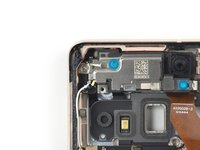
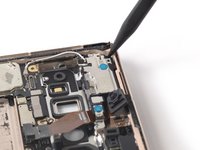
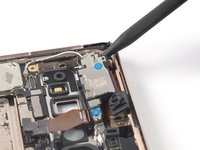
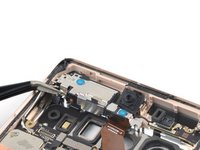
    • Use a pair of tweezers to remove the spring at the top left corner of the rear camera assembly.

    Chiedi a FixBot

    Aggiungi Commento

  39. Google Pixel 7 Pro Motherboard Replacement, Disconnect the telephoto camera cable: passo 39, immagine 1 di 2 Google Pixel 7 Pro Motherboard Replacement, Disconnect the telephoto camera cable: passo 39, immagine 2 di 2
    • Use a spudger to disconnect the telephoto camera cable by prying the connector straight up from its socket.

    Chiedi a FixBot

    Aggiungi Commento

  40. Google Pixel 7 Pro Motherboard Replacement, Disconnect the front facing camera: passo 40, immagine 1 di 2 Google Pixel 7 Pro Motherboard Replacement, Disconnect the front facing camera: passo 40, immagine 2 di 2
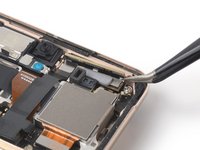
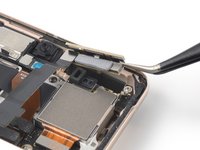
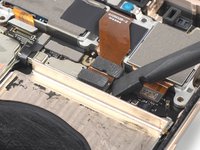
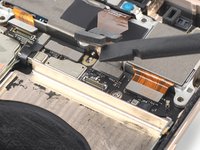
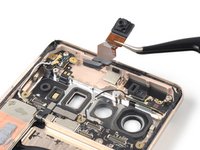
    • Use a spudger to disconnect the front facing camera cable by prying the connector straight up from its socket.

    • Fold the cable upwards to free the rear camera assembly.

    • Do not fold the cable sharply and only bend it to avoid cable damage.

    Chiedi a FixBot

    Aggiungi Commento

  41. Google Pixel 7 Pro Motherboard Replacement, Disconnect the wide and ultrawide lens cables: passo 41, immagine 1 di 3 Google Pixel 7 Pro Motherboard Replacement, Disconnect the wide and ultrawide lens cables: passo 41, immagine 2 di 3 Google Pixel 7 Pro Motherboard Replacement, Disconnect the wide and ultrawide lens cables: passo 41, immagine 3 di 3
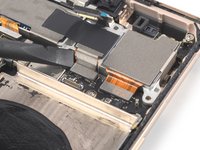
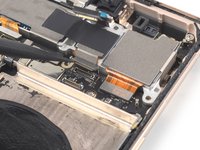
    • Use a spudger to disconnect the wide and ultrawide camera cables by prying the connectors straight up from their sockets.

    Chiedi a FixBot

    Aggiungi Commento

  42. Google Pixel 7 Pro Motherboard Replacement, Remove the rear camera assembly: passo 42, immagine 1 di 2 Google Pixel 7 Pro Motherboard Replacement, Remove the rear camera assembly: passo 42, immagine 2 di 2
    • Remove the rear camera assembly.

    Chiedi a FixBot

    Aggiungi Commento

  43. Google Pixel 7 Pro Motherboard Replacement, Unfasten the earpiece speaker screw: passo 43, immagine 1 di 2 Google Pixel 7 Pro Motherboard Replacement, Unfasten the earpiece speaker screw: passo 43, immagine 2 di 2
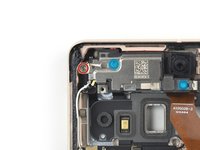
    • Use a Torx T3 screwdriver to remove the 3.1 mm-long screw securing the earpiece speaker.

    Chiedi a FixBot

    Aggiungi Commento

  44. Google Pixel 7 Pro Motherboard Replacement, Loosen the earpiece speaker adhesive: passo 44, immagine 1 di 1
    • Apply a heated iOpener to the camera glass to loosen the adhesive underneath the earpiece speaker. Apply the iOpener for at least 1 minute.

    Chiedi a FixBot

    Aggiungi Commento

  45. Google Pixel 7 Pro Motherboard Replacement, Pry up the earpiece speaker: passo 45, immagine 1 di 2 Google Pixel 7 Pro Motherboard Replacement, Pry up the earpiece speaker: passo 45, immagine 2 di 2
    • Insert the pointed end of a spudger between the top left corner of the earpiece speaker and the frame.

    • Pry upwards to loosen the earpiece speaker.

    Chiedi a FixBot

    Aggiungi Commento

  46. Google Pixel 7 Pro Motherboard Replacement, Remove the earpiece speaker: passo 46, immagine 1 di 2 Google Pixel 7 Pro Motherboard Replacement, Remove the earpiece speaker: passo 46, immagine 2 di 2
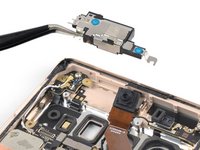
    • Use a pair of tweezers to remove the earpiece speaker.

    Chiedi a FixBot

    Aggiungi Commento

  47. Google Pixel 7 Pro Motherboard Replacement, Remove the front facing camera: passo 47, immagine 1 di 2 Google Pixel 7 Pro Motherboard Replacement, Remove the front facing camera: passo 47, immagine 2 di 2
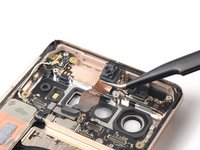
    • Use a pair of tweezers to remove the front facing camera.

    Chiedi a FixBot

    Aggiungi Commento

  48. Google Pixel 7 Pro Motherboard Replacement, Disconnect the white antenna cable: passo 48, immagine 1 di 3 Google Pixel 7 Pro Motherboard Replacement, Disconnect the white antenna cable: passo 48, immagine 2 di 3 Google Pixel 7 Pro Motherboard Replacement, Disconnect the white antenna cable: passo 48, immagine 3 di 3
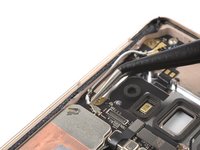
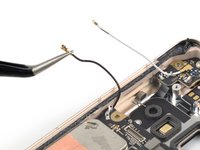
    • Use tweezers to grasp the white antenna cable connector at the top left corner of the motherboard.

    • Grasp the cable as close to the connector as possible to avoid damaging the connector.

    • Lift the coaxial connector straight up to disconnect the white antenna cable.

    • Use your tweezers to carefully loosen the cable from the retaining clips.

    Chiedi a FixBot

    Aggiungi Commento

  49. Google Pixel 7 Pro Motherboard Replacement, Disconnect the black antenna cable on the left: passo 49, immagine 1 di 3 Google Pixel 7 Pro Motherboard Replacement, Disconnect the black antenna cable on the left: passo 49, immagine 2 di 3 Google Pixel 7 Pro Motherboard Replacement, Disconnect the black antenna cable on the left: passo 49, immagine 3 di 3
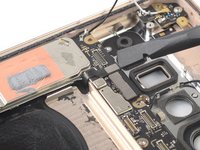
    • Slide a pair of tweezers under the black antenna cable at the left antenna board until they're snug against the metal connector.

    • Lift the coaxial connector straight up to disconnect the black antenna cable.

    • Use your tweezers to carefully loosen the cable from the retaining clips.

    Chiedi a FixBot

    Aggiungi Commento

  50. Google Pixel 7 Pro Motherboard Replacement, Disconnect the NFC antenna cable: passo 50, immagine 1 di 2 Google Pixel 7 Pro Motherboard Replacement, Disconnect the NFC antenna cable: passo 50, immagine 2 di 2
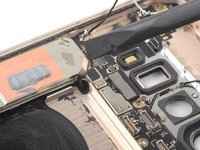
    • Use a spudger to disconnect the NFC antenna cable by prying the connector straight up from its socket.

    Chiedi a FixBot

    Aggiungi Commento

  51. Google Pixel 7 Pro Motherboard Replacement, Disconnect the antenna and microphone interconnect cable: passo 51, immagine 1 di 2 Google Pixel 7 Pro Motherboard Replacement, Disconnect the antenna and microphone interconnect cable: passo 51, immagine 2 di 2
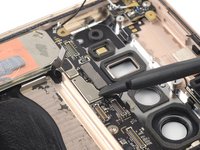
    • Use a spudger to disconnect the antenna and microphone interconnect cable by prying the connector straight up from its socket.

    Chiedi a FixBot

    Aggiungi Commento

  52. Google Pixel 7 Pro Motherboard Replacement, Disconnect the black antenna cable on the right: passo 52, immagine 1 di 3 Google Pixel 7 Pro Motherboard Replacement, Disconnect the black antenna cable on the right: passo 52, immagine 2 di 3 Google Pixel 7 Pro Motherboard Replacement, Disconnect the black antenna cable on the right: passo 52, immagine 3 di 3
    • Slide a pair of tweezers under the black antenna cable at the right antenna board until they're snug against the metal connector.

    • Lift the coaxial connector straight up to disconnect the black antenna cable.

    • Use your tweezers to carefully loosen the cable from the retaining clips.

    Chiedi a FixBot

    Aggiungi Commento

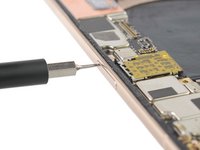
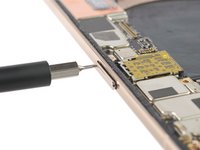
  53. Google Pixel 7 Pro Motherboard Replacement, Eject the SIM card tray: passo 53, immagine 1 di 2 Google Pixel 7 Pro Motherboard Replacement, Eject the SIM card tray: passo 53, immagine 2 di 2
    • Insert a SIM eject tool, bit, or straightened paper clip into the SIM card tray hole.

    • Press the SIM eject tool into the SIM card tray hole to eject the SIM card tray.

    Chiedi a FixBot

    Aggiungi Commento

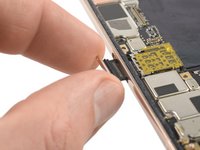
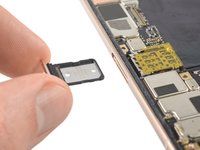
  54. Google Pixel 7 Pro Motherboard Replacement, Remove the SIM card tray: passo 54, immagine 1 di 2 Google Pixel 7 Pro Motherboard Replacement, Remove the SIM card tray: passo 54, immagine 2 di 2
    • Remove the SIM card tray.

    Chiedi a FixBot

    Aggiungi Commento

  55. Google Pixel 7 Pro Motherboard Replacement, Unfasten the motherboard screws: passo 55, immagine 1 di 2 Google Pixel 7 Pro Motherboard Replacement, Unfasten the motherboard screws: passo 55, immagine 2 di 2
    • Use a Torx T3 screwdriver to remove the four 3.1 mm-long screws securing the motherboard.

    Chiedi a FixBot

    Aggiungi Commento

  56. Google Pixel 7 Pro Motherboard Replacement, Pry up the motherboard: passo 56, immagine 1 di 2 Google Pixel 7 Pro Motherboard Replacement, Pry up the motherboard: passo 56, immagine 2 di 2
    • Make sure the motherboard isn't blocked or tangled by any cables during this step.

    • Insert a spudger underneath the top edge of the motherboard.

    • Pry upwards to loosen the motherboard until you can grab it with your fingers.

    Chiedi a FixBot

    Aggiungi Commento

  57. Google Pixel 7 Pro Motherboard Replacement, Remove the motherboard: passo 57, immagine 1 di 3 Google Pixel 7 Pro Motherboard Replacement, Remove the motherboard: passo 57, immagine 2 di 3 Google Pixel 7 Pro Motherboard Replacement, Remove the motherboard: passo 57, immagine 3 di 3
    • Grab the top end of the motherboard with your fingers.

    • Pull the motherboard in direction of the top edge of the frame to free the charging port from its recess.

    • Remove the motherboard.

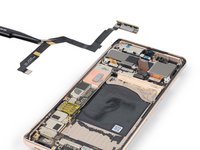
    • Compare your new replacement part to the original part—you may need to transfer components like the antenna cables to your new motherboard.

    Chiedi a FixBot

    Aggiungi Commento

Conclusione

Compare your new replacement part to the original part—you may need to transfer remaining components or remove adhesive backings from the new part before you install it.

To reassemble your device, follow these instructions in reverse order.

To run a diagnostics test with the built-in Pixel Diagnostic tool, click here.

Take your e-waste to an R2 or e-Stewards certified recycler.

Repair didn’t go as planned? Try some basic troubleshooting, or ask our Google Pixel 7 Pro answers community for help.

Annulla: non ho completato questa guida.

Altre 8 persone hanno completato questa guida.

Team

iFixit Membro di iFixit

Staff

122 Membri

25.947 guide realizzate

2Commenti sulla guida

Where does one buy a motherboard?

michael wilson - Rispondi Condividi
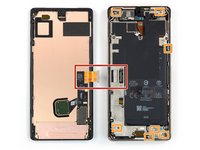
Does the microphone of a built-in calls come in the motherboard, or does it come in a single piece?

HUMAM AL-JALILATI - Rispondi Condividi
Aggiungi Commento

Visualizza statistiche:

Ultime 24 ore: 8

Ultimi 7 giorni: 49

Ultimi 30 giorni: 259

Tutti i Tempi: 18,970