Salta al contenuto principale
Unisciti alla Community delle riparazioni - Crea un account

Steam Deck OLED Screen Replacement

Cosa ti serve

  1. Steam Deck OLED Screen Replacement, Prepare your Steam Deck for disassembly: passo 1, immagine 1 di 2 Steam Deck OLED Screen Replacement, Prepare your Steam Deck for disassembly: passo 1, immagine 2 di 2
    • Turn on your Steam Deck and allow the battery to discharge below 25% before starting your repairs, as a charged lithium-ion polymer battery can be dangerous if accidentally punctured.

    • As an extra precaution, Valve recommends putting your Steam Deck into battery storage mode within the BIOS before starting any internal repairs. Read how to do that here.

    • Power down your Steam Deck and unplug any cables.

    Chiedi a FixBot

    Aggiungi Commento

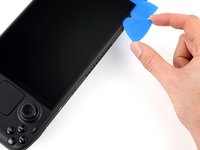
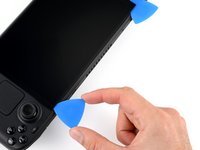
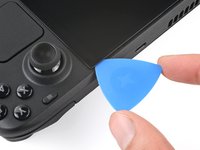
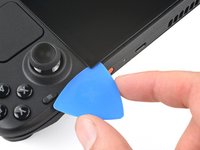
  2. Steam Deck OLED Screen Replacement, Mark your opening picks: passo 2, immagine 1 di 3 Steam Deck OLED Screen Replacement, Mark your opening picks: passo 2, immagine 2 di 3 Steam Deck OLED Screen Replacement, Mark your opening picks: passo 2, immagine 3 di 3
    • If inserted too far, an opening pick can damage your device. Follow this step to mark your pick and prevent damage.

    • Measure 3 mm from the tip and mark the opening pick with a permanent marker.

    • You can also mark the other corners of the pick with different measurements.

    • Alternatively, tape a coin to a pick 3 mm from the tip.

    Chiedi a FixBot

    Aggiungi Commento

  3. Steam Deck OLED Screen Replacement, Heat the top edge screen adhesive: passo 3, immagine 1 di 1
    • Prepare an iOpener and apply it to the top edge of the screen for one minute.

    • You may also use a hair dryer or heat gun, but be careful not to overheat the device, as the screen, battery, and plastic frame are all susceptible to heat damage.

    Chiedi a FixBot

    Aggiungi Commento

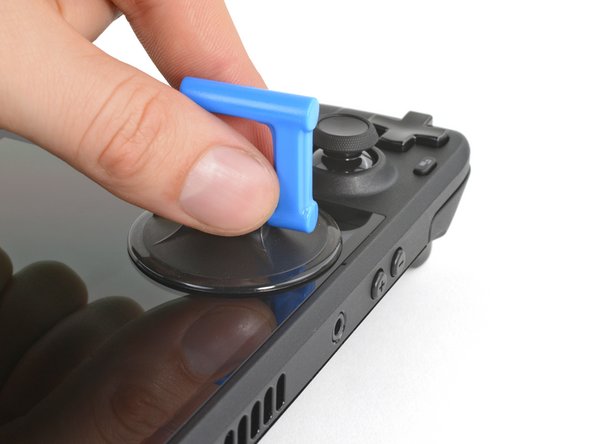
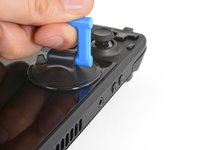
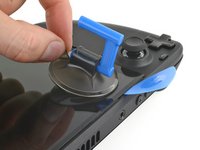
  4. Steam Deck OLED Screen Replacement, Apply a suction handle: passo 4, immagine 1 di 2 Steam Deck OLED Screen Replacement, Apply a suction handle: passo 4, immagine 2 di 2
    • Apply a suction handle to the top left corner of the screen, as close to the top edge as possible.

    • If your display is badly cracked, cover it with a layer of clear packing tape to help the suction cup adhere. Alternatively, you can pull using very strong tape instead of a suction cup. If all else fails, try supergluing the suction cup to the broken screen.

    Chiedi a FixBot

    Aggiungi Commento

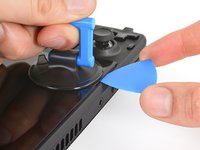
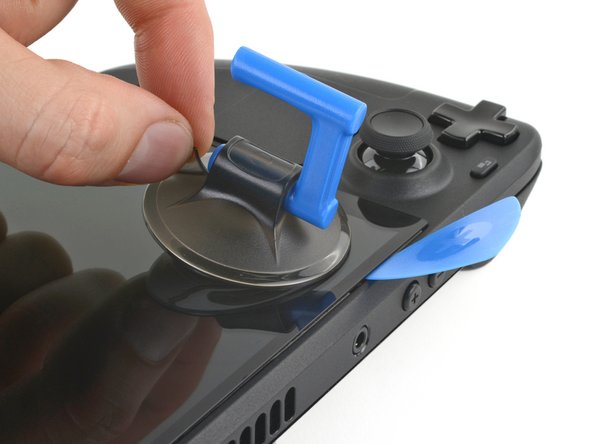
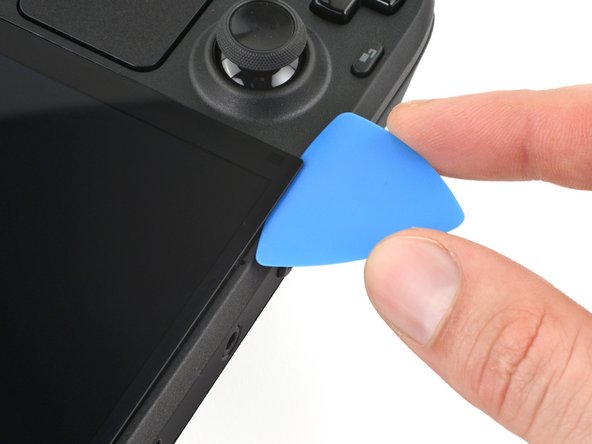
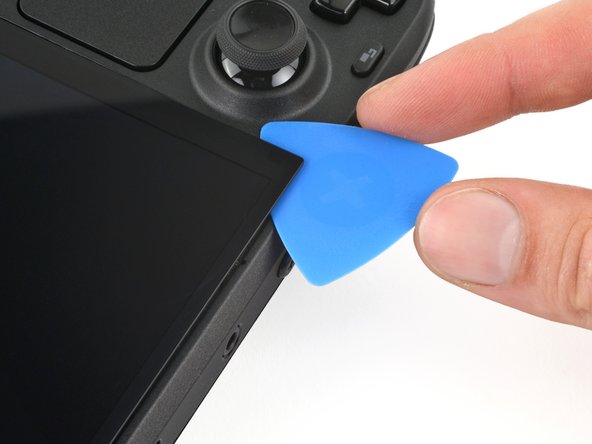
  5. Steam Deck OLED Screen Replacement, Insert an opening pick: passo 5, immagine 1 di 3 Steam Deck OLED Screen Replacement, Insert an opening pick: passo 5, immagine 2 di 3 Steam Deck OLED Screen Replacement, Insert an opening pick: passo 5, immagine 3 di 3
    • Pull up on the suction handle with a strong, steady force to create a gap between the screen and the frame.

    • Insert the tip of an opening pick into the gap.

    • Don't insert your pick deeper than 3 mm (~1/8 of an inch) to avoid damaging the screen panel, ambient light sensor, or sensor cable.

    Chiedi a FixBot

    Aggiungi Commento

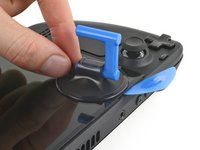
  6. Steam Deck OLED Screen Replacement, Remove the suction handle: passo 6, immagine 1 di 2 Steam Deck OLED Screen Replacement, Remove the suction handle: passo 6, immagine 2 di 2
    • Pull up on the nub on the back of the suction handle to remove it from the screen.

    Chiedi a FixBot

    Aggiungi Commento

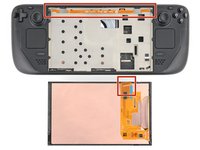
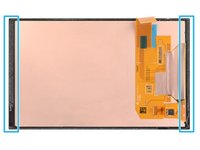
  7. Steam Deck OLED Screen Replacement, Screen information: passo 7, immagine 1 di 3 Steam Deck OLED Screen Replacement, Screen information: passo 7, immagine 2 di 3 Steam Deck OLED Screen Replacement, Screen information: passo 7, immagine 3 di 3
    • As you slice through the adhesive securing the screen, note the following:

    • Along the top and bottom edges, don't insert your pick deeper than 3 mm (~1/8 of an inch) to avoid damaging the sensors, sensors cable, or screen cable.

    • Along the left and right edges, don't insert your pick deeper than 5 mm (~1/5 of an inch) to avoid damaging the screen panel.

    Chiedi a FixBot

    Aggiungi Commento

  8. Steam Deck OLED Screen Replacement, Reposition the pick: passo 8, immagine 1 di 3 Steam Deck OLED Screen Replacement, Reposition the pick: passo 8, immagine 2 di 3 Steam Deck OLED Screen Replacement, Reposition the pick: passo 8, immagine 3 di 3
    • Rotate the pick so its flat edge is between the screen and frame.

    • Leave this pick inserted to prevent the adhesive from resealing.

    Chiedi a FixBot

    Aggiungi Commento

  9. Steam Deck OLED Screen Replacement, Separate the top edge adhesive: passo 9, immagine 1 di 3 Steam Deck OLED Screen Replacement, Separate the top edge adhesive: passo 9, immagine 2 di 3 Steam Deck OLED Screen Replacement, Separate the top edge adhesive: passo 9, immagine 3 di 3
    • Don't insert your pick deeper than 3 mm (~1/8 of an inch) along the top edge.

    • Insert another pick in the top left corner.

    • Slide the pick toward the power button to separate the adhesive securing the top edge of the screen.

    Chiedi a FixBot

    Aggiungi Commento

  10. Steam Deck OLED Screen Replacement, Reposition the pick: passo 10, immagine 1 di 3 Steam Deck OLED Screen Replacement, Reposition the pick: passo 10, immagine 2 di 3 Steam Deck OLED Screen Replacement, Reposition the pick: passo 10, immagine 3 di 3
    • Rotate the pick so its flat edge is between the screen and frame.

    • Leave this pick inserted to prevent the adhesive from resealing.

    Chiedi a FixBot

    Aggiungi Commento

  11. Steam Deck OLED Screen Replacement, Heat the right edge screen adhesive: passo 11, immagine 1 di 1
    • Heat the right edge of the screen for one minute.

    Chiedi a FixBot

    Aggiungi Commento

  12. Steam Deck OLED Screen Replacement, Separate the right edge adhesive: passo 12, immagine 1 di 2 Steam Deck OLED Screen Replacement, Separate the right edge adhesive: passo 12, immagine 2 di 2
    • Don't insert your pick deeper than 5 mm (~1/5 of an inch) along the right edge.

    • Insert another pick just below the right thumbstick.

    • Slide the pick to the bottom right corner to separate the right edge adhesive.

    • Leave the pick inserted to prevent the adhesive from resealing.

    Chiedi a FixBot

    Aggiungi Commento

  13. Steam Deck OLED Screen Replacement, Heat the bottom edge adhesive: passo 13, immagine 1 di 1
    • Heat the bottom edge of the screen for one minute.

    Chiedi a FixBot

    Aggiungi Commento

  14. Steam Deck OLED Screen Replacement, Separate the bottom edge adhesive: passo 14, immagine 1 di 3 Steam Deck OLED Screen Replacement, Separate the bottom edge adhesive: passo 14, immagine 2 di 3 Steam Deck OLED Screen Replacement, Separate the bottom edge adhesive: passo 14, immagine 3 di 3
    • Don't insert your pick deeper than 3 mm (~1/8 of an inch) along the bottom edge.

    • Insert another pick in bottom right corner along the bottom edge.

    • Slide the pick to the bottom left corner to separate the bottom edge adhesive.

    • Leave the pick inserted to prevent the adhesive from resealing.

    Chiedi a FixBot

    Aggiungi Commento

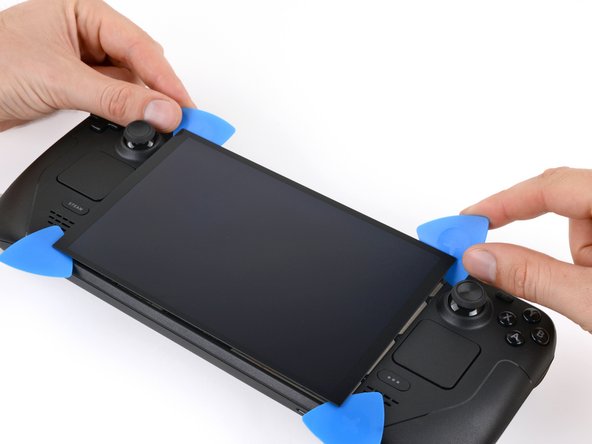
  15. Steam Deck OLED Screen Replacement, Lift the top edge of the screen: passo 15, immagine 1 di 3 Steam Deck OLED Screen Replacement, Lift the top edge of the screen: passo 15, immagine 2 di 3 Steam Deck OLED Screen Replacement, Lift the top edge of the screen: passo 15, immagine 3 di 3
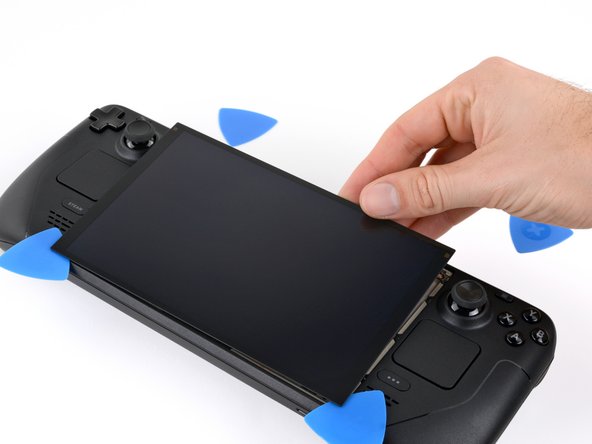
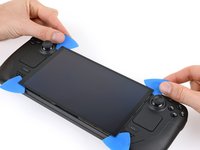
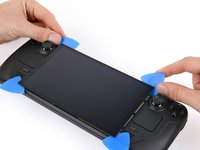
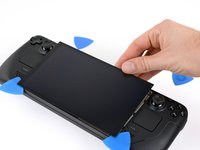
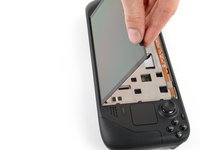
    • Grip the two picks along the top edge.

    • Pry up to lift the top edge of the screen away from the frame until you can grab it.

    • If the screen feels stuck, go back around the perimeter and check for missed sections of adhesive. If you're using a hair dryer, use it to lightly heat the stuck sections of adhesive.

    Chiedi a FixBot

    Aggiungi Commento

  16. Steam Deck OLED Screen Replacement, Flip the screen over: passo 16, immagine 1 di 3 Steam Deck OLED Screen Replacement, Flip the screen over: passo 16, immagine 2 di 3 Steam Deck OLED Screen Replacement, Flip the screen over: passo 16, immagine 3 di 3
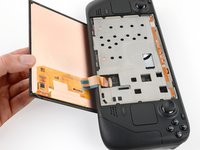
    • Be gentle with the screen, as straining its cable may damage the socket on the motherboard.

    • Flip the screen over the bottom edge of the frame.

    • Prop up the screen with a small box or book roughly 2.5 cm (~1 inch) thick.

    • If you don't have a box or book nearby, hold the screen in this position for the next two steps.

    Chiedi a FixBot

    Aggiungi Commento

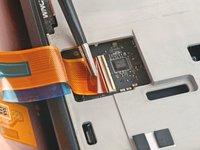
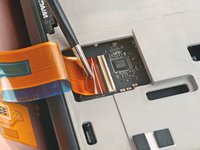
  17. Steam Deck OLED Screen Replacement, Unlatch the screen connector: passo 17, immagine 1 di 2 Steam Deck OLED Screen Replacement, Unlatch the screen connector: passo 17, immagine 2 di 2
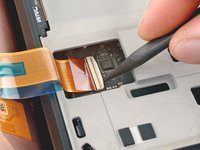
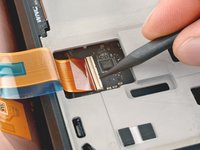
    • Use the point of a spudger or a clean fingernail to flip up the locking flap on the outside edge of the screen ZIF connector.

    • Don't touch any of the small surface-mounted components around the connector.

    Chiedi a FixBot

    Aggiungi Commento

  18. Steam Deck OLED Screen Replacement, Disconnect the screen: passo 18, immagine 1 di 2 Steam Deck OLED Screen Replacement, Disconnect the screen: passo 18, immagine 2 di 2
    Strumento utilizzato in questo passaggio:
    Tweezers
    $4.99
    • Use tweezers or your fingers to grip the screen cable pull tab and slide the cable straight out of its socket to disconnect it.

    Chiedi a FixBot

    Aggiungi Commento

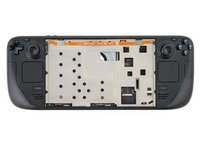
  19. Steam Deck OLED Screen Replacement, Remove the screen: passo 19, immagine 1 di 1
    Chiedi a FixBot

    Aggiungi Commento

Conclusione

To reapply adhesive and install your screen, follow this guide.

Take your e-waste to an R2 or e-Stewards certified recycler.

Repair didn’t go as planned? Try some basic troubleshooting, or ask our Steam Deck OLED answers community for help.

Annulla: non ho completato questa guida.

Altre 11 persone hanno completato questa guida.

Clay Eickemeyer

Membro da: 09/19/22

104.240 Reputazione

472 guide realizzate

Team

Guide Team Membro di Guide Team

Staff

10 Membri

17.854 guide realizzate

11Commenti sulla guida

I successfully swapped matte/glossy OLED model screens this way. First boot after swap had a frazzled screen. Hard reset fixed the problem instantly.

keyscameron - Rispondi Condividi

Do I need to disconnect the battery cable from the motherboard when replacing the screen?

Rinka Kujou - Rispondi Condividi

Is this compatible with limited edition?

Joen Liwanag - Rispondi Condividi

the steps are the same for both OLED models. However the LE comes stock with a matte screen, standard model with glossy screen

keyscameron - Rispondi Condividi

Is it possible to upgrade Steam Deck 512GB LCD model to better matte OLED screen?

As well as upgrade the WiFi card?

gurenmkd - Rispondi Condividi

Aggiungi Commento

Visualizza statistiche:

Ultime 24 ore: 49

Ultimi 7 giorni: 304

Ultimi 30 giorni: 1,587

Tutti i Tempi: 41,409