Salta al contenuto principale
Unisciti alla Community delle riparazioni - Crea un account

Google Pixel 10a Screen Replacement

Cosa ti serve

  1. Google Pixel 10a Screen Replacement, Prepare your Pixel for disassembly: passo 1, immagine 1 di 2 Google Pixel 10a Screen Replacement, Prepare your Pixel for disassembly: passo 1, immagine 2 di 2
    • Let your Pixel's battery drain below 25% before starting this repair. A charged lithium‑ion battery may catch fire if damaged.

    • Unplug all cables and completely power down your Pixel.

    • If your rear cover is bulging, your battery may be swollen—take appropriate precautions.

    Chiedi a FixBot

    Aggiungi Commento

  2. Google Pixel 10a Screen Replacement, Cover the cracked screen: passo 2, immagine 1 di 2 Google Pixel 10a Screen Replacement, Cover the cracked screen: passo 2, immagine 2 di 2
    • Glass shards can complicate disassembly—or worse, cause injury. If your phone has a cracked screen, follow these steps:

    • Apply overlapping strips of packing tape to the cracked glass until the whole screen is covered—this will allow the suction cup to stick to the screen.

    • Only cover the glass itself—don't stick any tape to the frame.

    • Consider wearing safety glasses to protect your eyes from any glass shaken free during the repair.

    Chiedi a FixBot

    Aggiungi Commento

  3. Google Pixel 10a Screen Replacement, Heat the right edge: passo 3, immagine 1 di 2 Google Pixel 10a Screen Replacement, Heat the right edge: passo 3, immagine 2 di 2
    • The screen adhesive is very strong, requiring significant heat to soften it. If you have difficulty separating the adhesive, reheat the screen and try again.

    • Use a hair dryer, heat gun, or a heat pad to heat the right edge of the screen until it's slightly too hot to touch.

    • For best practices on using a hair dryer to soften adhesive, check out this guide. For warnings on heat gun use, check out this guide.

    • If you're using a heating pad, set it to 80° C (176° F) and place your phone screen side down for 10 minutes.

    Chiedi a FixBot

    Aggiungi Commento

  4. Google Pixel 10a Screen Replacement, Prop up the right edge: passo 4, immagine 1 di 1
    • The next three steps show how to create a gap using the opening tool. If you're using a thin metal pick, skip down three steps.

    • Place a small block (like an eraser) under the right edge to prop it up so you'll have room to insert an opening tool.

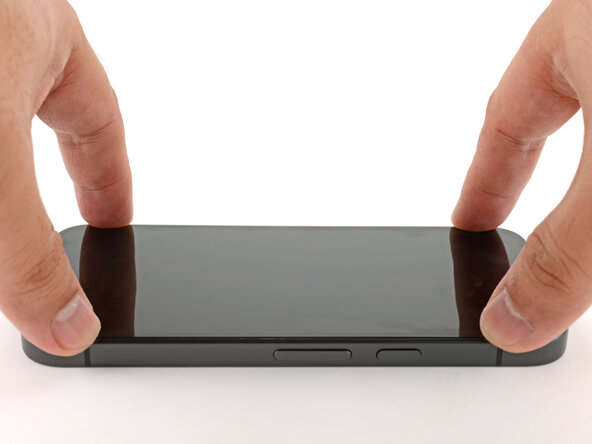
    Chiedi a FixBot

    Aggiungi Commento

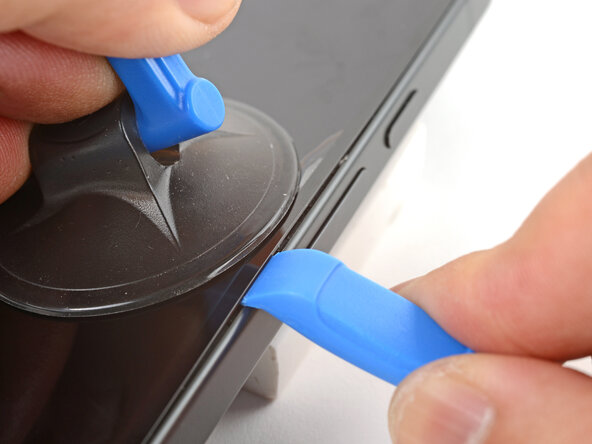
  5. Google Pixel 10a Screen Replacement, Create a gap with the opening tool: passo 5, immagine 1 di 3 Google Pixel 10a Screen Replacement, Create a gap with the opening tool: passo 5, immagine 2 di 3 Google Pixel 10a Screen Replacement, Create a gap with the opening tool: passo 5, immagine 3 di 3
    • Apply a suction handle to the center of the screen's right edge.

    • Pull up on the suction handle with strong, steady force to create a gap.

    • The adhesive is very strong. If you're having trouble, reheat the edge and pull again. Repeated heating and pulling cycles will weaken the adhesive.

    • Press the edge of the opening tool (curved downwards) into the gap.

    Chiedi a FixBot

    Aggiungi Commento

  6. Google Pixel 10a Screen Replacement: passo 6, immagine 1 di 3 Google Pixel 10a Screen Replacement: passo 6, immagine 2 di 3 Google Pixel 10a Screen Replacement: passo 6, immagine 3 di 3
    • Slide the opening tool along the edge to create enough room for the tip of an opening pick.

    • If you're having trouble, reheat the edge and try again.

    • Insert the tip of an opening pick into the gap.

    • Remove the block from under the phone and set the phone on a flat surface.

    • Skip the next two steps.

    Chiedi a FixBot

    Aggiungi Commento

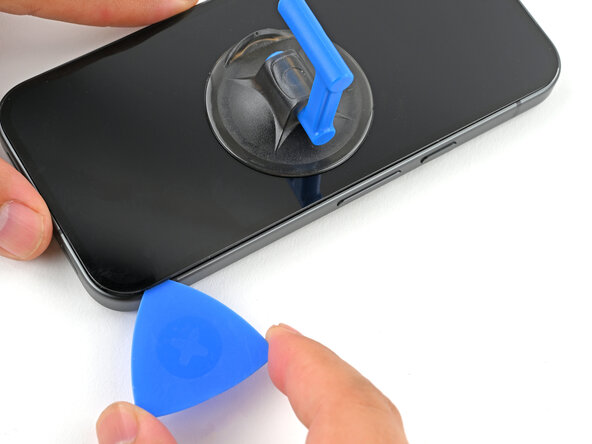
  7. Google Pixel 10a Screen Replacement, Create a gap with a metal pick: passo 7, immagine 1 di 2 Google Pixel 10a Screen Replacement, Create a gap with a metal pick: passo 7, immagine 2 di 2
    • The next two steps show how to create a gap with a metal pick as an alternate method.

    • Apply a suction handle to the center of the screen's right edge.

    • Pull up on the suction handle with strong, steady force to create a gap.

    • The adhesive is very strong. If you're having trouble, reheat the edge and pull again. Repeated heating and pulling cycles will weaken the adhesive.

    • Insert the tip of the metal opening pick into the gap.

    Chiedi a FixBot

    Aggiungi Commento

  8. Google Pixel 10a Screen Replacement: passo 8, immagine 1 di 1
    • Slide the metal pick along the edge to make room for a plastic opening pick.

    • If you're having trouble, reheat the edge and try again.

    • Insert the tip of a plastic opening pick into the gap and remove the metal pick.

    Chiedi a FixBot

    Aggiungi Commento

  9. Google Pixel 10a Screen Replacement, Heat the screen again: passo 9, immagine 1 di 1
    • Use a hair dryer or heat gun to heat the right edge of the screen until it's slightly too hot to the touch.

    Chiedi a FixBot

    Aggiungi Commento

  10. Google Pixel 10a Screen Replacement, Separate the screen adhesive: passo 10, immagine 1 di 2 Google Pixel 10a Screen Replacement, Separate the screen adhesive: passo 10, immagine 2 di 2
    • Slide the opening pick down to the bottom-right corner to separate the adhesive.

    • Leave the opening pick there to keep the adhesive from resealing.

    Chiedi a FixBot

    Aggiungi Commento

  11. Google Pixel 10a Screen Replacement: passo 11, immagine 1 di 3 Google Pixel 10a Screen Replacement: passo 11, immagine 2 di 3 Google Pixel 10a Screen Replacement: passo 11, immagine 3 di 3
    • Apply heat to each edge and use your opening picks to slice around the entire screen perimeter to separate the adhesive. Leave a pick in each corner to prevent the adhesive from resealing.

    • Don't insert the pick deeper than 2 mm near the front-facing camera to prevent damaging the camera module.

    Chiedi a FixBot

    Aggiungi Commento

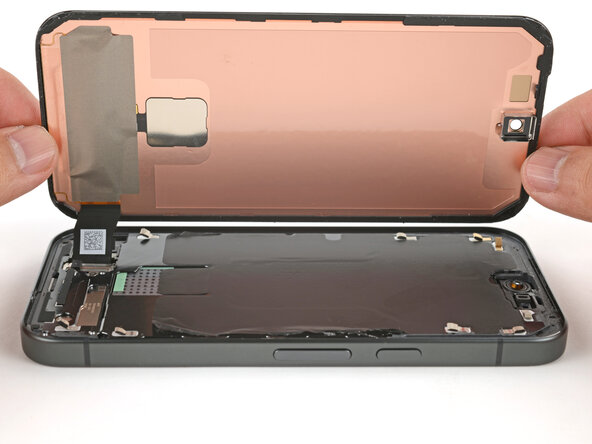
  12. Google Pixel 10a Screen Replacement: passo 12, immagine 1 di 1
    • Swing the screen over the left edge of your phone (like opening the cover of a book) and lay it down flat.

    • If you feel resistance when lifting the screen, use an opening pick to separate any leftover adhesive.

    Chiedi a FixBot

    Aggiungi Commento

  13. Google Pixel 10a Screen Replacement, Disconnect the screen: passo 13, immagine 1 di 1
    • Use a Torx Plus 3IP screwdriver to remove the 1.9 mm‑long screw securing the screen connector cover.

    Chiedi a FixBot

    Aggiungi Commento

  14. Google Pixel 10a Screen Replacement: passo 14, immagine 1 di 3 Google Pixel 10a Screen Replacement: passo 14, immagine 2 di 3 Google Pixel 10a Screen Replacement: passo 14, immagine 3 di 3
    • Use your fingers or tweezers to slide the screen connector cover down slightly to clear the top lip.

    • Lift and remove the cover.

    Chiedi a FixBot

    Aggiungi Commento

  15. Google Pixel 10a Screen Replacement: passo 15, immagine 1 di 2 Google Pixel 10a Screen Replacement: passo 15, immagine 2 di 2
    • Insert the point of a spudger underneath the top-right corner of the screen connector.

    • Pry up to disconnect the screen.

    Chiedi a FixBot

    Aggiungi Commento

  16. Google Pixel 10a Screen Replacement, Remove the screen: passo 16, immagine 1 di 1
    • Remove the screen.

    Chiedi a FixBot

    Aggiungi Commento

  17. Google Pixel 10a Screen Replacement, Disassembly complete: passo 17, immagine 1 di 1
    • Congratulations on completing disassembly! The remaining steps will show how to reassemble your phone.

    Chiedi a FixBot

    Aggiungi Commento

  18. Google Pixel 10a Screen Replacement, Clean the frame: passo 18, immagine 1 di 2 Google Pixel 10a Screen Replacement, Clean the frame: passo 18, immagine 2 di 2
    • Check your original screen for a black plastic perimeter. If it's not on the screen, it's still attached to the frame.

    • Use an opening pick to pry up and remove the black plastic perimeter from the frame.

    Chiedi a FixBot

    Aggiungi Commento

  19. Google Pixel 10a Screen Replacement: passo 19, immagine 1 di 2 Google Pixel 10a Screen Replacement: passo 19, immagine 2 di 2
    • Take your time during this step. A clean frame allows replacement adhesive to lay totally flat, ensuring a better bond.

    • Use a spudger and tweezers to scrape up and remove any screen adhesive from the perimeter of the frame.

    • Use some high‑concentration (>90%) isopropyl alcohol and a lint‑free cloth (or coffee filter) to remove any adhesive residue.

    Chiedi a FixBot

    Aggiungi Commento

  20. Google Pixel 10a Screen Replacement, Connect the screen: passo 20, immagine 1 di 1
    • Lay the screen next to the phone so the screen connector can comfortably reach the socket.

    Chiedi a FixBot

    Aggiungi Commento

  21. Google Pixel 10a Screen Replacement: passo 21, immagine 1 di 2 Google Pixel 10a Screen Replacement: passo 21, immagine 2 di 2
    • Align the screen press connector over its socket and gently press down with your finger—first on one of the short sides, then on the other—until the connector clicks into place.

    Chiedi a FixBot

    Aggiungi Commento

  22. Google Pixel 10a Screen Replacement, Install the screen connector cover: passo 22, immagine 1 di 3 Google Pixel 10a Screen Replacement, Install the screen connector cover: passo 22, immagine 2 di 3 Google Pixel 10a Screen Replacement, Install the screen connector cover: passo 22, immagine 3 di 3
    • Lay the screen connector cover in place and slide it upwards slightly to latch the top edge.

    Chiedi a FixBot

    Aggiungi Commento

  23. Google Pixel 10a Screen Replacement: passo 23, immagine 1 di 1
    • Use a Torx Plus 3IP screwdriver to install the 1.9 mm‑long screen connector cover screw.

    Chiedi a FixBot

    Aggiungi Commento

  24. Google Pixel 10a Screen Replacement, Test your repair: passo 24, immagine 1 di 2 Google Pixel 10a Screen Replacement, Test your repair: passo 24, immagine 2 di 2
    • This is a good point to test your repair before sealing up your phone:

    • Flip the screen onto onto the frame.

    • Remove the plastic liner covering the screen.

    • Carefully power on the phone, making sure nothing touches the screen while it powers on.

    • Use Google’s Pixel Update and Software Repair tool to calibrate your fingerprint sensor.

    • Run a diagnostics test with the built-in Pixel Diagnostic tool to make sure the screen's working properly.

    • Once you've confirmed screen functionality, fully power off your phone before resuming reassembly.

    Chiedi a FixBot

    Aggiungi Commento

  25. Google Pixel 10a Screen Replacement, Remove the remaining liners: passo 25, immagine 1 di 2 Google Pixel 10a Screen Replacement, Remove the remaining liners: passo 25, immagine 2 di 2
    • Use your fingers and tweezers to remove all remaining liners from the screen.

    • Make sure no liners cover the front-facing camera area.

    Chiedi a FixBot

    Aggiungi Commento

  26. Google Pixel 10a Screen Replacement, Install the screen: passo 26, immagine 1 di 2 Google Pixel 10a Screen Replacement, Install the screen: passo 26, immagine 2 di 2
    • Carefully flip the screen over and lay it on the phone.

    Chiedi a FixBot

    Aggiungi Commento

  27. Google Pixel 10a Screen Replacement: passo 27, immagine 1 di 2 Google Pixel 10a Screen Replacement: passo 27, immagine 2 di 2
    • Firmly press around the screen perimeter to secure it.

    • You can also hold your phone and squeeze firmly around the perimeter to strengthen the adhesive bond.

    • For an even more secure bond, lay your phone screen-down on a clean and flat surface underneath a few books overnight.

    Chiedi a FixBot

    Aggiungi Commento

Conclusione

Congratulations on completing your repair!

Take your e-waste to an R2 or e-Stewards certified recycler.

Repair didn’t go as planned? Try some basic troubleshooting, or ask our Answers community for help.

Annulla: non ho completato questa guida.

Arthur Shi

Membro da: 01/03/18

336.967 Reputazione

849 guide realizzate

0Commenti sulla guida

Aggiungi Commento

Visualizza statistiche:

Ultime 24 ore: 9

Ultimi 7 giorni: 117

Ultimi 30 giorni: 469

Tutti i Tempi: 852