Salta al contenuto principale
Unisciti alla Community delle riparazioni - Crea un account

Google Pixel Watch 4 Battery Replacement

Cosa ti serve

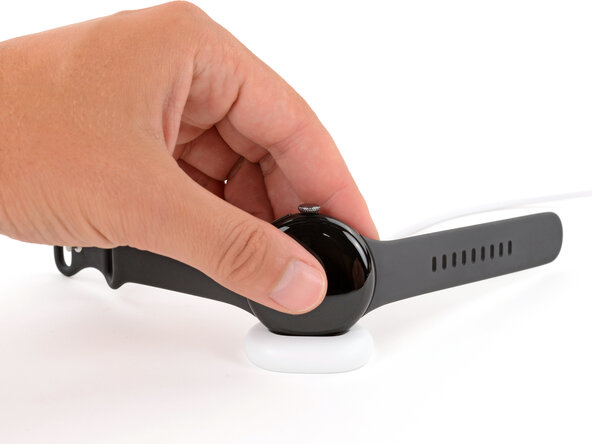
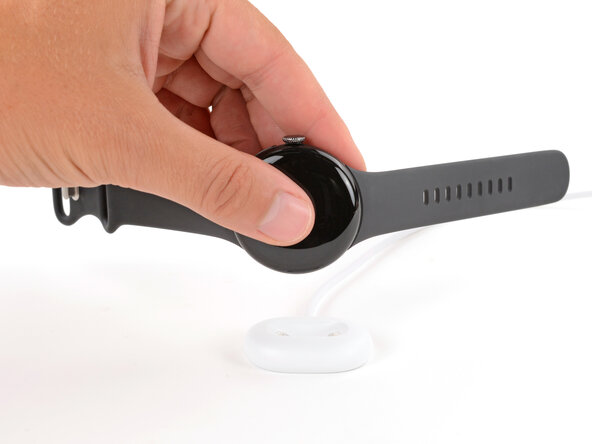
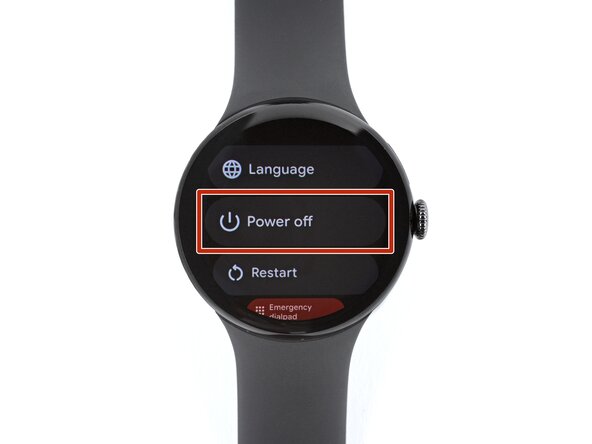
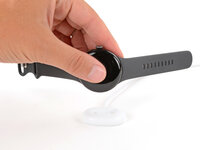
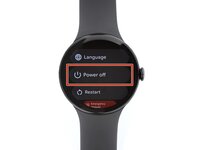
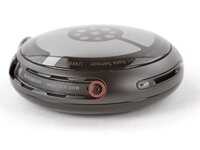
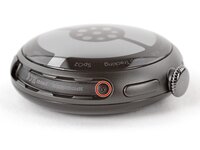
  1. Google Pixel Watch 4 Battery Replacement, Prepare your watch for disassembly: passo 1, immagine 1 di 3 Google Pixel Watch 4 Battery Replacement, Prepare your watch for disassembly: passo 1, immagine 2 di 3 Google Pixel Watch 4 Battery Replacement, Prepare your watch for disassembly: passo 1, immagine 3 di 3
    • Before starting your repair:

    • Remove your watch from the charger.

    • Press and hold the crown button, then tap Power off to shut down your watch.

    Chiedi a FixBot

    Aggiungi Commento

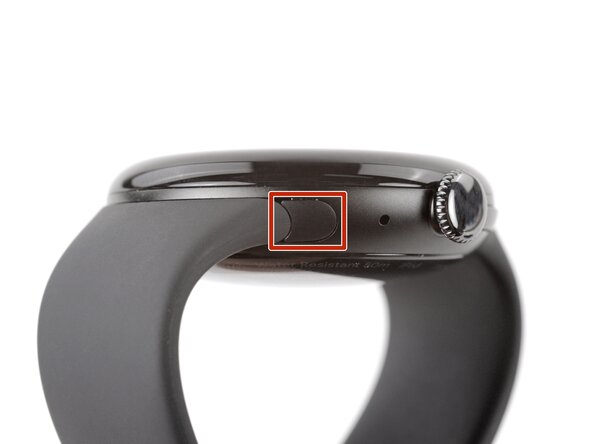
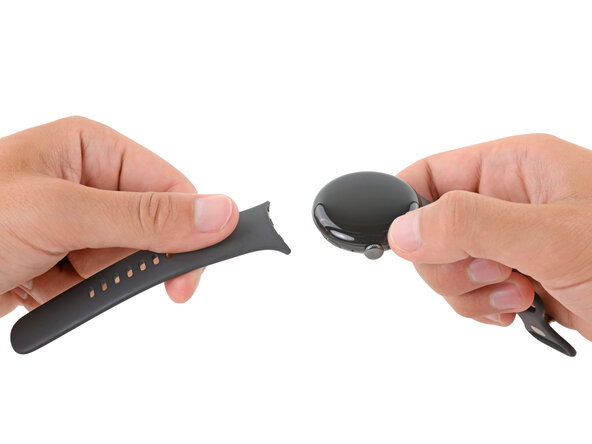
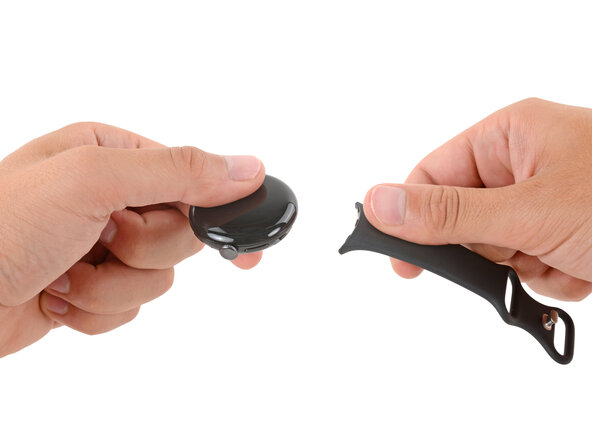
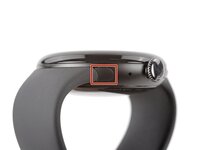
  2. Google Pixel Watch 4 Battery Replacement, Remove the watch bands: passo 2, immagine 1 di 3 Google Pixel Watch 4 Battery Replacement, Remove the watch bands: passo 2, immagine 2 di 3 Google Pixel Watch 4 Battery Replacement, Remove the watch bands: passo 2, immagine 3 di 3
    • Remove each watch band by depressing the release button and sliding the band out of its groove.

    Chiedi a FixBot

    Aggiungi Commento

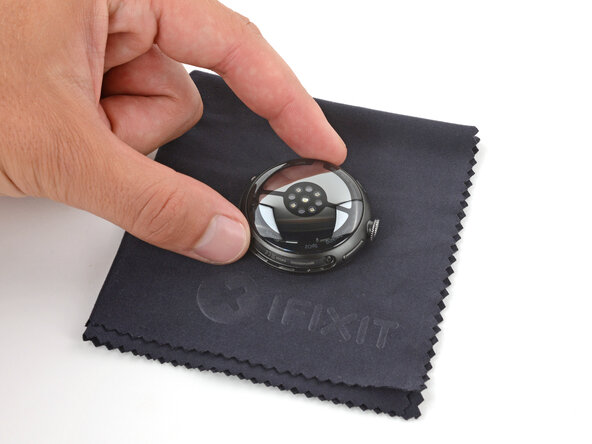
  3. Google Pixel Watch 4 Battery Replacement: passo 3, immagine 1 di 1
    • Throughout the rest of your repair, consider placing your watch on something soft like a clean cloth to help stabilize it and prevent scratches to the front glass.

    Chiedi a FixBot

    Aggiungi Commento

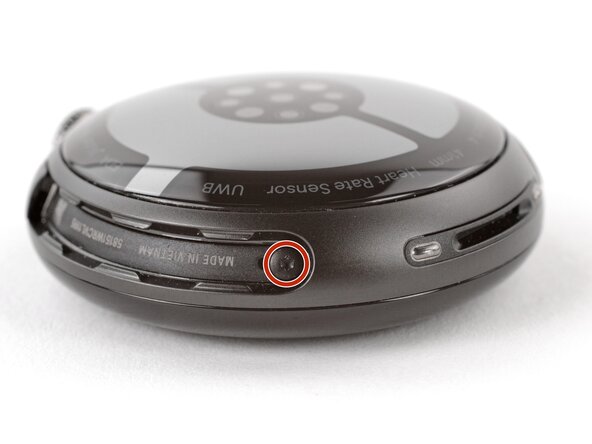
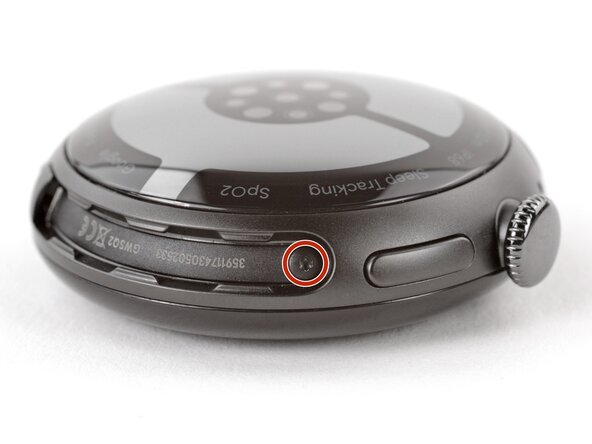
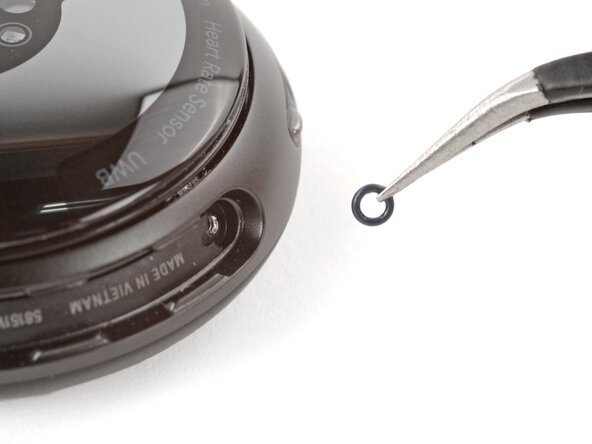
  4. Google Pixel Watch 4 Battery Replacement, Remove the back sensor glass screws: passo 4, immagine 1 di 3 Google Pixel Watch 4 Battery Replacement, Remove the back sensor glass screws: passo 4, immagine 2 di 3 Google Pixel Watch 4 Battery Replacement, Remove the back sensor glass screws: passo 4, immagine 3 di 3
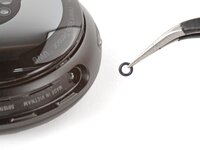
    • Use a Torx Plus 2IP screwdriver to remove the 3.0 mm‑long screw from both watch band grooves (two screws total).

    • Both screws have a tiny O‑ring. If they don't lift away with the screw, use a pair of tweezers to carefully remove them from the band groove and set them aside. These O-rings are required to maintain waterproofing.

    • Handle these O-rings carefully. Avoid pinching or slicing them with your tool.

    • During reassembly:

    • Make sure the O‑rings are on the screws before installing them.

    • Push down firmly on the back glass while installing the screws to make sure the glass gets properly seated.

    • If there's a gap between the back glass and frame, remove the screws and reinstall them.

    Chiedi a FixBot

    Aggiungi Commento

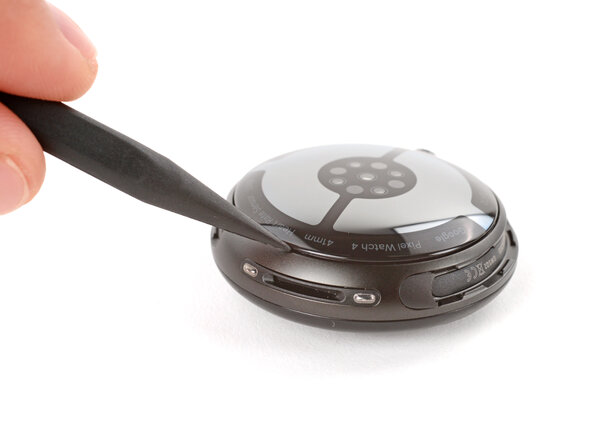
  5. Google Pixel Watch 4 Battery Replacement, Separate the back sensor glass: passo 5, immagine 1 di 2 Google Pixel Watch 4 Battery Replacement, Separate the back sensor glass: passo 5, immagine 2 di 2
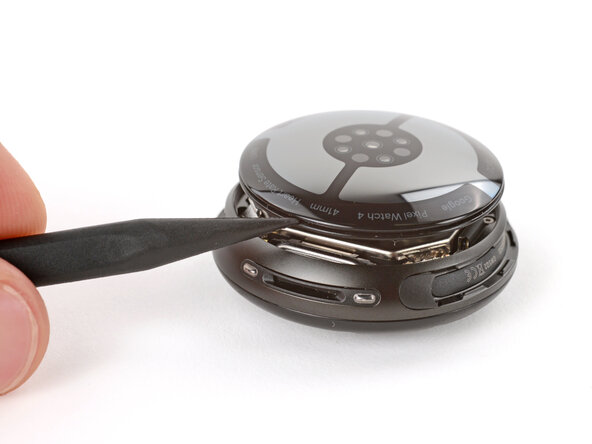
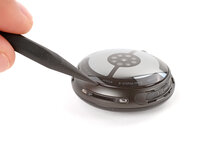
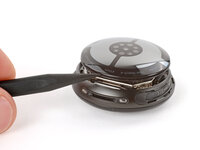
    • Insert the point of a spudger (or a clean fingernail) into the seam between the back sensor glass and frame and pry up until the cover detaches.

    Chiedi a FixBot

    Aggiungi Commento

  6. Google Pixel Watch 4 Battery Replacement, Reposition the back sensor glass: passo 6, immagine 1 di 3 Google Pixel Watch 4 Battery Replacement, Reposition the back sensor glass: passo 6, immagine 2 di 3 Google Pixel Watch 4 Battery Replacement, Reposition the back sensor glass: passo 6, immagine 3 di 3
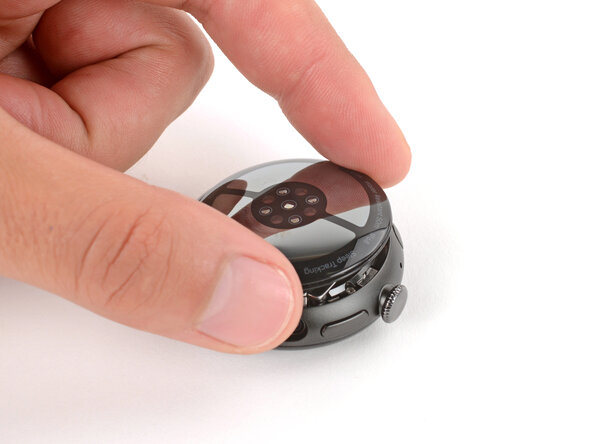
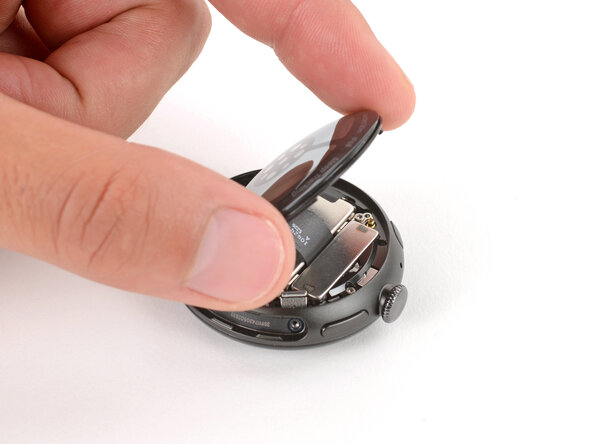
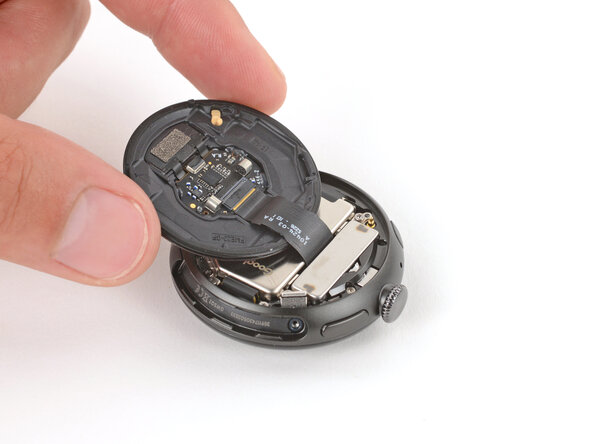
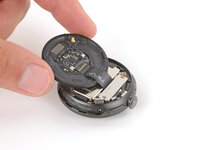
    • Gently lift the back glass and flip it over the side of the watch opposite the crown.

    • Be careful not to strain the cable connecting the back sensor glass.

    Chiedi a FixBot

    Aggiungi Commento

  7. Google Pixel Watch 4 Battery Replacement, Remove the vibration motor screws: passo 7, immagine 1 di 2 Google Pixel Watch 4 Battery Replacement, Remove the vibration motor screws: passo 7, immagine 2 di 2
    • Optionally, you can disconnect the back glass to give you more room to work—though you can complete the repair just fine with it still connected.

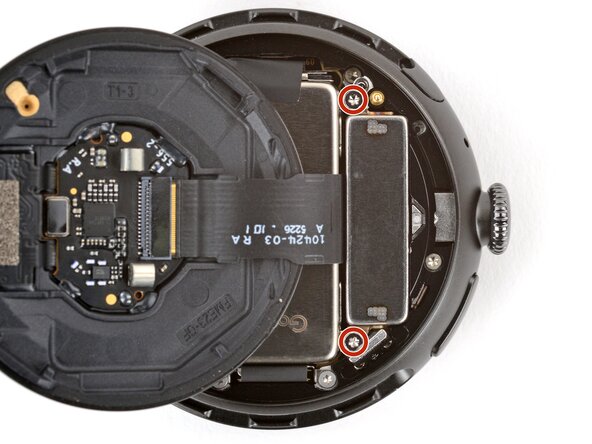
    • Use a Torx Plus 2IP screwdriver to remove the two 2.2 mm‑long screws securing the vibration motor.

    Chiedi a FixBot

    Aggiungi Commento

  8. Google Pixel Watch 4 Battery Replacement, Remove the vibration motor: passo 8, immagine 1 di 2 Google Pixel Watch 4 Battery Replacement, Remove the vibration motor: passo 8, immagine 2 di 2
    Chiedi a FixBot

    Aggiungi Commento

  9. Google Pixel Watch 4 Battery Replacement, Reposition the back sensor glass: passo 9, immagine 1 di 3 Google Pixel Watch 4 Battery Replacement, Reposition the back sensor glass: passo 9, immagine 2 di 3 Google Pixel Watch 4 Battery Replacement, Reposition the back sensor glass: passo 9, immagine 3 di 3
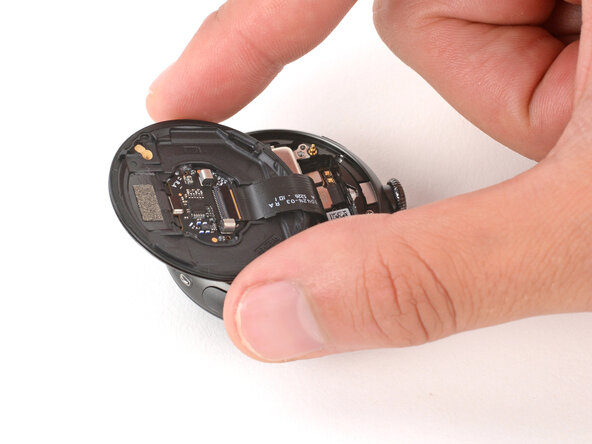
    • Gently flip the back sensor glass over the crown-side of the watch.

    Chiedi a FixBot

    Aggiungi Commento

  10. Google Pixel Watch 4 Battery Replacement, Disconnect the battery: passo 10, immagine 1 di 2 Google Pixel Watch 4 Battery Replacement, Disconnect the battery: passo 10, immagine 2 di 2
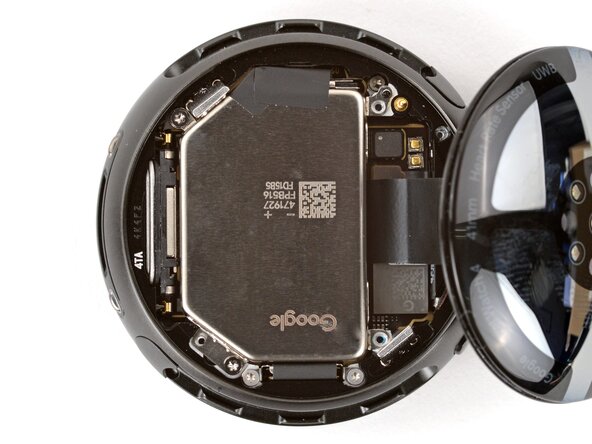
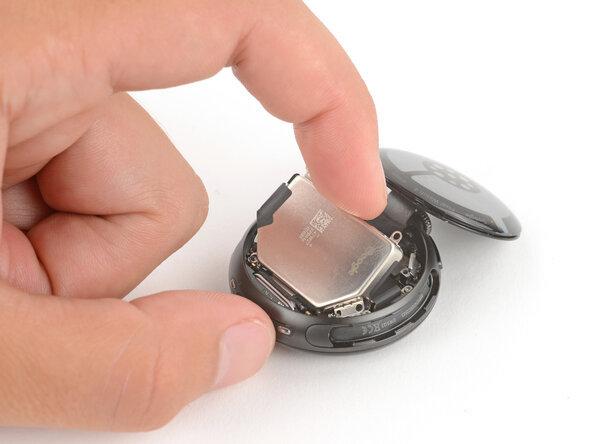
    • Use the point of a spudger to pry up and disconnect the battery press connector.

    • During reassembly, use the point of a spudger to press down and reconnect the press connector.

    • This can be tricky, and may take a few tries.

    • If you're having trouble, loosen the two battery screws and reposition the connector. Once connected, re-tighten the battery screws.

    Chiedi a FixBot

    Aggiungi Commento

  11. Google Pixel Watch 4 Battery Replacement, Remove the battery screws: passo 11, immagine 1 di 2 Google Pixel Watch 4 Battery Replacement, Remove the battery screws: passo 11, immagine 2 di 2
    • Use a Torx Plus 2IP screwdriver to remove the two 2.2 mm‑long screws securing the battery.

    Chiedi a FixBot

    Aggiungi Commento

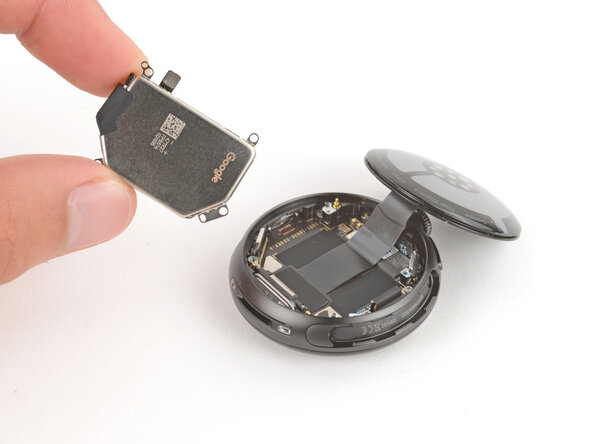
  12. Google Pixel Watch 4 Battery Replacement, Remove the battery: passo 12, immagine 1 di 3 Google Pixel Watch 4 Battery Replacement, Remove the battery: passo 12, immagine 2 di 3 Google Pixel Watch 4 Battery Replacement, Remove the battery: passo 12, immagine 3 di 3
    • Remove the battery.

    Chiedi a FixBot

    Aggiungi Commento

Conclusione

To reassemble your device, follow these instructions in reverse order.

For optimal performance, calibrate your newly installed battery after completing this guide.

Take your e-waste to an R2 or e-Stewards certified recycler.

Repair didn’t go as planned? Try some basic troubleshooting, or ask our Answers community for help.

Annulla: non ho completato questa guida.

Un'altra persona ha completato questa guida.

Spencer Day

Membro da: 09/14/22

191.214 Reputazione

1.204 guide realizzate

0Commenti sulla guida

Aggiungi Commento

Visualizza statistiche:

Ultime 24 ore: 10

Ultimi 7 giorni: 85

Ultimi 30 giorni: 552

Tutti i Tempi: 4,290