Salta al contenuto principale
Unisciti alla Community delle riparazioni - Crea un account

iPhone 11 Pro Max Audio Control Cable Replacement

Cosa ti serve

  1. iPhone 11 Pro Max Audio Control Cable Replacement, Remove the pentalobe screws: passo 1, immagine 1 di 2 iPhone 11 Pro Max Audio Control Cable Replacement, Remove the pentalobe screws: passo 1, immagine 2 di 2
    • Before you begin, discharge your iPhone battery below 25%. A charged lithium-ion battery can catch fire and/or explode if accidentally punctured.

    • Power off your iPhone before beginning disassembly.

    • Remove the two 6.7 mm-long pentalobe screws at the bottom edge of the iPhone.

    • Opening the iPhone's display will compromise its waterproof seals. Have replacement seals ready before you proceed past this step, or take care to avoid liquid exposure if you reassemble your iPhone without replacing the seals.

    Chiedi a FixBot

    Aggiungi Commento

  2. iPhone 11 Pro Max Audio Control Cable Replacement, Mark your opening picks: passo 2, immagine 1 di 3 iPhone 11 Pro Max Audio Control Cable Replacement, Mark your opening picks: passo 2, immagine 2 di 3 iPhone 11 Pro Max Audio Control Cable Replacement, Mark your opening picks: passo 2, immagine 3 di 3
    • If inserted too far, an opening pick can damage your device. Follow this step to mark your pick and prevent damage.

    • Measure 3 mm from the tip and mark the opening pick with a permanent marker.

    • You can also mark the other corners of the pick with different measurements.

    • Alternatively, tape a coin to a pick 3 mm from the tip.

    Chiedi a FixBot

    Aggiungi Commento

  3. iPhone 11 Pro Max Audio Control Cable Replacement, Tape over any cracks: passo 3, immagine 1 di 3 iPhone 11 Pro Max Audio Control Cable Replacement, Tape over any cracks: passo 3, immagine 2 di 3 iPhone 11 Pro Max Audio Control Cable Replacement, Tape over any cracks: passo 3, immagine 3 di 3
    • If your iPhone has a cracked screen, keep further breakage contained and prevent bodily harm during your repair by taping over the glass.

    • Lay overlapping strips of clear packing tape over the iPhone's screen until the whole face is covered.

    • Wear safety glasses to protect your eyes from any glass shaken free during the repair.

    • If you can't get the suction cup to stick in the next few steps, fold a strong piece of tape (such as duct tape) into a handle and lift the screen with that instead.

    • If all else fails, you can superglue the suction cup to the screen.

    Chiedi a FixBot

    Aggiungi Commento

  4. iPhone 11 Pro Max Audio Control Cable Replacement, Anti-Clamp instructions: passo 4, immagine 1 di 3 iPhone 11 Pro Max Audio Control Cable Replacement, Anti-Clamp instructions: passo 4, immagine 2 di 3 iPhone 11 Pro Max Audio Control Cable Replacement, Anti-Clamp instructions: passo 4, immagine 3 di 3
    Strumento utilizzato in questo passaggio:
    Clampy - Anti-Clamp
    $24.95
    • The next three steps demonstrate the Anti-Clamp, a tool we designed to make the opening procedure easier. If you aren't using the Anti-Clamp, skip down three steps for an alternate method.

    • For complete instructions on how to use the Anti-Clamp, check out this guide.

    • Pull the blue handle backwards to unlock the Anti-Clamp's arms.

    • Slide the arms over either the left or right edge of your iPhone.

    • Position the suction cups near the bottom edge of the iPhone—one on the front, and one on the back.

    • Squeeze the cups together to apply suction to the desired area.

    • If you find that the surface of your iPhone is too slippery for the Anti-Clamp to hold onto, you can use tape to create a grippier surface.

    Chiedi a FixBot

    Aggiungi Commento

  5. iPhone 11 Pro Max Audio Control Cable Replacement: passo 5, immagine 1 di 3 iPhone 11 Pro Max Audio Control Cable Replacement: passo 5, immagine 2 di 3 iPhone 11 Pro Max Audio Control Cable Replacement: passo 5, immagine 3 di 3
    • Pull the blue handle forward to lock the arms.

    • Turn the handle clockwise 360 degrees or until the cups start to stretch.

    • Make sure the suction cups remain aligned with each other. If they begin to slip out of alignment, loosen the suction cups slightly and realign the arms.

    Chiedi a FixBot

    Aggiungi Commento

  6. iPhone 11 Pro Max Audio Control Cable Replacement: passo 6, immagine 1 di 3 iPhone 11 Pro Max Audio Control Cable Replacement: passo 6, immagine 2 di 3 iPhone 11 Pro Max Audio Control Cable Replacement: passo 6, immagine 3 di 3
    • Heat an iOpener and thread it through the arms of the Anti-Clamp.

    • You can also use a hair dryer, heat gun, or hot plate—but extreme heat can damage the display and/or internal battery, so proceed with care.

    • Fold the iOpener so it lays on the bottom edge of the iPhone.

    • Wait one minute to give the adhesive a chance to release and present an opening gap.

    • Insert an opening pick into the gap under the screen and the plastic bezel, not the screen itself.

    • If the Anti-Clamp doesn't create a sufficient gap, apply more heat to the area and rotate the handle a quarter turn.

    • Don't crank more than a quarter turn at a time, and wait one minute between turns. Let the Anti-Clamp and time do the work for you.

    • Skip the next three steps.

    Chiedi a FixBot

    Aggiungi Commento

  7. iPhone 11 Pro Max Audio Control Cable Replacement, Heat the lower edge of the phone: passo 7, immagine 1 di 1
    • Heating the lower edge of the iPhone helps soften the adhesive securing the display, making it easier to open.

    • Use a hairdryer or heat gun or prepare an iOpener and apply it to the lower edge of the iPhone for about a minute in order to soften up the adhesive underneath.

    Chiedi a FixBot

    Aggiungi Commento

  8. iPhone 11 Pro Max Audio Control Cable Replacement: passo 8, immagine 1 di 2 iPhone 11 Pro Max Audio Control Cable Replacement: passo 8, immagine 2 di 2
    • If you're using a single suction handle, apply it to the bottom edge of the phone, while avoiding the curved portion of the glass.

    Chiedi a FixBot

    Aggiungi Commento

  9. iPhone 11 Pro Max Audio Control Cable Replacement, Lift the display slightly: passo 9, immagine 1 di 3 iPhone 11 Pro Max Audio Control Cable Replacement, Lift the display slightly: passo 9, immagine 2 di 3 iPhone 11 Pro Max Audio Control Cable Replacement, Lift the display slightly: passo 9, immagine 3 di 3
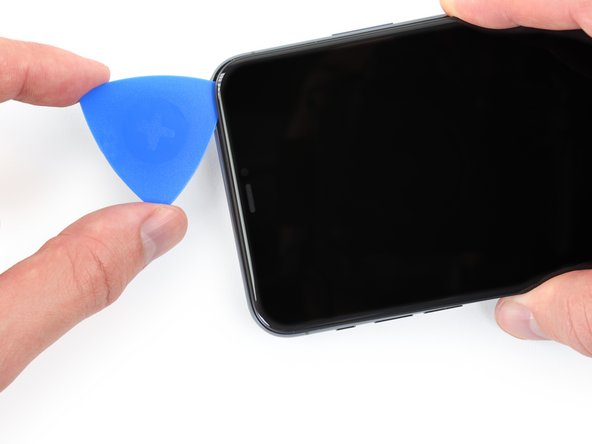
    • Pull up on the suction cup with firm, constant pressure to create a slight gap between the front panel and rear case.

    • Insert an opening pick into the gap.

    • The watertight adhesive holding the display in place is very strong; creating this initial gap takes a significant amount of force. If you're having a hard time opening a gap, apply more heat, and gently rock the screen up and down to weaken the adhesive until you create enough of a gap to insert your tool.

    Chiedi a FixBot

    Aggiungi Commento

  10. iPhone 11 Pro Max Audio Control Cable Replacement, Separate the screen adhesive: passo 10, immagine 1 di 3 iPhone 11 Pro Max Audio Control Cable Replacement, Separate the screen adhesive: passo 10, immagine 2 di 3 iPhone 11 Pro Max Audio Control Cable Replacement, Separate the screen adhesive: passo 10, immagine 3 di 3
    • Slide the opening pick around the lower left corner and up the left edge of the iPhone, slicing through the adhesive holding the display in place.

    • Don't insert your pick more than 3 mm, as you may damage internal components.

    Chiedi a FixBot

    Aggiungi Commento

  11. iPhone 11 Pro Max Audio Control Cable Replacement, Screen information: passo 11, immagine 1 di 1
    • There's a delicate cable along the right edge of your iPhone. Don't insert your pick here, as you may damage the cable.

    Chiedi a FixBot

    Aggiungi Commento

  12. iPhone 11 Pro Max Audio Control Cable Replacement: passo 12, immagine 1 di 3 iPhone 11 Pro Max Audio Control Cable Replacement: passo 12, immagine 2 di 3 iPhone 11 Pro Max Audio Control Cable Replacement: passo 12, immagine 3 di 3
    • Re-insert your pick at the bottom edge of the iPhone, and slide it up the right side to continue separating the adhesive.

    • Don't insert your pick more than 3 mm, as you may damage the display cables.

    Chiedi a FixBot

    Aggiungi Commento

  13. iPhone 11 Pro Max Audio Control Cable Replacement: passo 13, immagine 1 di 3 iPhone 11 Pro Max Audio Control Cable Replacement: passo 13, immagine 2 di 3 iPhone 11 Pro Max Audio Control Cable Replacement: passo 13, immagine 3 di 3
    • The top edge of the display is secured with both glue and clips.

    • Gently pull the right edge of the display down slightly (in the direction of the Lightning port).

    • Insert your pick into the top-right corner of the phone.

    Chiedi a FixBot

    Aggiungi Commento

  14. iPhone 11 Pro Max Audio Control Cable Replacement: passo 14, immagine 1 di 2 iPhone 11 Pro Max Audio Control Cable Replacement: passo 14, immagine 2 di 2
    • Continue pulling the display down (toward the Lightning port) as needed in order to make a gap large enough for the pick.

    • Slide the pick to the top left corner and cut any remaining adhesive securing the display.

    • Don't insert your pick more than 3 mm, as you may damage the front panel sensor array.

    Chiedi a FixBot

    Aggiungi Commento

  15. iPhone 11 Pro Max Audio Control Cable Replacement, Remove the suction cup: passo 15, immagine 1 di 1
    • Pull on the small nub on the suction cup to remove it from the front panel.

    Chiedi a FixBot

    Aggiungi Commento

  16. iPhone 11 Pro Max Audio Control Cable Replacement, Open the iPhone: passo 16, immagine 1 di 3 iPhone 11 Pro Max Audio Control Cable Replacement, Open the iPhone: passo 16, immagine 2 di 3 iPhone 11 Pro Max Audio Control Cable Replacement, Open the iPhone: passo 16, immagine 3 di 3
    • Open the iPhone by swinging the display up from the left side, like the back cover of a book.

    • Don't try to fully separate the display yet, as several fragile ribbon cables still connect it to the iPhone's logic board.

    • Lean the display against something to keep it propped up while you're working on the phone.

    • During reassembly, lay the display in position, align the clips along the top edge, and carefully press the top edge into place before snapping the rest of the display down. If it doesn't click easily into place, check the condition of the clips around the perimeter of the display and make sure they aren't bent.

    Chiedi a FixBot

    Aggiungi Commento

  17. iPhone 11 Pro Max Audio Control Cable Replacement, Unscrew the battery connector cover: passo 17, immagine 1 di 2 iPhone 11 Pro Max Audio Control Cable Replacement, Unscrew the battery connector cover: passo 17, immagine 2 di 2
    Strumento utilizzato in questo passaggio:
    Magnetic Project Mat
    $16.96
    • Remove two 1.3 mm long Y000 screws securing the battery cover bracket.

    • Throughout this repair, keep track of each screw and make sure it goes back exactly where it came from to avoid damaging your iPhone.

    • During reassembly, this is a good point to power on your iPhone and test all functions before you seal the display in place. Be sure to power your iPhone back down completely before you continue working.

    Chiedi a FixBot

    Aggiungi Commento

  18. iPhone 11 Pro Max Audio Control Cable Replacement, Remove the battery connector cover: passo 18, immagine 1 di 1
    • Remove the bracket.

    Chiedi a FixBot

    Aggiungi Commento

  19. iPhone 11 Pro Max Audio Control Cable Replacement, Disconnect the battery: passo 19, immagine 1 di 2 iPhone 11 Pro Max Audio Control Cable Replacement, Disconnect the battery: passo 19, immagine 2 di 2
    • Use a spudger or a clean fingernail to pry the battery connector up from its socket on the logic board.

    • Try not to damage the black silicone seal surrounding this and other board connections. These seals provide extra protection against water and dust intrusion.

    • Bend the connector slightly away from the logic board to prevent it from accidentally making contact with the socket and providing power to the phone during your repair.

    Chiedi a FixBot

    Aggiungi Commento

  20. iPhone 11 Pro Max Audio Control Cable Replacement, Unscrew the logic board cover screws: passo 20, immagine 1 di 2 iPhone 11 Pro Max Audio Control Cable Replacement, Unscrew the logic board cover screws: passo 20, immagine 2 di 2
    • Use a Y000 driver to remove six 1.3 mm screws securing the logic board cover bracket.

    Chiedi a FixBot

    Aggiungi Commento

  21. iPhone 11 Pro Max Audio Control Cable Replacement, Remove the logic board cover bracket: passo 21, immagine 1 di 1
    • Remove the bracket.

    Chiedi a FixBot

    Aggiungi Commento

  22. iPhone 11 Pro Max Audio Control Cable Replacement, Disconnect the OLED display cable: passo 22, immagine 1 di 2 iPhone 11 Pro Max Audio Control Cable Replacement, Disconnect the OLED display cable: passo 22, immagine 2 di 2
    • Use a spudger or a fingernail to disconnect the OLED panel cable connector.

    • To re-attach press connectors like this one, carefully align and press down on one side until it clicks into place, then repeat on the other side. Do not press down on the middle. If the connector is misaligned, the pins can bend, causing permanent damage.

    Chiedi a FixBot

    Aggiungi Commento

  23. iPhone 11 Pro Max Audio Control Cable Replacement, Disconnect the front sensors + digitizer: passo 23, immagine 1 di 3 iPhone 11 Pro Max Audio Control Cable Replacement, Disconnect the front sensors + digitizer: passo 23, immagine 2 di 3 iPhone 11 Pro Max Audio Control Cable Replacement, Disconnect the front sensors + digitizer: passo 23, immagine 3 di 3
    • Use a spudger or a fingernail to disconnect the front sensor assembly cable connector.

    • Use a spudger or a fingernail to disconnect the digitizer cable connector.

    • If any part of your screen doesn't respond to touch after your repair, disconnect the battery and then re-seat this connector, making sure it clicks fully into place and that there's no dust or other obstruction in the socket.

    Chiedi a FixBot

    Aggiungi Commento

  24. iPhone 11 Pro Max Audio Control Cable Replacement, Remove the display assembly: passo 24, immagine 1 di 1
    Chiedi a FixBot

    Aggiungi Commento

  25. iPhone 11 Pro Max Audio Control Cable Replacement, Unscrew the lower battery connector cover: passo 25, immagine 1 di 2 iPhone 11 Pro Max Audio Control Cable Replacement, Unscrew the lower battery connector cover: passo 25, immagine 2 di 2
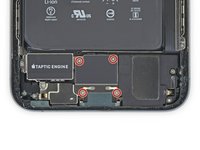
    • Use a Y000 driver to remove the four 1.2 mm screws securing the lower battery connector cover.

    Chiedi a FixBot

    Aggiungi Commento

  26. iPhone 11 Pro Max Audio Control Cable Replacement, Remove the cover: passo 26, immagine 1 di 1
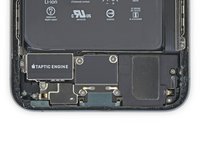
    • Remove the lower battery connector cover.

    Chiedi a FixBot

    Aggiungi Commento

  27. iPhone 11 Pro Max Audio Control Cable Replacement, Disconnect the lower battery connector: passo 27, immagine 1 di 2 iPhone 11 Pro Max Audio Control Cable Replacement, Disconnect the lower battery connector: passo 27, immagine 2 di 2
    • Use a spudger to disconnect the lower battery flex cable by prying it straight up from its socket.

    Chiedi a FixBot

    Aggiungi Commento

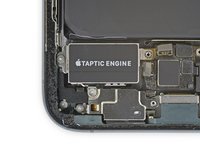
  28. iPhone 11 Pro Max Audio Control Cable Replacement, Disconnect the Taptic Engine: passo 28, immagine 1 di 2 iPhone 11 Pro Max Audio Control Cable Replacement, Disconnect the Taptic Engine: passo 28, immagine 2 di 2
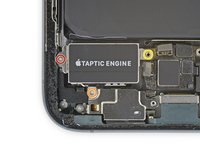
    • Use a spudger to disconnect the Taptic Engine flex cable by prying it straight up from its socket.

    Chiedi a FixBot

    Aggiungi Commento

  29. iPhone 11 Pro Max Audio Control Cable Replacement, Unscrew the Taptic Engine: passo 29, immagine 1 di 2 iPhone 11 Pro Max Audio Control Cable Replacement, Unscrew the Taptic Engine: passo 29, immagine 2 di 2
    Strumento utilizzato in questo passaggio:
    Standoff Screwdriver for iPhones
    $5.49
    • Remove the three screws securing the Taptic Engine:

    • One 2.0 mm-long Y000 screw

    • One 1.6 mm-long Y000 screw

    • One 4.0 mm-long standoff screw

    • Standoff screws are best removed using a standoff screwdriver or bit.

    • In a pinch, a small flathead screwdriver will do the job—but use extra caution to ensure it doesn't slip and damage surrounding components.

    Chiedi a FixBot

    Aggiungi Commento

  30. iPhone 11 Pro Max Audio Control Cable Replacement, Remove the Taptic Engine: passo 30, immagine 1 di 1
    • Remove the Taptic Engine.

    Chiedi a FixBot

    Aggiungi Commento

  31. iPhone 11 Pro Max Audio Control Cable Replacement, Unscrew the flex cable bracket: passo 31, immagine 1 di 2 iPhone 11 Pro Max Audio Control Cable Replacement, Unscrew the flex cable bracket: passo 31, immagine 2 di 2
    • Use a Y000 driver to remove the three 1.3 mm screws securing the Lightning flex cable bracket.

    Chiedi a FixBot

    Aggiungi Commento

  32. iPhone 11 Pro Max Audio Control Cable Replacement, Remove the flex cable bracket: passo 32, immagine 1 di 1
    • Remove the flex cable bracket.

    Chiedi a FixBot

    Aggiungi Commento

  33. iPhone 11 Pro Max Audio Control Cable Replacement, Disconnect the Lightning flex cable: passo 33, immagine 1 di 3 iPhone 11 Pro Max Audio Control Cable Replacement, Disconnect the Lightning flex cable: passo 33, immagine 2 di 3 iPhone 11 Pro Max Audio Control Cable Replacement, Disconnect the Lightning flex cable: passo 33, immagine 3 di 3
    • Pry up to disconnect both of the Lightning flex cable connectors from the Logic board.

    Chiedi a FixBot

    Aggiungi Commento

  34. iPhone 11 Pro Max Audio Control Cable Replacement, Push the flex cable aside: passo 34, immagine 1 di 2 iPhone 11 Pro Max Audio Control Cable Replacement, Push the flex cable aside: passo 34, immagine 2 di 2
    • Gently lift the Lightning flex cable and bend it slightly toward the bottom edge of the iPhone for better access to the battery underneath.

    Chiedi a FixBot

    Aggiungi Commento

  35. iPhone 11 Pro Max Audio Control Cable Replacement, Locate the adhesive pull-tabs: passo 35, immagine 1 di 3 iPhone 11 Pro Max Audio Control Cable Replacement, Locate the adhesive pull-tabs: passo 35, immagine 2 di 3 iPhone 11 Pro Max Audio Control Cable Replacement, Locate the adhesive pull-tabs: passo 35, immagine 3 di 3
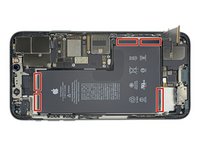
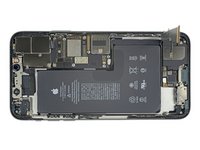
    • The battery is secured to the rear case with three pieces of stretch-release adhesive—one near the bottom edge of the battery, one near the top, and one on the right.

    • Each piece of adhesive has one or two black pull-tabs at the end, which are lightly adhered to the side edges of the battery.

    • In the following steps, you'll pull each tab to slowly stretch out the adhesive underneath the battery. These "command-strip" style adhesives lose their stick when stretched, so you can remove the battery with ease.

    • If the strips break, don't panic! They don't always work as intended. Keep reading for tips on removing broken strips.

    Chiedi a FixBot

    Aggiungi Commento

  36. iPhone 11 Pro Max Audio Control Cable Replacement: passo 36, immagine 1 di 2 iPhone 11 Pro Max Audio Control Cable Replacement: passo 36, immagine 2 di 2
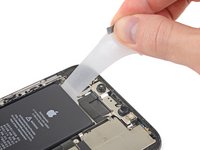
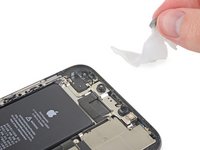
    • Peel down the first battery adhesive pull-tab to un-stick it from the bottom edge of the battery.

    • Don't jab the battery with any sharp tools. A punctured battery may leak dangerous chemicals or catch fire.

    Chiedi a FixBot

    Aggiungi Commento

  37. iPhone 11 Pro Max Audio Control Cable Replacement, Remove the bottom adhesive strip: passo 37, immagine 1 di 3 iPhone 11 Pro Max Audio Control Cable Replacement, Remove the bottom adhesive strip: passo 37, immagine 2 di 3 iPhone 11 Pro Max Audio Control Cable Replacement, Remove the bottom adhesive strip: passo 37, immagine 3 di 3
    Strumento utilizzato in questo passaggio:
    Tweezers
    $4.99
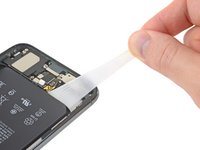
    • Grab the pull tab with your fingers and slowly pull it away from the battery, toward the bottom of the iPhone.

    • Pull hard enough to maintain tension on the strip, but don't force it. Give it plenty of time to stretch and un-stick from under the battery.

    • Don't press down on the battery. Hold the iPhone firmly by its sides.

    • Keep the strip flat and unwrinkled. Try to pull evenly on the whole strip, rather than pulling mainly in the middle or on one side.

    • Pull at a low angle so the strip doesn't snag on the edge of the battery.

    • If the adhesive strip breaks off, try to retrieve it using your fingers or blunt tweezers, and continue pulling—but do not pry under the battery.

    • If any of the adhesive strips break off underneath the battery and can't be retrieved, try to remove the other strips, and then proceed as instructed below.

    Chiedi a FixBot

    Aggiungi Commento

  38. iPhone 11 Pro Max Audio Control Cable Replacement: passo 38, immagine 1 di 3 iPhone 11 Pro Max Audio Control Cable Replacement: passo 38, immagine 2 di 3 iPhone 11 Pro Max Audio Control Cable Replacement: passo 38, immagine 3 di 3
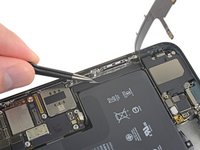
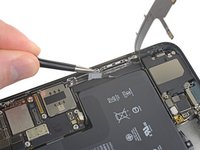
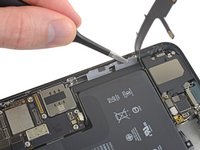
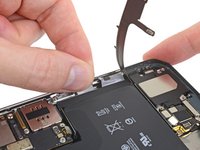
    • The top pull tabs lie very close to the Face ID sensors. If damaged, Face ID can only be repaired by Apple, so work with care. Don't touch the lenses with your fingers.

    • Peel down the battery adhesive pull tabs to un-stick them from the top edge of the battery.

    Chiedi a FixBot

    Aggiungi Commento

  39. iPhone 11 Pro Max Audio Control Cable Replacement, Remove the top adhesive strip: passo 39, immagine 1 di 3 iPhone 11 Pro Max Audio Control Cable Replacement, Remove the top adhesive strip: passo 39, immagine 2 di 3 iPhone 11 Pro Max Audio Control Cable Replacement, Remove the top adhesive strip: passo 39, immagine 3 di 3
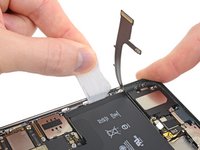
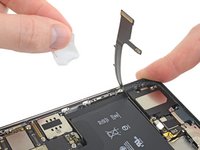
    • Grab both pull tabs at the same time, and slowly pull to stretch the adhesive away from the battery, toward the top of the iPhone.

    • Follow the same procedure as with the previous strip: don't press down on the battery, keep the strip flat and unwrinkled, and pull at a low angle.

    • If the adhesive strip breaks off, try to retrieve it using your fingers or blunt tweezers, and continue pulling—but do not pry under the battery.

    • If the adhesive breaks off underneath the battery and can't be retrieved, continue with the next step.

    Chiedi a FixBot

    Aggiungi Commento

  40. iPhone 11 Pro Max Audio Control Cable Replacement: passo 40, immagine 1 di 3 iPhone 11 Pro Max Audio Control Cable Replacement: passo 40, immagine 2 di 3 iPhone 11 Pro Max Audio Control Cable Replacement: passo 40, immagine 3 di 3
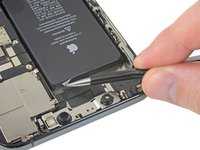
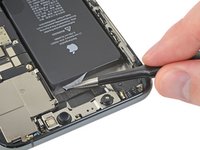
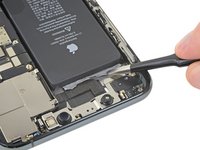
    • Peel up the two remaining battery adhesive pull-tabs to un-stick them from the right edge of the battery.

    Chiedi a FixBot

    Aggiungi Commento

  41. iPhone 11 Pro Max Audio Control Cable Replacement, Remove the side adhesive strip: passo 41, immagine 1 di 3 iPhone 11 Pro Max Audio Control Cable Replacement, Remove the side adhesive strip: passo 41, immagine 2 di 3 iPhone 11 Pro Max Audio Control Cable Replacement, Remove the side adhesive strip: passo 41, immagine 3 di 3
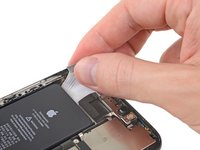
    • Using the same procedure as before, pull both tabs at the same time to stretch and remove the remaining adhesive strip holding the battery in place. Try not to snag the adhesive on the edge of the iPhone.

    • Be careful not to fling the battery from the iPhone as the final adhesive strip comes out.

    • If you removed all the adhesive strips successfully, skip the next step.

    • Otherwise, continue with the next step below.

    Chiedi a FixBot

    Aggiungi Commento

  42. iPhone 11 Pro Max Audio Control Cable Replacement, How to remove a stuck battery: passo 42, immagine 1 di 2 iPhone 11 Pro Max Audio Control Cable Replacement, How to remove a stuck battery: passo 42, immagine 2 di 2
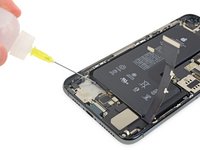
    • If you're still having trouble removing the battery, apply a few drops of high concentration (over 90%) isopropyl alcohol under the edge of the battery in the area of the broken adhesive strip(s).

    • Wait about one minute for the alcohol solution to weaken the adhesive.

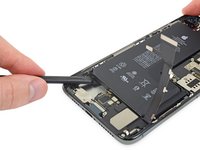
    • Use the flat end of a spudger to gently lift the battery.

    • Don't try to forcefully lever the battery out. If needed, apply a few more drops of alcohol to further weaken the adhesive. Never deform or puncture the battery with your pry tool.

    Chiedi a FixBot

    Aggiungi Commento

  43. iPhone 11 Pro Max Audio Control Cable Replacement, Remove the battery: passo 43, immagine 1 di 1
    • Remove the battery.

    • If there's any alcohol solution remaining in the phone, carefully wipe it off or allow it to air dry before installing your new battery.

    • Before you adhere the replacement battery, temporarily reconnect the battery connector to the motherboard socket. This ensures that the battery is properly aligned in its recess.

    • Adhere the battery, disconnect it, and continue reassembling your device.

    • If your new battery didn't come with adhesive preinstalled, refer to this guide for help replacing the adhesive strips.

    • Perform a force restart after reassembly. This can prevent several issues and simplify troubleshooting.

    Chiedi a FixBot

    Aggiungi Commento

  44. iPhone 11 Pro Max Audio Control Cable Replacement, Disconnect the audio control cable: passo 44, immagine 1 di 2 iPhone 11 Pro Max Audio Control Cable Replacement, Disconnect the audio control cable: passo 44, immagine 2 di 2
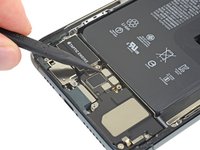
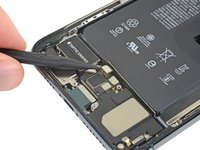
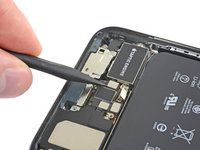
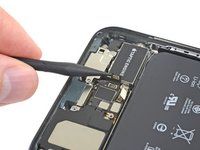
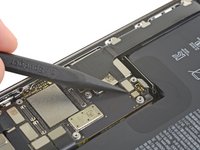
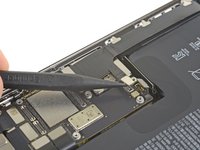
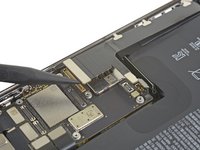
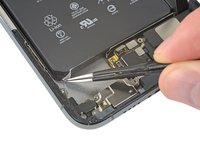
    • Use a small spudger to unplug the audio control / wireless charging coil cable.

    Chiedi a FixBot

    Aggiungi Commento

  45. iPhone 11 Pro Max Audio Control Cable Replacement, Peel the cable from the case: passo 45, immagine 1 di 2 iPhone 11 Pro Max Audio Control Cable Replacement, Peel the cable from the case: passo 45, immagine 2 di 2
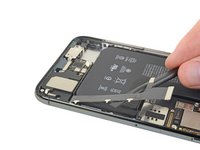
    • The flex cable is lightly adhered to the case; using heat will make it easier, but is not really necessary.

    • Don't try to peel it up past the edge of the wireless charging coil; that's where the flex cable is soldered on and attempting to do so may damage the coil.

    Chiedi a FixBot

    Aggiungi Commento

  46. iPhone 11 Pro Max Audio Control Cable Replacement, Unsolder the wireless charging coil: passo 46, immagine 1 di 2 iPhone 11 Pro Max Audio Control Cable Replacement, Unsolder the wireless charging coil: passo 46, immagine 2 di 2
    • The wide spot in the cable marks the location of the solder joint. Heat it with your soldering iron while carefully lifting it as the solder melts.

    • Placing some Kapton tape under the wires of the coil should help prevent damage to the carbon sheet under the coil during reassembly.

    Chiedi a FixBot

    Aggiungi Commento

  47. iPhone 11 Pro Max Audio Control Cable Replacement: passo 47, immagine 1 di 2 iPhone 11 Pro Max Audio Control Cable Replacement: passo 47, immagine 2 di 2
    • Repeat for the other solder joint at the 90 degree bend.

    Chiedi a FixBot

    Aggiungi Commento

  48. iPhone 11 Pro Max Audio Control Cable Replacement, Remove the plastic strip: passo 48, immagine 1 di 3 iPhone 11 Pro Max Audio Control Cable Replacement, Remove the plastic strip: passo 48, immagine 2 di 3 iPhone 11 Pro Max Audio Control Cable Replacement, Remove the plastic strip: passo 48, immagine 3 di 3
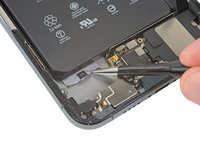
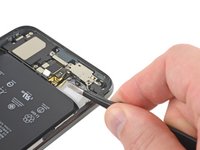
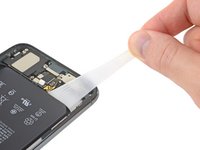
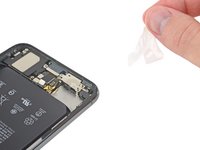
    • Peel off the plastic strip from the inside edge of the case. It is only lightly adhered.

    Chiedi a FixBot

    Aggiungi Commento

  49. iPhone 11 Pro Max Audio Control Cable Replacement, Heat the flex cable: passo 49, immagine 1 di 1
    • Use your favorite heating method (a hair dryer is used here) to soften the adhesive holding the delicate cable to the rear of the case.

    Chiedi a FixBot

    Aggiungi Commento

  50. iPhone 11 Pro Max Audio Control Cable Replacement, Peel the cable from the case: passo 50, immagine 1 di 3 iPhone 11 Pro Max Audio Control Cable Replacement, Peel the cable from the case: passo 50, immagine 2 di 3 iPhone 11 Pro Max Audio Control Cable Replacement, Peel the cable from the case: passo 50, immagine 3 di 3
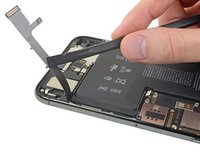
    • Carefully peel the flex cable from the case.

    Chiedi a FixBot

    Aggiungi Commento

  51. iPhone 11 Pro Max Audio Control Cable Replacement: passo 51, immagine 1 di 2 iPhone 11 Pro Max Audio Control Cable Replacement: passo 51, immagine 2 di 2
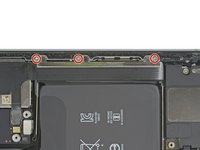
    • Remove the four 2.4 mm Phillips 000 screws securing the silent switch and volume buttons.

    Chiedi a FixBot

    Aggiungi Commento

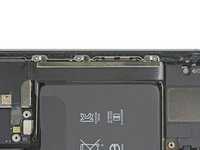
  52. iPhone 11 Pro Max Audio Control Cable Replacement, Loosen the silent switch: passo 52, immagine 1 di 1
    • Loosen but do not attempt to remove the silent/ring switch, as its cable is still adhered to the case.

    Chiedi a FixBot

    Aggiungi Commento

  53. iPhone 11 Pro Max Audio Control Cable Replacement, Peel the cable from the case: passo 53, immagine 1 di 3 iPhone 11 Pro Max Audio Control Cable Replacement, Peel the cable from the case: passo 53, immagine 2 di 3 iPhone 11 Pro Max Audio Control Cable Replacement, Peel the cable from the case: passo 53, immagine 3 di 3
    • Again, after applying heat as needed, carefully peel the cable connecting the silent switch to the volume buttons from the case.

    Chiedi a FixBot

    Aggiungi Commento

  54. iPhone 11 Pro Max Audio Control Cable Replacement: passo 54, immagine 1 di 1
    • The audio control cable has been removed.

    Chiedi a FixBot

    Aggiungi Commento

  55. iPhone 11 Pro Max Audio Control Cable Replacement, Prepare the replacement cable: passo 55, immagine 1 di 3 iPhone 11 Pro Max Audio Control Cable Replacement, Prepare the replacement cable: passo 55, immagine 2 di 3 iPhone 11 Pro Max Audio Control Cable Replacement, Prepare the replacement cable: passo 55, immagine 3 di 3
    • Apply solder flux to both coil connections on the replacement cable.

    • Tin both points with a coating of solder.

    Chiedi a FixBot

    Aggiungi Commento

  56. iPhone 11 Pro Max Audio Control Cable Replacement, Remove the slide switch: passo 56, immagine 1 di 3 iPhone 11 Pro Max Audio Control Cable Replacement, Remove the slide switch: passo 56, immagine 2 di 3 iPhone 11 Pro Max Audio Control Cable Replacement, Remove the slide switch: passo 56, immagine 3 di 3
    • Rotate the slide switch down until the hinge pins are visible.

    • Lift the switch straight up.

    Chiedi a FixBot

    Aggiungi Commento

  57. iPhone 11 Pro Max Audio Control Cable Replacement, Install the slide switch: passo 57, immagine 1 di 3 iPhone 11 Pro Max Audio Control Cable Replacement, Install the slide switch: passo 57, immagine 2 di 3 iPhone 11 Pro Max Audio Control Cable Replacement, Install the slide switch: passo 57, immagine 3 di 3
    • Place the slide switch into position on the side of the silent switch nearest the flex cable.

    • Rotate the slide switch into position.

    Chiedi a FixBot

    Aggiungi Commento

Conclusione

To reassemble your device, return to Step 53 and follow the remaining instructions in reverse order.

Annulla: non ho completato questa guida.

Altre 3 persone hanno completato questa guida.

Jerry Wheeler

Membro da: 03/21/22

95.177 Reputazione

92 guide realizzate

0Commenti sulla guida

Aggiungi Commento

Visualizza statistiche:

Ultime 24 ore: 6

Ultimi 7 giorni: 34

Ultimi 30 giorni: 189

Tutti i Tempi: 1,126