Salta al contenuto principale

Joy-Con 2 (Left) Joystick Replacement

Cosa ti serve

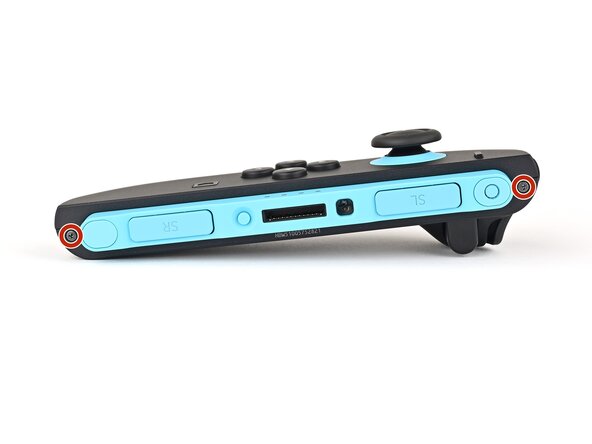
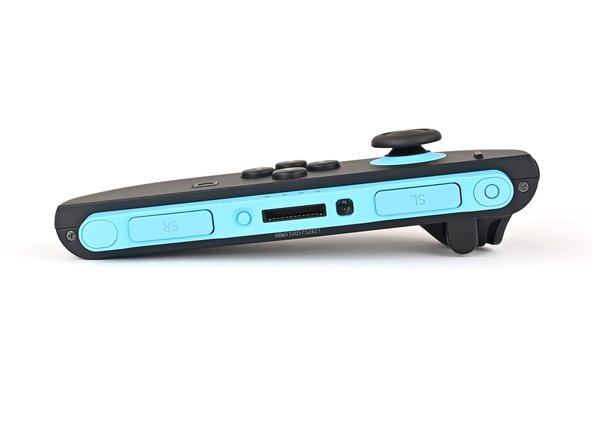
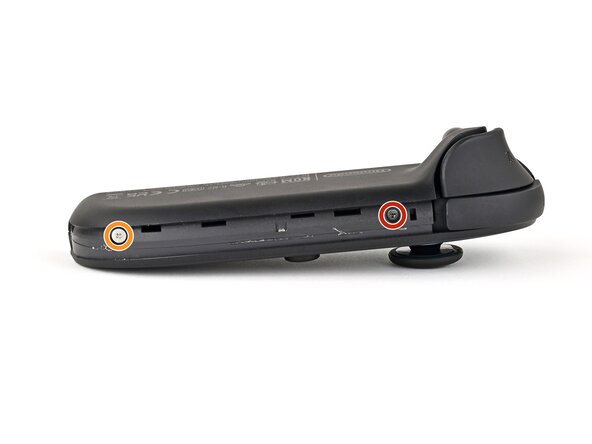
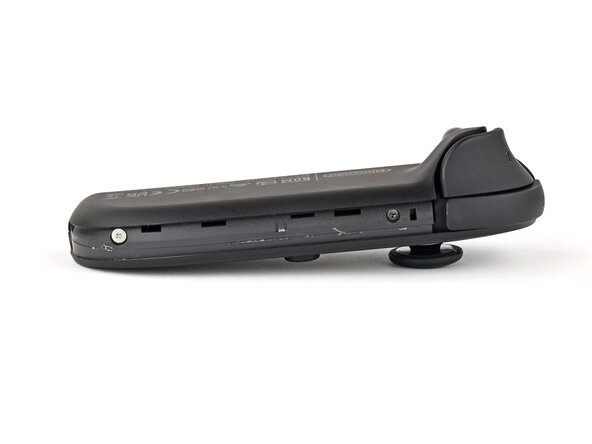
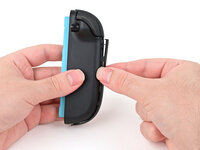
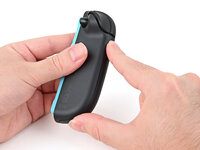
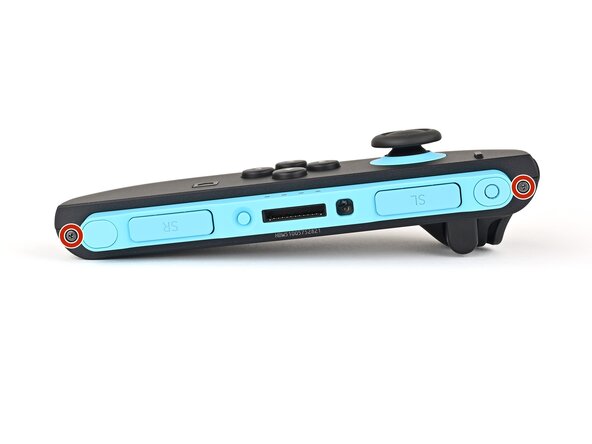
  1. Joy-Con 2 (Left) Joystick Replacement, Remove the right edge screws: passo 1, immagine 1 di 2 Joy-Con 2 (Left) Joystick Replacement, Remove the right edge screws: passo 1, immagine 2 di 2
    • Use a tri‑point Y00 driver to remove the two 3.1 mm‑long black screws on the right edge of the controller.

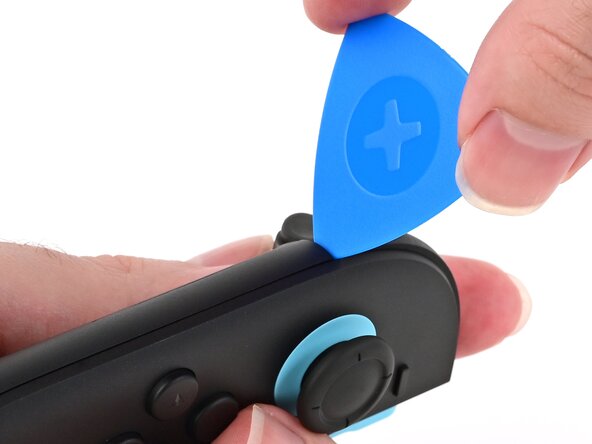
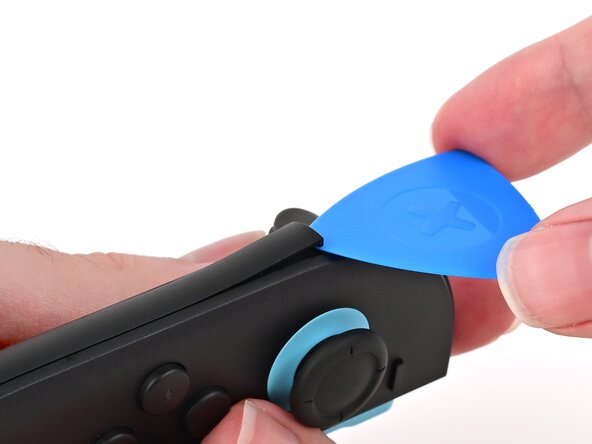
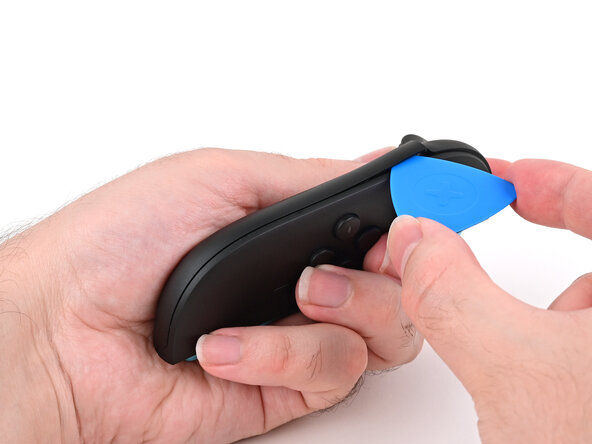
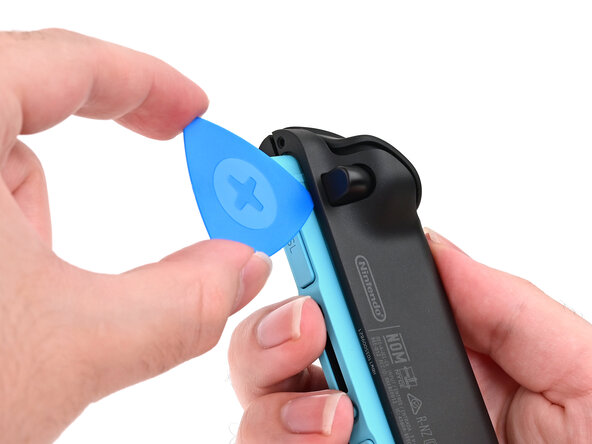
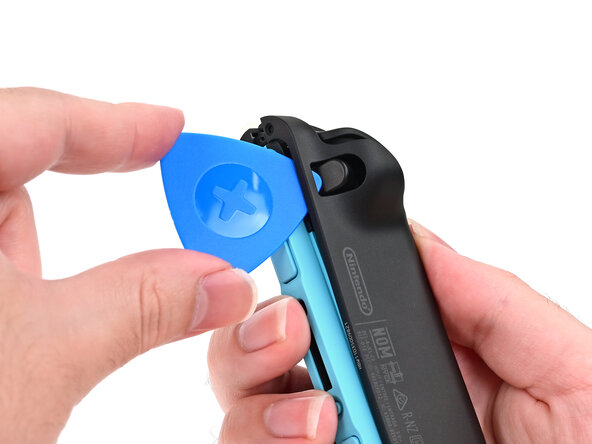
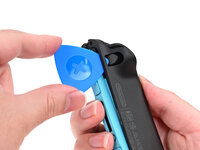
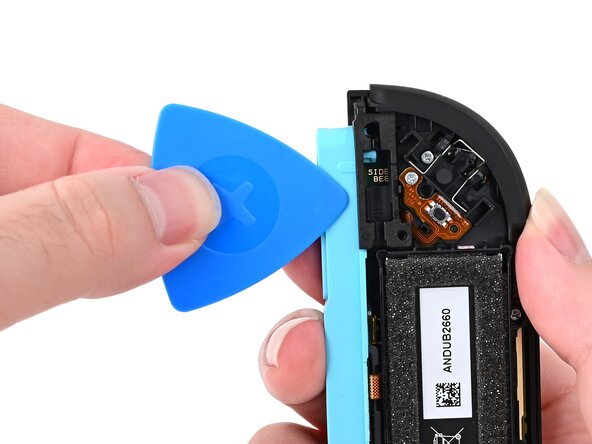
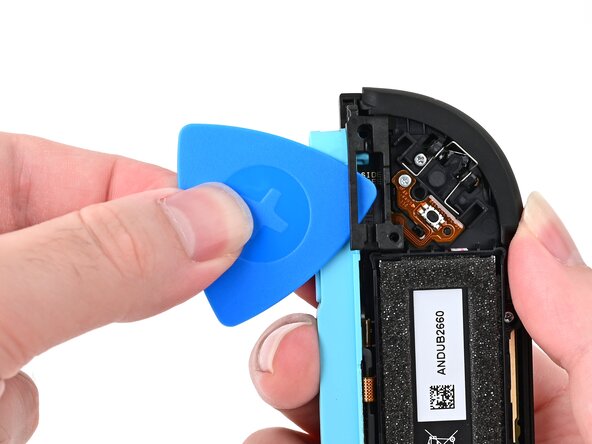
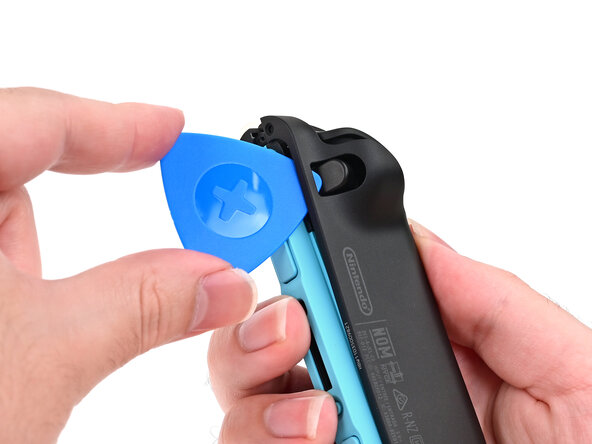
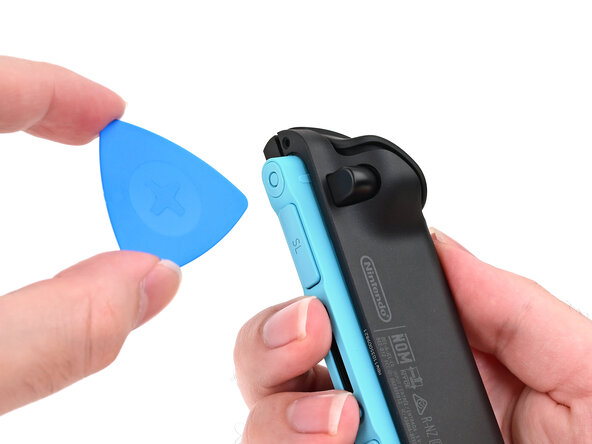
  2. Joy-Con 2 (Left) Joystick Replacement, Insert an opening pick: passo 2, immagine 1 di 2 Joy-Con 2 (Left) Joystick Replacement, Insert an opening pick: passo 2, immagine 2 di 2
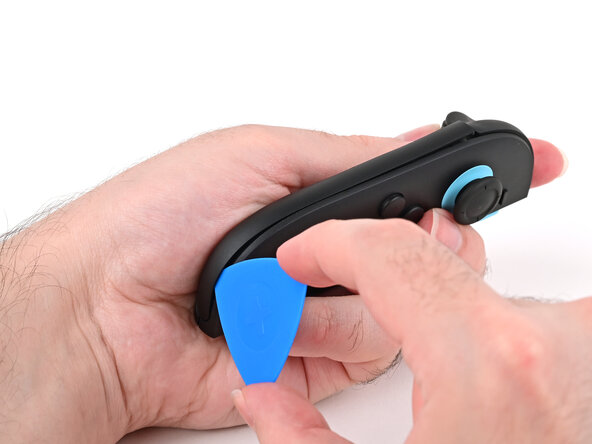
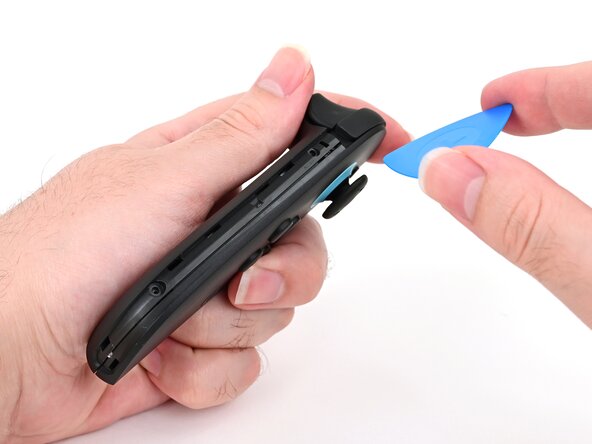
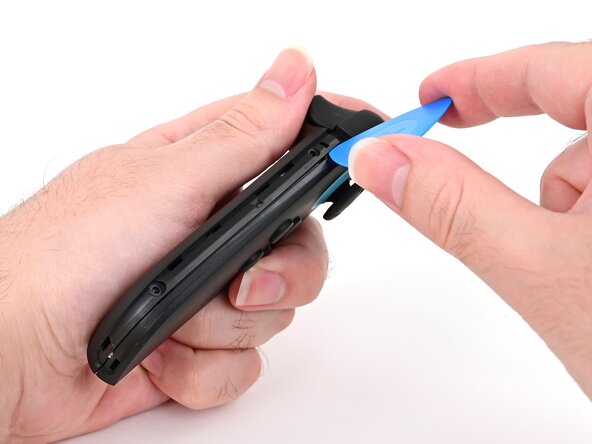
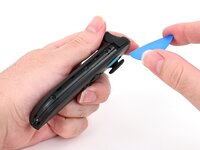
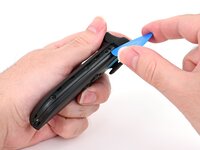
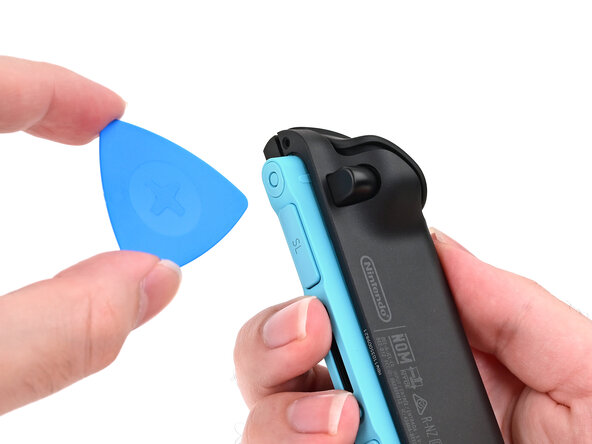
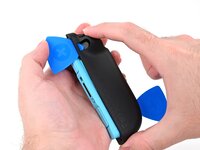
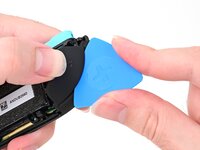
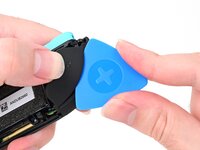
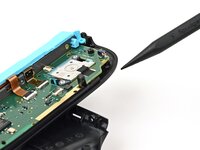
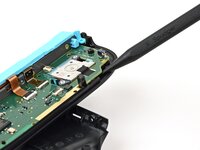
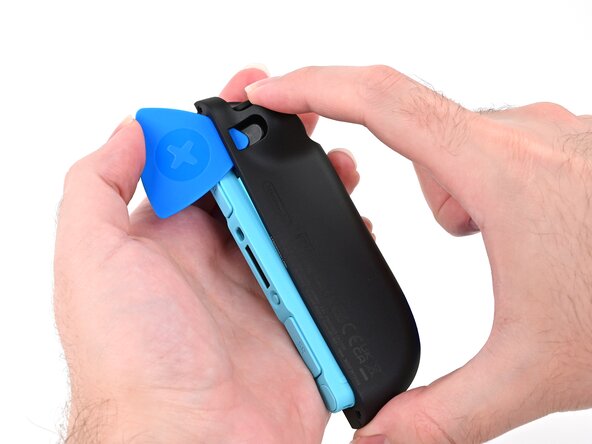
    • Insert an opening pick into the gap underneath the bumper button on the left side of the controller, with a point of the pick pointing downwards.

    • Pry up to slightly lift the plastic strip running across the left edge of the controller.

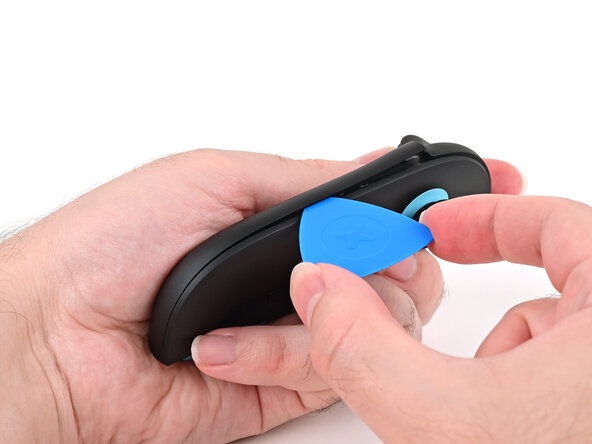
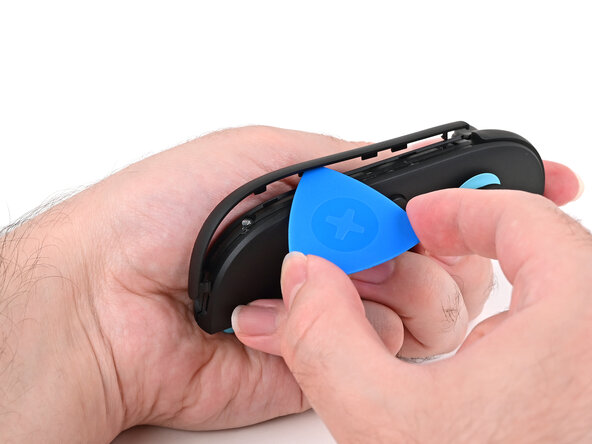
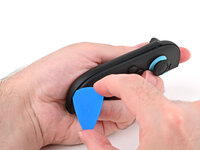
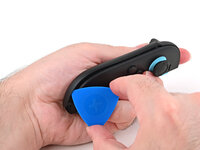
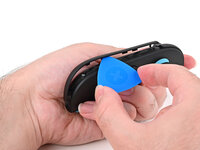
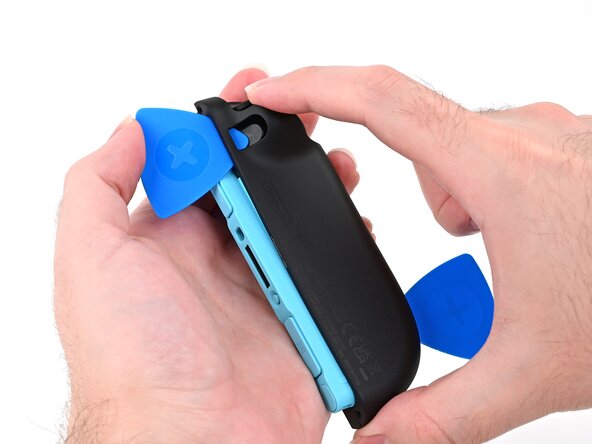
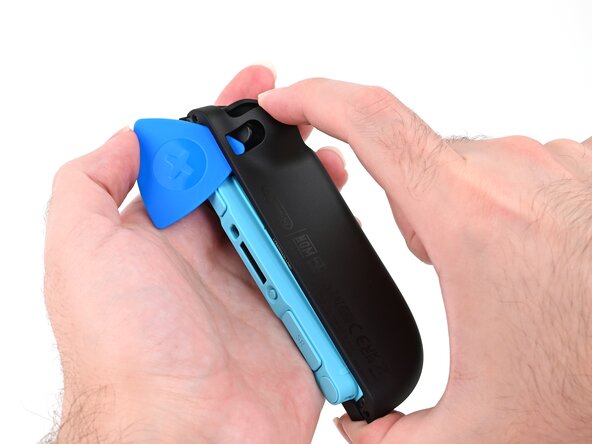
  3. Joy-Con 2 (Left) Joystick Replacement, Separate the plastic strip: passo 3, immagine 1 di 3 Joy-Con 2 (Left) Joystick Replacement, Separate the plastic strip: passo 3, immagine 2 di 3 Joy-Con 2 (Left) Joystick Replacement, Separate the plastic strip: passo 3, immagine 3 di 3
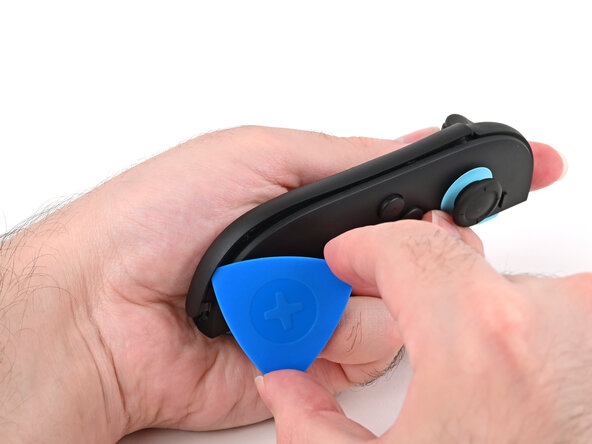
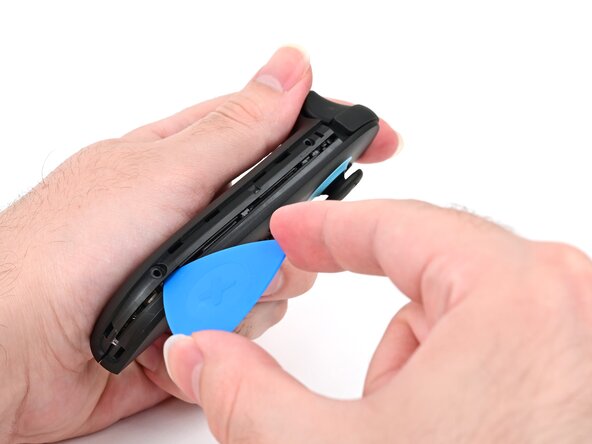
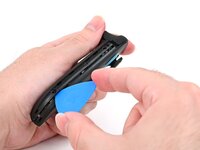
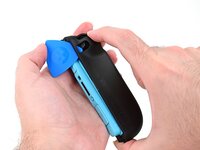
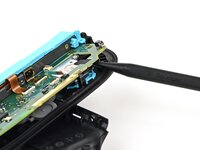
    • Slide the opening pick around to the front of the controller.

    • Slide the opening pick down the plastic strip to separate the clips and adhesive securing it to the controller's body.

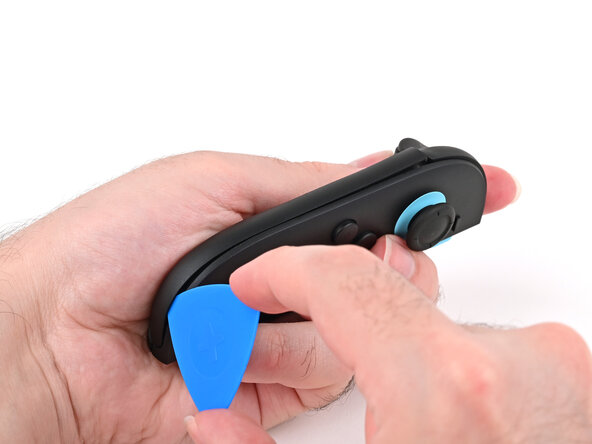
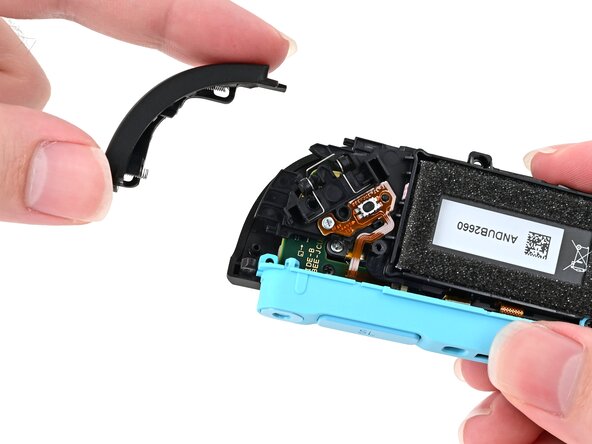
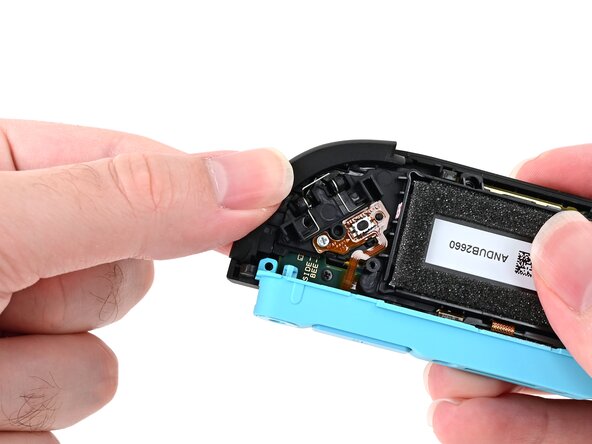
  4. Joy-Con 2 (Left) Joystick Replacement, Remove the plastic strip: passo 4, immagine 1 di 3 Joy-Con 2 (Left) Joystick Replacement, Remove the plastic strip: passo 4, immagine 2 di 3 Joy-Con 2 (Left) Joystick Replacement, Remove the plastic strip: passo 4, immagine 3 di 3
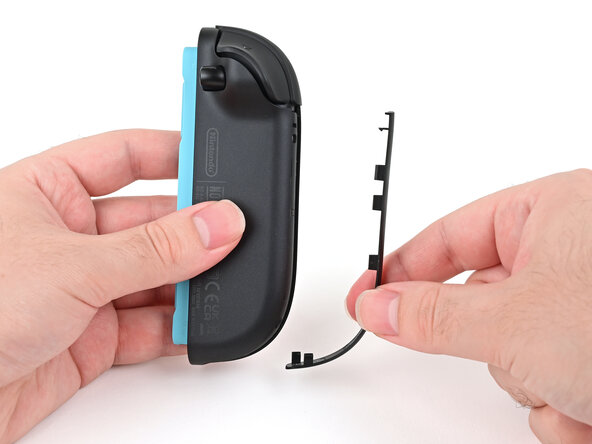
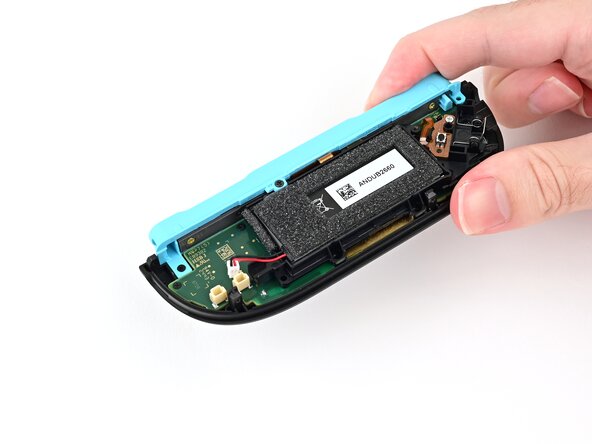
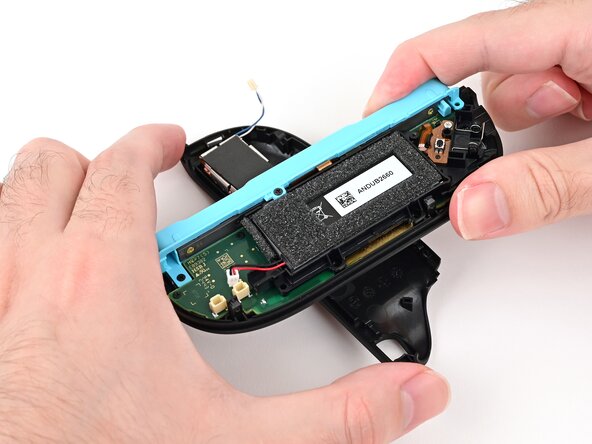
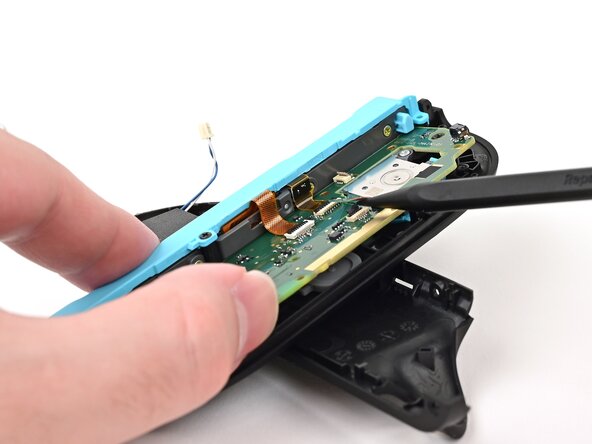
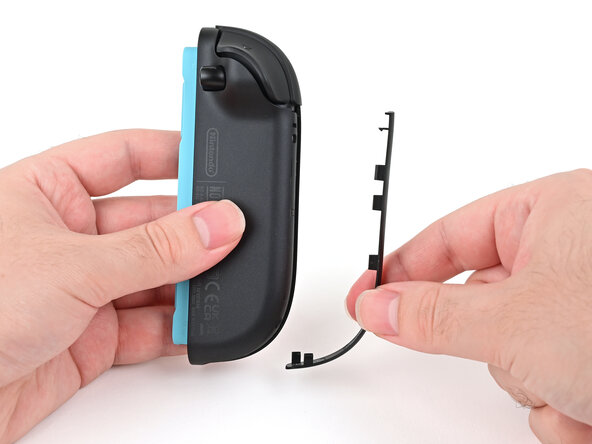
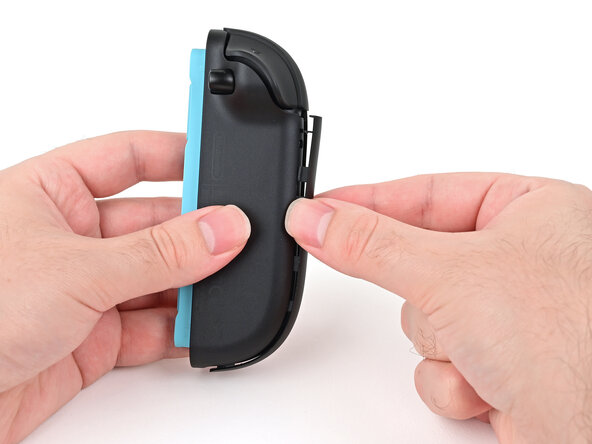
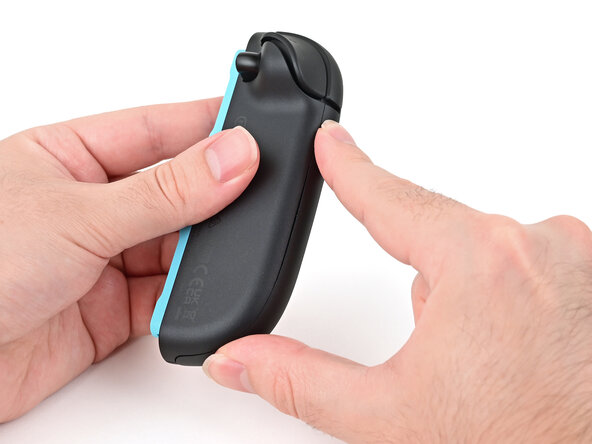
    • Pry up on the bottom edge of the plastic strip with slow, steady force.

    • Repeat this prying action along the length of the strip until it's fully detached.

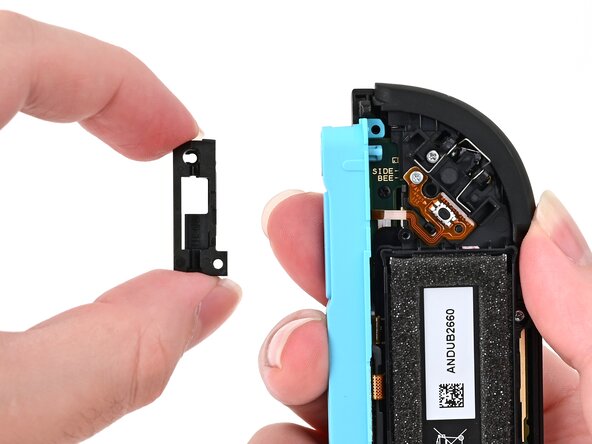
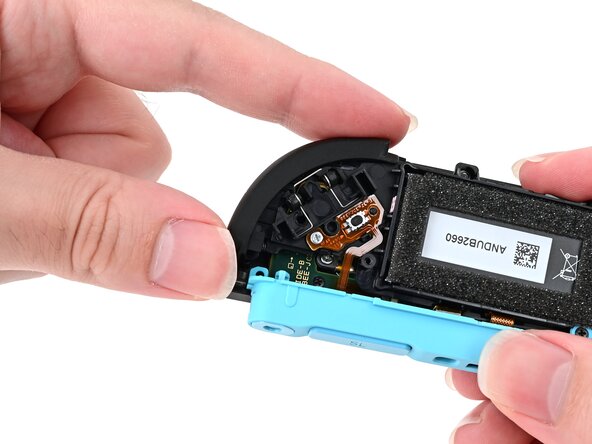
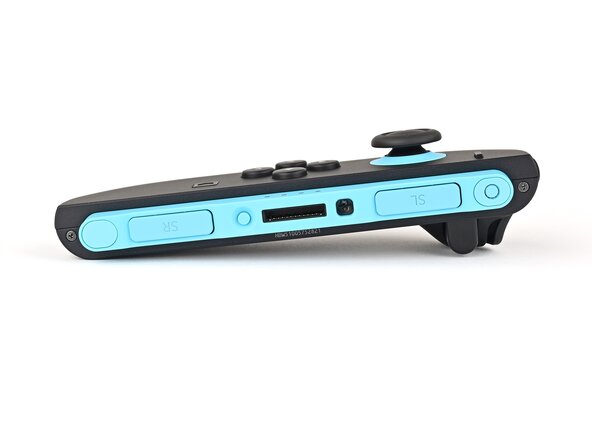
  5. Joy-Con 2 (Left) Joystick Replacement: passo 5, immagine 1 di 1
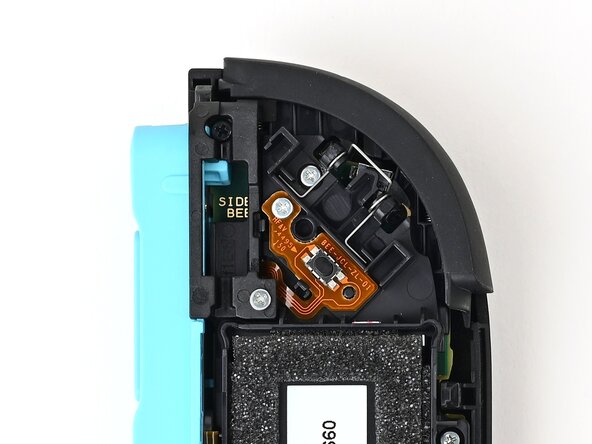
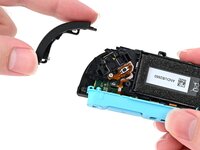
    • Remove the plastic strip.

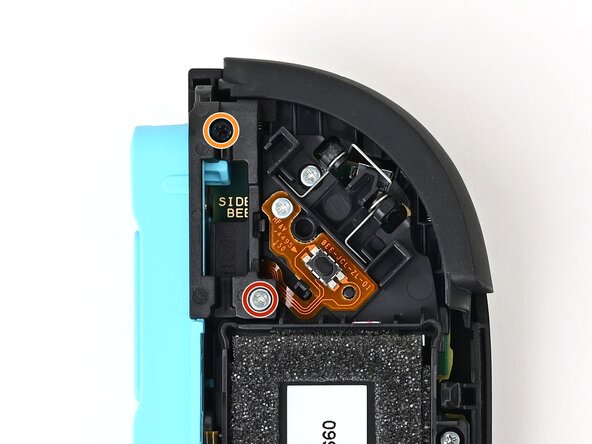
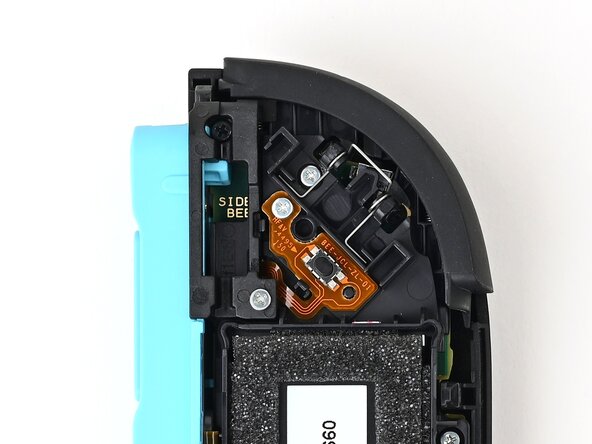
  6. Joy-Con 2 (Left) Joystick Replacement, Remove the left edge screws: passo 6, immagine 1 di 2 Joy-Con 2 (Left) Joystick Replacement, Remove the left edge screws: passo 6, immagine 2 di 2
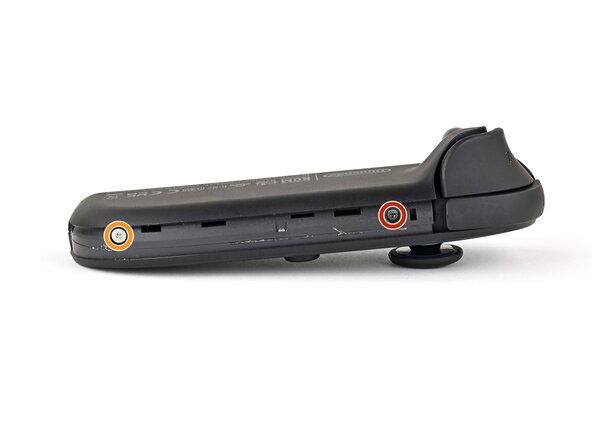
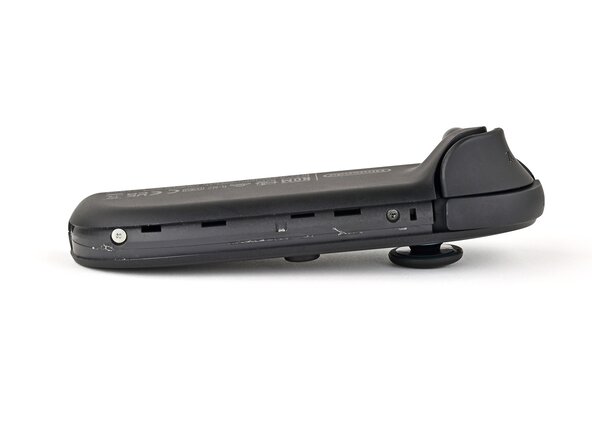
    • Remove the two screws on the left edge of the controller:

    • One 3.1 mm‑long tri‑point Y00 black screw

    • One 3.0 mm‑long JIS 00 silver screw

    • You can use a Phillips screwdriver in a pinch, but you risk damaging or stripping the screw. Push down firmly on the screwdriver and twist slowly. Often, switching drivers may help, even if they're the same size.

  7. Joy-Con 2 (Left) Joystick Replacement, Insert an opening pick: passo 7, immagine 1 di 3 Joy-Con 2 (Left) Joystick Replacement, Insert an opening pick: passo 7, immagine 2 di 3 Joy-Con 2 (Left) Joystick Replacement, Insert an opening pick: passo 7, immagine 3 di 3
    • Don't try to remove the back cover yet.

    • Insert an opening pick into the gap between the front and back halves of the controller on its left side.

    • Slide the pick down the controller to disengage the clips.

    • Leave the opening pick at the bottom of the controller's left edge, just before its curve.

    • The opening pick will fall out once the back cover is removed. If it falls out before then, put it back to keep the two halves separated.

  8. Joy-Con 2 (Left) Joystick Replacement, Insert a second opening pick: passo 8, immagine 1 di 3 Joy-Con 2 (Left) Joystick Replacement, Insert a second opening pick: passo 8, immagine 2 di 3 Joy-Con 2 (Left) Joystick Replacement, Insert a second opening pick: passo 8, immagine 3 di 3
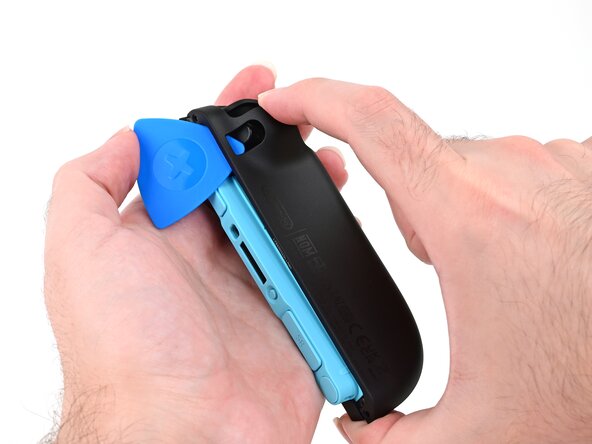
    • Hold the controller upside-down.

    • Insert a point of another opening pick next to the release button at the top of the controller.

    • Use the opening pick to press the release button through the gap.

  9. Joy-Con 2 (Left) Joystick Replacement, Release the back cover: passo 9, immagine 1 di 3 Joy-Con 2 (Left) Joystick Replacement, Release the back cover: passo 9, immagine 2 di 3 Joy-Con 2 (Left) Joystick Replacement, Release the back cover: passo 9, immagine 3 di 3
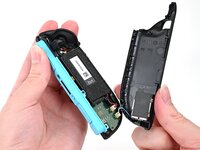
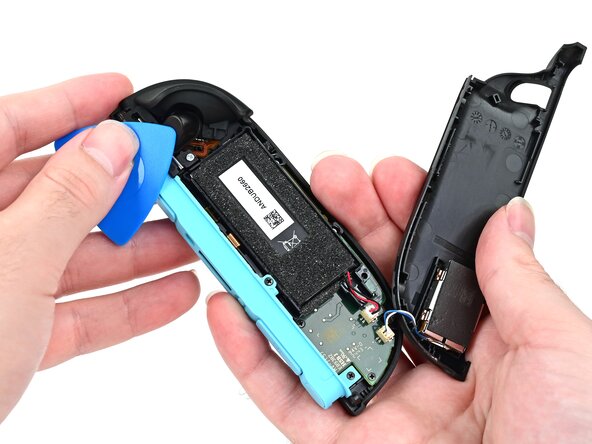
    • The back cover is connected to the controller by a cable at the bottom. Don't try to remove it completely yet.

    • While holding the release button with the opening pick, use your other hand to slide the back cover down to release the clips securing it to the controller's body.

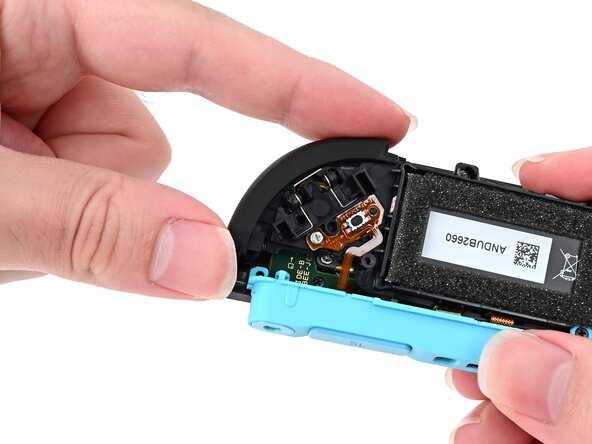
    • Open the back cover.

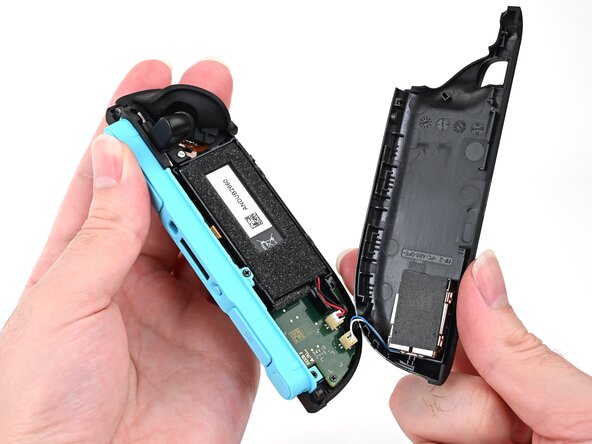
  10. Joy-Con 2 (Left) Joystick Replacement, Remove the back cover: passo 10, immagine 1 di 2 Joy-Con 2 (Left) Joystick Replacement, Remove the back cover: passo 10, immagine 2 di 2
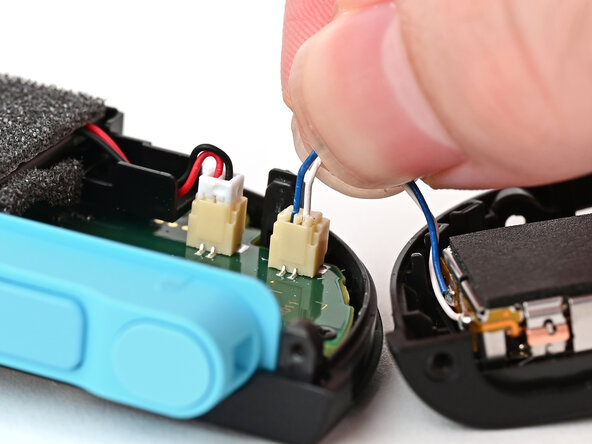
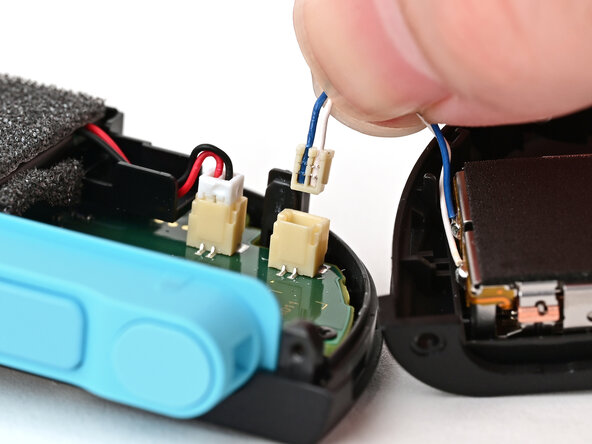
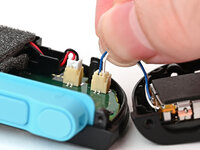
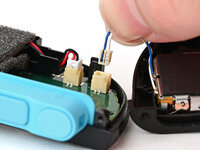
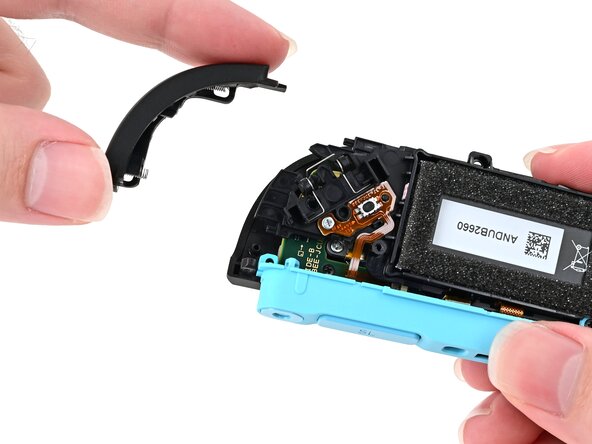
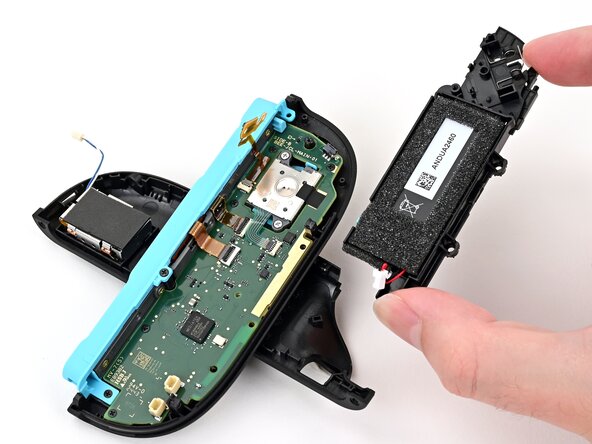
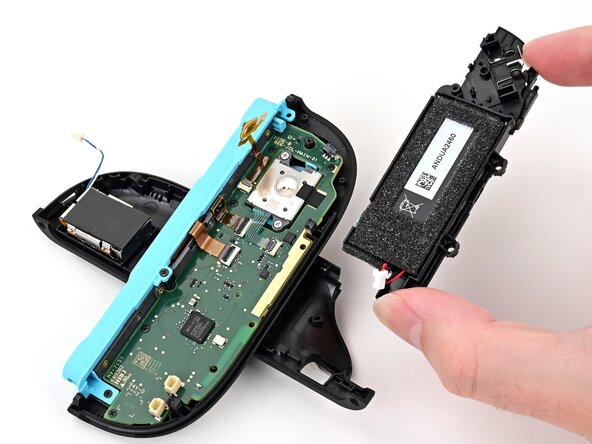
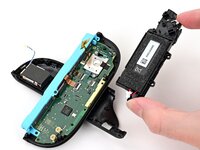
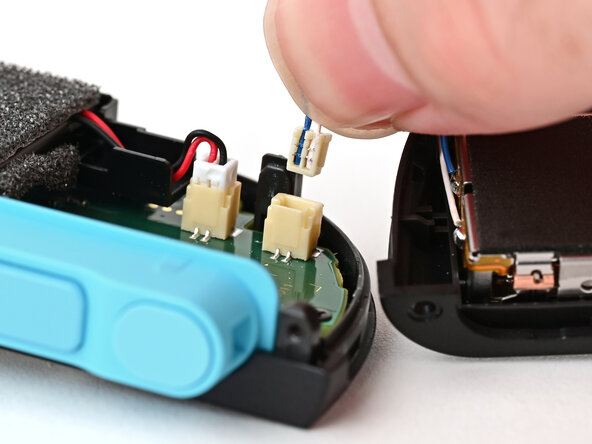
    • Firmly grasp the two wires (blue and white) above the rumble motor connector, located at the bottom of the controller's board, and pull the beige connector out of its socket.

    • Pulling the cable won't damage it, but don't dig your nails into the plastic sheathing.

    • Remove the back cover.

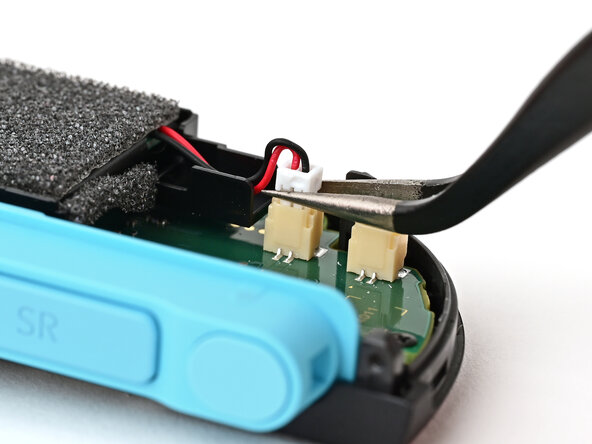
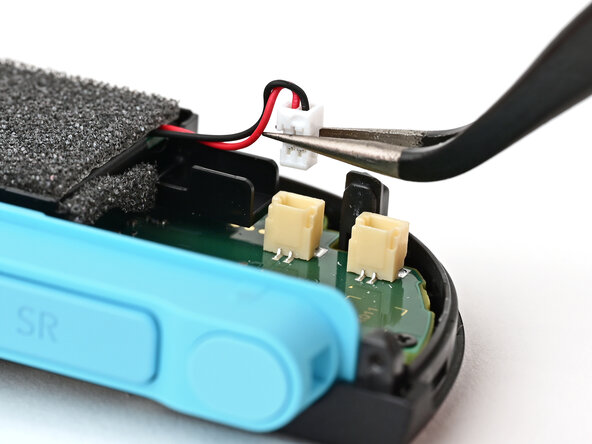
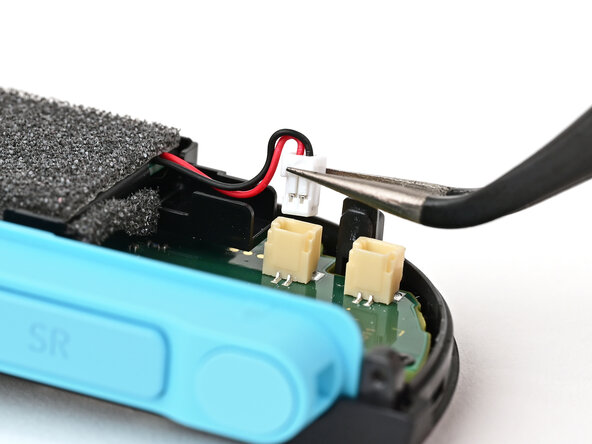
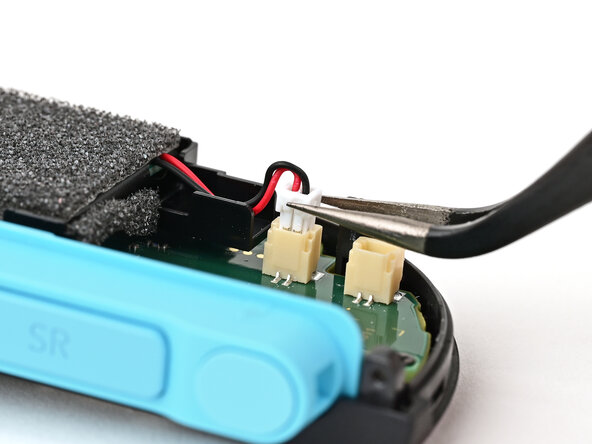
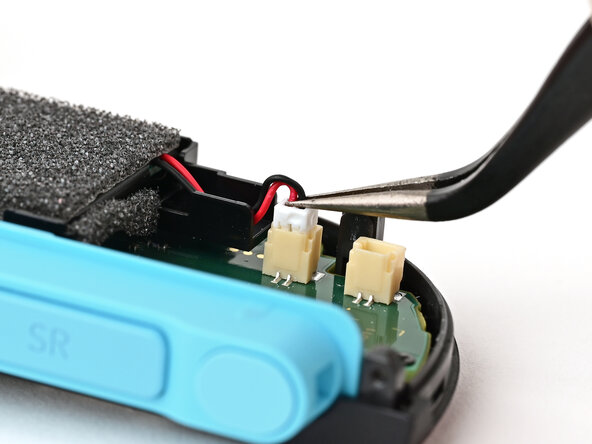
  11. Joy-Con 2 (Left) Joystick Replacement, Disconnect the battery: passo 11, immagine 1 di 3 Joy-Con 2 (Left) Joystick Replacement, Disconnect the battery: passo 11, immagine 2 di 3 Joy-Con 2 (Left) Joystick Replacement, Disconnect the battery: passo 11, immagine 3 di 3
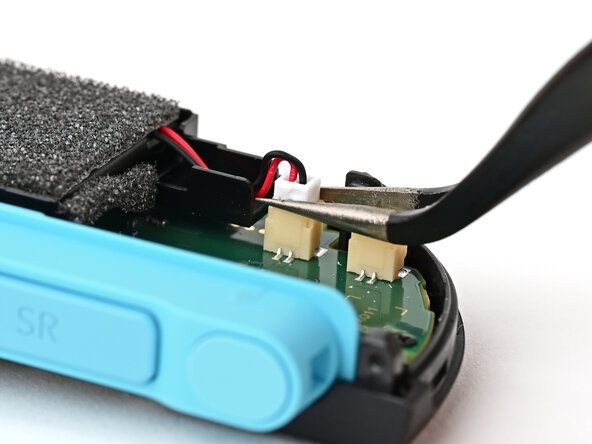
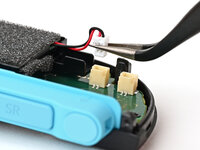
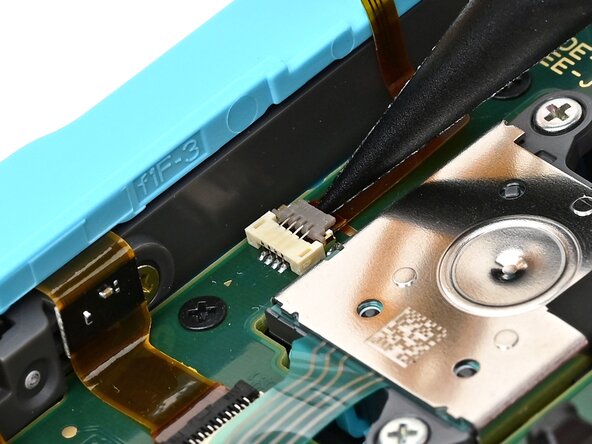
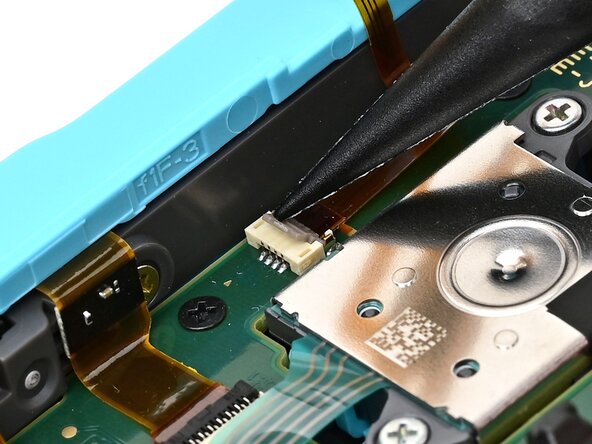
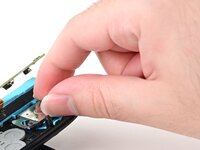
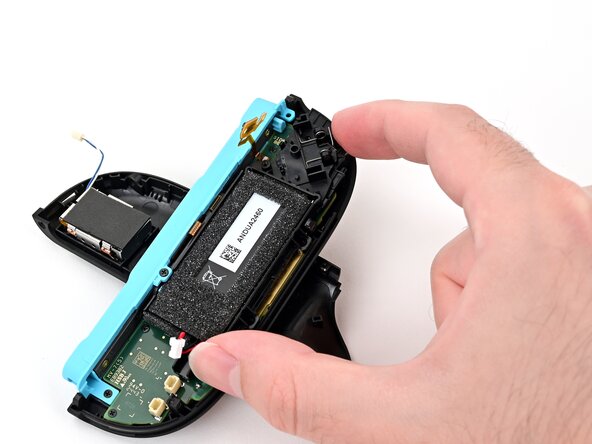
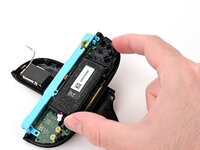
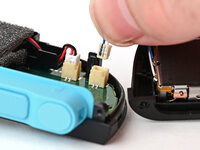
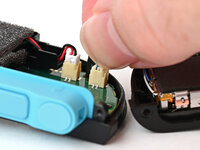
    • Use tweezers or your fingers to firmly grip the white JST connector and pull straight away from its socket to disconnect it.

    • Once partially lifted, reposition your fingers/tweezers to beneath the connector's upper lip to increase your grip.

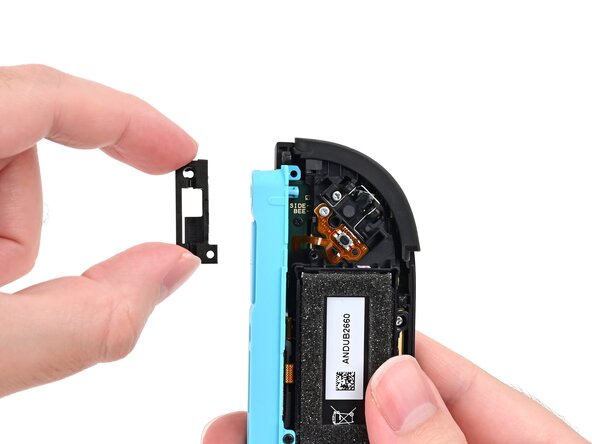
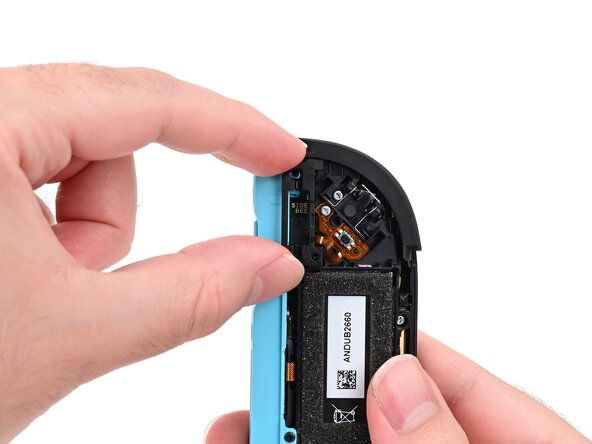
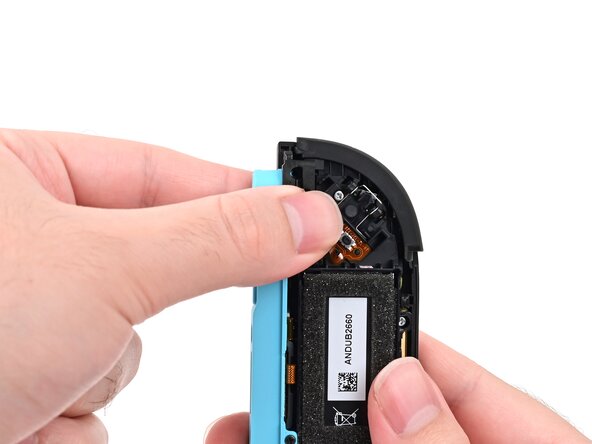
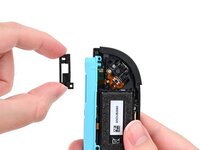
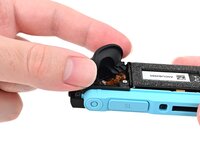
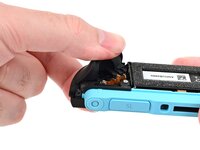
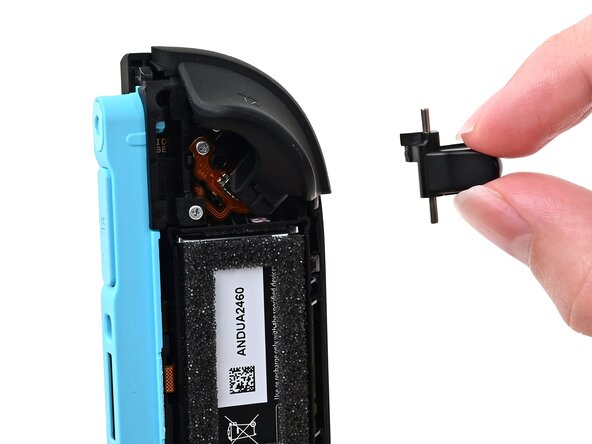
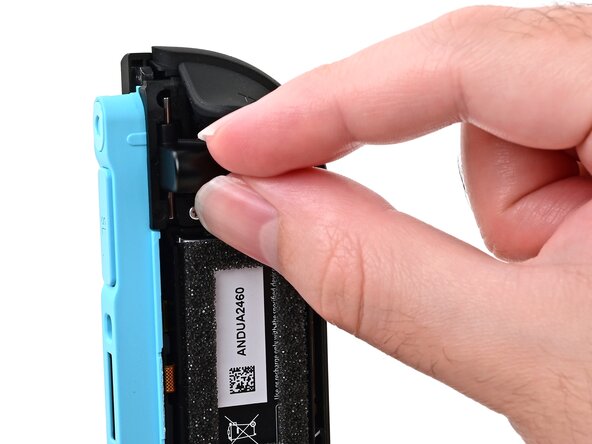
  12. Joy-Con 2 (Left) Joystick Replacement, Remove the release button: passo 12, immagine 1 di 2 Joy-Con 2 (Left) Joystick Replacement, Remove the release button: passo 12, immagine 2 di 2
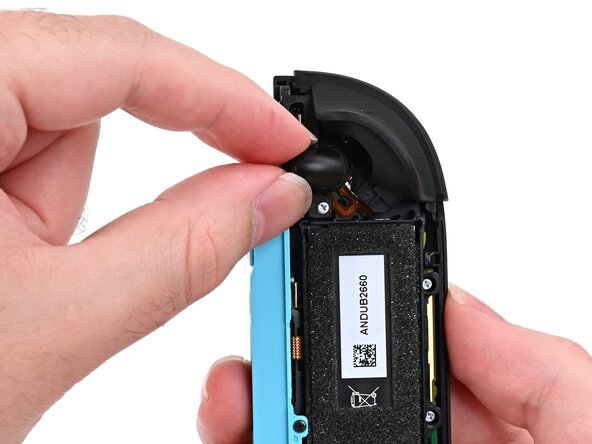
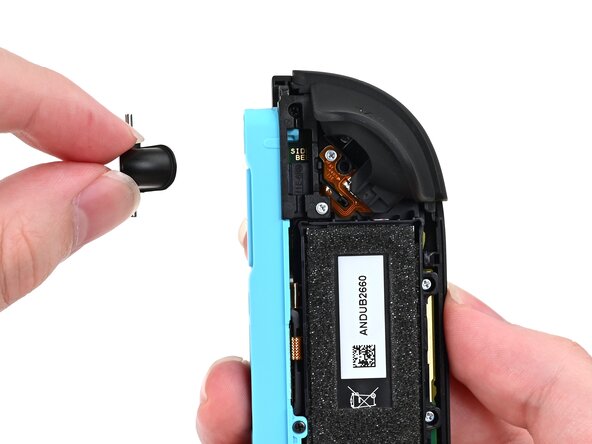
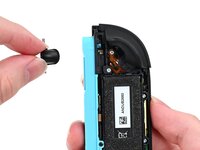
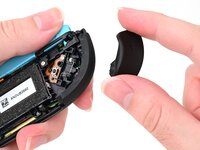
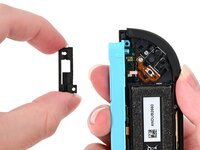
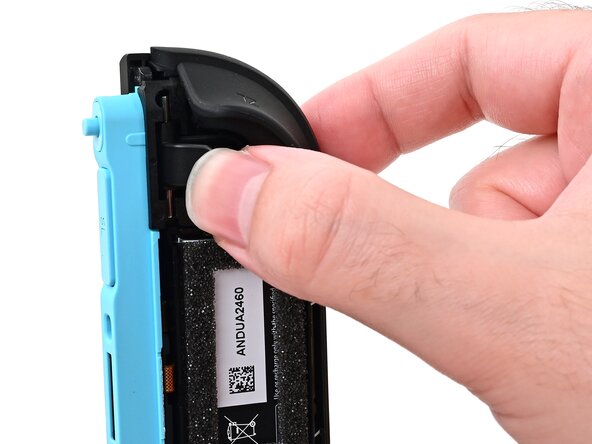
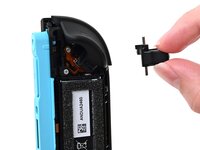
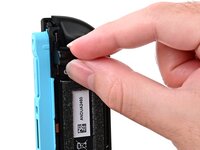
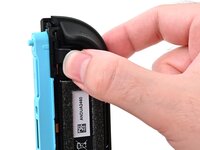
    • Pick up the release button and remove it.

  13. Joy-Con 2 (Left) Joystick Replacement, Remove the trigger: passo 13, immagine 1 di 3 Joy-Con 2 (Left) Joystick Replacement, Remove the trigger: passo 13, immagine 2 di 3 Joy-Con 2 (Left) Joystick Replacement, Remove the trigger: passo 13, immagine 3 di 3
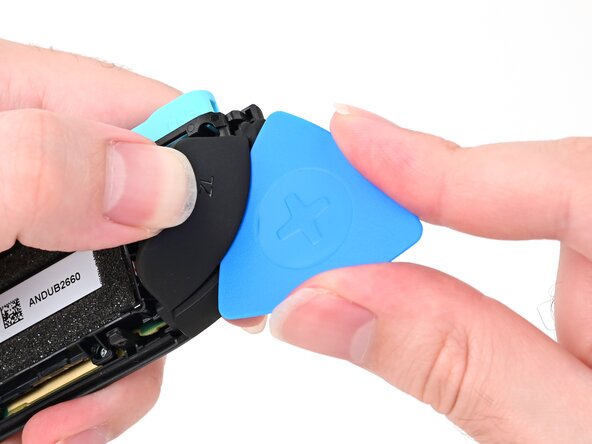
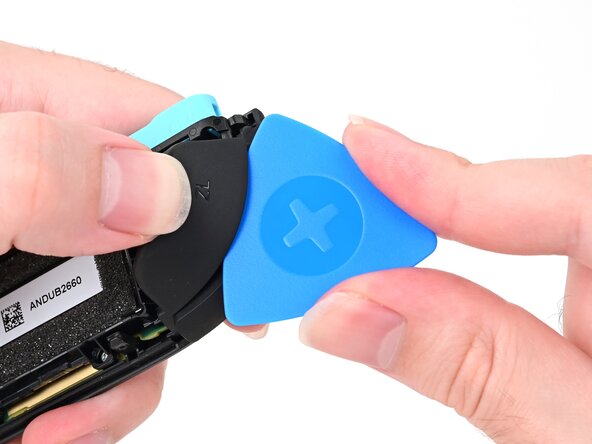
    • Insert an opening pick into the gap between the bumper (L) and trigger (ZL) buttons at the top of the controller.

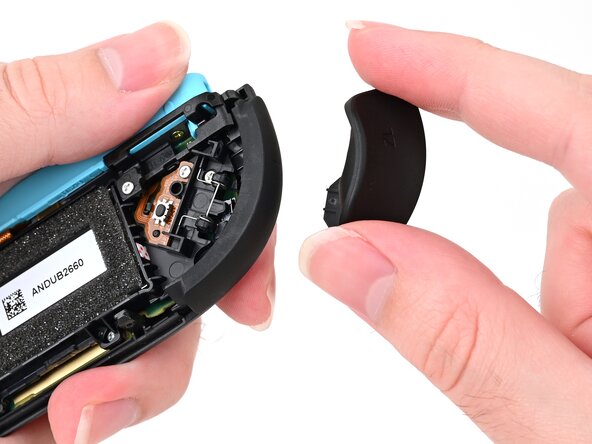
    • Pry up on the ZL button to pop it off and remove it.

    • You can lightly hold the ZL button with your finger to avoid launching it.

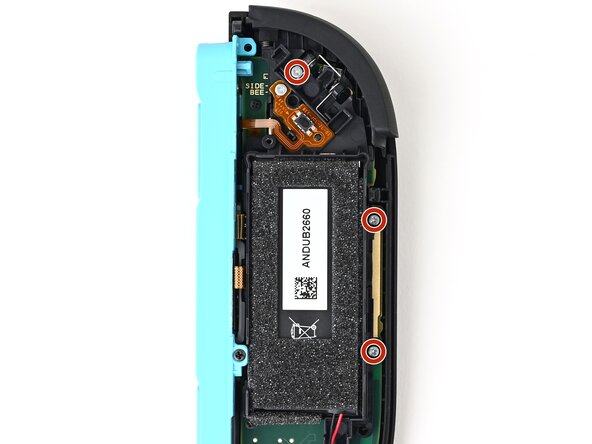
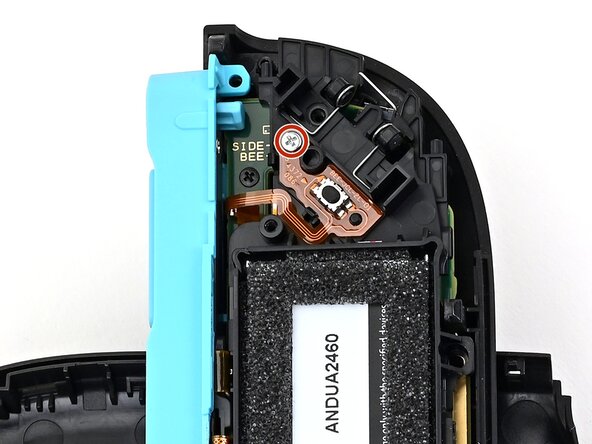
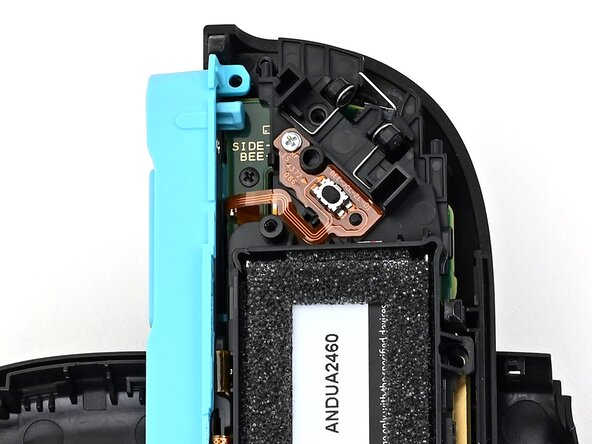
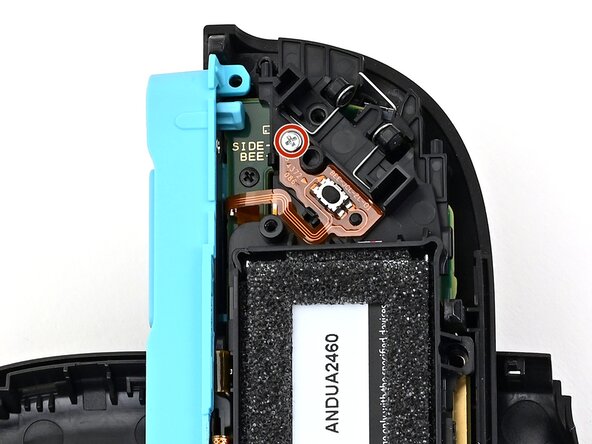
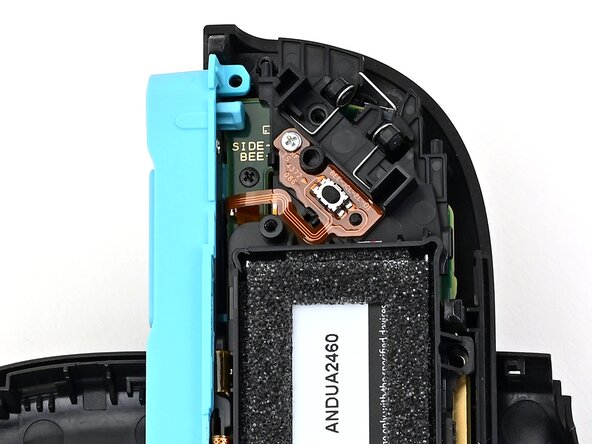
  14. Joy-Con 2 (Left) Joystick Replacement, Remove the screws: passo 14, immagine 1 di 2 Joy-Con 2 (Left) Joystick Replacement, Remove the screws: passo 14, immagine 2 di 2
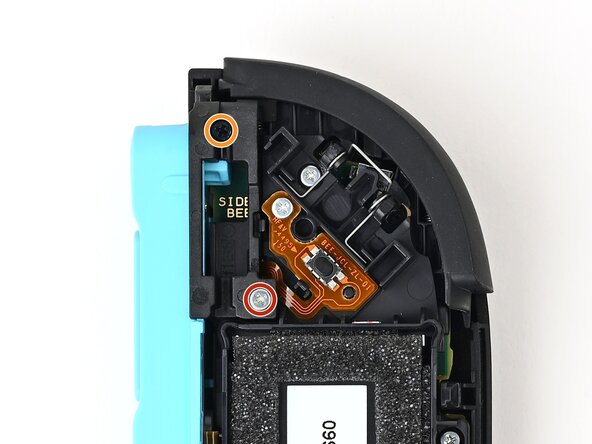
    • Use a JIS 00 driver to remove the two screws securing the release button mounting bracket:

    • One 3.9 mm‑long silver screw

    • One 6.2 mm‑long black screw

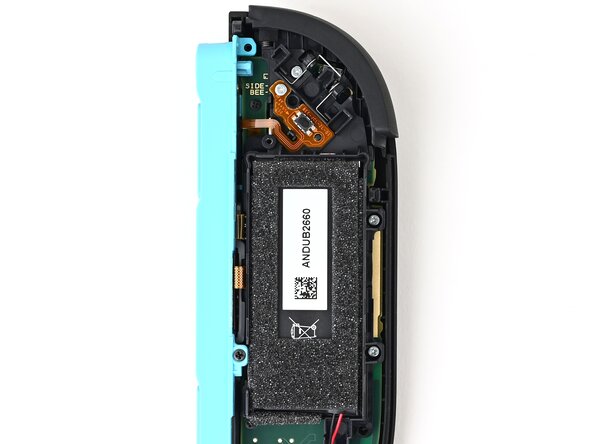
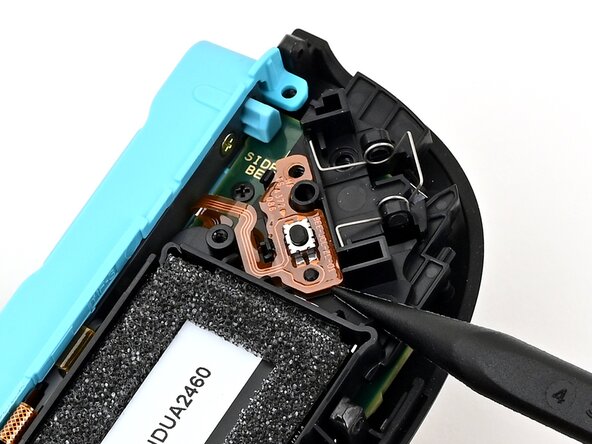
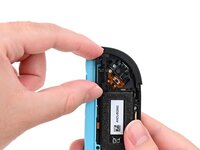
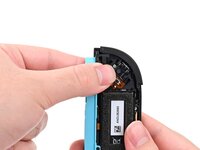
  15. Joy-Con 2 (Left) Joystick Replacement, Remove the bracket: passo 15, immagine 1 di 3 Joy-Con 2 (Left) Joystick Replacement, Remove the bracket: passo 15, immagine 2 di 3 Joy-Con 2 (Left) Joystick Replacement, Remove the bracket: passo 15, immagine 3 di 3
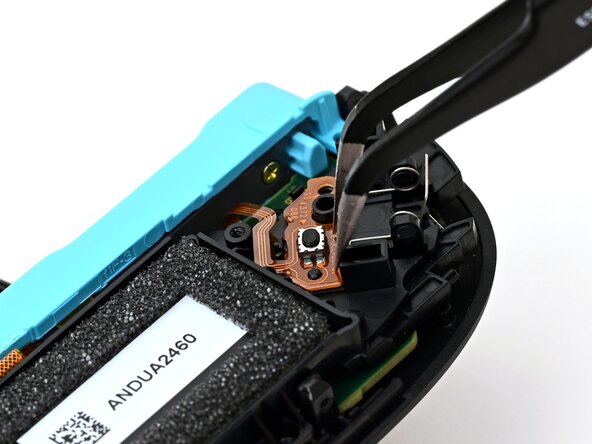
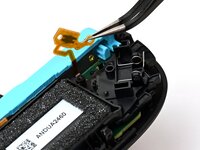
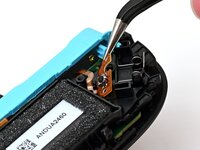
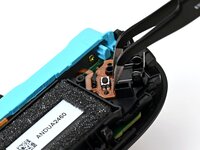
    • Insert an opening pick underneath the release button bracket.

    • Pry it away from the controller to remove it.

  16. Joy-Con 2 (Left) Joystick Replacement, Remove the screws: passo 16, immagine 1 di 2 Joy-Con 2 (Left) Joystick Replacement, Remove the screws: passo 16, immagine 2 di 2
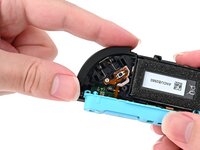
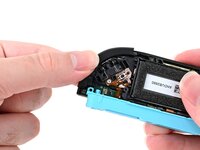
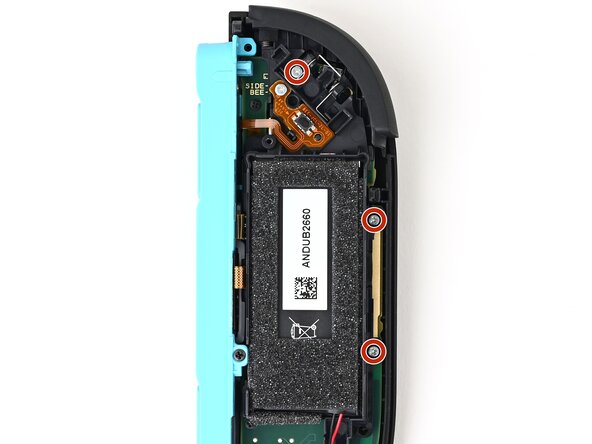
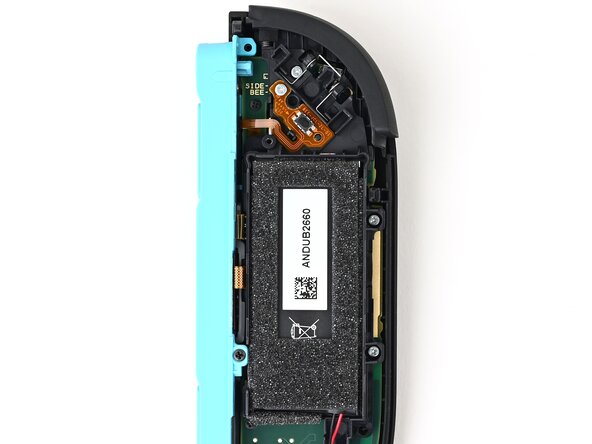
    • Use a JIS 00 driver to remove the three 3.9 mm‑long silver screws securing the midframe.

  17. Joy-Con 2 (Left) Joystick Replacement, Remove the bumper: passo 17, immagine 1 di 2 Joy-Con 2 (Left) Joystick Replacement, Remove the bumper: passo 17, immagine 2 di 2
    • Hold the midframe lightly in place.

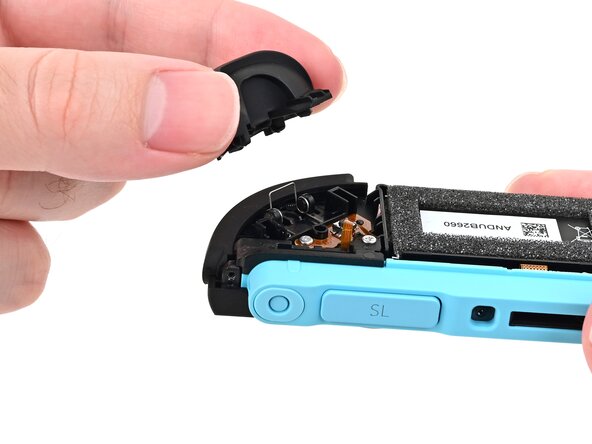
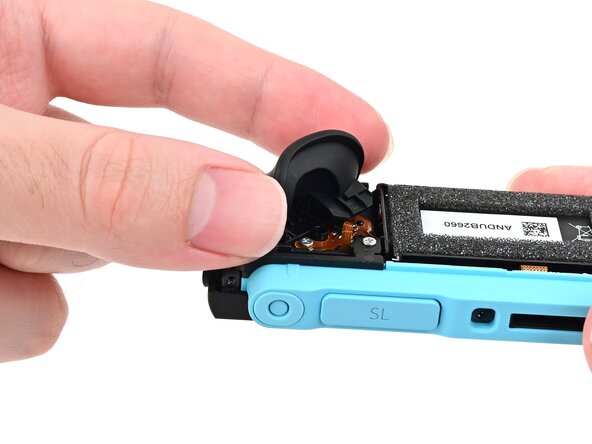
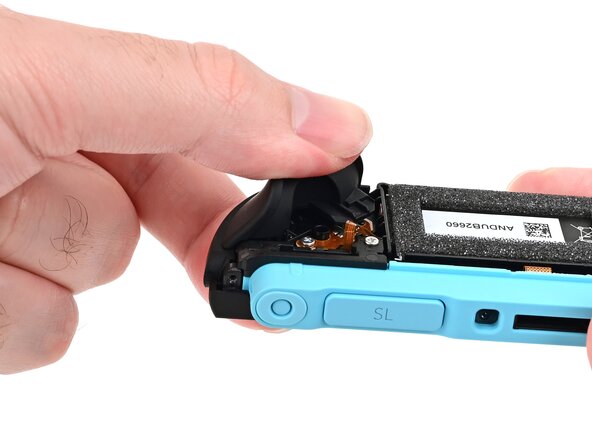
    • Pull the L bumper button off its mounting pegs and remove it.

    • The midframe will lift slightly when removing this button.

  18. Joy-Con 2 (Left) Joystick Replacement, Prop up the controller: passo 18, immagine 1 di 3 Joy-Con 2 (Left) Joystick Replacement, Prop up the controller: passo 18, immagine 2 di 3 Joy-Con 2 (Left) Joystick Replacement, Prop up the controller: passo 18, immagine 3 di 3
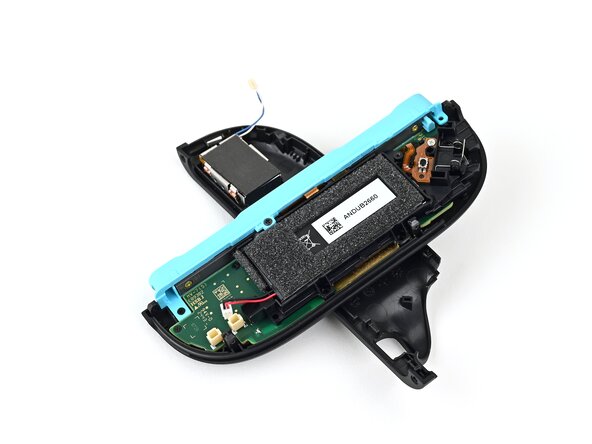
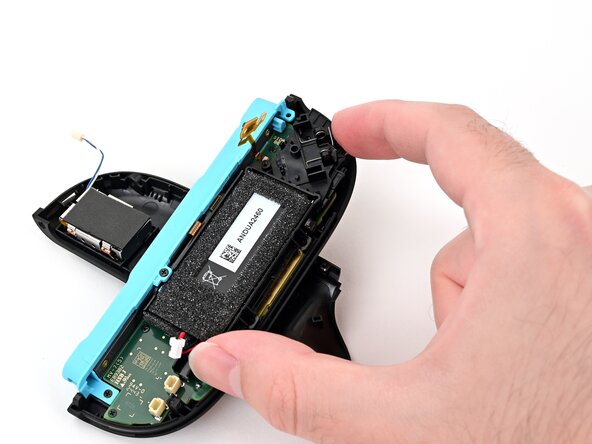
    • Use the back cover to prop up the controller while you work.

    • The buttons on the front of the controller should rest on the back cover's lip to keep it stable.

  19. Joy-Con 2 (Left) Joystick Replacement, Lift the trigger board: passo 19, immagine 1 di 2 Joy-Con 2 (Left) Joystick Replacement, Lift the trigger board: passo 19, immagine 2 di 2
    • Use a JIS 00 driver to remove the 3.9 mm‑long silver screw securing the trigger button board.

  20. Joy-Con 2 (Left) Joystick Replacement: passo 20, immagine 1 di 2 Joy-Con 2 (Left) Joystick Replacement: passo 20, immagine 2 di 2
    • Insert the point of a spudger underneath the board, and lift it until it pops up.

  21. Joy-Con 2 (Left) Joystick Replacement, Remove the midframe: passo 21, immagine 1 di 2 Joy-Con 2 (Left) Joystick Replacement, Remove the midframe: passo 21, immagine 2 di 2
    • Pick up and remove the midframe.

  22. Joy-Con 2 (Left) Joystick Replacement, Disconnect the trigger board: passo 22, immagine 1 di 3 Joy-Con 2 (Left) Joystick Replacement, Disconnect the trigger board: passo 22, immagine 2 di 3 Joy-Con 2 (Left) Joystick Replacement, Disconnect the trigger board: passo 22, immagine 3 di 3
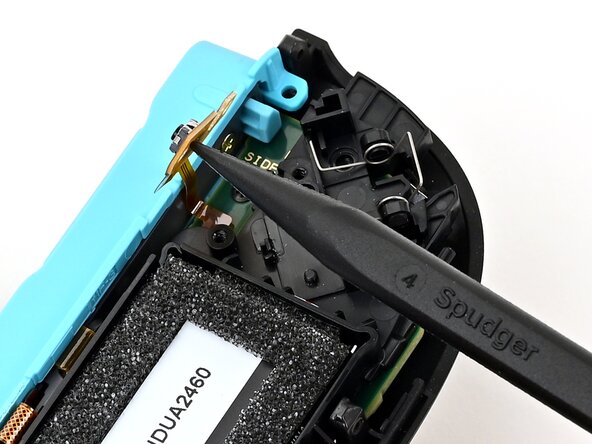
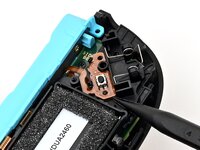
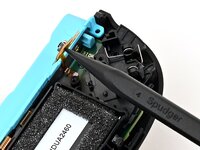
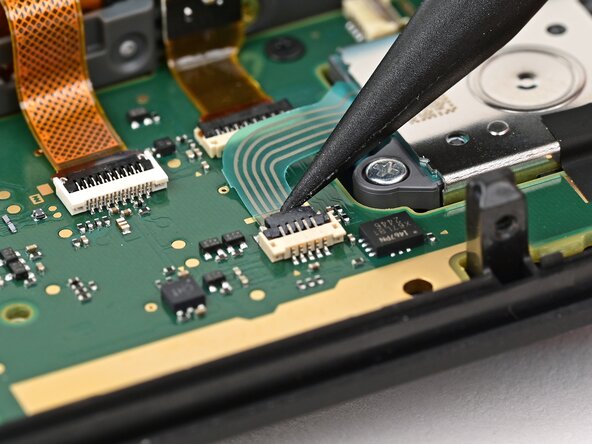
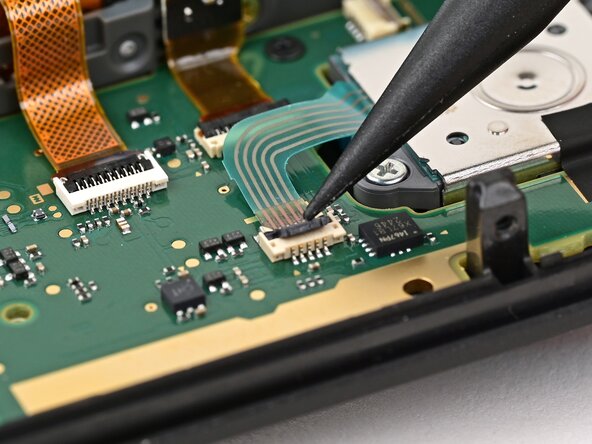
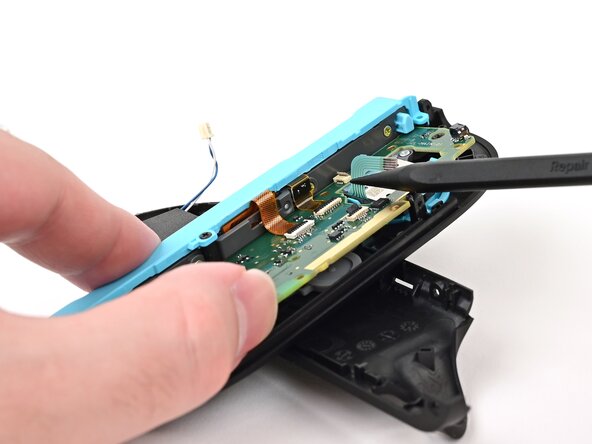
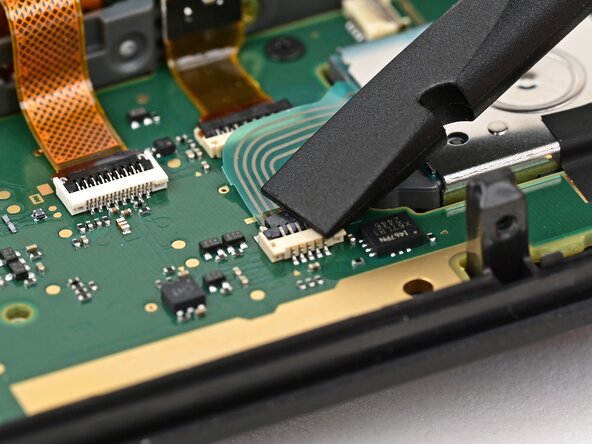
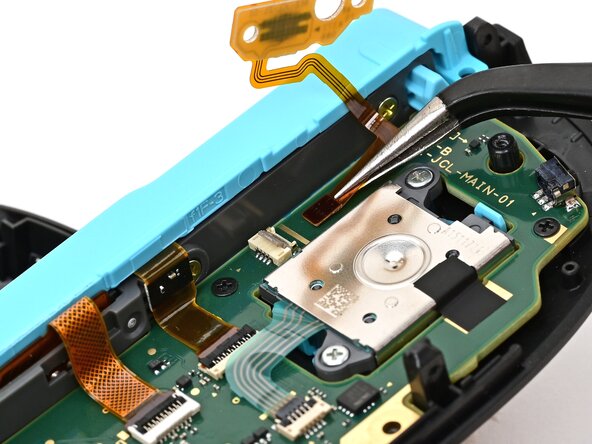
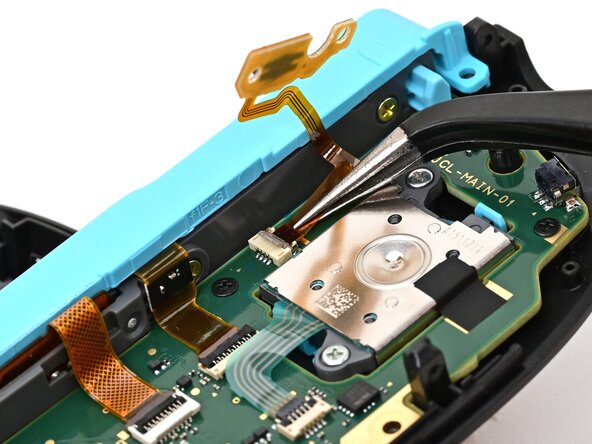
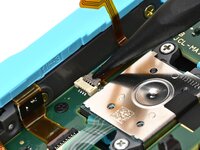
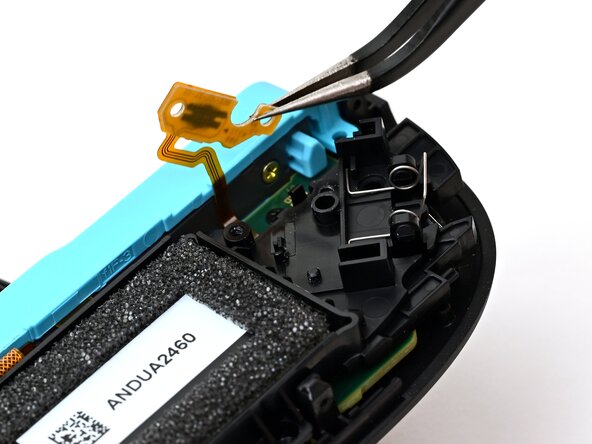
    • Use the point of a spudger to flip up the locking flap on the trigger button ZIF connector, located on the controller's board.

  23. Joy-Con 2 (Left) Joystick Replacement, Remove the trigger board: passo 23, immagine 1 di 2 Joy-Con 2 (Left) Joystick Replacement, Remove the trigger board: passo 23, immagine 2 di 2
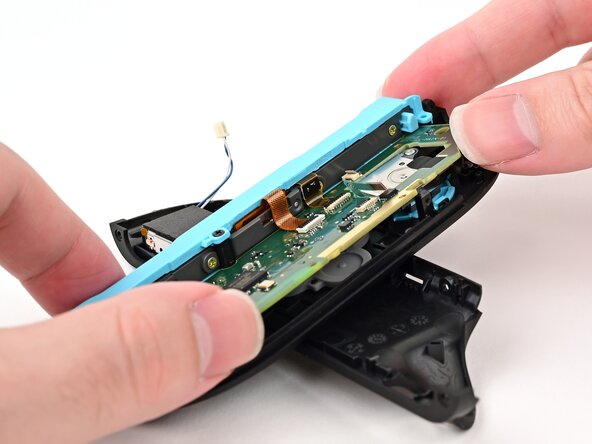
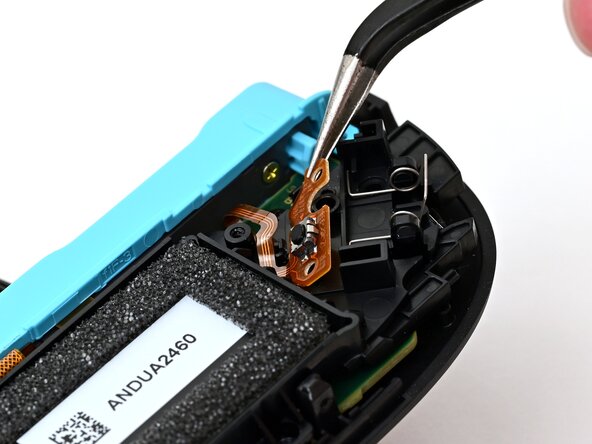
    • Use tweezers or your fingers to gently pull the cable out of its socket.

    • Remove the trigger button board.

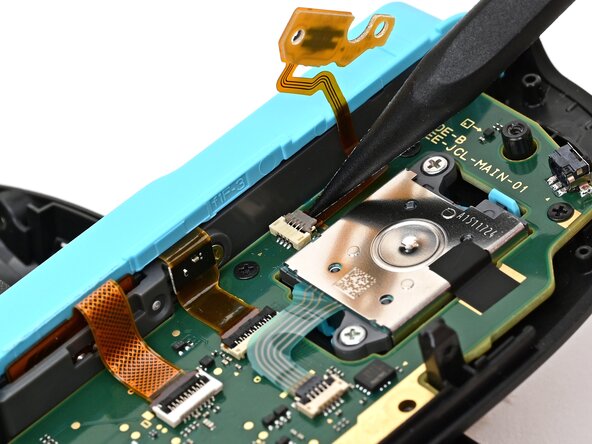
  24. Joy-Con 2 (Left) Joystick Replacement, Disconnect the joystick: passo 24, immagine 1 di 2 Joy-Con 2 (Left) Joystick Replacement, Disconnect the joystick: passo 24, immagine 2 di 2
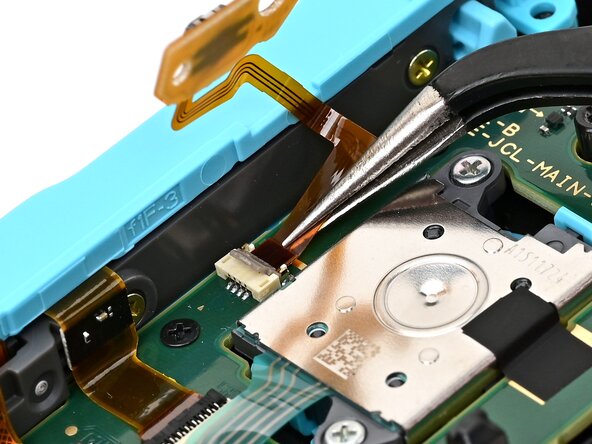
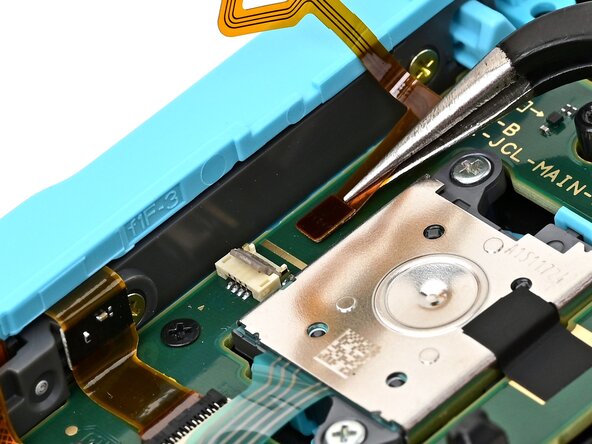
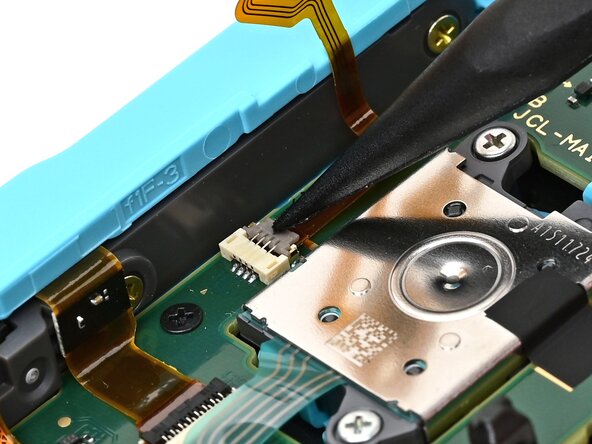
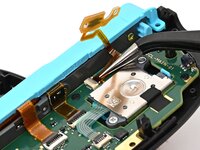
    • Use the point of a spudger to flip up the locking flap on the joystick cable ZIF connector, located in the center of the board.

  25. Joy-Con 2 (Left) Joystick Replacement: passo 25, immagine 1 di 2 Joy-Con 2 (Left) Joystick Replacement: passo 25, immagine 2 di 2
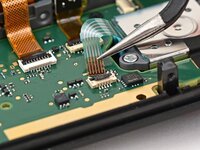
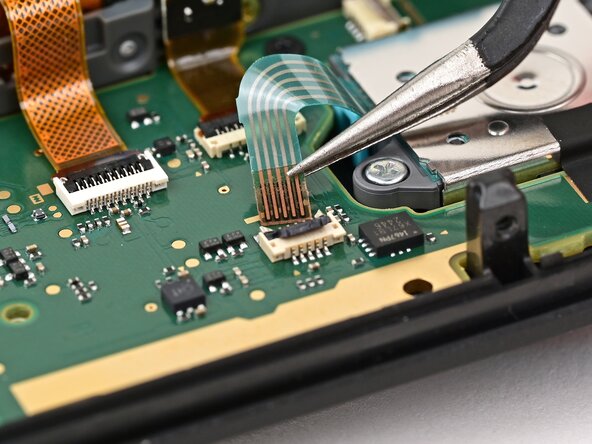
    • Use tweezers or your fingers to grab the brown part of the cable and gently pull the cable out of its socket.

  26. Joy-Con 2 (Left) Joystick Replacement, Remove the board screws: passo 26, immagine 1 di 2 Joy-Con 2 (Left) Joystick Replacement, Remove the board screws: passo 26, immagine 2 di 2
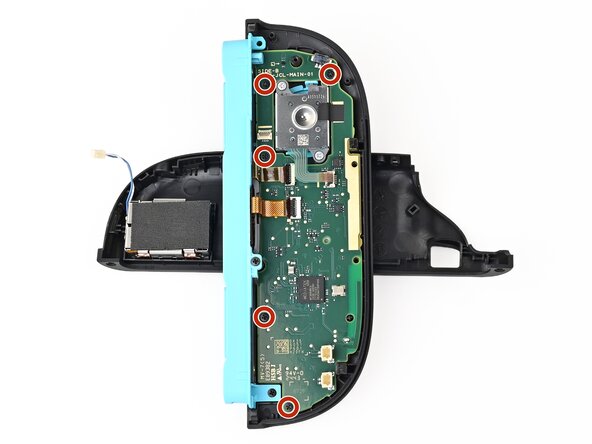
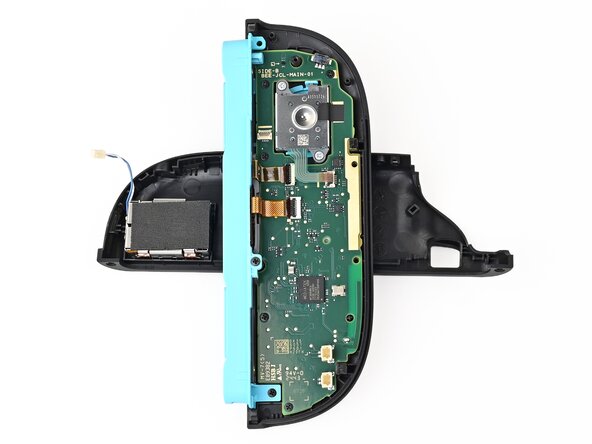
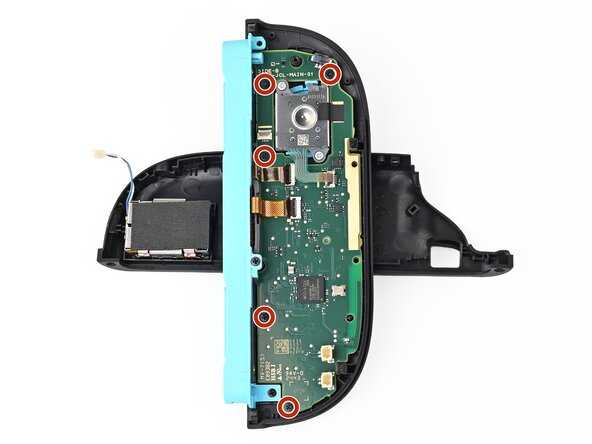
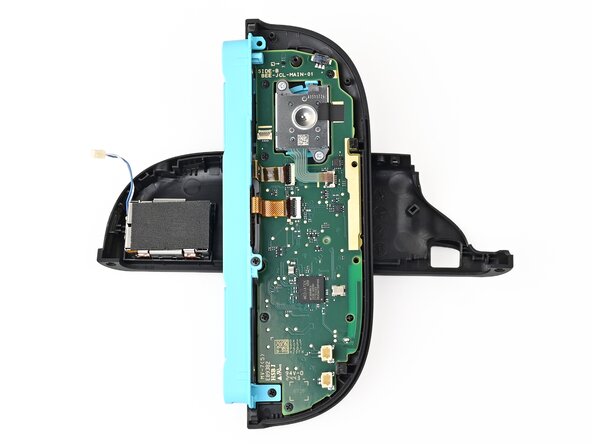
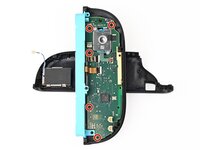
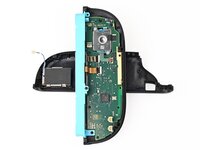
    • Use a JIS 00 driver to remove the five 3.1 mm‑long black screws securing the board to the controller.

  27. Joy-Con 2 (Left) Joystick Replacement, Lift the board: passo 27, immagine 1 di 3 Joy-Con 2 (Left) Joystick Replacement, Lift the board: passo 27, immagine 2 di 3 Joy-Con 2 (Left) Joystick Replacement, Lift the board: passo 27, immagine 3 di 3
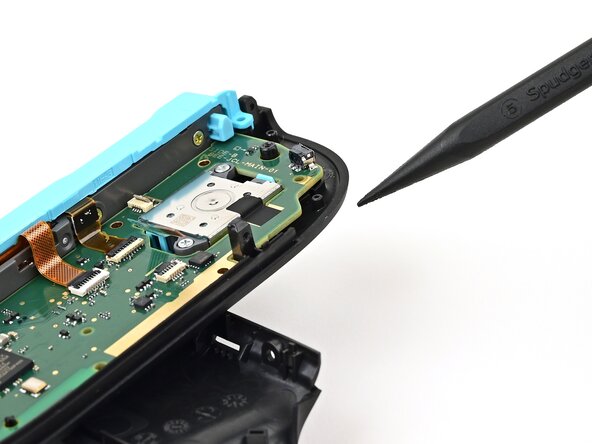
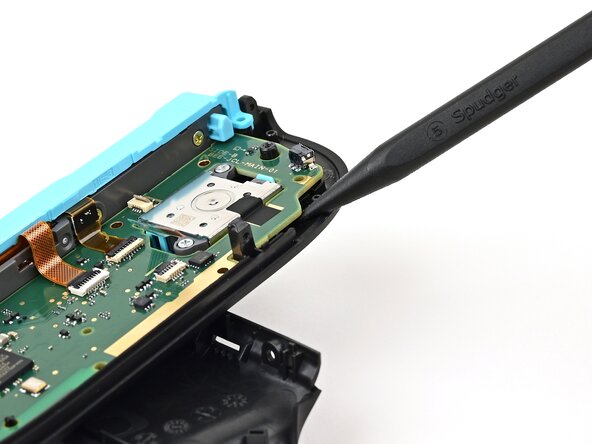
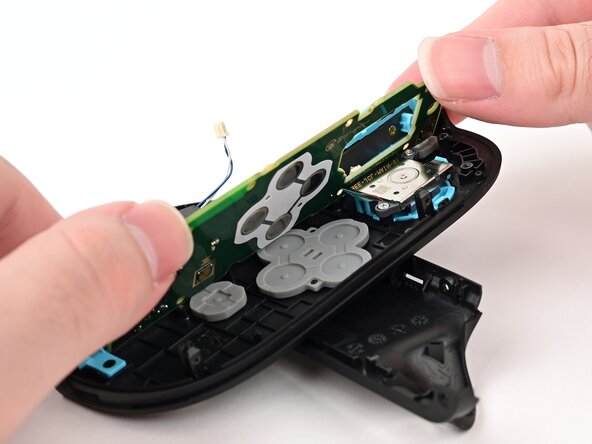
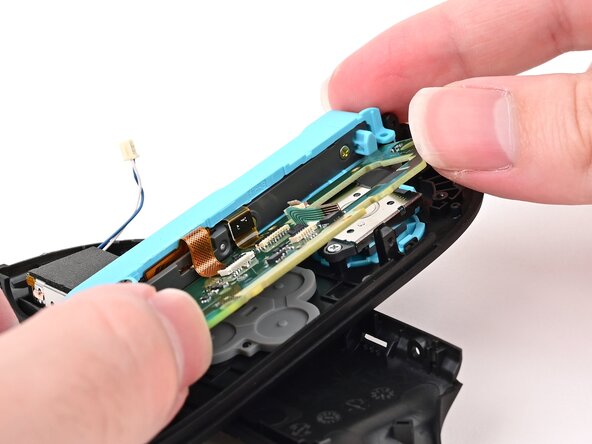
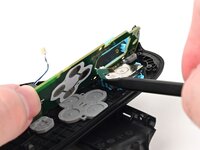
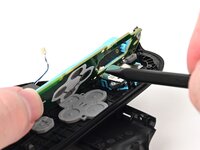
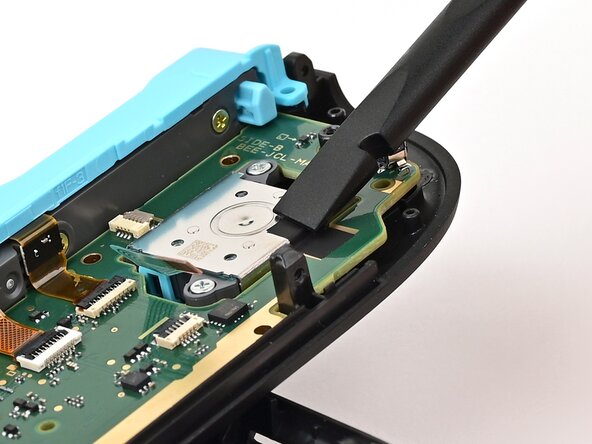
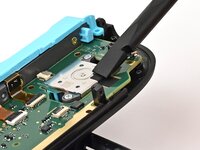
    • Insert the point of a spudger underneath the board, next to the joystick, between the board and the frame.

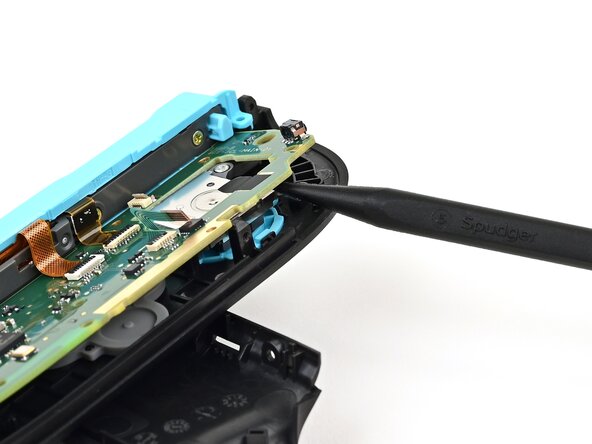
    • Pry up slowly on the board to lift it until you can grab it with your fingers.

    • The black tape stuck to the joystick will stay with the board. Work slowly to avoid tearing the tape.

  28. Joy-Con 2 (Left) Joystick Replacement: passo 28, immagine 1 di 2 Joy-Con 2 (Left) Joystick Replacement: passo 28, immagine 2 di 2
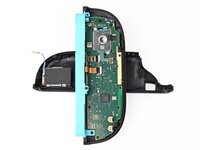
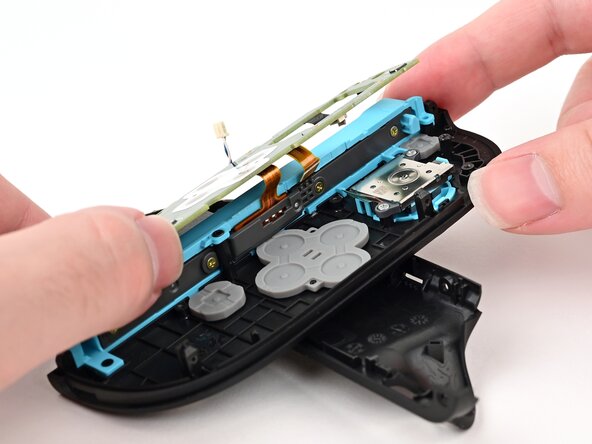
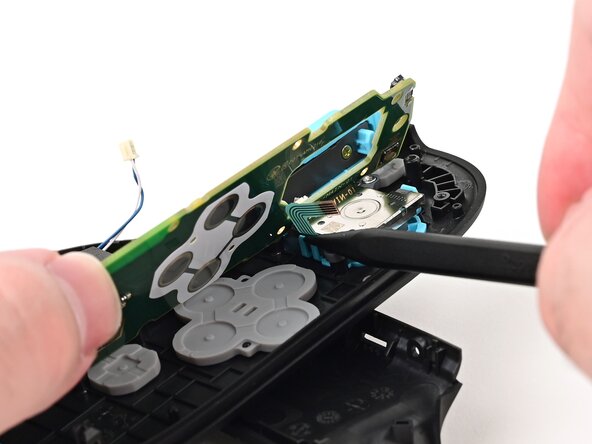
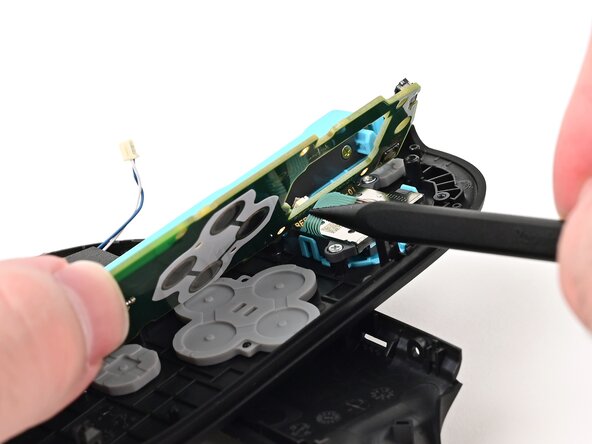
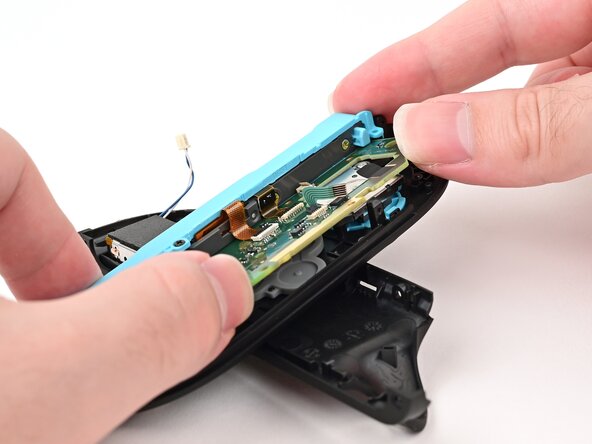
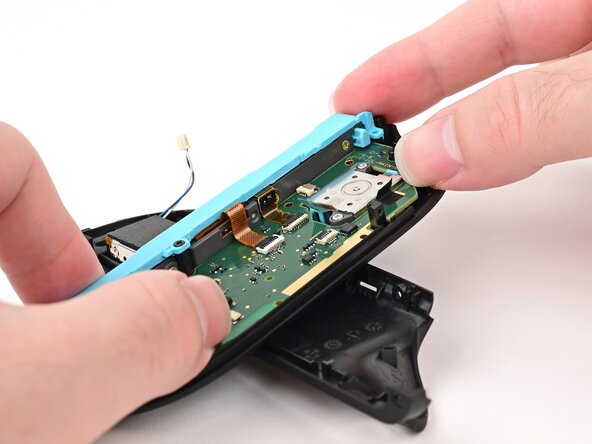
    • Use your fingers or a spudger to lift the joystick cable up so it's perpendicular to the joystick module.

  29. Joy-Con 2 (Left) Joystick Replacement: passo 29, immagine 1 di 3 Joy-Con 2 (Left) Joystick Replacement: passo 29, immagine 2 di 3 Joy-Con 2 (Left) Joystick Replacement: passo 29, immagine 3 di 3
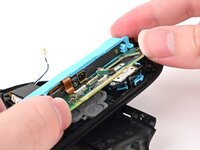
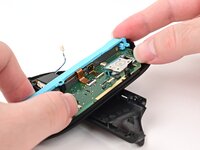
    • Lift the board and flip it over the controller's inner edge.

    • Be careful not to crease or tear the two ribbon cables connecting the board to the controller.

  30. Joy-Con 2 (Left) Joystick Replacement, Remove the joystick: passo 30, immagine 1 di 2 Joy-Con 2 (Left) Joystick Replacement, Remove the joystick: passo 30, immagine 2 di 2
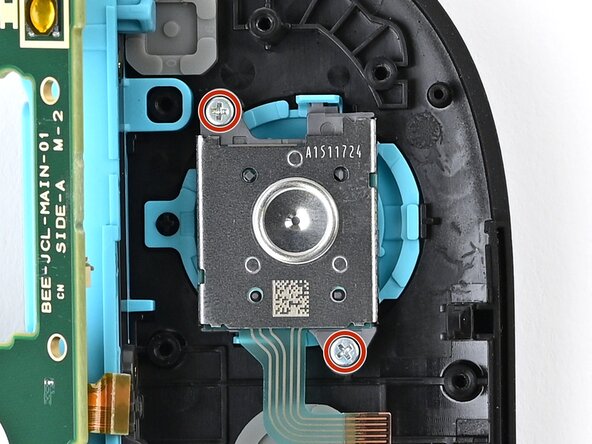
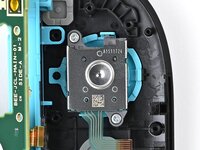
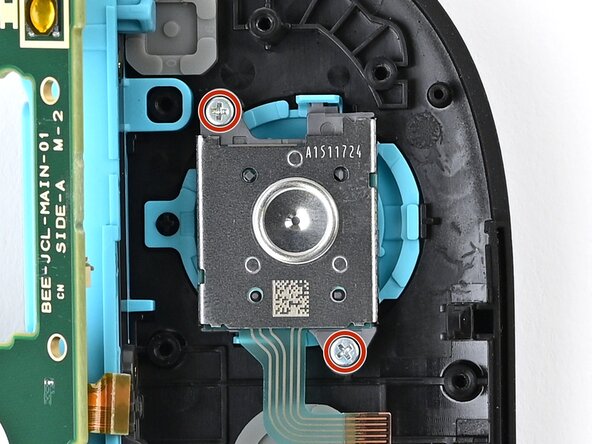
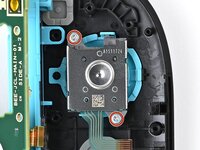
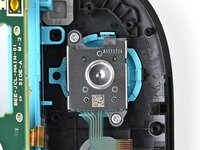
    • Use a JIS 00 driver to remove the two 3.9 mm‑long silver screws securing the joystick.

  31. Joy-Con 2 (Left) Joystick Replacement: passo 31, immagine 1 di 2 Joy-Con 2 (Left) Joystick Replacement: passo 31, immagine 2 di 2
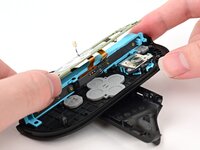
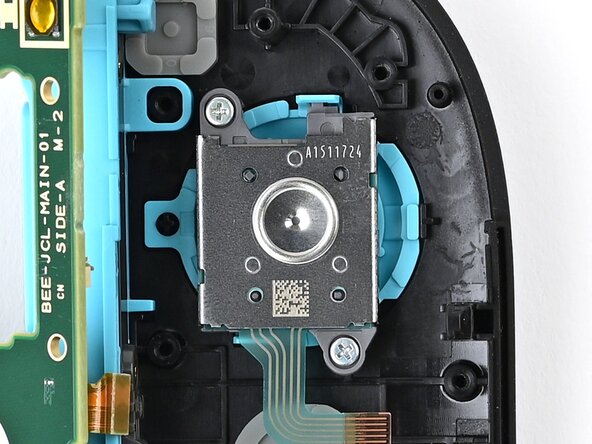
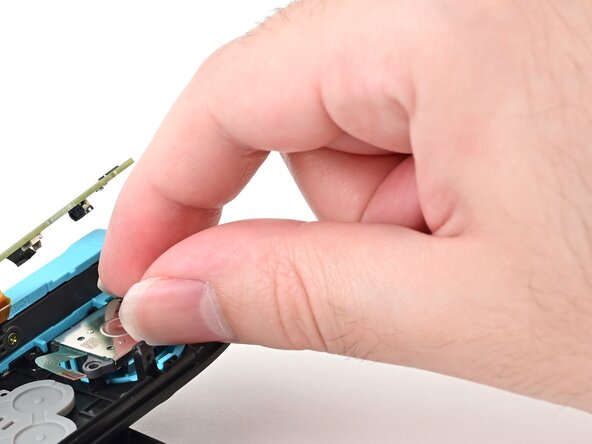
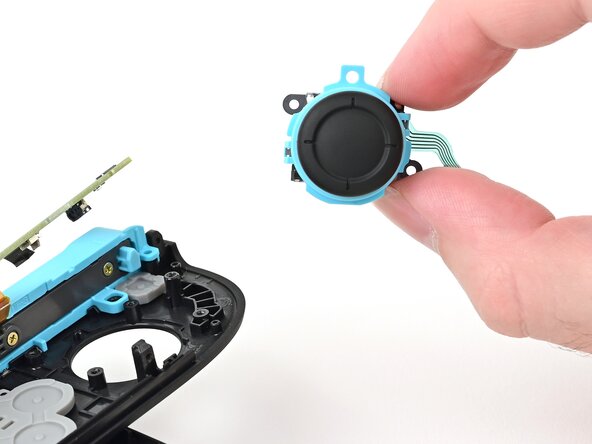
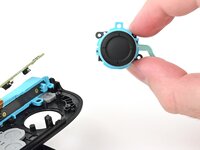
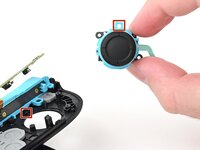
    • Use tweezers or your fingers to pick up and remove the joystick.

  32. Joy-Con 2 (Left) Joystick Replacement, Disassembly complete: passo 32, immagine 1 di 1
    • Congratulations on completing disassembly! The remaining steps will show how to reassemble your console.

  33. Joy-Con 2 (Left) Joystick Replacement, Install the joystick: passo 33, immagine 1 di 2 Joy-Con 2 (Left) Joystick Replacement, Install the joystick: passo 33, immagine 2 di 2
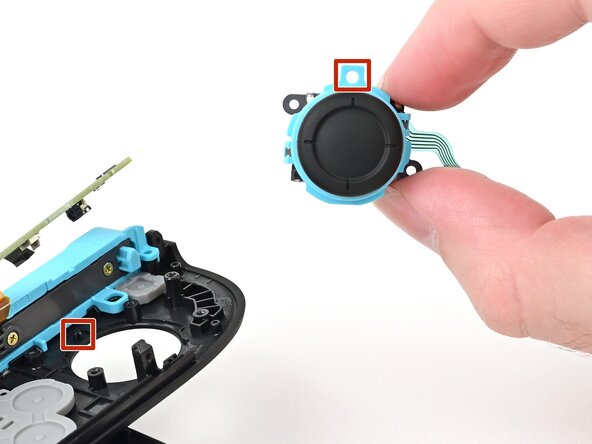
    • Align the circular cut-out in the joystick's frame with the peg near the controller's inner edge.

    • Set the joystick in the controller. Gently wiggle the joystick to ensure it's fully seated.

  34. Joy-Con 2 (Left) Joystick Replacement: passo 34, immagine 1 di 2 Joy-Con 2 (Left) Joystick Replacement: passo 34, immagine 2 di 2
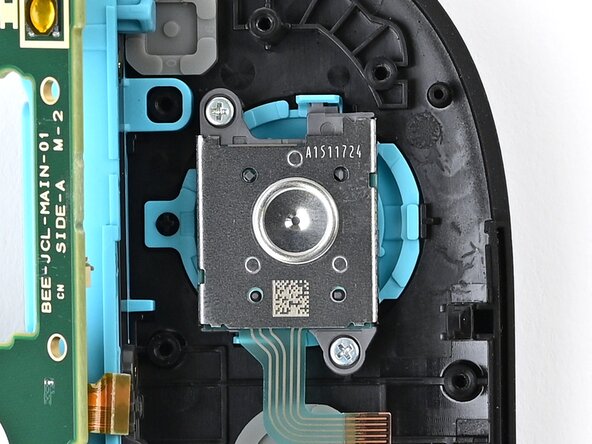
    • Use a JIS 00 driver to install the two 3.9 mm‑long silver screws securing the joystick.

  35. Joy-Con 2 (Left) Joystick Replacement, Install the board: passo 35, immagine 1 di 3 Joy-Con 2 (Left) Joystick Replacement, Install the board: passo 35, immagine 2 di 3 Joy-Con 2 (Left) Joystick Replacement, Install the board: passo 35, immagine 3 di 3
    • Lower the board into the controller at an angle so it sits underneath the locking tab on the controller's inner edge.

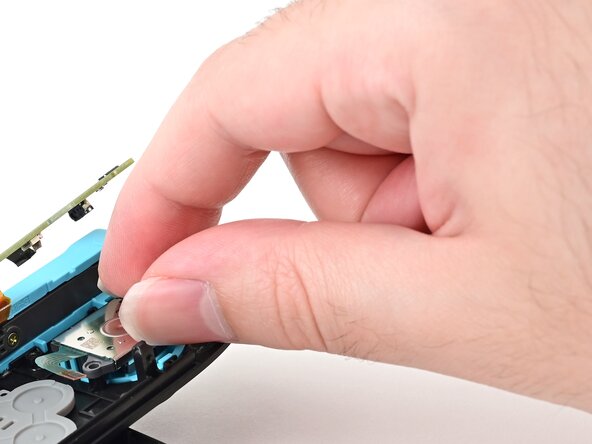
    • Use a spudger to bend the joystick's ribbon cable so it's perpendicular with the joystick.

    • Lower the board so the joystick's ribbon cable routes through the joystick cut-out in the board.

  36. Joy-Con 2 (Left) Joystick Replacement: passo 36, immagine 1 di 3 Joy-Con 2 (Left) Joystick Replacement: passo 36, immagine 2 di 3 Joy-Con 2 (Left) Joystick Replacement: passo 36, immagine 3 di 3
    • Push the board towards the controller's inner edge (the side with the shoulder buttons) to prevent it from colliding with the joystick module.

    • Lower the board into the frame.

    • Use your finger or the flat end of a spudger to press the black tape onto the back of the joystick module.

  37. Joy-Con 2 (Left) Joystick Replacement: passo 37, immagine 1 di 2 Joy-Con 2 (Left) Joystick Replacement: passo 37, immagine 2 di 2
    • Use a JIS 00 driver to install the five 3.1 mm‑long black screws securing the board to the controller.

  38. Joy-Con 2 (Left) Joystick Replacement, Connect the joystick: passo 38, immagine 1 di 3 Joy-Con 2 (Left) Joystick Replacement, Connect the joystick: passo 38, immagine 2 di 3 Joy-Con 2 (Left) Joystick Replacement, Connect the joystick: passo 38, immagine 3 di 3
    • Make sure the locking flap is flipped up on the joystick cable ZIF connector.

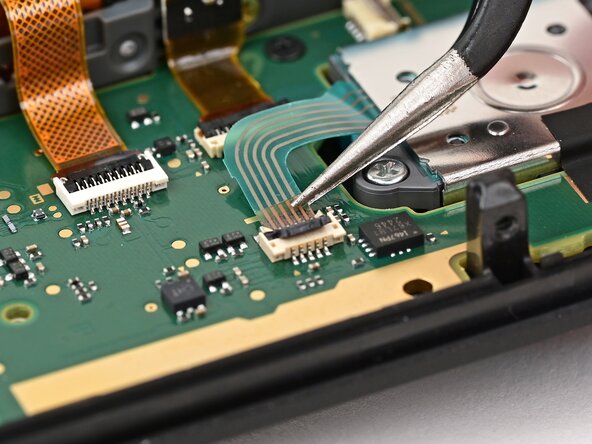
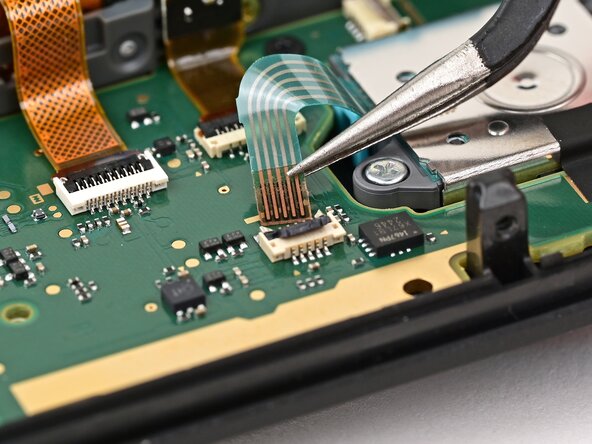
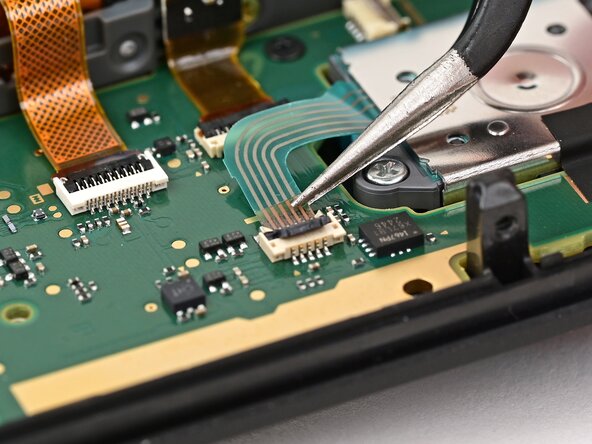
    • Insert the joystick ribbon cable into its ZIF connector until it's fully seated.

    • The brown portion of the cable should end at the golden line on the board.

    • Use your finger or a spudger to flip the locking flap down to secure the cable.

  39. Joy-Con 2 (Left) Joystick Replacement, Connect the trigger board: passo 39, immagine 1 di 3 Joy-Con 2 (Left) Joystick Replacement, Connect the trigger board: passo 39, immagine 2 di 3 Joy-Con 2 (Left) Joystick Replacement, Connect the trigger board: passo 39, immagine 3 di 3
    • Make sure the locking flap is flipped up on the trigger cable's ZIF connector.

    • Position the trigger button board so its ribbon cable is aligned with its ZIF connector on the board.

    • Use tweezers or your fingers to gently slide the ribbon cable into its ZIF connector.

    • Flip the locking flap down to secure the cable.

  40. Joy-Con 2 (Left) Joystick Replacement, Install the midframe: passo 40, immagine 1 di 2 Joy-Con 2 (Left) Joystick Replacement, Install the midframe: passo 40, immagine 2 di 2
    • Align the midframe with its screw holes on the outer edge of the controller.

  41. Joy-Con 2 (Left) Joystick Replacement, Install the trigger board: passo 41, immagine 1 di 3 Joy-Con 2 (Left) Joystick Replacement, Install the trigger board: passo 41, immagine 2 di 3 Joy-Con 2 (Left) Joystick Replacement, Install the trigger board: passo 41, immagine 3 di 3
    • Use tweezers or your fingers to set the bottom edge of the trigger button board underneath the tab on the midframe.

    • Press the board into place so the black peg on the midframe protrudes through the hole on the bottom corner of the board.

  42. Joy-Con 2 (Left) Joystick Replacement: passo 42, immagine 1 di 2 Joy-Con 2 (Left) Joystick Replacement: passo 42, immagine 2 di 2
    • Use a JIS 00 driver to install the 3.9 mm‑long silver screw securing the trigger button board.

  43. Joy-Con 2 (Left) Joystick Replacement, Install the bumper: passo 43, immagine 1 di 3 Joy-Con 2 (Left) Joystick Replacement, Install the bumper: passo 43, immagine 2 di 3 Joy-Con 2 (Left) Joystick Replacement, Install the bumper: passo 43, immagine 3 di 3
    • Align the two springs on the bumper with their two posts on the midframe, and press it into place.

    • The bumper is held in place by the front shell of the controller. If it falls out, ensure it's fully seated in the shell.

  44. Joy-Con 2 (Left) Joystick Replacement, Install the midframe screws: passo 44, immagine 1 di 2 Joy-Con 2 (Left) Joystick Replacement, Install the midframe screws: passo 44, immagine 2 di 2
    • Use a JIS 00 driver to install the three 3.9 mm‑long silver screws securing the midframe.

  45. Joy-Con 2 (Left) Joystick Replacement, Install the bracket: passo 45, immagine 1 di 3 Joy-Con 2 (Left) Joystick Replacement, Install the bracket: passo 45, immagine 2 di 3 Joy-Con 2 (Left) Joystick Replacement, Install the bracket: passo 45, immagine 3 di 3
    • Align the release button bracket with its screw holes and set it in the frame so it snaps into place.

    • The corner with the protruding square should be facing the battery.

  46. Joy-Con 2 (Left) Joystick Replacement: passo 46, immagine 1 di 2 Joy-Con 2 (Left) Joystick Replacement: passo 46, immagine 2 di 2
    • Use a JIS 00 driver to install the two screws securing the release button bracket:

    • One 3.9 mm‑long silver screw

    • One 6.2 mm‑long black screw

  47. Joy-Con 2 (Left) Joystick Replacement, Install the trigger: passo 47, immagine 1 di 3 Joy-Con 2 (Left) Joystick Replacement, Install the trigger: passo 47, immagine 2 di 3 Joy-Con 2 (Left) Joystick Replacement, Install the trigger: passo 47, immagine 3 di 3
    • Align the trigger button with the top of the controller, with the ZL engraving facing out.

    • Set the trigger button onto its metal spring. Ensure the legs of the metal spring are seated properly in their channels on the midframe.

    • Press firmly on the trigger button to snap it into place.

    • Check that the metal stabilizer didn't fall out of position. If it did, remove the trigger, place it back into position, and try again.

  48. Joy-Con 2 (Left) Joystick Replacement, Install the release button: passo 48, immagine 1 di 3 Joy-Con 2 (Left) Joystick Replacement, Install the release button: passo 48, immagine 2 di 3 Joy-Con 2 (Left) Joystick Replacement, Install the release button: passo 48, immagine 3 di 3
    • Insert the release button into its bracket.

    • If the release pin doesn't stick out of the controller when the button is pressed, the button isn't installed correctly. Re-insert or flip the button and try again.

  49. Joy-Con 2 (Left) Joystick Replacement, Connect the battery: passo 49, immagine 1 di 3 Joy-Con 2 (Left) Joystick Replacement, Connect the battery: passo 49, immagine 2 di 3 Joy-Con 2 (Left) Joystick Replacement, Connect the battery: passo 49, immagine 3 di 3
    • Align the battery connector over its socket on the board.

    • Press down on the connector until it's fully seated.

  50. Joy-Con 2 (Left) Joystick Replacement, Connect the rumble motor: passo 50, immagine 1 di 2 Joy-Con 2 (Left) Joystick Replacement, Connect the rumble motor: passo 50, immagine 2 di 2
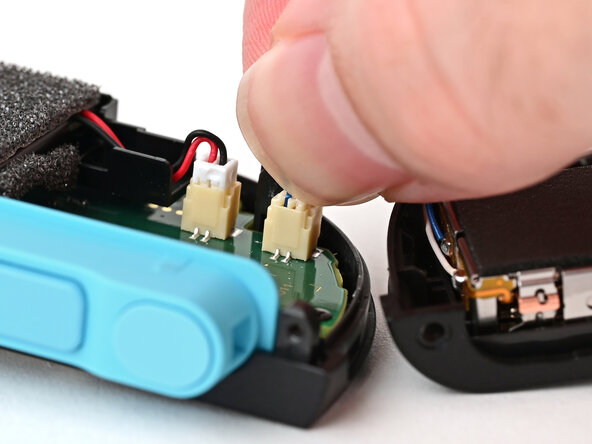
    • Align the rumble motor connector to its socket on the bottom edge of the board and push down until it's fully seated to connect it.

  51. Joy-Con 2 (Left) Joystick Replacement, Install the back cover: passo 51, immagine 1 di 3 Joy-Con 2 (Left) Joystick Replacement, Install the back cover: passo 51, immagine 2 di 3 Joy-Con 2 (Left) Joystick Replacement, Install the back cover: passo 51, immagine 3 di 3
    • Use an opening pick to press and hold the release button.

    • Place the back cover over the controller body so the release button cutout is slightly below the release button.

    • The release button is held down when the release pin is protruding from the frame. If the release button falls out of position, put it back and try again.

    • Press and slide the back cover up until the cutout for the release button is aligned with the button itself.

    • Ensure the rumble motor wires (blue & white) are fully within the frame.

  52. Joy-Con 2 (Left) Joystick Replacement: passo 52, immagine 1 di 2 Joy-Con 2 (Left) Joystick Replacement: passo 52, immagine 2 di 2
    • Remove the opening pick.

  53. Joy-Con 2 (Left) Joystick Replacement, Install the left edge screws: passo 53, immagine 1 di 2 Joy-Con 2 (Left) Joystick Replacement, Install the left edge screws: passo 53, immagine 2 di 2
    • Install the two screws on the left edge of the controller:

    • One 3.1 mm‑long tri‑point Y00 black screw

    • One 3.0 mm‑long JIS 00 silver screw

  54. Joy-Con 2 (Left) Joystick Replacement, Install the plastic strip: passo 54, immagine 1 di 3 Joy-Con 2 (Left) Joystick Replacement, Install the plastic strip: passo 54, immagine 2 di 3 Joy-Con 2 (Left) Joystick Replacement, Install the plastic strip: passo 54, immagine 3 di 3
    • Align the clips on the plastic strip with their cut-outs on the controller body.

    • Insert the clips on the bottom edge first, then insert the rest so the plastic strip sits flush.

  55. Joy-Con 2 (Left) Joystick Replacement, Install the right edge screws: passo 55, immagine 1 di 2 Joy-Con 2 (Left) Joystick Replacement, Install the right edge screws: passo 55, immagine 2 di 2
    • Use a tri‑point Y00 driver to install the two 3.1 mm‑long black screws on the right edge of the controller.

Conclusione

You finished fixing your Joy-Con 2!

Take your e-waste to an R2 or e-Stewards certified recycler.

Repair didn’t go as planned? Try some basic troubleshooting, or ask our Joy-Con 2 Answers Community for help.

Altre 4 persone hanno completato questa guida.

Nick Schultz

Membro da: 03/24/24

36.897 Reputazione

224 Guide realizzate

0Commenti sulla guida

Aggiungi Commento

Visualizza Statistiche:

Ultime 24 Ore: 29

Ultimi 7 Giorni: 182

Ultimi 30 Giorni: 795

Tutti i Tempi: 3,090