Salta al contenuto principale
Unisciti alla Community delle riparazioni - Crea un account

Samsung Galaxy S22 Screen Replacement

Cosa ti serve

  1. Samsung Galaxy S22 Screen Replacement, Heat the bottom edge: passo 1, immagine 1 di 1
    • Let your phone's battery to drain below 25% before starting this repair. A charged lithium-ion battery may catch fire if damaged.

    • Heat an iOpener and apply it to the bottom edge of the back cover for two minutes.

    • A hair dryer, heat gun, or hot plate may also be used, but be careful not to overheat the phone—the display and internal battery are susceptible to heat damage.

    Chiedi a FixBot

    Aggiungi Commento

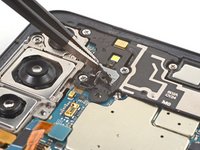
  2. Samsung Galaxy S22 Screen Replacement, Adhesive information: passo 2, immagine 1 di 2 Samsung Galaxy S22 Screen Replacement, Adhesive information: passo 2, immagine 2 di 2
    • While you wait for the adhesive to soften, note the following:

    • There's adhesive securing the back cover around the perimeter of the frame.

    • The adhesive is strongest in the bottom right and top left corners.

    Chiedi a FixBot

    Aggiungi Commento

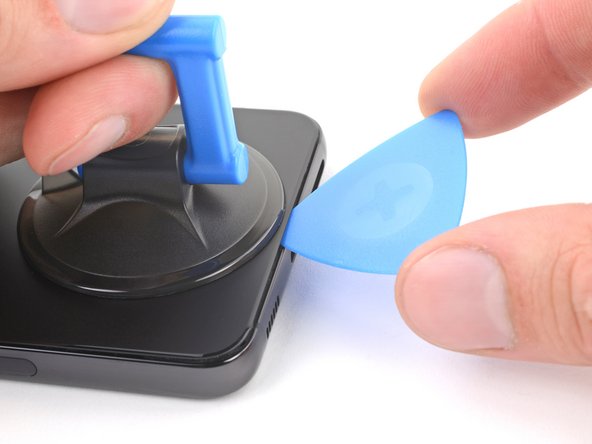
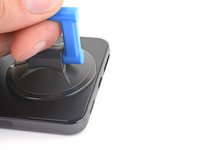
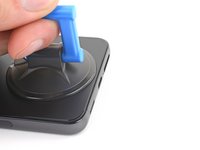
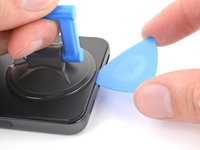
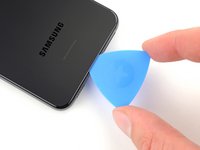
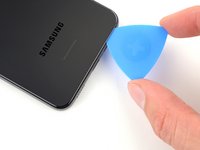
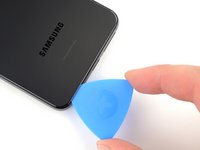
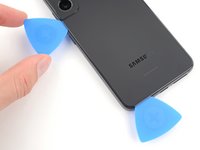
  3. Samsung Galaxy S22 Screen Replacement, Insert an opening pick: passo 3, immagine 1 di 3 Samsung Galaxy S22 Screen Replacement, Insert an opening pick: passo 3, immagine 2 di 3 Samsung Galaxy S22 Screen Replacement, Insert an opening pick: passo 3, immagine 3 di 3
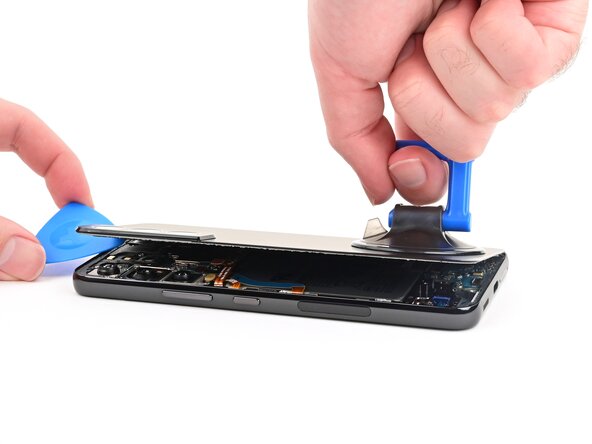
    • Apply a suction handle to the back cover, as close to the bottom edge as possible.

    • Pull up on the suction handle with strong, steady force to create a gap between the cover and the frame.

    • If you have trouble creating a gap, apply more heat to further soften the adhesive. Follow the iOpener instructions to avoid overheating.

    • Insert an opening pick into the gap.

    Chiedi a FixBot

    Aggiungi Commento

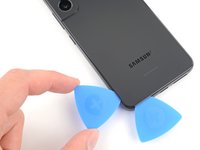
  4. Samsung Galaxy S22 Screen Replacement, Slice the bottom adhesive: passo 4, immagine 1 di 3 Samsung Galaxy S22 Screen Replacement, Slice the bottom adhesive: passo 4, immagine 2 di 3 Samsung Galaxy S22 Screen Replacement, Slice the bottom adhesive: passo 4, immagine 3 di 3
    • Slide the pick back and forth along the bottom edge to slice through the adhesive.

    • Leave the pick inserted in the bottom left corner to prevent the adhesive from resealing.

    Chiedi a FixBot

    Aggiungi Commento

  5. Samsung Galaxy S22 Screen Replacement, Heat the left edge: passo 5, immagine 1 di 1
    • Apply a heated iOpener to the left edge of the back cover for two minutes.

    Chiedi a FixBot

    Aggiungi Commento

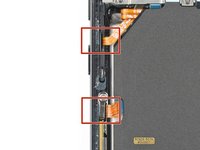
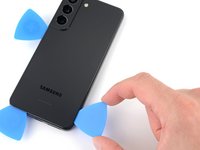
  6. Samsung Galaxy S22 Screen Replacement, Slice the left adhesive: passo 6, immagine 1 di 3 Samsung Galaxy S22 Screen Replacement, Slice the left adhesive: passo 6, immagine 2 di 3 Samsung Galaxy S22 Screen Replacement, Slice the left adhesive: passo 6, immagine 3 di 3
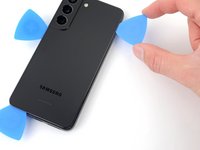
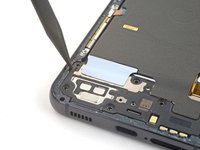
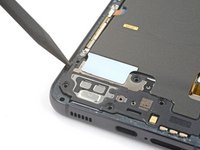
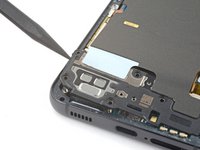
    • Insert a second opening pick at the bottom left corner.

    • Slide the pick to the bottom of the camera bezel to slice the left adhesive.

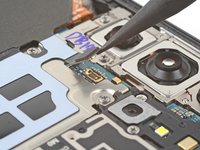
    • Only insert the pick up to 5 mm, as you may damage the antenna flex cable or the power button cable.

    • Leave the pick in to prevent the adhesive from resealing.

    Chiedi a FixBot

    Aggiungi Commento

  7. Samsung Galaxy S22 Screen Replacement, Heat the right edge: passo 7, immagine 1 di 1
    • Heat an iOpener and apply it to the right edge of the back cover for two minutes.

    Chiedi a FixBot

    Aggiungi Commento

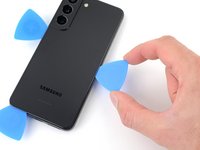
  8. Samsung Galaxy S22 Screen Replacement, Slice the right adhesive: passo 8, immagine 1 di 3 Samsung Galaxy S22 Screen Replacement, Slice the right adhesive: passo 8, immagine 2 di 3 Samsung Galaxy S22 Screen Replacement, Slice the right adhesive: passo 8, immagine 3 di 3
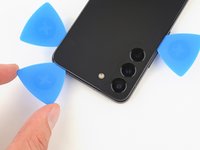
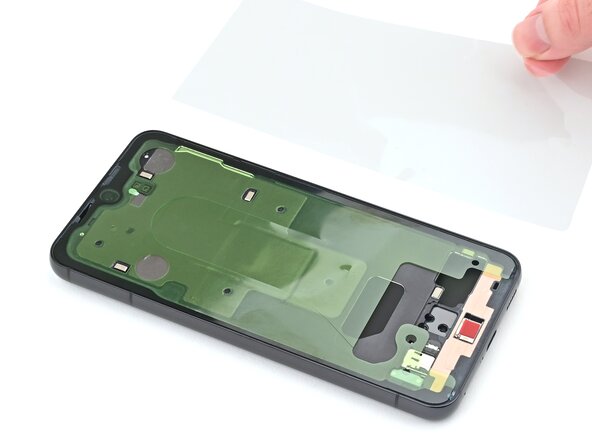
    • Insert a third opening pick at the bottom right corner.

    • If the adhesive has resealed, insert the pick closer to the bottom edge.

    • Slide the pick to the top right corner to slice the adhesive.

    • Leave the pick in the top right corner to prevent the adhesive from resealing.

    Chiedi a FixBot

    Aggiungi Commento

  9. Samsung Galaxy S22 Screen Replacement, Heat the top edge: passo 9, immagine 1 di 1
    • Heat an iOpener and apply it to the top edge of the back cover for two minutes.

    Chiedi a FixBot

    Aggiungi Commento

  10. Samsung Galaxy S22 Screen Replacement, Slice the remaining adhesive: passo 10, immagine 1 di 3 Samsung Galaxy S22 Screen Replacement, Slice the remaining adhesive: passo 10, immagine 2 di 3 Samsung Galaxy S22 Screen Replacement, Slice the remaining adhesive: passo 10, immagine 3 di 3
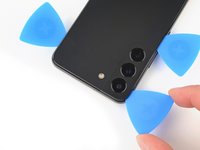
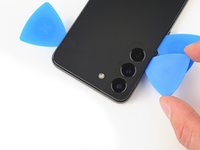
    • Insert an opening pick in the gap at the top right edge.

    • Slide the pick across the top edge and around the top left corner to slice the remaining adhesive.

    • Only insert the pick up to 4 mm, as you may damage the rear cameras or flash.

    Chiedi a FixBot

    Aggiungi Commento

  11. Samsung Galaxy S22 Screen Replacement, Remove the back cover: passo 11, immagine 1 di 3 Samsung Galaxy S22 Screen Replacement, Remove the back cover: passo 11, immagine 2 di 3 Samsung Galaxy S22 Screen Replacement, Remove the back cover: passo 11, immagine 3 di 3
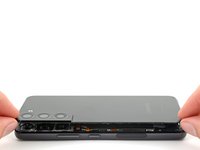
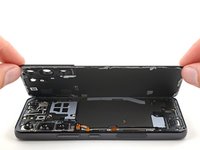
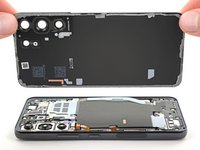
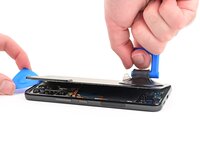
    • Grab and remove the back cover.

    • If your cover is still sticking to the frame, slide an opening pick around the perimeter until the cover completely separates.

    • During reassembly:

    • This is a good point to power on your phone and test all functions before sealing it up. Be sure to power your phone back down completely before you continue working.

    • Follow this guide to replace the back cover adhesive and install the back cover.

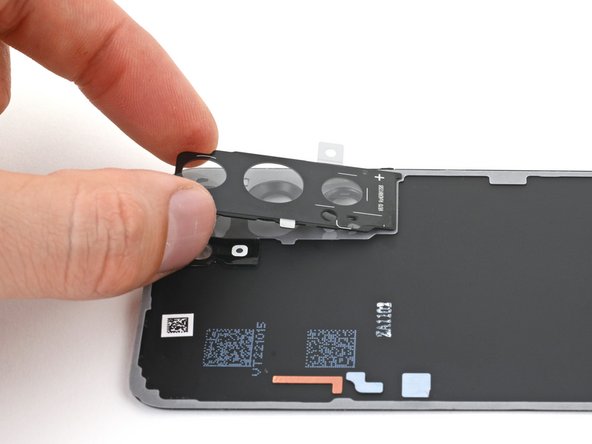
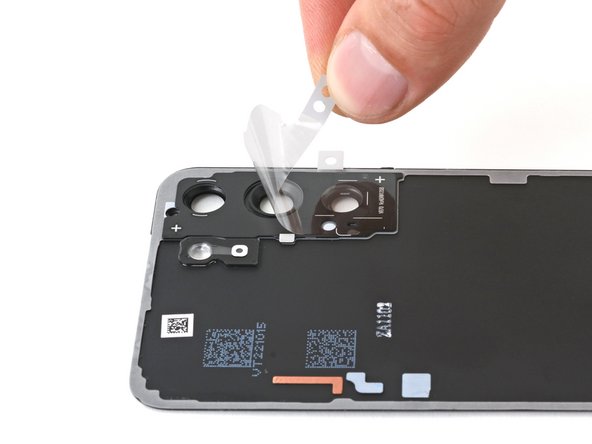
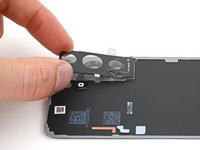
    Chiedi a FixBot

    Aggiungi Commento

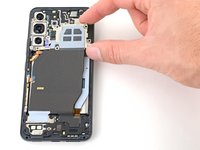
  12. Samsung Galaxy S22 Screen Replacement, Disconnect the wireless charging coil: passo 12, immagine 1 di 2 Samsung Galaxy S22 Screen Replacement, Disconnect the wireless charging coil: passo 12, immagine 2 di 2
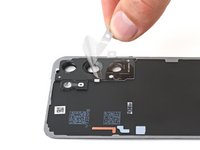
    • Use the pointed end of a spudger to pry up and disconnect the wireless charging coil from the motherboard.

    • To re-attach press connectors, carefully align and press down on one side until it clicks into place, then repeat on the other side. Don't press down on the middle. If the connector is misaligned, the pins can bend and cause permanent damage.

    Chiedi a FixBot

    Aggiungi Commento

  13. Samsung Galaxy S22 Screen Replacement, Unfasten the wireless charging coil: passo 13, immagine 1 di 1
    • Use your Phillips screwdriver to remove the six 3.5 mm-long screws securing the wireless charging coil.

    Chiedi a FixBot

    Aggiungi Commento

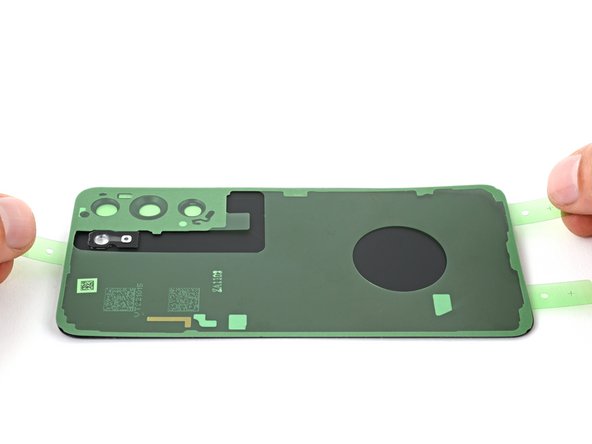
  14. Samsung Galaxy S22 Screen Replacement, Unfasten the loudspeaker: passo 14, immagine 1 di 1
    • Use your Phillips screwdriver to remove the seven 3.5 mm screws securing the loudspeaker.

    Chiedi a FixBot

    Aggiungi Commento

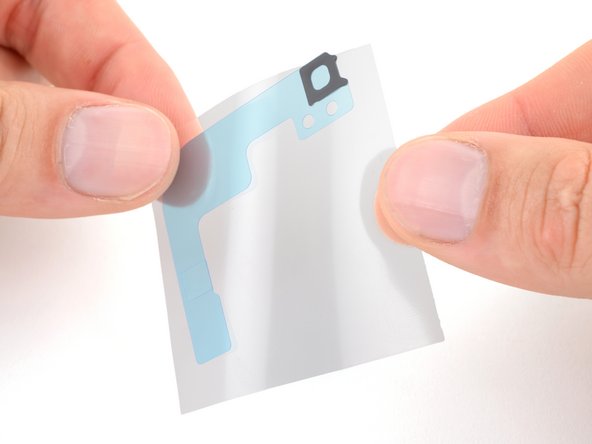
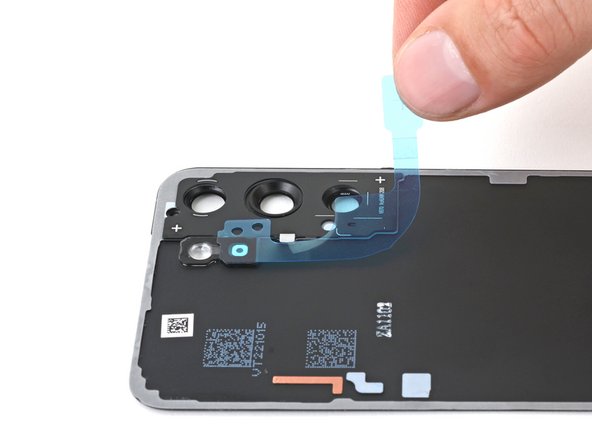
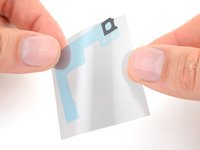
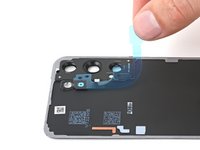
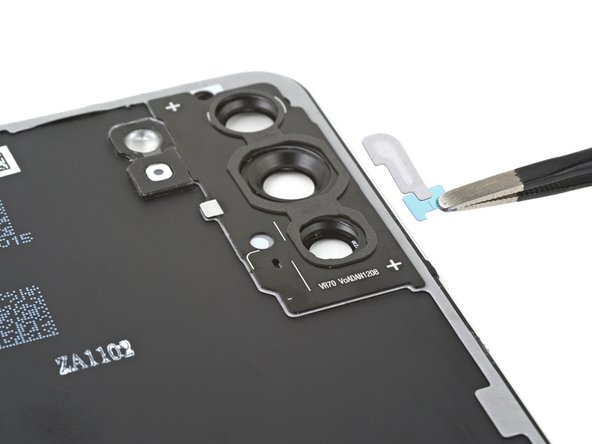
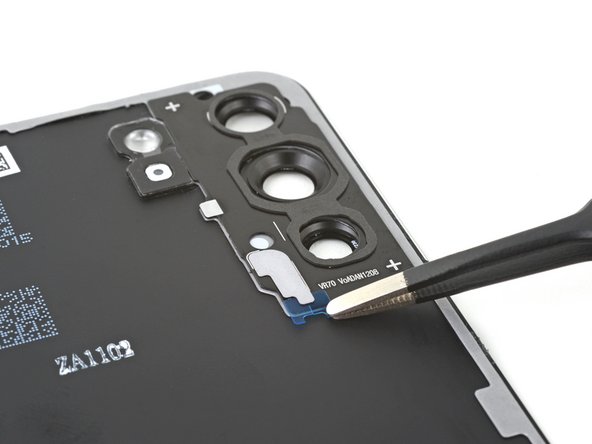
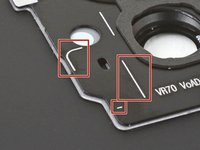
  15. Samsung Galaxy S22 Screen Replacement, Unclip the loudspeaker: passo 15, immagine 1 di 3 Samsung Galaxy S22 Screen Replacement, Unclip the loudspeaker: passo 15, immagine 2 di 3 Samsung Galaxy S22 Screen Replacement, Unclip the loudspeaker: passo 15, immagine 3 di 3
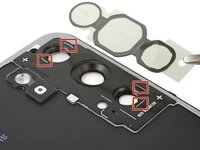
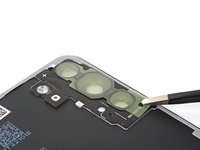
    • Insert the pointed end of your spudger between the upper left corner of the loudspeaker and the frame.

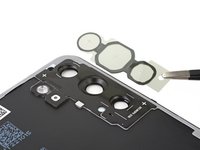
    • Pry up to unclip the loudspeaker from the frame.

    • During reassembly, press around the perimeter of the loudspeaker to engage the clips.

    Chiedi a FixBot

    Aggiungi Commento

  16. Samsung Galaxy S22 Screen Replacement, Remove the charging coil and loudspeaker assembly: passo 16, immagine 1 di 3 Samsung Galaxy S22 Screen Replacement, Remove the charging coil and loudspeaker assembly: passo 16, immagine 2 di 3 Samsung Galaxy S22 Screen Replacement, Remove the charging coil and loudspeaker assembly: passo 16, immagine 3 di 3
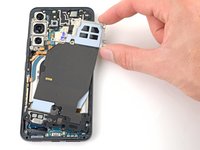
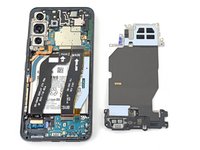
    • Grab and remove the wireless charging coil and loudspeaker from the frame.

    • Do not separate the charging coil from the loudspeaker.

    Chiedi a FixBot

    Aggiungi Commento

  17. Samsung Galaxy S22 Screen Replacement, Disconnect the battery: passo 17, immagine 1 di 2 Samsung Galaxy S22 Screen Replacement, Disconnect the battery: passo 17, immagine 2 di 2
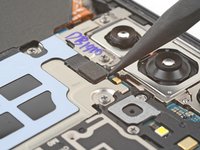
    • Use the pointed end of your spudger to pry up and disconnect the battery press connector.

    Chiedi a FixBot

    Aggiungi Commento

  18. Samsung Galaxy S22 Screen Replacement, Disconnect the screen cable: passo 18, immagine 1 di 2 Samsung Galaxy S22 Screen Replacement, Disconnect the screen cable: passo 18, immagine 2 di 2
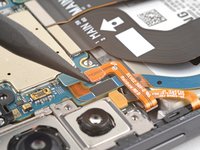
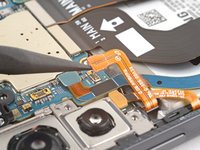
    • Insert the point of a spudger under the screen cable press connector at the bottom left corner of the phone and pry up to disconnect it.

    Chiedi a FixBot

    Aggiungi Commento

  19. Samsung Galaxy S22 Screen Replacement: passo 19, immagine 1 di 2 Samsung Galaxy S22 Screen Replacement: passo 19, immagine 2 di 2
    • Repeat this process for the other end of the cable located on the motherboard.

    Chiedi a FixBot

    Aggiungi Commento

  20. Samsung Galaxy S22 Screen Replacement, Remove the screen cable: passo 20, immagine 1 di 2 Samsung Galaxy S22 Screen Replacement, Remove the screen cable: passo 20, immagine 2 di 2
    • Remove the screen cable from the phone.

    Chiedi a FixBot

    Aggiungi Commento

  21. Samsung Galaxy S22 Screen Replacement, Replace the back cover: passo 21, immagine 1 di 3 Samsung Galaxy S22 Screen Replacement, Replace the back cover: passo 21, immagine 2 di 3 Samsung Galaxy S22 Screen Replacement, Replace the back cover: passo 21, immagine 3 di 3
    • Align the back cover with the frame and press down evenly with your fingers to lightly adhere it to the phone.

    • Don't apply new adhesive at this step, as you'll need to remove the back cover again to finish reassembly. The old adhesive will be enough to keep the back cover in place while you replace the screen.

    • If you've already removed the adhesive, hold it in place while flipping your phone over, being careful not to drop or bend the back cover.

    • Flip the phone over so the screen is facing up.

    Chiedi a FixBot

    Aggiungi Commento

  22. Samsung Galaxy S22 Screen Replacement, Prepare the screen: passo 22, immagine 1 di 1
    • Don't apply packing tape to the metal frame of the phone. The tape may peel the paint off the frame.

    • If the screen is badly cracked, lay overlapping strips of packing tape over the glass to protect yourself and make disassembly easier.

    • Make sure there's a single strip (not overlapping) of tape across the bottom edge, big enough for a suction handle to fit on.

    Chiedi a FixBot

    Aggiungi Commento

  23. Samsung Galaxy S22 Screen Replacement, Tool and safety information: passo 23, immagine 1 di 3 Samsung Galaxy S22 Screen Replacement, Tool and safety information: passo 23, immagine 2 di 3 Samsung Galaxy S22 Screen Replacement, Tool and safety information: passo 23, immagine 3 di 3
    Strumento utilizzato in questo passaggio:
    iFlex Opening Tool
    $11.99
    • The gap between the front glass and frame is very small. You'll need a thin, rigid tool like an iFlex to create an initial gap.

    • Take the following safety precautions while removing the front glass during the next steps:

    • Don't grip the iFlex or similar metal tools by the edges—they're very sharp.

    • The front glass may shatter and spread shards of glass around your workspace. Consider wearing gloves and safety glasses to protect yourself.

    Chiedi a FixBot

    Aggiungi Commento

  24. Samsung Galaxy S22 Screen Replacement, Heat the screen: passo 24, immagine 1 di 1
    • Use a hair dryer or heat gun to heat the bottom edge of the screen until it's slightly too hot to touch.

    • If you're using a heat gun, be careful not to overheat the phone—the internal battery is susceptible to heat damage. Set the heat gun temperature to low, if possible.

    Chiedi a FixBot

    Aggiungi Commento

  25. Samsung Galaxy S22 Screen Replacement, Apply a suction handle: passo 25, immagine 1 di 2 Samsung Galaxy S22 Screen Replacement, Apply a suction handle: passo 25, immagine 2 di 2
    • Apply a suction handle to the center of the screen's bottom edge, as close to the edge as possible.

    Chiedi a FixBot

    Aggiungi Commento

  26. Samsung Galaxy S22 Screen Replacement, Insert an iFlex: passo 26, immagine 1 di 3 Samsung Galaxy S22 Screen Replacement, Insert an iFlex: passo 26, immagine 2 di 3 Samsung Galaxy S22 Screen Replacement, Insert an iFlex: passo 26, immagine 3 di 3
    • Be careful not to scratch the frame of the phone with the iFlex in this step.

    • Lift the suction handle with strong, steady force.

    • Insert an iFlex in the gap between the bottom edge of the screen and the frame.

    Chiedi a FixBot

    Aggiungi Commento

  27. Samsung Galaxy S22 Screen Replacement, Insert an opening pick: passo 27, immagine 1 di 3 Samsung Galaxy S22 Screen Replacement, Insert an opening pick: passo 27, immagine 2 di 3 Samsung Galaxy S22 Screen Replacement, Insert an opening pick: passo 27, immagine 3 di 3
    • Replace the iFlex with an opening pick.

    • Slide the opening pick around the top left corner of the phone, separating the glass from the display itself.

    Chiedi a FixBot

    Aggiungi Commento

  28. Samsung Galaxy S22 Screen Replacement, Remove the suction handle: passo 28, immagine 1 di 2 Samsung Galaxy S22 Screen Replacement, Remove the suction handle: passo 28, immagine 2 di 2
    • Remove the suction handle.

    Chiedi a FixBot

    Aggiungi Commento

  29. Samsung Galaxy S22 Screen Replacement, Separate the bottom edge adhesive: passo 29, immagine 1 di 3 Samsung Galaxy S22 Screen Replacement, Separate the bottom edge adhesive: passo 29, immagine 2 di 3 Samsung Galaxy S22 Screen Replacement, Separate the bottom edge adhesive: passo 29, immagine 3 di 3
    • Slide the opening pick back and forth across the bottom edge of the phone to separate the adhesive securing the screen to the frame.

    • Leave the opening pick in the bottom‑left corner of the phone to keep the adhesive separated.

    Chiedi a FixBot

    Aggiungi Commento

  30. Samsung Galaxy S22 Screen Replacement, Heat the left edge: passo 30, immagine 1 di 1
    • Heat the left edge of the screen until it's slightly too hot to touch.

    Chiedi a FixBot

    Aggiungi Commento

  31. Samsung Galaxy S22 Screen Replacement, Separate the left edge adhesive: passo 31, immagine 1 di 3 Samsung Galaxy S22 Screen Replacement, Separate the left edge adhesive: passo 31, immagine 2 di 3 Samsung Galaxy S22 Screen Replacement, Separate the left edge adhesive: passo 31, immagine 3 di 3
    • Don't insert the pick deeper than 3.5 mm along the left edge to avoid damaging the graphite sheet under the screen.

    • Slide the opening pick around the bottom‑left corner and up the left edge of the screen.

    Chiedi a FixBot

    Aggiungi Commento

  32. Samsung Galaxy S22 Screen Replacement, Heat the top edge: passo 32, immagine 1 di 1
    • Heat the top edge of the screen until it's slightly too hot to touch.

    Chiedi a FixBot

    Aggiungi Commento

  33. Samsung Galaxy S22 Screen Replacement, Separate the top edge adhesive: passo 33, immagine 1 di 3 Samsung Galaxy S22 Screen Replacement, Separate the top edge adhesive: passo 33, immagine 2 di 3 Samsung Galaxy S22 Screen Replacement, Separate the top edge adhesive: passo 33, immagine 3 di 3
    • Be careful when sliding the pick across the top edge of the phone—the camera can be damaged by the pick.

    • Slide the opening pick around the top‑left corner and across the top edge of the screen to separate the adhesive.

    Chiedi a FixBot

    Aggiungi Commento

  34. Samsung Galaxy S22 Screen Replacement, Heat the right edge: passo 34, immagine 1 di 1
    • Heat the right edge of the screen until it's slightly too hot to touch.

    Chiedi a FixBot

    Aggiungi Commento

  35. Samsung Galaxy S22 Screen Replacement, Separate the right edge adhesive: passo 35, immagine 1 di 2 Samsung Galaxy S22 Screen Replacement, Separate the right edge adhesive: passo 35, immagine 2 di 2
    • Don't insert the pick deeper than 3.5 mm along the right edge to avoid damaging the graphite sheet.

    • Slide the opening pick down the right edge of the screen to separate the adhesive.

    Chiedi a FixBot

    Aggiungi Commento

  36. Samsung Galaxy S22 Screen Replacement, Lift the screen: passo 36, immagine 1 di 3 Samsung Galaxy S22 Screen Replacement, Lift the screen: passo 36, immagine 2 di 3 Samsung Galaxy S22 Screen Replacement, Lift the screen: passo 36, immagine 3 di 3
    • The screen should be free at this point. If the screen is still adhered anywhere, use heat and an opening pick to separate the adhesive.

    • Use the opening pick to lift the screen until you can grab it with your fingers.

    Chiedi a FixBot

    Aggiungi Commento

  37. Samsung Galaxy S22 Screen Replacement, Remove the screen: passo 37, immagine 1 di 2 Samsung Galaxy S22 Screen Replacement, Remove the screen: passo 37, immagine 2 di 2
    • Lift the screen off the frame and remove it.

    Chiedi a FixBot

    Aggiungi Commento

  38. Samsung Galaxy S22 Screen Replacement, Clean the frame: passo 38, immagine 1 di 2 Samsung Galaxy S22 Screen Replacement, Clean the frame: passo 38, immagine 2 di 2
    • Before installing adhesive, all the old adhesive must be completely removed from the frame.

    • Take your time during the next few steps. A clean frame allows replacement adhesive to lay totally flat, ensuring a better seal for your new screen.

    • The graphite sheet attached to the frame is very fragile. Be careful not to damage it when cleaning the frame.

    Chiedi a FixBot

    Aggiungi Commento

  39. Samsung Galaxy S22 Screen Replacement, Lift the adhesive: passo 39, immagine 1 di 2 Samsung Galaxy S22 Screen Replacement, Lift the adhesive: passo 39, immagine 2 di 2
    • Use the flat end of a spudger to lift a piece of adhesive residue off the frame, just enough to grab it with a pair of blunt tweezers.

    Chiedi a FixBot

    Aggiungi Commento

  40. Samsung Galaxy S22 Screen Replacement, Remove the adhesive residue: passo 40, immagine 1 di 3 Samsung Galaxy S22 Screen Replacement, Remove the adhesive residue: passo 40, immagine 2 di 3 Samsung Galaxy S22 Screen Replacement, Remove the adhesive residue: passo 40, immagine 3 di 3
    • Use blunt tweezers or your fingers to grab a strip of adhesive residue and slowly peel it up off the frame.

    • Wrap the adhesive around the tweezers with a roll‑and‑pull motion for better grip.

    • Repeat this process to remove all strips of adhesive residue left on the frame.

    Chiedi a FixBot

    Aggiungi Commento

  41. Samsung Galaxy S22 Screen Replacement: passo 41, immagine 1 di 3 Samsung Galaxy S22 Screen Replacement: passo 41, immagine 2 di 3 Samsung Galaxy S22 Screen Replacement: passo 41, immagine 3 di 3
    • Use blunt tweezers or your fingers to peel off all three clear adhesive film pieces on the frame.

    Chiedi a FixBot

    Aggiungi Commento

  42. Samsung Galaxy S22 Screen Replacement: passo 42, immagine 1 di 2 Samsung Galaxy S22 Screen Replacement: passo 42, immagine 2 di 2
    Strumento utilizzato in questo passaggio:
    iFixit Adhesive Remover
    $19.99
    • Apply a few drops of high-concentration (>90%) isopropyl alcohol or adhesive remover to a cotton swab or lint‑free cloth.

    • Clean the areas of the frame where you removed the old adhesive.

    Chiedi a FixBot

    Aggiungi Commento

  43. Samsung Galaxy S22 Screen Replacement: passo 43, immagine 1 di 1
    • Repeat this process until the frame is completely clean.

    Chiedi a FixBot

    Aggiungi Commento

  44. Samsung Galaxy S22 Screen Replacement, Adhesive information: passo 44, immagine 1 di 1
    • Check if your replacement screen comes with adhesive pre‑installed around its perimeter. If it does, skip down to this step.

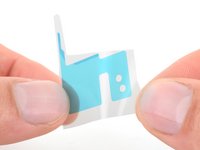
    • The Galaxy S22 has two strips of adhesive securing the screen to the phone:

    • One large piece that conforms to the top and two long edges of the frame.

    • One small strip that goes along the bottom edge of the frame.

    • Be careful not to crease or stretch the adhesive during installation. It won't seal properly if damaged.

    Chiedi a FixBot

    Aggiungi Commento

  45. Samsung Galaxy S22 Screen Replacement, Align the large adhesive: passo 45, immagine 1 di 3 Samsung Galaxy S22 Screen Replacement, Align the large adhesive: passo 45, immagine 2 di 3 Samsung Galaxy S22 Screen Replacement, Align the large adhesive: passo 45, immagine 3 di 3
    • Hold the large adhesive above the frame to find its orientation. Use cutouts in the liner and the contours of the adhesive to help visualize how it will lay in the frame.

    • Keep the adhesive in this orientation in the next few steps.

    Chiedi a FixBot

    Aggiungi Commento

  46. Samsung Galaxy S22 Screen Replacement, Remove the large adhesive liner: passo 46, immagine 1 di 3 Samsung Galaxy S22 Screen Replacement, Remove the large adhesive liner: passo 46, immagine 2 di 3 Samsung Galaxy S22 Screen Replacement, Remove the large adhesive liner: passo 46, immagine 3 di 3
    • Be careful while installing the adhesive—once it sticks, it can't be removed and reused.

    • Peel up the top half of the larger, clear liner to expose the adhesive. Fold the liner over so only the top half of the adhesive is exposed.

    Chiedi a FixBot

    Aggiungi Commento

  47. Samsung Galaxy S22 Screen Replacement, Install the large adhesive: passo 47, immagine 1 di 3 Samsung Galaxy S22 Screen Replacement, Install the large adhesive: passo 47, immagine 2 di 3 Samsung Galaxy S22 Screen Replacement, Install the large adhesive: passo 47, immagine 3 di 3
    • Take your time aligning the adhesive with the frame—it's very sticky and can't be moved after you apply it.

    • With the larger, clear liner folded towards the bottom of the phone, lay the exposed top edge of the adhesive into the shaped depression at the top of the frame.

    • Slowly lay the rest of the adhesive onto the frame, pressing it into place and peeling away the larger, clear liner as you go.

    Chiedi a FixBot

    Aggiungi Commento

  48. Samsung Galaxy S22 Screen Replacement: passo 48, immagine 1 di 2 Samsung Galaxy S22 Screen Replacement: passo 48, immagine 2 di 2
    • Press your fingers along the large adhesive to help it bond to the frame.

    Chiedi a FixBot

    Aggiungi Commento

  49. Samsung Galaxy S22 Screen Replacement, Prepare the small adhesive: passo 49, immagine 1 di 3 Samsung Galaxy S22 Screen Replacement, Prepare the small adhesive: passo 49, immagine 2 di 3 Samsung Galaxy S22 Screen Replacement, Prepare the small adhesive: passo 49, immagine 3 di 3
    • Peel the clear liner off the top of the small adhesive to expose the green liner. Keep the green liner in place for now.

    Chiedi a FixBot

    Aggiungi Commento

  50. Samsung Galaxy S22 Screen Replacement, Align the small adhesive: passo 50, immagine 1 di 2 Samsung Galaxy S22 Screen Replacement, Align the small adhesive: passo 50, immagine 2 di 2
    • Align the small adhesive with the bottom edge of the frame. The curvature of the adhesive should match the curvature of the frame.

    • Remove the clear plastic liner from the bottom of the small adhesive. The adhesive is now exposed.

    Chiedi a FixBot

    Aggiungi Commento

  51. Samsung Galaxy S22 Screen Replacement, Install the small adhesive: passo 51, immagine 1 di 3 Samsung Galaxy S22 Screen Replacement, Install the small adhesive: passo 51, immagine 2 di 3 Samsung Galaxy S22 Screen Replacement, Install the small adhesive: passo 51, immagine 3 di 3
    • Carefully lower the small adhesive into the frame and stick it into place.

    Chiedi a FixBot

    Aggiungi Commento

  52. Samsung Galaxy S22 Screen Replacement: passo 52, immagine 1 di 2 Samsung Galaxy S22 Screen Replacement: passo 52, immagine 2 di 2
    • Press your finger along the small adhesive to help it bond to the frame.

    Chiedi a FixBot

    Aggiungi Commento

  53. Samsung Galaxy S22 Screen Replacement, Prepare the replacement screen: passo 53, immagine 1 di 3 Samsung Galaxy S22 Screen Replacement, Prepare the replacement screen: passo 53, immagine 2 di 3 Samsung Galaxy S22 Screen Replacement, Prepare the replacement screen: passo 53, immagine 3 di 3
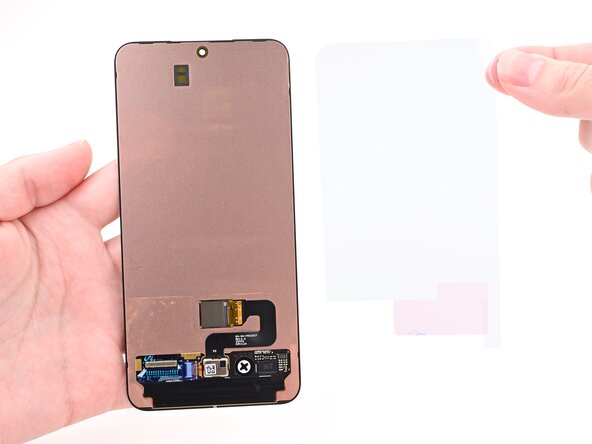
    • Your replacement screen may have protective liners on the underside that must be removed before installation. Usually, you can identify the liners by their pull tabs.

    • The exposed back of the screen is very fragile—even a small scratch can cause damage. Be very careful not to damage the screen during the remaining steps.

    • Use your fingers or tweezers to remove all plastic liners from the back of the replacement screen.

    Chiedi a FixBot

    Aggiungi Commento

  54. Samsung Galaxy S22 Screen Replacement, Remove the final liners: passo 54, immagine 1 di 2 Samsung Galaxy S22 Screen Replacement, Remove the final liners: passo 54, immagine 2 di 2
    • Slowly peel up and remove the green liner on the small adhesive, peeling by its protruding tabs.

    • If the adhesive starts to peel up with the liner, check that you’ve pushed all of it into place.

    Chiedi a FixBot

    Aggiungi Commento

  55. Samsung Galaxy S22 Screen Replacement: passo 55, immagine 1 di 3 Samsung Galaxy S22 Screen Replacement: passo 55, immagine 2 di 3 Samsung Galaxy S22 Screen Replacement: passo 55, immagine 3 di 3
    • Repeat this process to remove the green liner from the large adhesive.

    Chiedi a FixBot

    Aggiungi Commento

  56. Samsung Galaxy S22 Screen Replacement, Install the new screen: passo 56, immagine 1 di 3 Samsung Galaxy S22 Screen Replacement, Install the new screen: passo 56, immagine 2 di 3 Samsung Galaxy S22 Screen Replacement, Install the new screen: passo 56, immagine 3 di 3
    • Align the replacement screen with the frame and set it into place.

    Chiedi a FixBot

    Aggiungi Commento

  57. Samsung Galaxy S22 Screen Replacement, Remove the back cover: passo 57, immagine 1 di 3 Samsung Galaxy S22 Screen Replacement, Remove the back cover: passo 57, immagine 2 di 3 Samsung Galaxy S22 Screen Replacement, Remove the back cover: passo 57, immagine 3 di 3
    • Flip the phone over.

    • Work slowly when removing the back cover—the adhesive isn't as strong as before. If you feel resistance when lifting, apply heat instead of using more force.

    • Use a suction handle to gently lift the back cover from its bottom edge. If it won't lift easily, use an iOpener, hair dryer, or heat gun to heat it until it's hot to the touch.

    • Use an opening pick to gently separate the adhesive securing the back cover.

    • Lift and remove the back cover.

    Chiedi a FixBot

    Aggiungi Commento

  58. Samsung Galaxy S22 Screen Replacement, Install the screen cable: passo 58, immagine 1 di 2 Samsung Galaxy S22 Screen Replacement, Install the screen cable: passo 58, immagine 2 di 2
    • Set the screen cable into place so it's aligned with its sockets on the motherboard and screen (in the bottom left corner of the phone).

    Chiedi a FixBot

    Aggiungi Commento

  59. Samsung Galaxy S22 Screen Replacement, Connect the screen cable: passo 59, immagine 1 di 3 Samsung Galaxy S22 Screen Replacement, Connect the screen cable: passo 59, immagine 2 di 3 Samsung Galaxy S22 Screen Replacement, Connect the screen cable: passo 59, immagine 3 di 3
    • To reconnect press connectors like this one, align the connector carefully over its socket and press down—first on one of the short sides, then the other—until it clicks into place. Don't try to force the connector into place. If you're having trouble, reposition it and try again.

    • Use the flat end of a spudger or your finger to connect the screen press connectors to their respective sockets on the screen and motherboard.

    Chiedi a FixBot

    Aggiungi Commento

  60. Samsung Galaxy S22 Screen Replacement, Connect the battery: passo 60, immagine 1 di 2 Samsung Galaxy S22 Screen Replacement, Connect the battery: passo 60, immagine 2 di 2
    • Use the flat end of a spudger or your finger to connect the battery press connector onto its socket on the motherboard.

    Chiedi a FixBot

    Aggiungi Commento

  61. Samsung Galaxy S22 Screen Replacement, Install the charging coil and loudspeaker assembly: passo 61, immagine 1 di 3 Samsung Galaxy S22 Screen Replacement, Install the charging coil and loudspeaker assembly: passo 61, immagine 2 di 3 Samsung Galaxy S22 Screen Replacement, Install the charging coil and loudspeaker assembly: passo 61, immagine 3 di 3
    • Insert the loudspeaker at a downward angle into the frame and press it into place.

    Chiedi a FixBot

    Aggiungi Commento

  62. Samsung Galaxy S22 Screen Replacement, Fasten the loudspeaker: passo 62, immagine 1 di 1
    • Use your Phillips screwdriver to install the seven 3.5 mm‑long screws securing the loudspeaker.

    Chiedi a FixBot

    Aggiungi Commento

  63. Samsung Galaxy S22 Screen Replacement, Fasten the wireless charging coil: passo 63, immagine 1 di 1
    • Use your Phillips screwdriver to install the six 3.5 mm‑long screws securing the wireless charging coil.

    Chiedi a FixBot

    Aggiungi Commento

  64. Samsung Galaxy S22 Screen Replacement, Connect the wireless charging coil: passo 64, immagine 1 di 2 Samsung Galaxy S22 Screen Replacement, Connect the wireless charging coil: passo 64, immagine 2 di 2
    • Use the flat end of a spudger or your finger to connect the wireless charging coil press connector to its socket on the motherboard.

    Chiedi a FixBot

    Aggiungi Commento

  65. Samsung Galaxy S22 Screen Replacement, Heat the camera bezel: passo 65, immagine 1 di 1
    • If you're replacing the back cover and it comes with adhesive pre-installed, skip to this step.

    • Apply a heated iOpener to the camera bezel on the back cover for two minutes.

    • You can also use a hair dryer or heat gun to heat the camera bezel.

    Chiedi a FixBot

    Aggiungi Commento

  66. Samsung Galaxy S22 Screen Replacement, Separate the metal camera cover: passo 66, immagine 1 di 3 Samsung Galaxy S22 Screen Replacement, Separate the metal camera cover: passo 66, immagine 2 di 3 Samsung Galaxy S22 Screen Replacement, Separate the metal camera cover: passo 66, immagine 3 di 3
    • Be careful not to bend or deform the metal camera cover during removal. If it's damaged, try to bend it back into shape or replace it to ensure a proper seal.

    • Insert an opening pick beneath the metal camera cover at its bottom edge.

    • The metal cover is strongly adhered. If you can't insert a pick, apply more heat to soften the adhesive.

    • Slide the pick around the cover's bottom‑left corner to separate it from the adhesive.

    Chiedi a FixBot

    Aggiungi Commento

  67. Samsung Galaxy S22 Screen Replacement: passo 67, immagine 1 di 3 Samsung Galaxy S22 Screen Replacement: passo 67, immagine 2 di 3 Samsung Galaxy S22 Screen Replacement: passo 67, immagine 3 di 3
    • Re‑heat the metal camera cover.

    • Slide the opening pick around the entire perimeter of the metal camera cover to separate it from the adhesive.

    Chiedi a FixBot

    Aggiungi Commento

  68. Samsung Galaxy S22 Screen Replacement, Remove the metal camera cover: passo 68, immagine 1 di 2 Samsung Galaxy S22 Screen Replacement, Remove the metal camera cover: passo 68, immagine 2 di 2
    • Peel the metal cover off the back cover and remove it.

    Chiedi a FixBot

    Aggiungi Commento

  69. Samsung Galaxy S22 Screen Replacement, Remove the perimeter adhesive: passo 69, immagine 1 di 3 Samsung Galaxy S22 Screen Replacement, Remove the perimeter adhesive: passo 69, immagine 2 di 3 Samsung Galaxy S22 Screen Replacement, Remove the perimeter adhesive: passo 69, immagine 3 di 3
    • Use blunt nose tweezers or your fingers to lift the thin adhesive strip off the perimeter of the back cover.

    • If it doesn't lift easily, apply heat to the perimeter.

    • Heat the adhesive on the camera bezel.

    Chiedi a FixBot

    Aggiungi Commento

  70. Samsung Galaxy S22 Screen Replacement, Remove the camera adhesive: passo 70, immagine 1 di 3 Samsung Galaxy S22 Screen Replacement, Remove the camera adhesive: passo 70, immagine 2 di 3 Samsung Galaxy S22 Screen Replacement, Remove the camera adhesive: passo 70, immagine 3 di 3
    • During removal, the camera bezel will likely detach from the back glass.

    • Use your fingers to pull up the remaining adhesive from the camera bezel with slow, steady force.

    • This section of adhesive can be difficult to remove. Be careful not to bend or crack the back glass.

    Chiedi a FixBot

    Aggiungi Commento

  71. Samsung Galaxy S22 Screen Replacement, Remove the microphone adhesive: passo 71, immagine 1 di 2 Samsung Galaxy S22 Screen Replacement, Remove the microphone adhesive: passo 71, immagine 2 di 2
    Chiedi a FixBot

    Aggiungi Commento

  72. Samsung Galaxy S22 Screen Replacement, Clean the remaining adhesive residue: passo 72, immagine 1 di 3 Samsung Galaxy S22 Screen Replacement, Clean the remaining adhesive residue: passo 72, immagine 2 di 3 Samsung Galaxy S22 Screen Replacement, Clean the remaining adhesive residue: passo 72, immagine 3 di 3
    Strumento utilizzato in questo passaggio:
    iFixit Adhesive Remover
    $19.99
    • If the camera bezel is still attached to the back glass, it should separate while removing the adhesive residue. It's easier to clean them individually than together.

    • Apply a few drops of isopropyl alcohol or adhesive remover to the flat end of a spudger.

    • Use the spudger to scrape off any large chunks of adhesive residue from the camera bezel. Apply more solvent to the spudger to help dissolve the adhesive.

    • You only need to remove large adhesive chunks—the smaller pieces will be wiped off later.

    Chiedi a FixBot

    Aggiungi Commento

  73. Samsung Galaxy S22 Screen Replacement: passo 73, immagine 1 di 3 Samsung Galaxy S22 Screen Replacement: passo 73, immagine 2 di 3 Samsung Galaxy S22 Screen Replacement: passo 73, immagine 3 di 3
    • Repeat this process to scrape off any large chunks of adhesive residue from the perimeter of the back glass.

    Chiedi a FixBot

    Aggiungi Commento

  74. Samsung Galaxy S22 Screen Replacement: passo 74, immagine 1 di 3 Samsung Galaxy S22 Screen Replacement: passo 74, immagine 2 di 3 Samsung Galaxy S22 Screen Replacement: passo 74, immagine 3 di 3
    Strumento utilizzato in questo passaggio:
    iFixit Adhesive Remover
    $19.99
    • Apply several drops of isopropyl alcohol or adhesive remover to a microfiber or lint free cloth.

    • Alternatively, use our adhesive cleanup kit.

    • Clean the camera bezel and back glass until they're free of adhesive residue.

    Chiedi a FixBot

    Aggiungi Commento

  75. Samsung Galaxy S22 Screen Replacement, Clean the frame: passo 75, immagine 1 di 3 Samsung Galaxy S22 Screen Replacement, Clean the frame: passo 75, immagine 2 di 3 Samsung Galaxy S22 Screen Replacement, Clean the frame: passo 75, immagine 3 di 3
    • Repeat the cleaning process to remove any adhesive residue from the frame of the phone.

    Chiedi a FixBot

    Aggiungi Commento

  76. Samsung Galaxy S22 Screen Replacement, Reinstall the camera bezel: passo 76, immagine 1 di 3 Samsung Galaxy S22 Screen Replacement, Reinstall the camera bezel: passo 76, immagine 2 di 3 Samsung Galaxy S22 Screen Replacement, Reinstall the camera bezel: passo 76, immagine 3 di 3
    • Lay the back glass and camera bezel on a flat surface.

    • Align the camera bezel with the back glass, making sure the arrow is pointing toward the top of the cover.

    Chiedi a FixBot

    Aggiungi Commento

  77. Samsung Galaxy S22 Screen Replacement, Apply the new adhesive: passo 77, immagine 1 di 3 Samsung Galaxy S22 Screen Replacement, Apply the new adhesive: passo 77, immagine 2 di 3 Samsung Galaxy S22 Screen Replacement, Apply the new adhesive: passo 77, immagine 3 di 3
    • Be very careful during this step! The back cover adhesive is very sticky and can't be repositioned once it sticks. Misaligned adhesive can lead to an improper seal.

    • Remove the clear plastic liner from the new back cover adhesive.

    • Grab the new adhesive by its pull tabs and align it over the back cover and camera bezel.

    • Place the adhesive on the back cover.

    • Use features such as the camera cutouts and perimeter notches to help align the adhesive.

    Chiedi a FixBot

    Aggiungi Commento

  78. Samsung Galaxy S22 Screen Replacement, Remove the liners: passo 78, immagine 1 di 3 Samsung Galaxy S22 Screen Replacement, Remove the liners: passo 78, immagine 2 di 3 Samsung Galaxy S22 Screen Replacement, Remove the liners: passo 78, immagine 3 di 3
    • Press firmly along the perimeter of the adhesive to adhere it.

    • Remove the main adhesive liner from the back cover using the pull tabs on the top and bottom edges.

    • If present, remove the secondary adhesive liner from the camera bezel using the pull tab on the bottom of the bezel.

    Chiedi a FixBot

    Aggiungi Commento

  79. Samsung Galaxy S22 Screen Replacement, Prepare the metal cover: passo 79, immagine 1 di 1
    • If you're replacing the metal camera cover, remove the main liner from the new cover using the black pull tabs.

    • If you're reusing the cover, ensure the cover is clean and wasn't deformed during removal. If it was, try bending it back into shape. If there's adhesive residue, apply solvent to a cloth and wipe it off.

    • If you clean the cover, be careful not to damage the gray foam or white vent.

    Chiedi a FixBot

    Aggiungi Commento

  80. Samsung Galaxy S22 Screen Replacement, Install the metal camera cover: passo 80, immagine 1 di 3 Samsung Galaxy S22 Screen Replacement, Install the metal camera cover: passo 80, immagine 2 di 3 Samsung Galaxy S22 Screen Replacement, Install the metal camera cover: passo 80, immagine 3 di 3
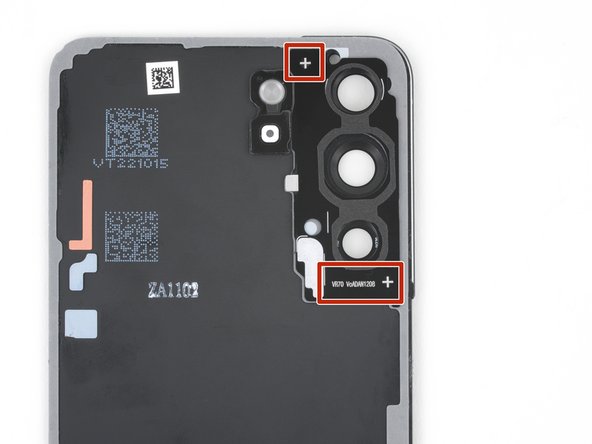
    • Orient the new metal camera cover so the white text is along the bottom of the camera bezel and the crosses are in the upper left and lower right corners.

    • Place the cover onto the camera bezel and apply pressure to adhere it.

    • If you're installing a new cover, remove the secondary liner using the white pull tabs.

    Chiedi a FixBot

    Aggiungi Commento

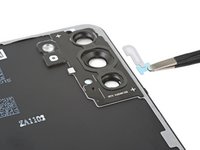
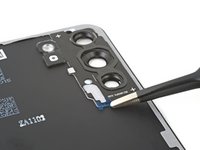
  81. Samsung Galaxy S22 Screen Replacement, Replace the microphone adhesive: passo 81, immagine 1 di 3 Samsung Galaxy S22 Screen Replacement, Replace the microphone adhesive: passo 81, immagine 2 di 3 Samsung Galaxy S22 Screen Replacement, Replace the microphone adhesive: passo 81, immagine 3 di 3
    Strumento utilizzato in questo passaggio:
    Tesa 61395 Tape
    $2.95
    • On the motherboard cover, remove the old adhesive from the microphone hole under the flash unit.

    • If you have replacement microphone adhesive:

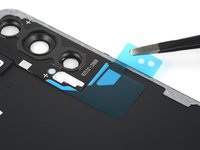
    • Remove the clear liner from the large L‑shaped adhesive piece.

    • Place the square piece of adhesive over the back cover's microphone cutout under the flash unit, with the blue liner tab facing right.

    • Remove the blue liner.

    • If you don't have replacement microphone adhesive, use 1 mm strips of thin, double-sided tape instead. Apply the strips around the perimeter of the white microphone sticker on the back cover.

    Chiedi a FixBot

    Aggiungi Commento

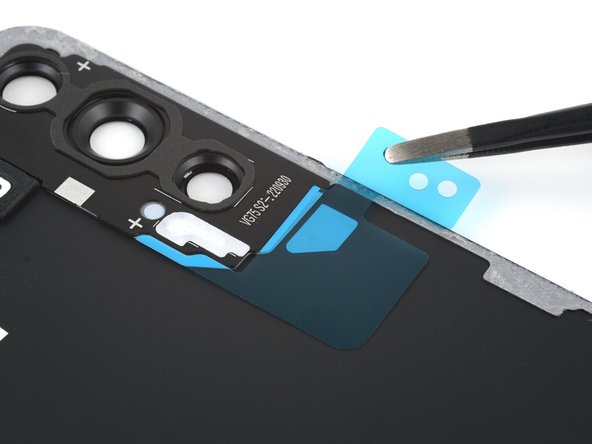
  82. Samsung Galaxy S22 Screen Replacement, Apply the camera foam adhesive: passo 82, immagine 1 di 3 Samsung Galaxy S22 Screen Replacement, Apply the camera foam adhesive: passo 82, immagine 2 di 3 Samsung Galaxy S22 Screen Replacement, Apply the camera foam adhesive: passo 82, immagine 3 di 3
    • If you're reusing the old metal camera cover, skip the next two steps.

    • If the replacement metal camera cover comes with foam preinstalled, skip this step.

    • Remove the clear liner from the camera foam adhesive.

    • Orient the adhesive over the camera cutouts with the circular section toward the top.

    • Place the adhesive onto the metal cover, making sure to use the markings around the camera cutouts to align it.

    • Remove the green liner from the adhesive.

    Chiedi a FixBot

    Aggiungi Commento

  83. Samsung Galaxy S22 Screen Replacement, Apply the air vent adhesive: passo 83, immagine 1 di 3 Samsung Galaxy S22 Screen Replacement, Apply the air vent adhesive: passo 83, immagine 2 di 3 Samsung Galaxy S22 Screen Replacement, Apply the air vent adhesive: passo 83, immagine 3 di 3
    • If the replacement metal camera cover comes with the air vent preinstalled, skip this step.

    • Remove the clear liner from the air vent adhesive.

    • Place the adhesive onto the metal cover with the fuzzy side facing upward and the blue tab toward the bottom of the cover.

    • Use the markings on the cover to align the adhesive.

    • Remove the blue tab from under the adhesive.

    Chiedi a FixBot

    Aggiungi Commento

  84. Samsung Galaxy S22 Screen Replacement, Apply the metal camera cover corner adhesive: passo 84, immagine 1 di 2 Samsung Galaxy S22 Screen Replacement, Apply the metal camera cover corner adhesive: passo 84, immagine 2 di 2
    • If you have a Galaxy S22+, there may be an additional piece of adhesive for the metal cover. If there isn't, skip this step.

    • The replacement adhesive we sell has this built in.

    • Remove the clear liner from the large two-piece adhesive sheet.

    • Align the adhesive over the notches in the bottom left of the metal cover.

    • Place the adhesive and apply pressure to adhere it.

    • Remove the blue liner.

    Chiedi a FixBot

    Aggiungi Commento

  85. Samsung Galaxy S22 Screen Replacement, Install the back cover: passo 85, immagine 1 di 3 Samsung Galaxy S22 Screen Replacement, Install the back cover: passo 85, immagine 2 di 3 Samsung Galaxy S22 Screen Replacement, Install the back cover: passo 85, immagine 3 di 3
    • Align the back cover with the frame and set it into place.

    • Press on the back cover to help the adhesive bond.

    Chiedi a FixBot

    Aggiungi Commento

  86. Samsung Galaxy S22 Screen Replacement, Heat the back cover: passo 86, immagine 1 di 2 Samsung Galaxy S22 Screen Replacement, Heat the back cover: passo 86, immagine 2 di 2
    • To help the adhesive bond, apply heat to all four edges of the back cover using an iOpener, hair dryer, or heat gun until it's hot to the touch.

    Chiedi a FixBot

    Aggiungi Commento

  87. Samsung Galaxy S22 Screen Replacement, Prepare the phone: passo 87, immagine 1 di 2 Samsung Galaxy S22 Screen Replacement, Prepare the phone: passo 87, immagine 2 di 2
    • In order for the adhesive to bond correctly, you'll need to apply even pressure around the perimeter of the phone. You can compensate for the camera bump by laying the phone face-down and placing coins around its perimeter.

    • Alternatively, you can use screen vise clamps around the perimeter of your device to set the new adhesive.

    • Place the phone screen-side-down on a soft, flat surface.

    • Apply blue painter's tape to the edges to protect its finish.

    • Stronger tape may peel off the paint from the frame of the phone. If you don't have blue painter's tape, use a paper towel or thin cloth instead.

    Chiedi a FixBot

    Aggiungi Commento

  88. Samsung Galaxy S22 Screen Replacement, Press the adhesive: passo 88, immagine 1 di 2 Samsung Galaxy S22 Screen Replacement, Press the adhesive: passo 88, immagine 2 di 2
    • Place evenly spaced layers of coins or similarly thick objects on the tape along the edges of the back cover.

    • Stack them to a consistent height taller than the camera bump.

    Chiedi a FixBot

    Aggiungi Commento

  89. Samsung Galaxy S22 Screen Replacement: passo 89, immagine 1 di 1
    • Stack multiple books or other heavy objects on the coins.

    • The coins may leave an impression on the bottom object, so don't use anything valuable.

    • Leave the objects in place for at least thirty minutes. The lighter the objects, the longer they should be left. Ideally, leave them stacked overnight.

    Chiedi a FixBot

    Aggiungi Commento

Conclusione

Take your e-waste to an R2 or e-Stewards certified recycler.

Repair didn’t go as planned? Check out our Answers community for troubleshooting help.

Annulla: non ho completato questa guida.

Nick Schultz

Membro da: 03/24/24

57.229 Reputazione

316 guide realizzate

0Commenti sulla guida

Aggiungi Commento

Visualizza statistiche:

Ultime 24 ore: 16

Ultimi 7 giorni: 130

Ultimi 30 giorni: 575

Tutti i Tempi: 1,570