Salta al contenuto principale

iPhone 17 Screen Replacement

Cosa ti serve

  1. iPhone 17 Screen Replacement, Before you begin: passo 1, immagine 1 di 2 iPhone 17 Screen Replacement, Before you begin: passo 1, immagine 2 di 2
    • Allow your phone's battery to drain below 25%, as a charged lithium-ion battery is a potential safety hazard.

    • Unplug any cables from your phone.

    • Hold the power and either volume buttons and slide to power off your phone.

  2. iPhone 17 Screen Replacement, Tape over any cracks: passo 2, immagine 1 di 2 iPhone 17 Screen Replacement, Tape over any cracks: passo 2, immagine 2 di 2
    • If your screen or back glass is badly cracked, lay overlapping strips of packing tape over the glass to protect yourself and make disassembly easier.

    • Make sure there's a smooth area near the bottom edge that's big enough for a suction cup to stick to.

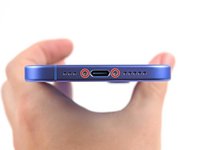
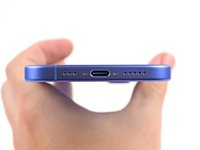
  3. iPhone 17 Screen Replacement, Remove the pentalobe screws: passo 3, immagine 1 di 2 iPhone 17 Screen Replacement, Remove the pentalobe screws: passo 3, immagine 2 di 2
    • Use a P2 pentalobe driver to remove the two 7.7 mm-long screws on either side of the charging port.

  4. iPhone 17 Screen Replacement, Mark your opening picks: passo 4, immagine 1 di 3 iPhone 17 Screen Replacement, Mark your opening picks: passo 4, immagine 2 di 3 iPhone 17 Screen Replacement, Mark your opening picks: passo 4, immagine 3 di 3
    • If inserted too far, an opening pick can damage your device. Follow this step to mark your pick and prevent damage.

    • Measure 3 mm from the tip and mark the opening pick with a permanent marker.

    • You can also mark the other corners of the pick with different measurements.

    • Alternatively, tape a coin to a pick 3 mm from the tip.

    • Apple sells an Adhesive Cutter tool for cutting the display adhesive safely in their Self Repair Store.

  5. iPhone 17 Screen Replacement, Heat the bottom edge: passo 5, immagine 1 di 1
    Attrezzo utilizzato in questo passaggio:
    iOpener
    $14.99
    • Use a hair dryer or heat gun to heat the bottom edge of the screen until it's hot to the touch.

    • You can also use an iOpener to heat the back glass. Follow these instructions to heat and apply the iOpener properly.

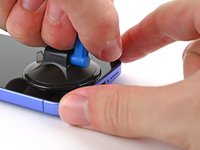
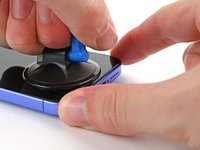
  6. iPhone 17 Screen Replacement, Insert an opening pick: passo 6, immagine 1 di 3 iPhone 17 Screen Replacement, Insert an opening pick: passo 6, immagine 2 di 3 iPhone 17 Screen Replacement, Insert an opening pick: passo 6, immagine 3 di 3
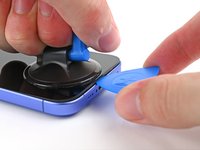
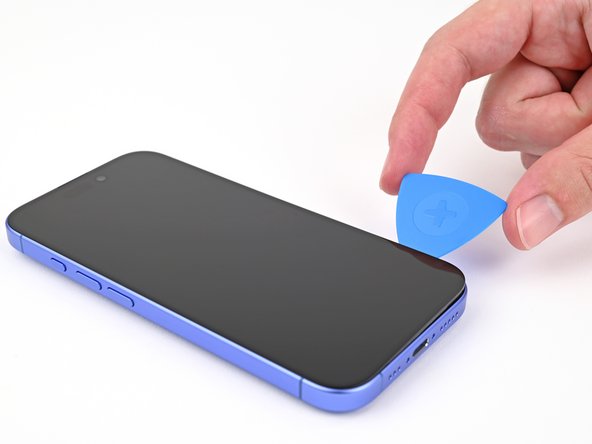
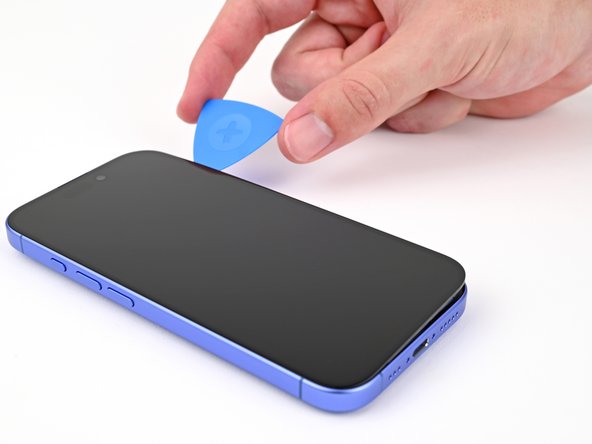
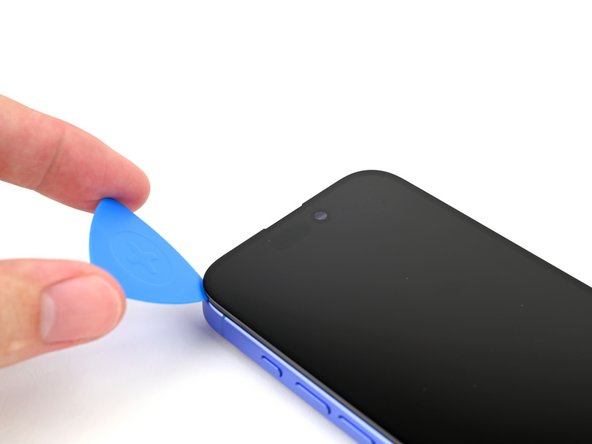
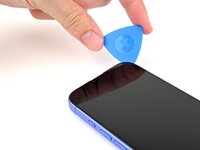
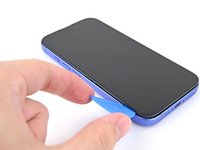
    • Apply a suction handle to the bottom edge of the screen.

    • While supporting the frame with one hand, pull up on the handle with a strong, steady force to create a gap between the screen and the frame.

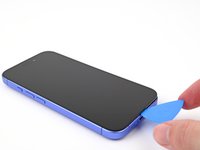
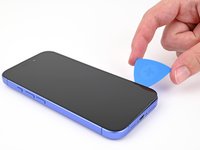
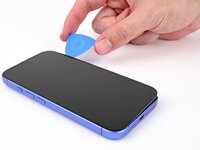
    • Insert the tip of an opening pick into the gap.

  7. iPhone 17 Screen Replacement, Screen information: passo 7, immagine 1 di 2 iPhone 17 Screen Replacement, Screen information: passo 7, immagine 2 di 2
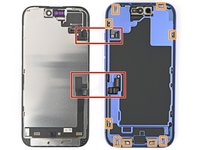
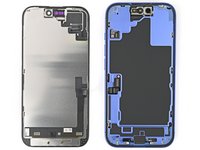
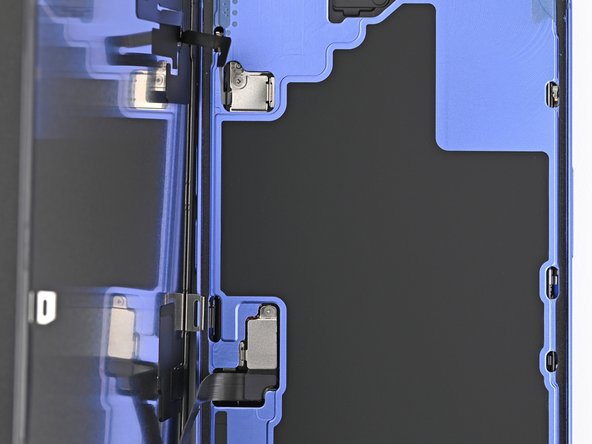
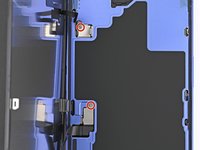
    • As you slice the adhesive securing the screen in the following steps, don't insert your pick deeper than 3 mm to avoid damaging the following areas:

    • Two delicate cables connecting the screen to the phone—one just above the Action button and the other about halfway between the volume down button and the bottom of the phone.

    • Multiple spring contacts around the perimeter of the phone.

  8. iPhone 17 Screen Replacement, Heat the right edge: passo 8, immagine 1 di 1
    • Use a hair dryer or heat gun to heat the right edge of the screen until it's hot to the touch.

  9. iPhone 17 Screen Replacement, Separate the right adhesive: passo 9, immagine 1 di 3 iPhone 17 Screen Replacement, Separate the right adhesive: passo 9, immagine 2 di 3 iPhone 17 Screen Replacement, Separate the right adhesive: passo 9, immagine 3 di 3
    • Don't insert your pick deeper than 3 mm to avoid damaging the spring contacts.

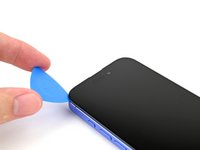
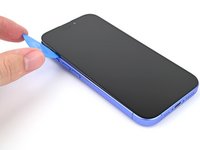
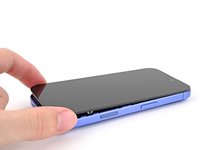
    • Slide your opening pick around the bottom right corner and up the right edge of the screen to separate the adhesive and release the metal clip.

    • You'll hear and feel the metal clip release as you pass it.

  10. iPhone 17 Screen Replacement, Heat the top edge: passo 10, immagine 1 di 1
    • Use a hair dryer or heat gun to heat the top edge of the screen until it's hot to the touch.

  11. iPhone 17 Screen Replacement, Separate the top adhesive: passo 11, immagine 1 di 2 iPhone 17 Screen Replacement, Separate the top adhesive: passo 11, immagine 2 di 2
    • Don't insert your pick deeper than 3 mm to avoid damaging the spring contacts.

    • Continue sliding your pick around the top right corner and across the top edge to separate the adhesive and release the two metal clips.

  12. iPhone 17 Screen Replacement, Heat the left edge: passo 12, immagine 1 di 1
    • Use a hair dryer or heat gun to heat the left edge of the screen until it's hot to the touch.

  13. iPhone 17 Screen Replacement, Separate the left adhesive: passo 13, immagine 1 di 2 iPhone 17 Screen Replacement, Separate the left adhesive: passo 13, immagine 2 di 2
    • Don't insert your pick deeper than 3 mm to avoid damaging the screen cables and the spring contacts.

    • Slide the opening pick down the left edge of the screen to separate the remaining adhesive and release the last two metal clips.

  14. iPhone 17 Screen Replacement, Prop up the screen: passo 14, immagine 1 di 3 iPhone 17 Screen Replacement, Prop up the screen: passo 14, immagine 2 di 3 iPhone 17 Screen Replacement, Prop up the screen: passo 14, immagine 3 di 3
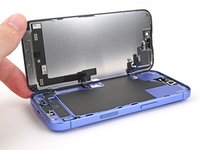
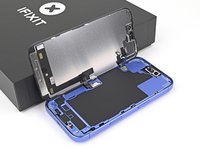
    • At this point, the screen should be free from the frame. If the screen feels stuck, go back around the perimeter with your pick to check for missed sections of adhesive or stuck clips.

    • Swing open the screen over the left edge of the phone and support it with a clean, sturdy object.

  15. iPhone 17 Screen Replacement, Remove the connector covers: passo 15, immagine 1 di 2 iPhone 17 Screen Replacement, Remove the connector covers: passo 15, immagine 2 di 2
    • Use a tri-point Y000 driver to remove the two 0.9 mm‑long screws securing the front sensor and screen connector covers.

  16. iPhone 17 Screen Replacement: passo 16, immagine 1 di 2 iPhone 17 Screen Replacement: passo 16, immagine 2 di 2
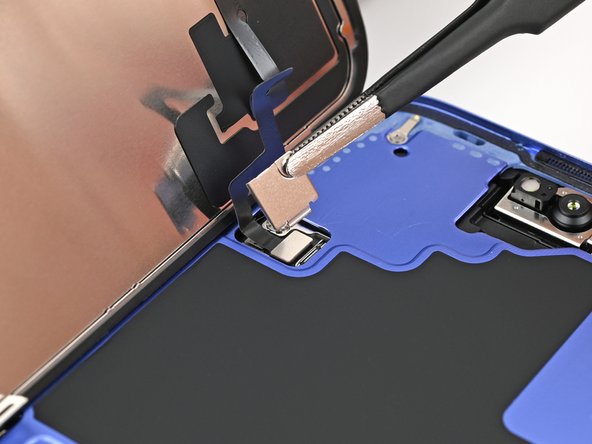
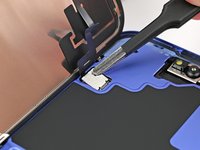
    • Use tweezers, or your fingers, to lift the front sensor cover to a 90-degree angle and unhook it from its slot in the logic board.

    • Lift the cover out of its slot and remove it.

  17. iPhone 17 Screen Replacement: passo 17, immagine 1 di 2 iPhone 17 Screen Replacement: passo 17, immagine 2 di 2
    • Use tweezers, or your fingers, to lift the screen connector cover at a slight angle to unhook it from its slot in the logic board.

    • Lift the cover out of its slot and remove it.

  18. iPhone 17 Screen Replacement, Disconnect the screen: passo 18, immagine 1 di 3 iPhone 17 Screen Replacement, Disconnect the screen: passo 18, immagine 2 di 3 iPhone 17 Screen Replacement, Disconnect the screen: passo 18, immagine 3 di 3
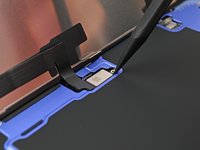
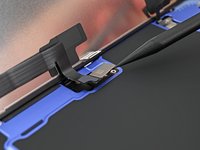
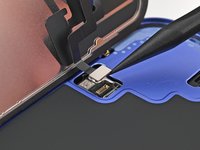
    • Use the tip of a spudger to pry up and disconnect the screen press connector.

    • Repeat for the front sensor press connector.

  19. iPhone 17 Screen Replacement, Remove the screen: passo 19, immagine 1 di 1
    • Lift the screen off the frame and remove it.

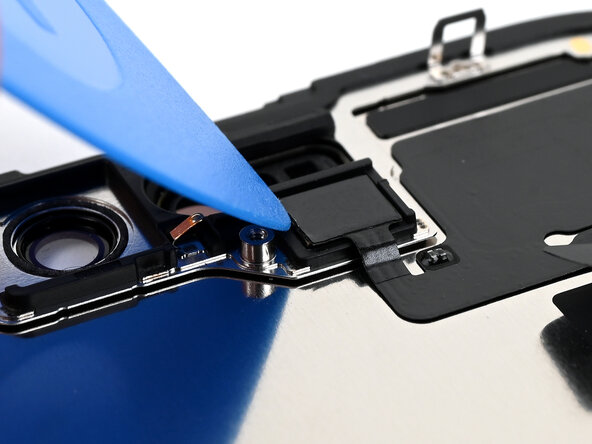
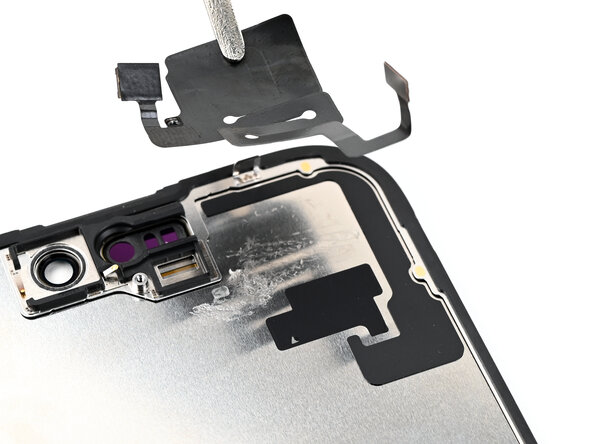
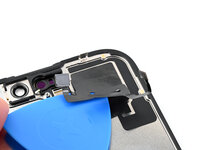
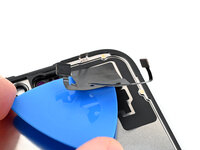
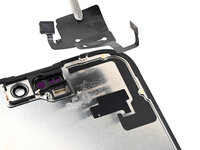
  20. iPhone 17 Screen Replacement, Remove the ambient light sensor bracket: passo 20, immagine 1 di 3 iPhone 17 Screen Replacement, Remove the ambient light sensor bracket: passo 20, immagine 2 di 3 iPhone 17 Screen Replacement, Remove the ambient light sensor bracket: passo 20, immagine 3 di 3
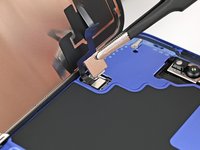
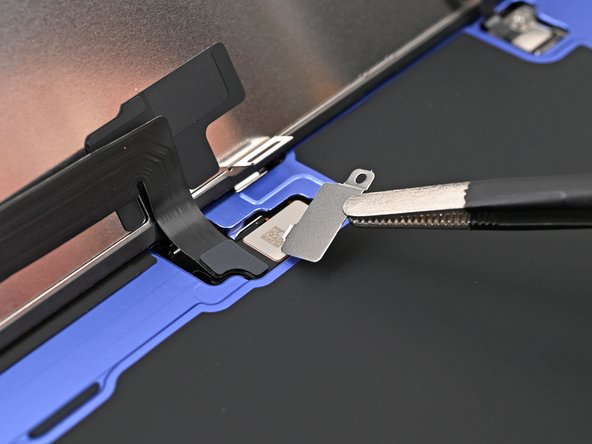
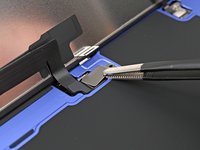
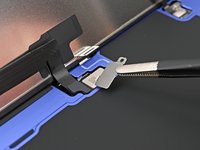
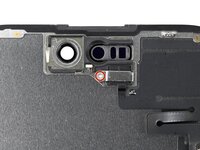
    • Use a Phillips screwdriver to remove the 1.3 mm‑long screw securing the ambient light sensor bracket.

    • Use a pair of tweezers or your fingers to lift and remove the ambient light sensor bracket.

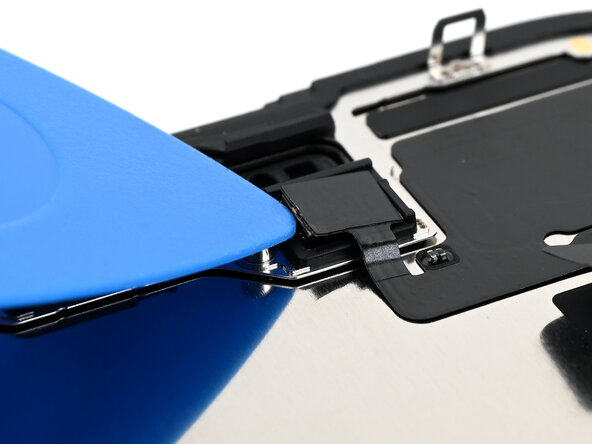
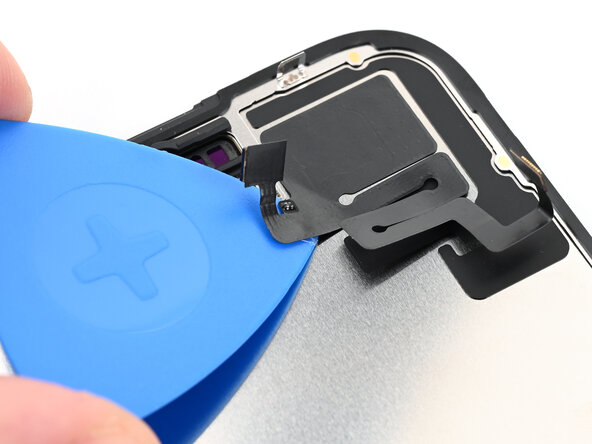
  21. iPhone 17 Screen Replacement, Pry up the ambient light sensor: passo 21, immagine 1 di 3 iPhone 17 Screen Replacement, Pry up the ambient light sensor: passo 21, immagine 2 di 3 iPhone 17 Screen Replacement, Pry up the ambient light sensor: passo 21, immagine 3 di 3
    • Use a hair dryer, heat gun, or heated iOpener to soften the adhesive under the ambient light sensor and ambient light sensor cable.

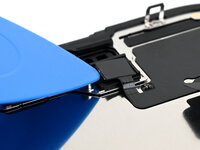
    • Use an opening pick to pry up the ambient light sensor.

  22. iPhone 17 Screen Replacement, Reposition the ambient light sensor cable: passo 22, immagine 1 di 2 iPhone 17 Screen Replacement, Reposition the ambient light sensor cable: passo 22, immagine 2 di 2
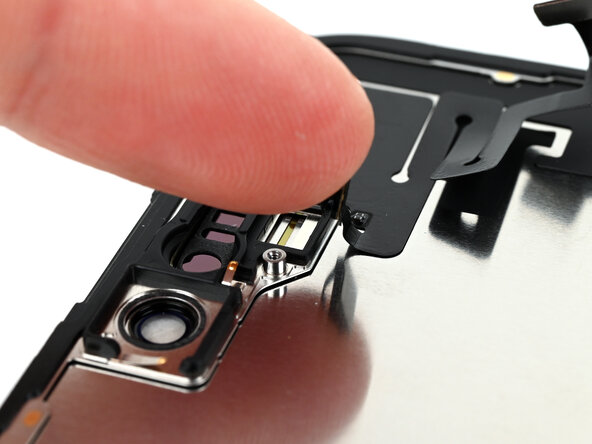
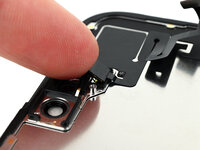
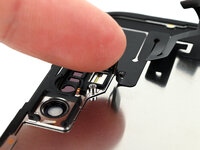
    • Use your finger to push the ambient light sensor away from its recess.

  23. iPhone 17 Screen Replacement, Peel up the ambient light sensor cable: passo 23, immagine 1 di 2 iPhone 17 Screen Replacement, Peel up the ambient light sensor cable: passo 23, immagine 2 di 2
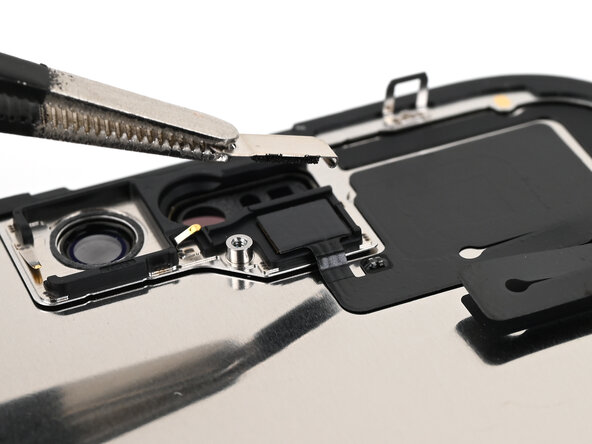
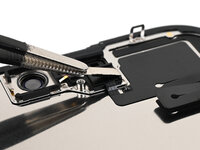
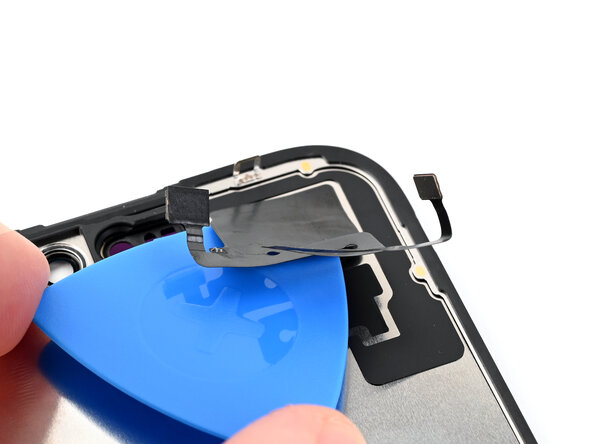
    • Gently slide an opening pick under the ambient light sensor cable, starting near the sensor and moving towards to the opposite corner.

    • If the adhesive doesn't peel up easily, apply more heat.

  24. iPhone 17 Screen Replacement, Remove the ambient light sensor: passo 24, immagine 1 di 3 iPhone 17 Screen Replacement, Remove the ambient light sensor: passo 24, immagine 2 di 3 iPhone 17 Screen Replacement, Remove the ambient light sensor: passo 24, immagine 3 di 3
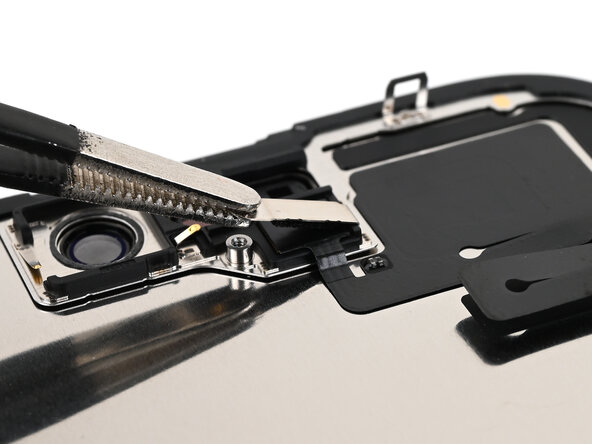
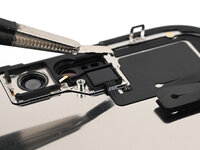
    • Continue slowly sliding the opening pick under the ambient light sensor cable until the cable is free from the screen.

    • Use a pair of tweezers to lift the ambient light sensor off of the screen.

Conclusione

After your repair, calibrate the replacement screen using Apple's Repair Assistant. Navigate to Settings General About Parts & Service History, tap Restart & Finish Repair, and follow the onscreen prompts.

Take your e-waste to an R2 or e-Stewards certified recycler.

Repair didn’t go as planned? Try some basic troubleshooting, or ask our iPhone 17 Answers Community for help.

Un'altra persona ha completato questa guida.

Nick Schultz

Membro da: 03/24/24

36.897 Reputazione

224 Guide realizzate

0Commenti sulla guida

Aggiungi Commento

Visualizza Statistiche:

Ultime 24 Ore: 66

Ultimi 7 Giorni: 485

Ultimi 30 Giorni: 1,740

Tutti i Tempi: 4,152