Salta al contenuto principale

Google Pixel 9 Pro XL Wireless Charging Assembly Replacement

Cosa ti serve

  1. Google Pixel 9 Pro XL Wireless Charging Assembly Replacement, Safety precautions: passo 1, immagine 1 di 2 Google Pixel 9 Pro XL Wireless Charging Assembly Replacement, Safety precautions: passo 1, immagine 2 di 2
    • Let your Pixel's battery drain below 25% before starting this repair. A charged lithium‑ion battery may catch fire if damaged.

    • Unplug all cables and completely power down your phone.

  2. Google Pixel 9 Pro XL Wireless Charging Assembly Replacement, Adhesive information: passo 2, immagine 1 di 3 Google Pixel 9 Pro XL Wireless Charging Assembly Replacement, Adhesive information: passo 2, immagine 2 di 3 Google Pixel 9 Pro XL Wireless Charging Assembly Replacement, Adhesive information: passo 2, immagine 3 di 3
    • Adhesive secures the perimeter of the rear cover to the frame.

    • When separating the adhesive, don't insert your tool more than 3 mm under the rear cover to avoid damaging the internal components.

    • Measure 3 mm from the tip and mark your opening pick with a permanent marker. Alternatively, you can tape a coin to a pick 3 mm from the tip.

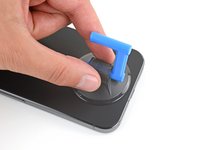
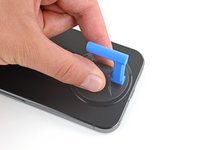
  3. Google Pixel 9 Pro XL Wireless Charging Assembly Replacement, Apply a suction handle: passo 3, immagine 1 di 2 Google Pixel 9 Pro XL Wireless Charging Assembly Replacement, Apply a suction handle: passo 3, immagine 2 di 2
    • Attach a suction handle to the bottom edge of the rear cover, as close to the edge as possible.

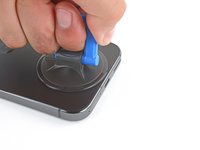
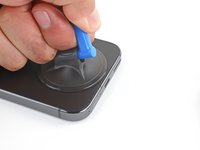
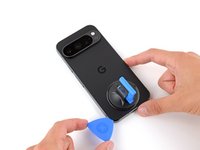
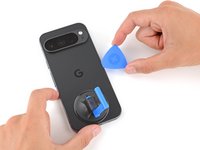
  4. Google Pixel 9 Pro XL Wireless Charging Assembly Replacement, Insert an opening pick: passo 4, immagine 1 di 3 Google Pixel 9 Pro XL Wireless Charging Assembly Replacement, Insert an opening pick: passo 4, immagine 2 di 3 Google Pixel 9 Pro XL Wireless Charging Assembly Replacement, Insert an opening pick: passo 4, immagine 3 di 3
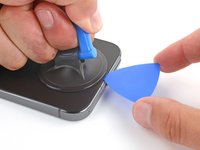
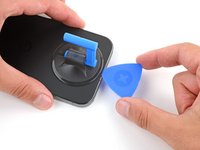
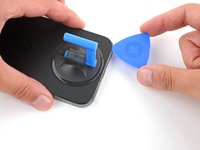
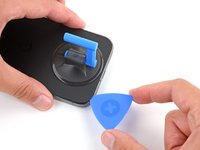
    • Pull up on the suction handle with strong, steady force to create a small gap under the rear cover.

    • Insert the tip of an opening pick in the gap.

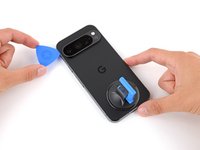
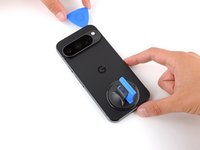
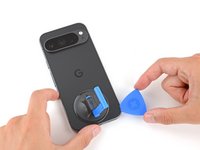
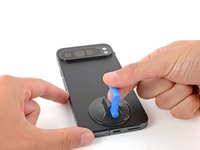
  5. Google Pixel 9 Pro XL Wireless Charging Assembly Replacement, Separate the rear cover adhesive: passo 5, immagine 1 di 3 Google Pixel 9 Pro XL Wireless Charging Assembly Replacement, Separate the rear cover adhesive: passo 5, immagine 2 di 3 Google Pixel 9 Pro XL Wireless Charging Assembly Replacement, Separate the rear cover adhesive: passo 5, immagine 3 di 3
    • Slide your opening pick along the bottom edge to separate the adhesive securing it.

    • Remember: don't insert the opening pick deeper than 3 mm.

  6. Google Pixel 9 Pro XL Wireless Charging Assembly Replacement: passo 6, immagine 1 di 3 Google Pixel 9 Pro XL Wireless Charging Assembly Replacement: passo 6, immagine 2 di 3 Google Pixel 9 Pro XL Wireless Charging Assembly Replacement: passo 6, immagine 3 di 3
    • Slide your opening pick up the left edge and along the top edge to separate the adhesive.

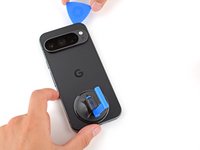
  7. Google Pixel 9 Pro XL Wireless Charging Assembly Replacement: passo 7, immagine 1 di 3 Google Pixel 9 Pro XL Wireless Charging Assembly Replacement: passo 7, immagine 2 di 3 Google Pixel 9 Pro XL Wireless Charging Assembly Replacement: passo 7, immagine 3 di 3
    • Slide your pick down the right edge to separate the remaining adhesive.

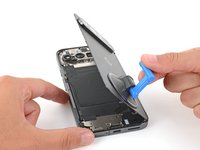
  8. Google Pixel 9 Pro XL Wireless Charging Assembly Replacement, Prop up the rear cover: passo 8, immagine 1 di 3 Google Pixel 9 Pro XL Wireless Charging Assembly Replacement, Prop up the rear cover: passo 8, immagine 2 di 3 Google Pixel 9 Pro XL Wireless Charging Assembly Replacement, Prop up the rear cover: passo 8, immagine 3 di 3
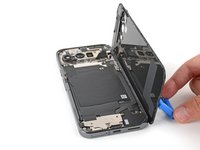
    • Don't try to fully remove the rear cover yet, as a ribbon cable on the right edge connects it to the phone.

    • Use the suction handle to lift the left edge of the rear cover and swing it over the right edge, like opening the cover of a book.

    • If you're having trouble, check the perimeter for any remaining adhesive and use your opening pick to separate it.

    • Prop up the rear cover with the suction handle so you can access the ribbon cable near the top right corner.

  9. Google Pixel 9 Pro XL Wireless Charging Assembly Replacement, Remove the cable cover: passo 9, immagine 1 di 2 Google Pixel 9 Pro XL Wireless Charging Assembly Replacement, Remove the cable cover: passo 9, immagine 2 di 2
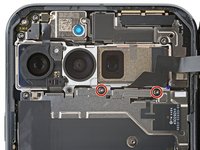
    • Use a Torx Plus 3IP screwdriver to remove the two 5.2 mm‑long screws securing the cable cover.

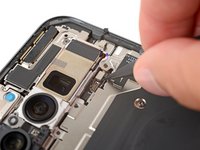
  10. Google Pixel 9 Pro XL Wireless Charging Assembly Replacement: passo 10, immagine 1 di 2 Google Pixel 9 Pro XL Wireless Charging Assembly Replacement: passo 10, immagine 2 di 2
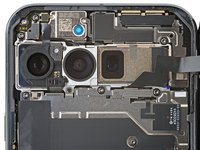
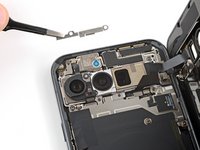
    • Use tweezers or your fingers to remove the cable cover.

  11. Google Pixel 9 Pro XL Wireless Charging Assembly Replacement, Disconnect the rear cover: passo 11, immagine 1 di 3 Google Pixel 9 Pro XL Wireless Charging Assembly Replacement, Disconnect the rear cover: passo 11, immagine 2 di 3 Google Pixel 9 Pro XL Wireless Charging Assembly Replacement, Disconnect the rear cover: passo 11, immagine 3 di 3
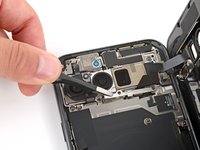
    • Use the point of a spudger to pry up and disconnect the rear cover press connector.

  12. Google Pixel 9 Pro XL Wireless Charging Assembly Replacement, Remove the rear cover: passo 12, immagine 1 di 1
    • Remove the rear cover.

    • During reassembly, follow this guide to apply new adhesive and install your back cover.

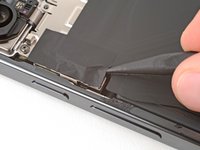
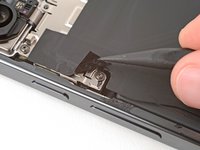
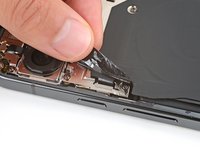
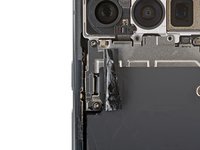
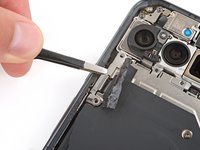
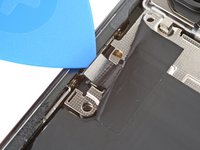
  13. Google Pixel 9 Pro XL Wireless Charging Assembly Replacement, Peel up the cable cover tape: passo 13, immagine 1 di 3 Google Pixel 9 Pro XL Wireless Charging Assembly Replacement, Peel up the cable cover tape: passo 13, immagine 2 di 3 Google Pixel 9 Pro XL Wireless Charging Assembly Replacement, Peel up the cable cover tape: passo 13, immagine 3 di 3
    • Use the tip of a spudger and your fingers to peel up the piece of tape near the left edge of your phone, enough that you can access the bracket and screws underneath.

    • You can completely remove the tape if you want, but be sure to keep it for reassembly.

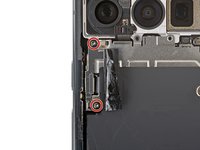
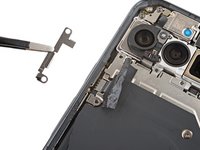
  14. Google Pixel 9 Pro XL Wireless Charging Assembly Replacement, Remove the cable cover: passo 14, immagine 1 di 2 Google Pixel 9 Pro XL Wireless Charging Assembly Replacement, Remove the cable cover: passo 14, immagine 2 di 2
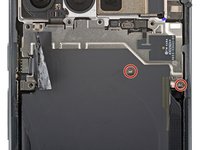
    • Use a Torx Plus 3IP screwdriver to remove the two 5.2 mm‑long screws securing the wireless charging cable cover.

  15. Google Pixel 9 Pro XL Wireless Charging Assembly Replacement: passo 15, immagine 1 di 2 Google Pixel 9 Pro XL Wireless Charging Assembly Replacement: passo 15, immagine 2 di 2
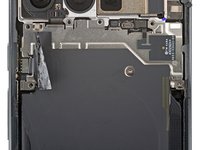
    • Use tweezers or your fingers to remove the cover.

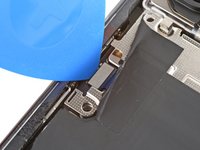
  16. Google Pixel 9 Pro XL Wireless Charging Assembly Replacement, Disconnect the wireless charging assembly: passo 16, immagine 1 di 2 Google Pixel 9 Pro XL Wireless Charging Assembly Replacement, Disconnect the wireless charging assembly: passo 16, immagine 2 di 2
    • Use the tip of an opening pick to pry up and disconnect the wireless charging press‑connector.

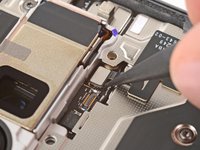
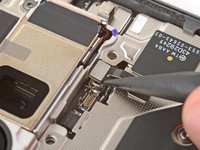
  17. Google Pixel 9 Pro XL Wireless Charging Assembly Replacement: passo 17, immagine 1 di 3 Google Pixel 9 Pro XL Wireless Charging Assembly Replacement: passo 17, immagine 2 di 3 Google Pixel 9 Pro XL Wireless Charging Assembly Replacement: passo 17, immagine 3 di 3
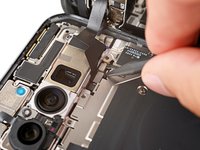
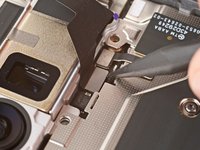
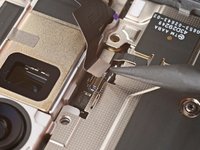
    • Use the point of a spudger to pry up and disconnect the ultra‑wideband press connector.

  18. Google Pixel 9 Pro XL Wireless Charging Assembly Replacement, Remove the wireless charging assembly screws: passo 18, immagine 1 di 2 Google Pixel 9 Pro XL Wireless Charging Assembly Replacement, Remove the wireless charging assembly screws: passo 18, immagine 2 di 2
    • Use a Torx Plus 3IP screwdriver to remove the two 2.2 mm‑long screw securing the wireless charging assembly.

  19. Google Pixel 9 Pro XL Wireless Charging Assembly Replacement, Remove the wireless charging assembly: passo 19, immagine 1 di 2 Google Pixel 9 Pro XL Wireless Charging Assembly Replacement, Remove the wireless charging assembly: passo 19, immagine 2 di 2
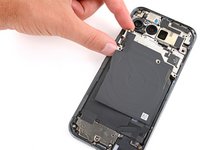
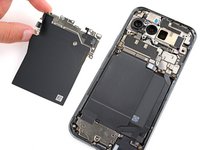
    • Remove the wireless charging assembly.

Conclusione

To reassemble your device, follow these instructions in reverse order.

To run a diagnostics test with the built-in Pixel Diagnostic tool, click here.

Take your e-waste to an R2 or e-Stewards certified recycler.

Repair didn’t go as planned? Try some basic troubleshooting, or ask our Answers community for help.

Spencer Day

Membro da: 09/14/22

149.678 Reputazione

995 Guide realizzate

Team

iFixit Membro di iFixit

Staff

123 Membri

23.629 Guide realizzate

0Commenti sulla guida

Aggiungi Commento

Visualizza Statistiche:

Ultime 24 Ore: 0

Ultimi 7 Giorni: 12

Ultimi 30 Giorni: 45

Tutti i Tempi: 870