Introduzione
This guide will help you replace the battery for the Alienware Pro Wireless Gaming Mouse (model name PRO-MS and PRO-M-D). The battery provides power to the motherboard of the mouse to enable normal function. Before replacing the battery, please refer to the troubleshooting guides.
This guide will walk you through step by step how to replace the lithium-ion battery in your mouse.
Caution: Handling the electrical parts may shock you. If you have a swollen battery please refer to the battery swollen guide for proper identification and safe removal. For information on where to recycle the battery, please refer to the page on proper device disposal.
Before you begin this repair, make sure the mouse is powered off and unplugged from the charger or other device.
Cosa ti serve
-
-
-
Flip the mouse over so the bottom is facing up..
-
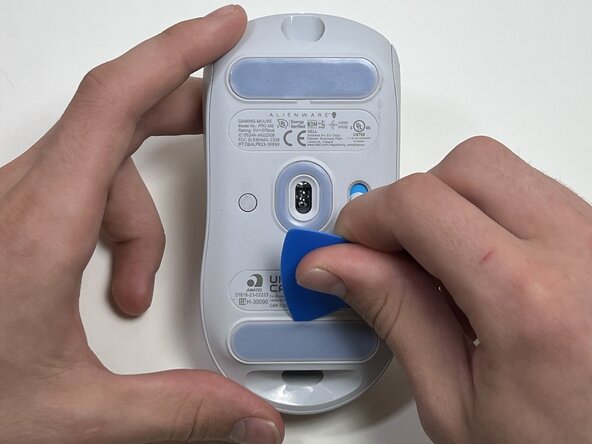
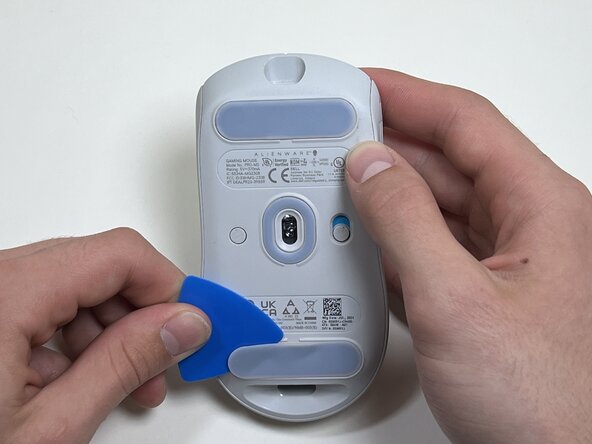
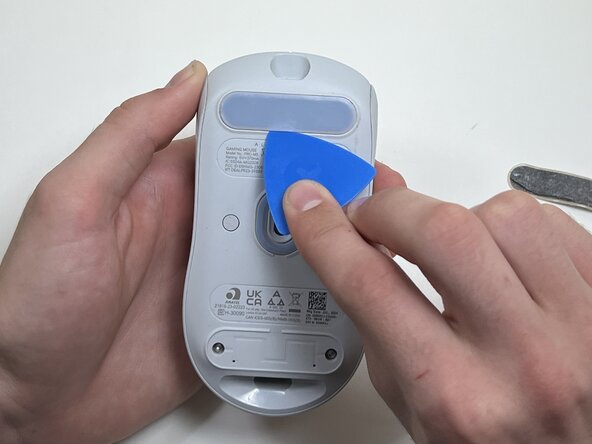
Use an opening pick to gently peel the mouse foot off the bottom case.
 Chiedi a FixBot
-
-
-
-
-
-
Use a TR6 Torx security screwdriver to remove the four 6 mm screws under the foot pads.
-
-
-
Use your hands or a spudger to separate the bottom and top of the mouse.
-
Insert the end of the spudger in the seam between the top and bottom case, and slide it around the perimeter to release the clips holding it together.
-
-
-
Use the pointed end of a spudger to push on alternating sides of the battery connector to "walk" it out of its socket.
-
-
-
Use an opening tool or spudger to loosen the adhesive under the battery.
-
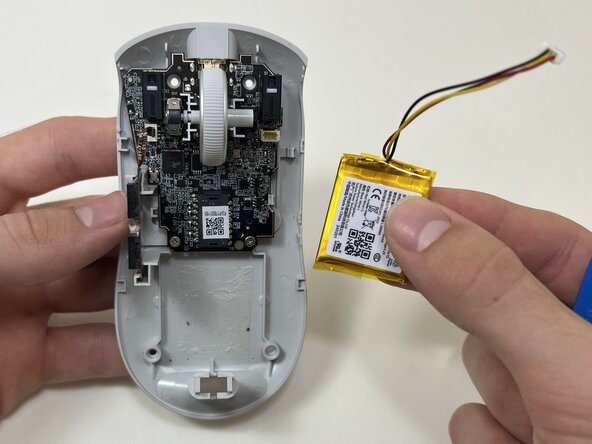
Remove the battery.
-
-






To reassemble your device, follow these instructions in reverse order. Take your e-waste to an R2 or e-Stewards certified recycler.
Annulla: non ho completato questa guida.
Un'altra persona ha completato questa guida.

Team

Austin Community College, Team 10-3, Watkins Fall 2025 Membro di Austin Community College, Team 10-3, Watkins Fall 2025
AUSTINCC-WATKINS-F25S10G3
4 Membri
7 guide realizzate
