Salta al contenuto principale
Unisciti alla Community delle riparazioni - Crea un account

Razer Blade 15" (2019) Battery Replacement

Cosa ti serve

  1. Razer Blade 15" (2019) Battery Replacement, Prepare your laptop for disassembly: passo 1, immagine 1 di 2 Razer Blade 15" (2019) Battery Replacement, Prepare your laptop for disassembly: passo 1, immagine 2 di 2
    • Allow your laptop's battery to drain below 25% before starting this repair—a charged battery may catch fire if damaged.

    • Unplug all cables, fully shut down your laptop, and close the lid.

    Chiedi a FixBot

    Aggiungi Commento

  2. Razer Blade 15" (2019) Battery Replacement, Unfasten the back cover: passo 2, immagine 1 di 1
    • Rotate your laptop so the screen hinge is farthest from you.

    • Use a Torx T5 driver to remove the ten 3.8 mm-long screws securing the back cover.

    Chiedi a FixBot

    Aggiungi Commento

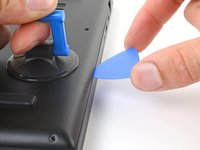
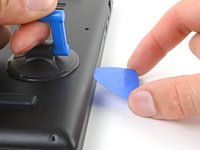
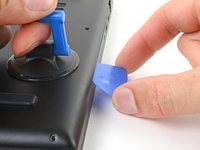
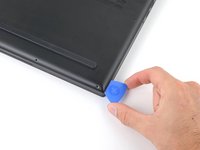
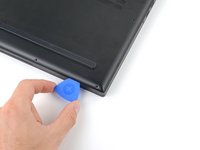
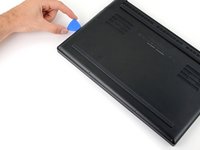
  3. Razer Blade 15" (2019) Battery Replacement, Insert an opening pick: passo 3, immagine 1 di 3 Razer Blade 15" (2019) Battery Replacement, Insert an opening pick: passo 3, immagine 2 di 3 Razer Blade 15" (2019) Battery Replacement, Insert an opening pick: passo 3, immagine 3 di 3
    • Depending on the age and condition of your laptop, the back cover may come off sooner than this guide instructs. If the cover feels loose, remove it at any time.

    • Apply a suction handle to the right edge of the back cover, between the middle screws and the screws closest to you.

    • Pull up on the suction handle to create a small gap between the back cover and the frame.

    • Insert an opening pick into the gap.

    Chiedi a FixBot

    Aggiungi Commento

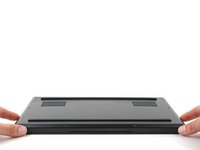
  4. Razer Blade 15" (2019) Battery Replacement, Angle the opening pick: passo 4, immagine 1 di 3 Razer Blade 15" (2019) Battery Replacement, Angle the opening pick: passo 4, immagine 2 di 3 Razer Blade 15" (2019) Battery Replacement, Angle the opening pick: passo 4, immagine 3 di 3
    • Angle your opening pick upward, away from the frame. Keep it angled upward as long as it's between the back cover and the frame.

    • Insert your pick up to 10 mm (0.4 in) deep.

    Chiedi a FixBot

    Aggiungi Commento

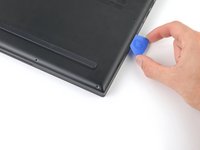
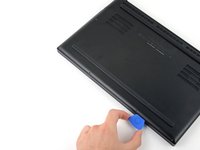
  5. Razer Blade 15" (2019) Battery Replacement, Free the bottom right corner: passo 5, immagine 1 di 3 Razer Blade 15" (2019) Battery Replacement, Free the bottom right corner: passo 5, immagine 2 di 3 Razer Blade 15" (2019) Battery Replacement, Free the bottom right corner: passo 5, immagine 3 di 3
    • Slide your opening pick around the bottom right corner of the back cover to free it from the frame.

    Chiedi a FixBot

    Aggiungi Commento

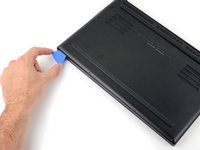
  6. Razer Blade 15" (2019) Battery Replacement, Free the front edge: passo 6, immagine 1 di 3 Razer Blade 15" (2019) Battery Replacement, Free the front edge: passo 6, immagine 2 di 3 Razer Blade 15" (2019) Battery Replacement, Free the front edge: passo 6, immagine 3 di 3
    • Slide your opening pick along the front edge and around the front left corner of the back cover to free it from the frame.

    Chiedi a FixBot

    Aggiungi Commento

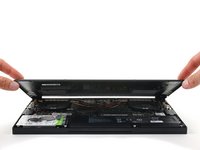
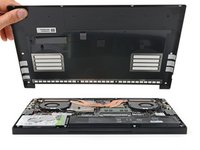
  7. Razer Blade 15" (2019) Battery Replacement, Remove the back cover: passo 7, immagine 1 di 3 Razer Blade 15" (2019) Battery Replacement, Remove the back cover: passo 7, immagine 2 di 3 Razer Blade 15" (2019) Battery Replacement, Remove the back cover: passo 7, immagine 3 di 3
    • Remove the back cover.

    • Lay the back cover down on its rubber feet to avoid damaging the gray thermal pads on its underside.

    Chiedi a FixBot

    Aggiungi Commento

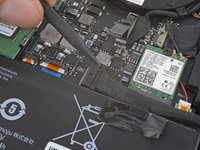
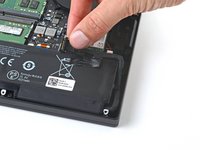
  8. Razer Blade 15" (2019) Battery Replacement, Soften the battery cable tape adhesive: passo 8, immagine 1 di 2 Razer Blade 15" (2019) Battery Replacement, Soften the battery cable tape adhesive: passo 8, immagine 2 di 2
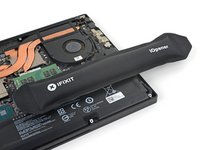
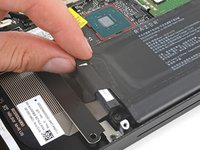
    • Apply a heated iOpener to the battery cable tape for one minute.

    • You can also use a hair dryer—but be careful, as overheating the battery may damage it or create a fire hazard.

    Chiedi a FixBot

    Aggiungi Commento

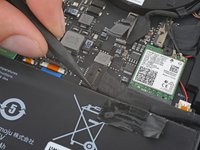
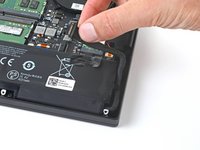
  9. Razer Blade 15" (2019) Battery Replacement, Peel up the battery cable tape: passo 9, immagine 1 di 3 Razer Blade 15" (2019) Battery Replacement, Peel up the battery cable tape: passo 9, immagine 2 di 3 Razer Blade 15" (2019) Battery Replacement, Peel up the battery cable tape: passo 9, immagine 3 di 3
    Strumento utilizzato in questo passaggio:
    Tweezers
    $4.99
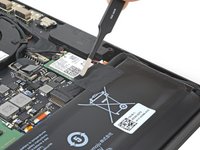
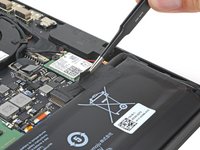
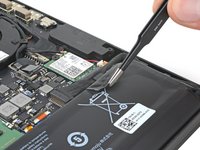
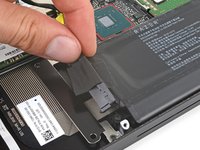
    • Be careful not to damage the battery with your tool.

    • Use blunt nose tweezers or your fingers to peel the battery cable tape away from the cable.

    Chiedi a FixBot

    Aggiungi Commento

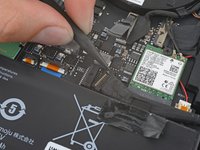
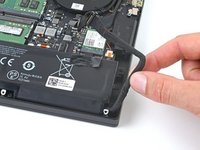
  10. Razer Blade 15" (2019) Battery Replacement, Disconnect the battery: passo 10, immagine 1 di 3 Razer Blade 15" (2019) Battery Replacement, Disconnect the battery: passo 10, immagine 2 di 3 Razer Blade 15" (2019) Battery Replacement, Disconnect the battery: passo 10, immagine 3 di 3
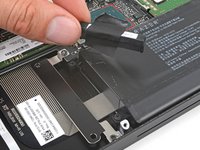
    • Use the point of a spudger to press on alternating sides of the battery connector and walk it out of its socket.

    Chiedi a FixBot

    Aggiungi Commento

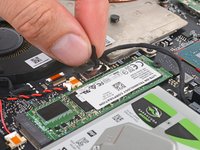
  11. Razer Blade 15" (2019) Battery Replacement, Disconnect the hard drive: passo 11, immagine 1 di 2 Razer Blade 15" (2019) Battery Replacement, Disconnect the hard drive: passo 11, immagine 2 di 2
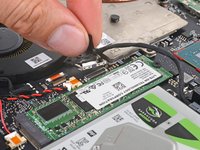
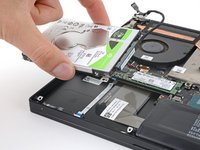
    • Grab the pull tab on the hard drive press connector, just below the right fan.

    • Pull up and disconnect the connector from its socket.

    • During reassembly, align the press connector over its socket and press down until it clicks into place. If it doesn't connect, re-align it and try again.

    Chiedi a FixBot

    Aggiungi Commento

  12. Razer Blade 15" (2019) Battery Replacement, Unfasten the hard drive mounts: passo 12, immagine 1 di 2 Razer Blade 15" (2019) Battery Replacement, Unfasten the hard drive mounts: passo 12, immagine 2 di 2
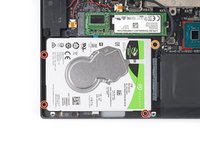
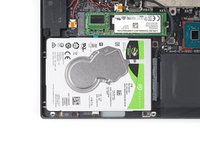
    • Use your Phillips screwdriver to remove the four screws securing the hard drive mounts:

    • Three 3.2 mm screws

    • One 5.2 mm screw

    Chiedi a FixBot

    Aggiungi Commento

  13. Razer Blade 15" (2019) Battery Replacement, Remove the hard drive: passo 13, immagine 1 di 2 Razer Blade 15" (2019) Battery Replacement, Remove the hard drive: passo 13, immagine 2 di 2
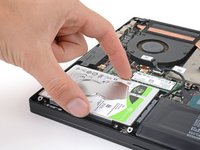
    • Lift the hard drive straight up to remove it.

    Chiedi a FixBot

    Aggiungi Commento

  14. Razer Blade 15" (2019) Battery Replacement, Remove the hard drive adapter: passo 14, immagine 1 di 3 Razer Blade 15" (2019) Battery Replacement, Remove the hard drive adapter: passo 14, immagine 2 di 3 Razer Blade 15" (2019) Battery Replacement, Remove the hard drive adapter: passo 14, immagine 3 di 3
    • If your laptop doesn't have a hard drive, you need to remove the adapter to access the battery. If you just removed your hard drive, skip this step.

    • Grab the hard drive adapter on the left edge of the battery.

    • Peel the adapter and its tape from the battery and set it aside.

    Chiedi a FixBot

    Aggiungi Commento

  15. Razer Blade 15" (2019) Battery Replacement, Free the battery cable: passo 15, immagine 1 di 3 Razer Blade 15" (2019) Battery Replacement, Free the battery cable: passo 15, immagine 2 di 3 Razer Blade 15" (2019) Battery Replacement, Free the battery cable: passo 15, immagine 3 di 3
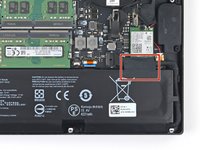
    • Unclip the battery cable from the top and right tabs of the battery.

    Chiedi a FixBot

    Aggiungi Commento

  16. Razer Blade 15" (2019) Battery Replacement, Unfasten the battery: passo 16, immagine 1 di 1
    • Use your Phillips screwdriver to remove the five 5.2 mm screws securing the battery.

    Chiedi a FixBot

    Aggiungi Commento

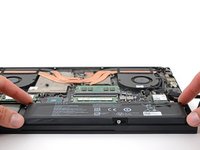
  17. Razer Blade 15" (2019) Battery Replacement, Remove the battery: passo 17, immagine 1 di 3 Razer Blade 15" (2019) Battery Replacement, Remove the battery: passo 17, immagine 2 di 3 Razer Blade 15" (2019) Battery Replacement, Remove the battery: passo 17, immagine 3 di 3
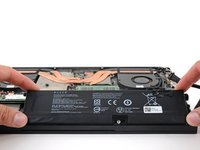
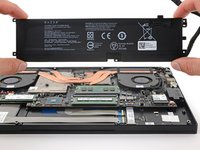
    • Lift the top edge of the battery from its recess in the frame and remove it.

    Chiedi a FixBot

    Aggiungi Commento

Conclusione

To reassemble your device, follow these instructions in reverse order.

Take your e-waste to an R2 or e-Stewards certified recycler.

Repair didn’t go as planned? Try some basic troubleshooting, or ask our Answers community for help.

Annulla: non ho completato questa guida.

Altre 5 persone hanno completato questa guida.

Clay Eickemeyer

Membro da: 09/19/22

104.350 Reputazione

472 guide realizzate

Team

Guide Team Membro di Guide Team

Staff

10 Membri

17.854 guide realizzate

1Commento della guida

I just completed the battery replacement. The guide was helpful, even though I must say that I do not really agree with the moderate rating, as it really is super easy! I definitely recommend the essential toolkit, as T4 bits can be hard to find and the one that is included is sturdier than the other ones that I have used so far.

Bogos - Rispondi Condividi
Aggiungi Commento

Visualizza statistiche:

Ultime 24 ore: 7

Ultimi 7 giorni: 53

Ultimi 30 giorni: 292

Tutti i Tempi: 15,966