Salta al contenuto principale
Unisciti alla Community delle riparazioni - Crea un account

Microsoft Surface Pro X Kickstand Replacement

Cosa ti serve

  1. Microsoft Surface Pro X Kickstand Replacement, Open the kickstand: passo 1, immagine 1 di 2 Microsoft Surface Pro X Kickstand Replacement, Open the kickstand: passo 1, immagine 2 di 2
    • Make sure your Surface Pro X is turned off, and laying screen-side down on a soft surface.

    • After turning off your device, make sure to remove the SSD from the Surface before starting any repairs. This will disconnect the battery and prevent damage to the device.

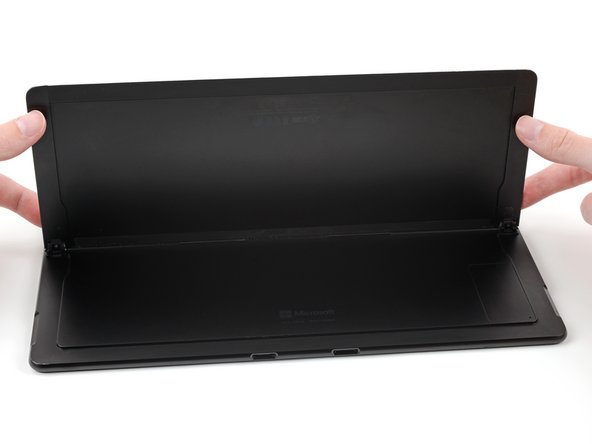
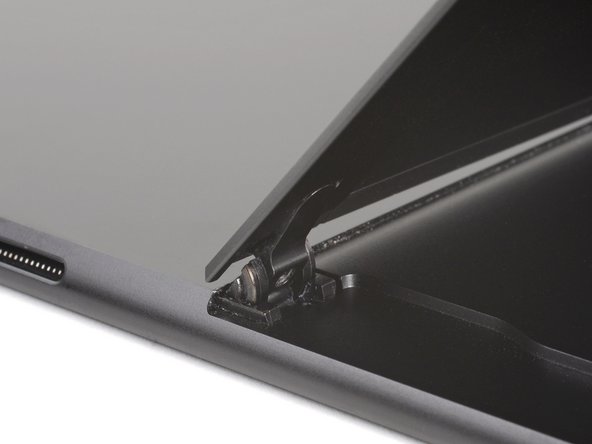
    • Lift the kickstand to at least a 90° angle, so that it is perpendicular to the Surface's screen. The further you open the hinge, the easier it is to access the SSD and SIM card door.

    Chiedi a FixBot

    Aggiungi Commento

  2. Microsoft Surface Pro X Kickstand Replacement, Open the SSD and SIM card door: passo 2, immagine 1 di 2 Microsoft Surface Pro X Kickstand Replacement, Open the SSD and SIM card door: passo 2, immagine 2 di 2
    • Insert a SIM card eject tool or a paperclip into the small hole in the bottom right corner of the SSD and SIM card door, located near the bottom right corner of the Surface.

    • Press firmly to open the door.

    Chiedi a FixBot

    Aggiungi Commento

  3. Microsoft Surface Pro X Kickstand Replacement, Remove the SSD and SIM card door: passo 3, immagine 1 di 1
    Chiedi a FixBot

    Aggiungi Commento

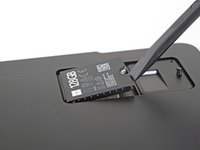
  4. Microsoft Surface Pro X Kickstand Replacement, Remove the SSD screw: passo 4, immagine 1 di 1
    • Use a T3 Torx screwdriver to remove the 2.4 mm screw securing the SSD.

    Chiedi a FixBot

    Aggiungi Commento

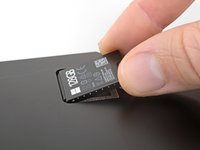
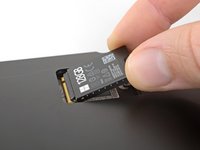
  5. Microsoft Surface Pro X Kickstand Replacement, Remove the SSD: passo 5, immagine 1 di 3 Microsoft Surface Pro X Kickstand Replacement, Remove the SSD: passo 5, immagine 2 di 3 Microsoft Surface Pro X Kickstand Replacement, Remove the SSD: passo 5, immagine 3 di 3
    • Use your finger or a spudger to lift the SSD just enough that it clears the edges of its recess.

    • Don't lift the SSD more than you have to—doing so may damage the SSD or its socket.

    • Gently pull the SSD straight out of its socket.

    • When reinstalling the SSD, be sure it is properly seated before reinstalling its retaining screw.

    Chiedi a FixBot

    Aggiungi Commento

  6. Microsoft Surface Pro X Kickstand Replacement, Place the Surface on your work surface: passo 6, immagine 1 di 1
    • Place your Surface screen-side down on your work surface.

    Chiedi a FixBot

    Aggiungi Commento

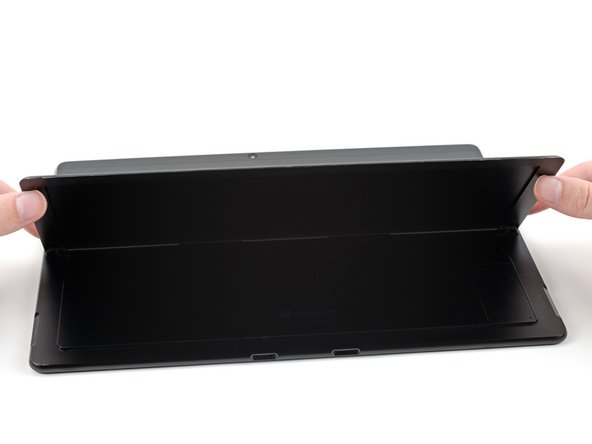
  7. Microsoft Surface Pro X Kickstand Replacement, Lift the kickstand: passo 7, immagine 1 di 3 Microsoft Surface Pro X Kickstand Replacement, Lift the kickstand: passo 7, immagine 2 di 3 Microsoft Surface Pro X Kickstand Replacement, Lift the kickstand: passo 7, immagine 3 di 3
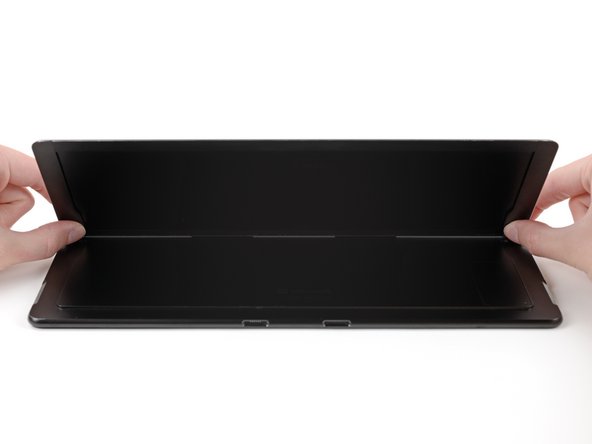
    • Lift the kickstand to about a 90° angle.

    Chiedi a FixBot

    Aggiungi Commento

  8. Microsoft Surface Pro X Kickstand Replacement, Remove the kickstand hinge screws: passo 8, immagine 1 di 2 Microsoft Surface Pro X Kickstand Replacement, Remove the kickstand hinge screws: passo 8, immagine 2 di 2
    • Use a T3 Torx screwdriver to remove two 2.5 mm screws securing the kickstand to the kickstand hinges.

    Chiedi a FixBot

    Aggiungi Commento

  9. Microsoft Surface Pro X Kickstand Replacement, Remove the kickstand: passo 9, immagine 1 di 2 Microsoft Surface Pro X Kickstand Replacement, Remove the kickstand: passo 9, immagine 2 di 2
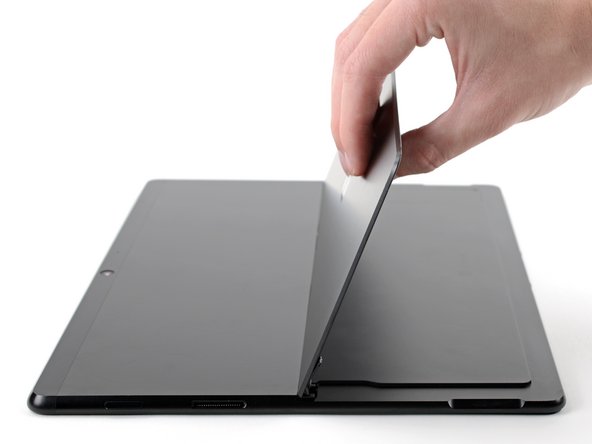
    • Hold both hinges and the kickstand.

    • Move the kickstand down to a 45° angle.

    Chiedi a FixBot

    Aggiungi Commento

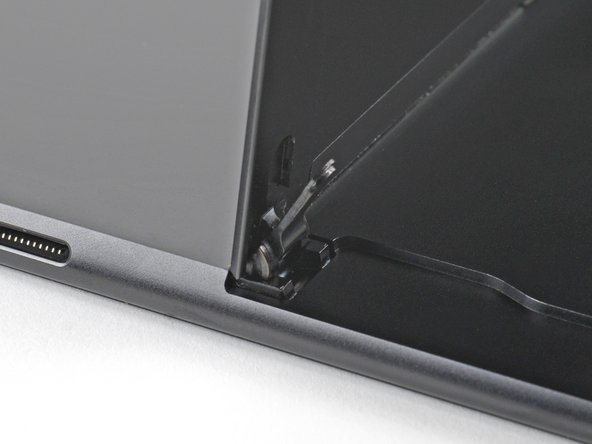
  10. Microsoft Surface Pro X Kickstand Replacement: passo 10, immagine 1 di 3 Microsoft Surface Pro X Kickstand Replacement: passo 10, immagine 2 di 3 Microsoft Surface Pro X Kickstand Replacement: passo 10, immagine 3 di 3
    • Hold the kickstand by the center of its bottom edge.

    • Move the kickstand up by about 10° to detach the kickstand's screw bosses from the hinges.

    • During reassembly, make sure the hinges are fully inserted into their recesses in the kickstand. Follow the instructions in the next step to reinsert the hinges.

    Chiedi a FixBot

    Aggiungi Commento

  11. Microsoft Surface Pro X Kickstand Replacement, Hinge reassembly information: passo 11, immagine 1 di 3 Microsoft Surface Pro X Kickstand Replacement, Hinge reassembly information: passo 11, immagine 2 di 3 Microsoft Surface Pro X Kickstand Replacement, Hinge reassembly information: passo 11, immagine 3 di 3
    • During reassembly, follow these steps to make sure the hinges are fully inserted into their kickstand recesses:

    • Tilt the bottom edge of the kickstand toward the hinges.

    • Insert the hinges into the kickstand recesses.

    • Check to see if the faces of the hinges are flush with the underside of the kickstand.

    Chiedi a FixBot

    Aggiungi Commento

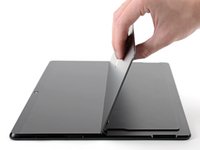
  12. Microsoft Surface Pro X Kickstand Replacement: passo 12, immagine 1 di 2 Microsoft Surface Pro X Kickstand Replacement: passo 12, immagine 2 di 2
    • There are two adhesive tabs securing the kickstand to the frame. You'll need to pull them out with a strong and steady force.

    • The two adhesive tabs are located in the middle of the kickstand edge closest to the frame.

    Chiedi a FixBot

    Aggiungi Commento

  13. Microsoft Surface Pro X Kickstand Replacement: passo 13, immagine 1 di 3 Microsoft Surface Pro X Kickstand Replacement: passo 13, immagine 2 di 3 Microsoft Surface Pro X Kickstand Replacement: passo 13, immagine 3 di 3
    • Pull slowly to avoid tearing the two adhesive tabs.

    • While holding the Surface with one hand, pull the kickstand out of the frame.

    • Be sure to insert the tabs when installing the new kickstand before replacing the screws.

    Chiedi a FixBot

    Aggiungi Commento

Conclusione

To reassemble your device, follow these instructions in reverse order.

Repair didn’t go as planned? Try some basic troubleshooting, or ask our Microsoft Surface Pro X Answers community for help.

Annulla: non ho completato questa guida.

Un'altra persona ha completato questa guida.

Kyle Smith

Membro da: 02/01/21

52.210 Reputazione

124 guide realizzate

3Commenti sulla guida

How do I order the 2.5 mm screws holding kickstand on. Mine are missing.

kaption93 - Rispondi Condividi
The hinge replacement guide is vague, there should be one that's more specific. It'd be cool if you gave a link to the kickstand replacement in case the kickstand screw taps are stripped or unusable (sheered screw half in hole).

Otherwise, I thank you for what you do, much appreciated..

Joe M - Rispondi Condividi

Where can the replacement kickstand be purchased?

DMos - Rispondi Condividi

Aggiungi Commento

Visualizza statistiche:

Ultime 24 ore: 2

Ultimi 7 giorni: 27

Ultimi 30 giorni: 70

Tutti i Tempi: 3,189