Salta al contenuto principale
Unisciti alla Community delle riparazioni - Crea un account

Microsoft Surface Pro 8 Kickstand Replacement

Cosa ti serve

  1. Microsoft Surface Pro 8 Kickstand Replacement, Before you begin: passo 1, immagine 1 di 1
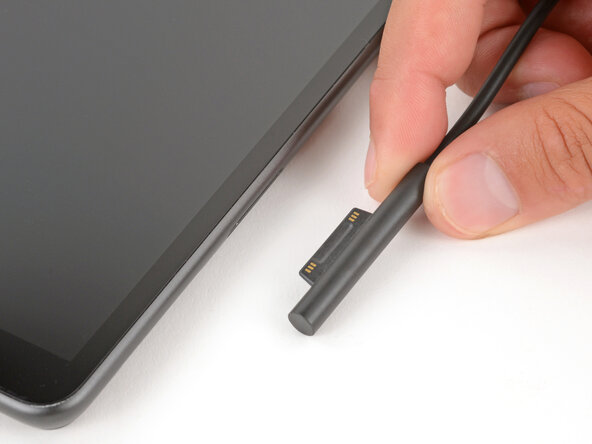
    • Before starting your repair, unplug all cables and fully shut down your Surface Pro.

    Chiedi a FixBot

    Aggiungi Commento

  2. Microsoft Surface Pro 8 Kickstand Replacement, Open the kickstand: passo 2, immagine 1 di 2 Microsoft Surface Pro 8 Kickstand Replacement, Open the kickstand: passo 2, immagine 2 di 2
    • Open the kickstand to about 90 degrees.

    Chiedi a FixBot

    Aggiungi Commento

  3. Microsoft Surface Pro 8 Kickstand Replacement, Remove the hinge screws: passo 3, immagine 1 di 3 Microsoft Surface Pro 8 Kickstand Replacement, Remove the hinge screws: passo 3, immagine 2 di 3 Microsoft Surface Pro 8 Kickstand Replacement, Remove the hinge screws: passo 3, immagine 3 di 3
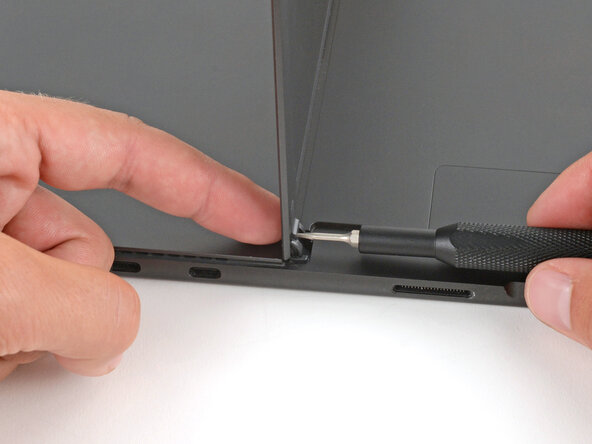
    • While holding the kickstand behind the hinge with your finger, use a Torx Plus 3IP screwdriver to remove the 2.4 mm‑long screw from each hinge (two total).

    Chiedi a FixBot

    Aggiungi Commento

  4. Microsoft Surface Pro 8 Kickstand Replacement, Lower the kickstand: passo 4, immagine 1 di 2 Microsoft Surface Pro 8 Kickstand Replacement, Lower the kickstand: passo 4, immagine 2 di 2
    • Firmly grip the hinges and kickstand between your thumb and index fingers.

    • Lower the kickstand down to about 45 degrees.

    • This may take a bit of force. Be careful not to pinch your thumbs.

    Chiedi a FixBot

    Aggiungi Commento

  5. Microsoft Surface Pro 8 Kickstand Replacement, Unlatch the hinges: passo 5, immagine 1 di 3 Microsoft Surface Pro 8 Kickstand Replacement, Unlatch the hinges: passo 5, immagine 2 di 3 Microsoft Surface Pro 8 Kickstand Replacement, Unlatch the hinges: passo 5, immagine 3 di 3
    • The hinges slot into recesses on the kickstand. You need to slide the kickstand out of the hinges before you can fully remove it.

    • Firmly secure the device to your work surface with one hand.

    • With your free hand, pull the kickstand out slightly and rotate it up so both hinges slide out.

    • During reassembly, make sure both hinges slide fully into their recesses on the kickstand.

    Chiedi a FixBot

    Aggiungi Commento

  6. Microsoft Surface Pro 8 Kickstand Replacement, Remove the kickstand: passo 6, immagine 1 di 2 Microsoft Surface Pro 8 Kickstand Replacement, Remove the kickstand: passo 6, immagine 2 di 2
    • Pull the kickstand out until both foam tabs slide out.

    • If you're having trouble, make sure both hinges are fully out of their recesses on the kickstand.

    Chiedi a FixBot

    Aggiungi Commento

Conclusione

To reassemble your device, follow these instructions in reverse order.

Repair didn’t go as planned? Try some basic troubleshooting, or ask our Answers community for help.

Annulla: non ho completato questa guida.

Spencer Day

Membro da: 09/14/22

191.211 Reputazione

1.204 guide realizzate

0Commenti sulla guida

Aggiungi Commento

Visualizza statistiche:

Ultime 24 ore: 5

Ultimi 7 giorni: 13

Ultimi 30 giorni: 73

Tutti i Tempi: 89