Salta al contenuto principale
Unisciti alla Community delle riparazioni - Crea un account

Samsung RC512 Screen Replacement

Cosa ti serve

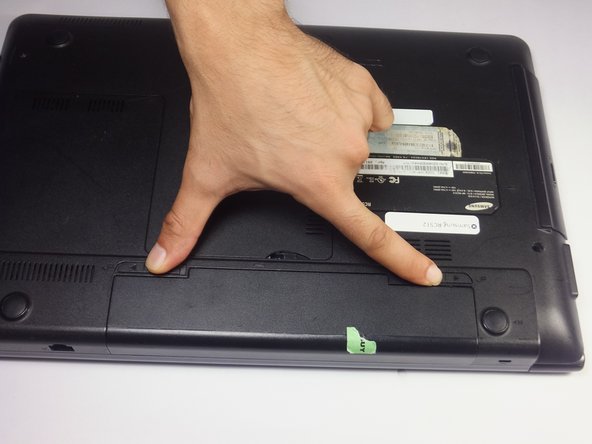
  1. Samsung RC512 Screen Replacement, Battery: passo 1, immagine 1 di 1
    • Place the laptop upside down.

    Chiedi a FixBot
    Aggiungi Commento

  2. Samsung RC512 Screen Replacement: passo 2, immagine 1 di 2 Samsung RC512 Screen Replacement: passo 2, immagine 2 di 2
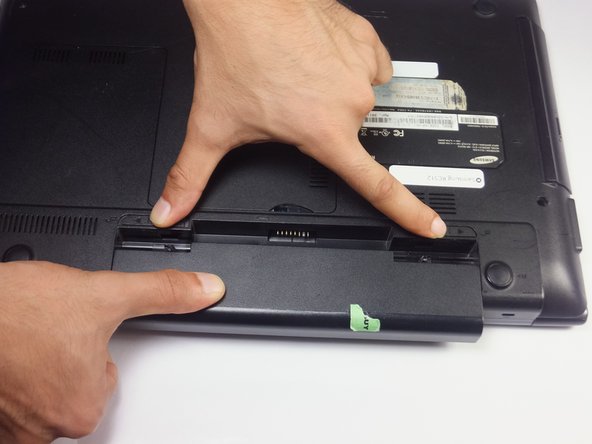
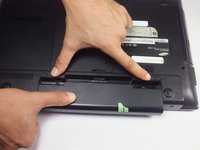
    • Locate two notches above the battery.

    • Slide both battery locking notches to either side to remove the battery.

    • Pull the battery out.

    Chiedi a FixBot
    Aggiungi Commento

  3. Samsung RC512 Screen Replacement, Screen: passo 3, immagine 1 di 3 Samsung RC512 Screen Replacement, Screen: passo 3, immagine 2 di 3 Samsung RC512 Screen Replacement, Screen: passo 3, immagine 3 di 3
    • The Laptop should be off before removing the battery.

    • Slide both battery locking notches to either side to remove the battery.

    • Pull the battery out.

    Chiedi a FixBot

    Aggiungi Commento

  4. Samsung RC512 Screen Replacement: passo 4, immagine 1 di 3 Samsung RC512 Screen Replacement: passo 4, immagine 2 di 3 Samsung RC512 Screen Replacement: passo 4, immagine 3 di 3
    Strumento utilizzato in questo passaggio:
    Tweezers
    $4.99
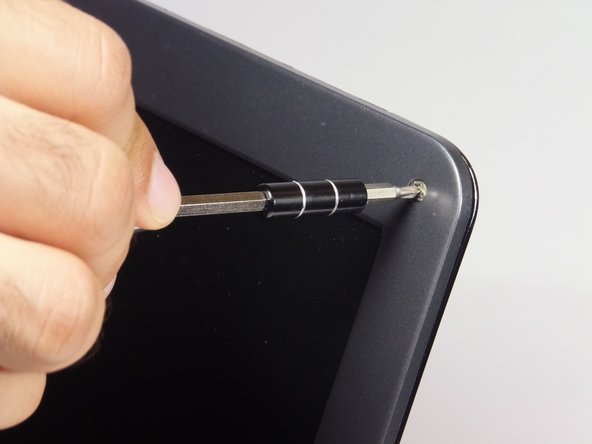
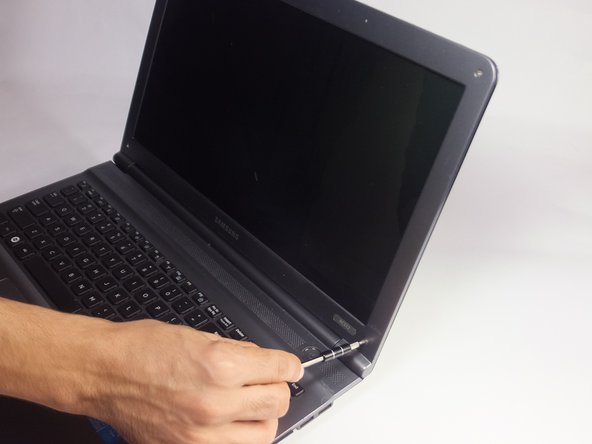
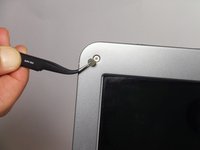
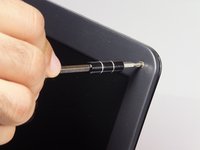
    • Remove the gray covers with tweezers to expose the 4mm screws.

    • Using a Phillips #0 screwdriver, remove the four 4 mm Phillips #0 screws.

    Chiedi a FixBot

    Aggiungi Commento

  5. Samsung RC512 Screen Replacement: passo 5, immagine 1 di 2 Samsung RC512 Screen Replacement: passo 5, immagine 2 di 2
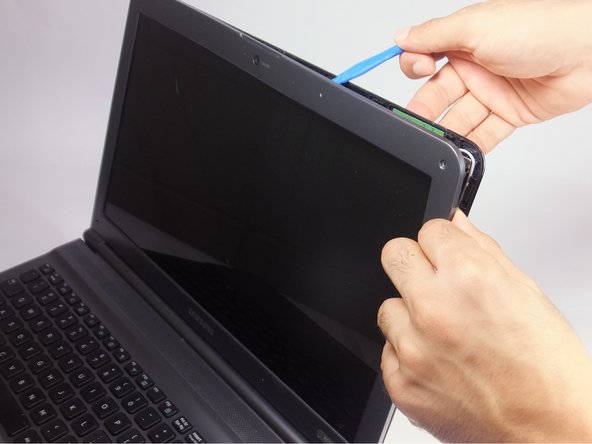
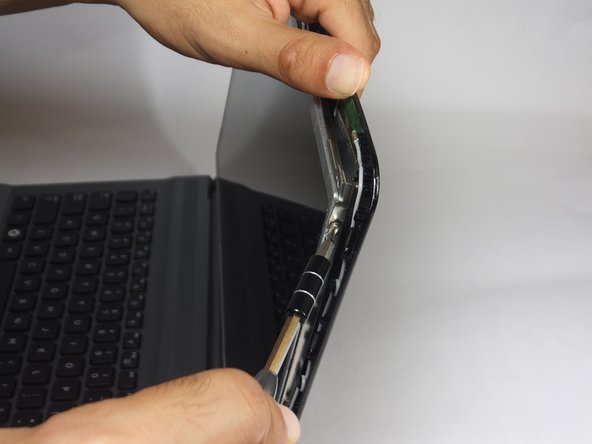
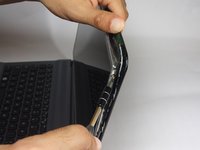
    • Insert the blue plastic opening tool into the bezel and rear housing of the screen.

    • Use the plastic opening tool to pop open the claps that hold the casing on the screen.

    • Work your way around the sides carefully and continue this to the bottom.

    • You may use your fingers to help remove the cover.

    Chiedi a FixBot

    Aggiungi Commento

  6. Samsung RC512 Screen Replacement: passo 6, immagine 1 di 2 Samsung RC512 Screen Replacement: passo 6, immagine 2 di 2
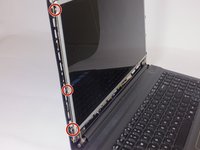
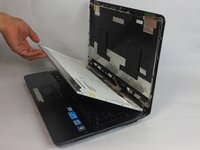
    • With the Phillips #0 screwdriver remove the six 3 mm screws, which mount the screen onto the base of the laptop.

    • As you remove the last two screws, support the screen. As the screws are taken out, the screen will begin to fall forward.

    Chiedi a FixBot
    Aggiungi Commento

  7. Samsung RC512 Screen Replacement: passo 7, immagine 1 di 3 Samsung RC512 Screen Replacement: passo 7, immagine 2 di 3 Samsung RC512 Screen Replacement: passo 7, immagine 3 di 3
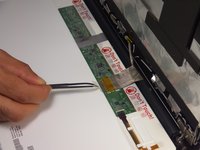
    • Gently lay the LCD onto the keyboard.

    • Do not separate the LCD screen and the back panel from each other. The video connector still connects the two together.

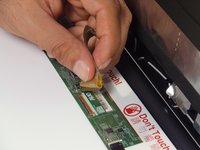
    • Remove the tape that secures the video connector to the LCD screen with tweezers.

    • Grasp the video connector at its base and pull it away from the LCD screen.

    • The only thing holding the screen will be the clear tape causing it to come out easily.

    Chiedi a FixBot
    Aggiungi Commento

Conclusione

To reassemble your device, follow these instructions in reverse order.

Annulla: non ho completato questa guida.

Un'altra persona ha completato questa guida.

jando

Membro da: 09/15/16

917 Reputazione

8 guide realizzate

Team

USF Tampa, Team 18-2, Blackwell Fall 2016 Membro di USF Tampa, Team 18-2, Blackwell Fall 2016

USFT-BLACKWELL-F16S18G2

4 Membri

8 guide realizzate

0Commenti sulla guida

Aggiungi Commento

Visualizza statistiche:

Ultime 24 ore: 1

Ultimi 7 giorni: 7

Ultimi 30 giorni: 37

Tutti i Tempi: 1,050