Salta al contenuto principale
Unisciti alla Community delle riparazioni - Crea un account

Microsoft Surface Pro 8 Screen Replacement

Cosa ti serve

  1. Microsoft Surface Pro 8 Screen Replacement, Before you begin: passo 1, immagine 1 di 3 Microsoft Surface Pro 8 Screen Replacement, Before you begin: passo 1, immagine 2 di 3 Microsoft Surface Pro 8 Screen Replacement, Before you begin: passo 1, immagine 3 di 3
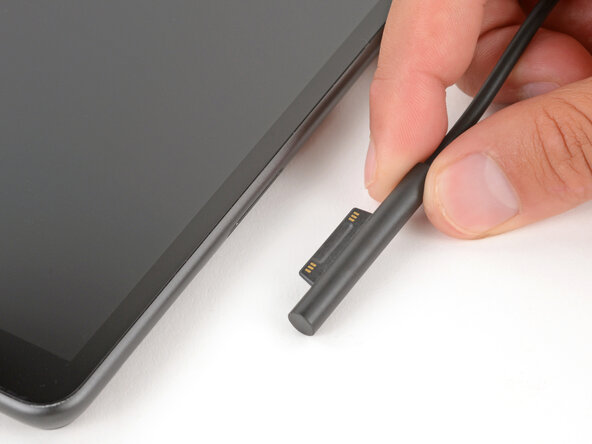
    • Before starting this repair, allow your Surface Pro's battery to drain below 25%. A charged battery may catch fire if damaged.

    • Unplug all cables and fully shut down your tablet.

    • If you have a keyboard attached, remove it.

    Chiedi a FixBot

    Aggiungi Commento

  2. Microsoft Surface Pro 8 Screen Replacement, Open the kickstand: passo 2, immagine 1 di 2 Microsoft Surface Pro 8 Screen Replacement, Open the kickstand: passo 2, immagine 2 di 2
    • Open the kickstand to about 90 degrees.

    Chiedi a FixBot

    Aggiungi Commento

  3. Microsoft Surface Pro 8 Screen Replacement, Remove the SSD door: passo 3, immagine 1 di 3 Microsoft Surface Pro 8 Screen Replacement, Remove the SSD door: passo 3, immagine 2 di 3 Microsoft Surface Pro 8 Screen Replacement, Remove the SSD door: passo 3, immagine 3 di 3
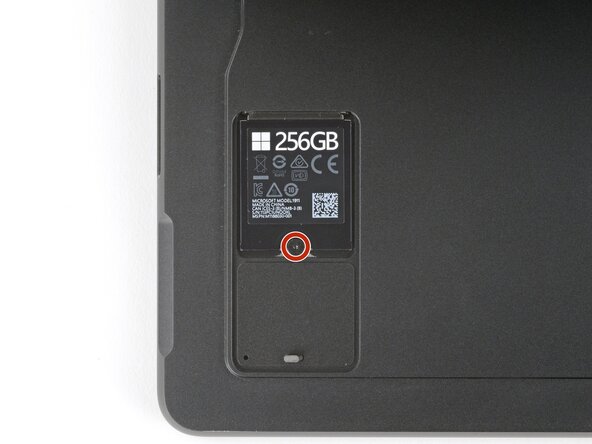
    • Firmly press a SIM eject tool into the small hole in the corner of the SSD door until it pops up.

    • Alternatively, you can also use a small, straightened paper clip.

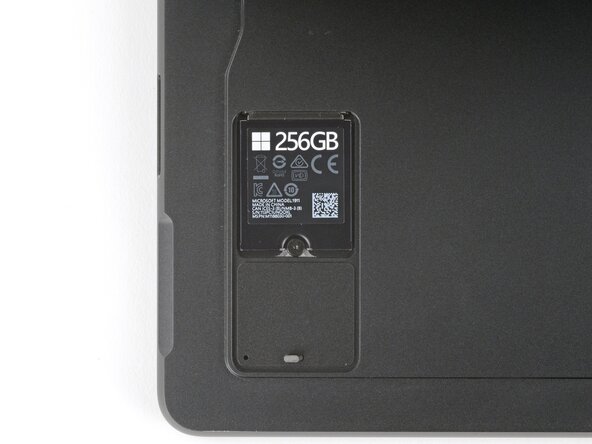
    • Remove the SSD door.

    Chiedi a FixBot

    Aggiungi Commento

  4. Microsoft Surface Pro 8 Screen Replacement, Remove the SSD screw: passo 4, immagine 1 di 2 Microsoft Surface Pro 8 Screen Replacement, Remove the SSD screw: passo 4, immagine 2 di 2
    • Removing the SSD also functions as a battery disconnect and should be done before all major repairs.

    • Use a Torx Plus 3IP screwdriver to remove the 2.3 mm‑long screw securing the SSD.

    Chiedi a FixBot

    Aggiungi Commento

  5. Microsoft Surface Pro 8 Screen Replacement, Remove SSD: passo 5, immagine 1 di 2 Microsoft Surface Pro 8 Screen Replacement, Remove SSD: passo 5, immagine 2 di 2
    • Don't pull up at a sharp angle, or you may damage the SSD and its socket.

    • Use your fingers to pull the SSD out of its socket at a shallow angle.

    • If you're having trouble gripping the SSD, use a spudger or your fingernail to lift it slightly.

    Chiedi a FixBot

    Aggiungi Commento

  6. Microsoft Surface Pro 8 Screen Replacement, Reinstall the SSD door: passo 6, immagine 1 di 2 Microsoft Surface Pro 8 Screen Replacement, Reinstall the SSD door: passo 6, immagine 2 di 2
    • Leave the SSD removed to keep the battery disconnected.

    • Slide the SSD door back into its recess and press down on the bottom edge until it clicks into place.

    Chiedi a FixBot

    Aggiungi Commento

  7. Microsoft Surface Pro 8 Screen Replacement, Close the kickstand: passo 7, immagine 1 di 3 Microsoft Surface Pro 8 Screen Replacement, Close the kickstand: passo 7, immagine 2 di 3 Microsoft Surface Pro 8 Screen Replacement, Close the kickstand: passo 7, immagine 3 di 3
    • Close the kickstand and flip your device over so the screen is facing up.

    Chiedi a FixBot

    Aggiungi Commento

  8. Microsoft Surface Pro 8 Screen Replacement, Adhesive information: passo 8, immagine 1 di 2 Microsoft Surface Pro 8 Screen Replacement, Adhesive information: passo 8, immagine 2 di 2
    • Don't insert your pick more than 8 mm when separating the screen adhesive. Otherwise, you may damage your device's internals.

    • When separating the top edge adhesive, follow instructions carefully to avoid damaging the front camera.

    • To prevent inserting your pick too far, measure 8 mm from the tip and mark the opening pick with a permanent marker.

    • Alternatively, tape a coin to a pick 8 mm from the tip.

    Chiedi a FixBot

    Aggiungi Commento

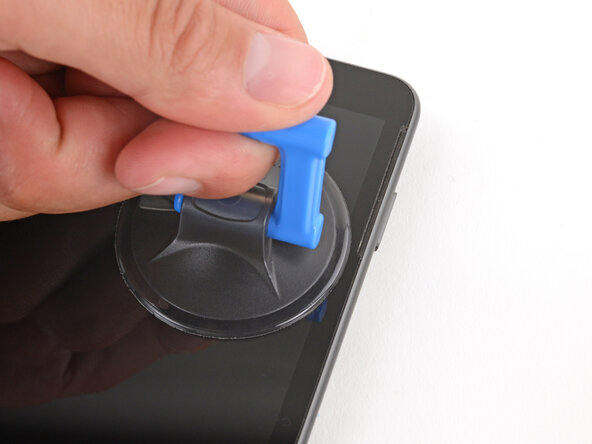
  9. Microsoft Surface Pro 8 Screen Replacement, Apply a suction handle: passo 9, immagine 1 di 3 Microsoft Surface Pro 8 Screen Replacement, Apply a suction handle: passo 9, immagine 2 di 3 Microsoft Surface Pro 8 Screen Replacement, Apply a suction handle: passo 9, immagine 3 di 3
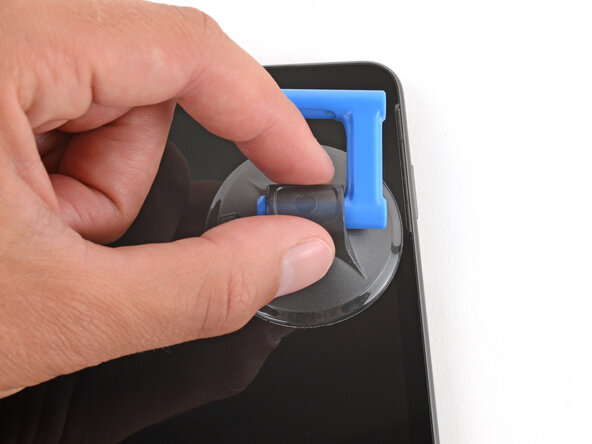
    • Apply a suction handle to the top right corner of the screen, near the bottom of the speaker cutout.

    Chiedi a FixBot

    Aggiungi Commento

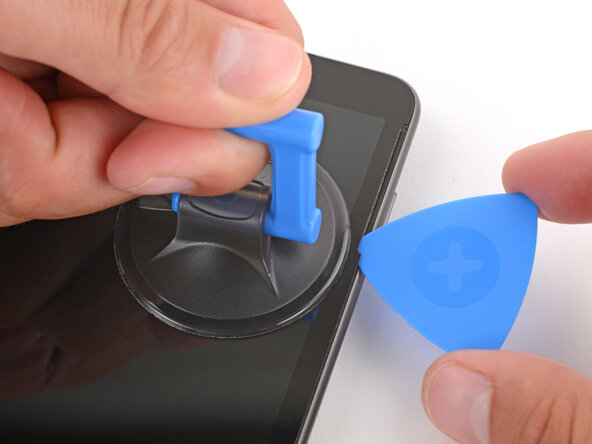
  10. Microsoft Surface Pro 8 Screen Replacement, Insert an opening pick: passo 10, immagine 1 di 3 Microsoft Surface Pro 8 Screen Replacement, Insert an opening pick: passo 10, immagine 2 di 3 Microsoft Surface Pro 8 Screen Replacement, Insert an opening pick: passo 10, immagine 3 di 3
    • Pull up on the suction handle with strong, steady force until a gap forms between the screen and frame.

    • If you're having trouble, try using an iOpener to heat the screen.

    • Insert the tip of an opening pick in the gap you just created.

    Chiedi a FixBot

    Aggiungi Commento

  11. Microsoft Surface Pro 8 Screen Replacement, Separate the right edge adhesive: passo 11, immagine 1 di 3 Microsoft Surface Pro 8 Screen Replacement, Separate the right edge adhesive: passo 11, immagine 2 di 3 Microsoft Surface Pro 8 Screen Replacement, Separate the right edge adhesive: passo 11, immagine 3 di 3
    • Depending on the age of your device and condition of the screen adhesive, you may need to use an iOpener to heat the screen if you're having trouble separating the adhesive.

    • Slide the opening pick down the right edge and around the bottom right corner to separate the adhesive.

    Chiedi a FixBot

    Aggiungi Commento

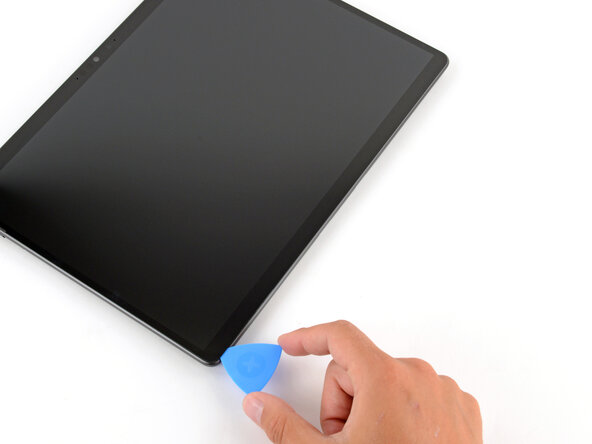
  12. Microsoft Surface Pro 8 Screen Replacement, Separate the bottom edge adhesive: passo 12, immagine 1 di 3 Microsoft Surface Pro 8 Screen Replacement, Separate the bottom edge adhesive: passo 12, immagine 2 di 3 Microsoft Surface Pro 8 Screen Replacement, Separate the bottom edge adhesive: passo 12, immagine 3 di 3
    • Slide the opening pick along the bottom edge and around the bottom left corner to separate the adhesive.

    Chiedi a FixBot

    Aggiungi Commento

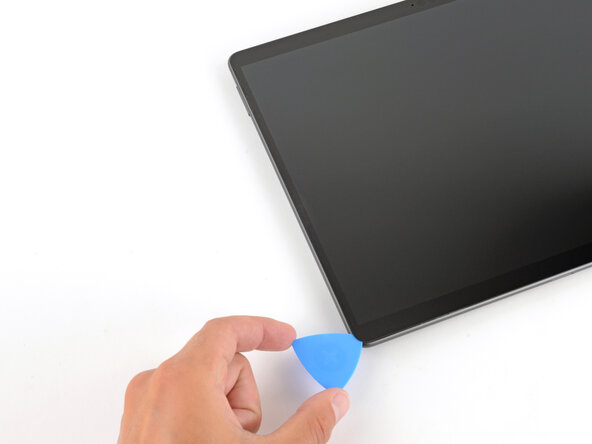
  13. Microsoft Surface Pro 8 Screen Replacement, Separate the left edge adhesive: passo 13, immagine 1 di 3 Microsoft Surface Pro 8 Screen Replacement, Separate the left edge adhesive: passo 13, immagine 2 di 3 Microsoft Surface Pro 8 Screen Replacement, Separate the left edge adhesive: passo 13, immagine 3 di 3
    • Slide the opening pick up the left edge to separate the adhesive.

    • You may need to use a suction handle to help separate the adhesive near the left speaker cutout.

    Chiedi a FixBot

    Aggiungi Commento

  14. Microsoft Surface Pro 8 Screen Replacement, Separate the top edge adhesive: passo 14, immagine 1 di 3 Microsoft Surface Pro 8 Screen Replacement, Separate the top edge adhesive: passo 14, immagine 2 di 3 Microsoft Surface Pro 8 Screen Replacement, Separate the top edge adhesive: passo 14, immagine 3 di 3
    • Don't slide the pick over the front facing camera. Remove the pick enough so that it can slide past the camera without touching it.

    • Slide the opening pick along the top edge to separate the adhesive.

    • You'll likely need to slide the pick around the perimeter a second time to fully separate all the screen adhesive.

    Chiedi a FixBot

    Aggiungi Commento

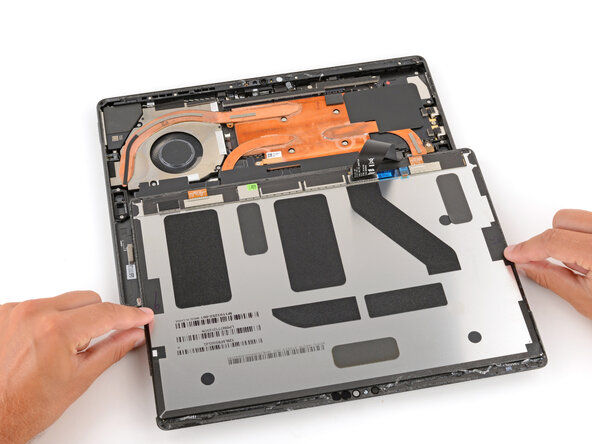
  15. Microsoft Surface Pro 8 Screen Replacement, Flip the screen over: passo 15, immagine 1 di 3 Microsoft Surface Pro 8 Screen Replacement, Flip the screen over: passo 15, immagine 2 di 3 Microsoft Surface Pro 8 Screen Replacement, Flip the screen over: passo 15, immagine 3 di 3
    • Once the screen is fully separated, slightly lift the top edge and flip the screen so it can lay flat.

    • Be careful not to strain the screen cables.

    • During reassembly:

    • Remove all the remaining adhesive liners, carefully holding the screen above your device as necessary.

    • Flip the screen over and align the bottom edge, using the frame's lip to properly orient it.

    • Once the bottom edge is properly aligned, lay the screen onto the frame.

    • Use your fingers to press down on the entire perimeter of the screen to secure it in the frame.

    • Optionally, you can lay the device screen side down on a clean surface and stack 4–5 heavy books squarely on top of your device. Leave the books in place for at least thirty minutes. The lighter the books, the longer they should be left. Ideally, leave them stacked overnight.

    Chiedi a FixBot

    Aggiungi Commento

  16. Microsoft Surface Pro 8 Screen Replacement, Remove the screen cable cover: passo 16, immagine 1 di 3 Microsoft Surface Pro 8 Screen Replacement, Remove the screen cable cover: passo 16, immagine 2 di 3 Microsoft Surface Pro 8 Screen Replacement, Remove the screen cable cover: passo 16, immagine 3 di 3
    • Use an arm of your tweezers to pry up and unclip the corners of the screen cable cover (on the screen itself, not in the device).

    • Be careful not to deform the shield too much, as you'll need to reinstall it during reassembly.

    • Remove the cover.

    Chiedi a FixBot

    Aggiungi Commento

  17. Microsoft Surface Pro 8 Screen Replacement, Disconnect the screen: passo 17, immagine 1 di 2 Microsoft Surface Pro 8 Screen Replacement, Disconnect the screen: passo 17, immagine 2 di 2
    Chiedi a FixBot

    Aggiungi Commento

  18. Microsoft Surface Pro 8 Screen Replacement, Remove the screen: passo 18, immagine 1 di 1
    • Remove the screen.

    • During reassembly:

    • Use a spudger and tweezers to scrape up and remove all the old screen adhesive from the frame. Clean up any residue with high-concentration (>90%) isopropyl alcohol and a coffee filter or lint-free cloth.

    • If you're reusing your screen, repeat the process to remove any adhesive and its residue from the underside of the screen.

    • To prevent damaging your screen, press gently and make sure nothing is under the screen while you work.

    • Before applying any screen adhesives, find their proper orientation on the frame. Use cutouts and notches in the adhesive to match each strip to its spot on the perimeter.

    • Carefully align and apply the adhesive strips to the frame—don't remove the remaining top liners on the strips.

    • Lay the screen upside down on the frame so you can reconnect its cable. The screen should be oriented so when you flip it over, the top edge of the screen is lined up with the top edge of the frame.

    Chiedi a FixBot

    Aggiungi Commento

Conclusione

To reassemble your device, follow these instructions in reverse order.

Take your e-waste to an R2 or e-Stewards certified recycler.

Repair didn’t go as planned? Try some basic troubleshooting, or ask our Answers community for help.

Annulla: non ho completato questa guida.

Spencer Day

Membro da: 09/14/22

191.342 Reputazione

1.204 guide realizzate

0Commenti sulla guida

Aggiungi Commento

Visualizza statistiche:

Ultime 24 ore: 6

Ultimi 7 giorni: 27

Ultimi 30 giorni: 156

Tutti i Tempi: 206