Salta al contenuto principale
Unisciti alla Community delle riparazioni - Crea un account
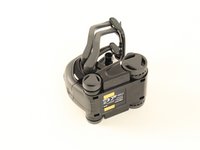
Anki Vector Battery Replacement

Cosa ti serve

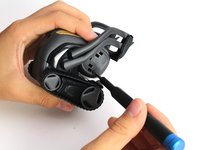
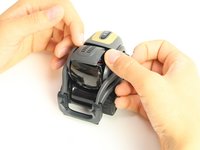
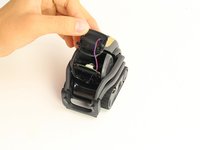
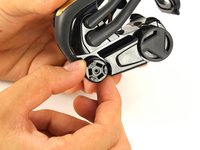
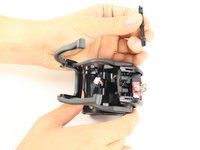
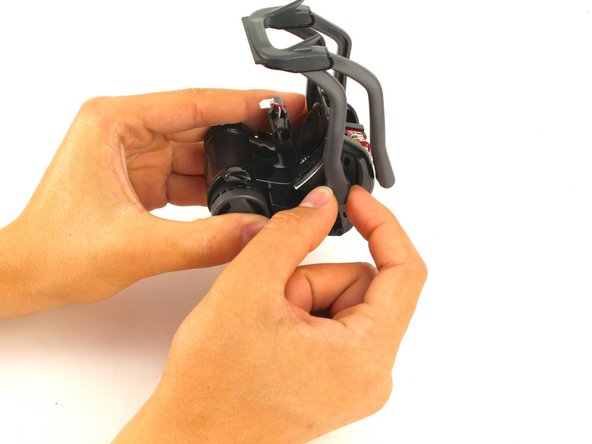
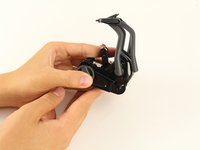
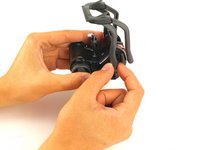
  1. Anki Vector  Battery Replacement, LCD Facial Display: passo 1, immagine 1 di 3 Anki Vector  Battery Replacement, LCD Facial Display: passo 1, immagine 2 di 3 Anki Vector  Battery Replacement, LCD Facial Display: passo 1, immagine 3 di 3
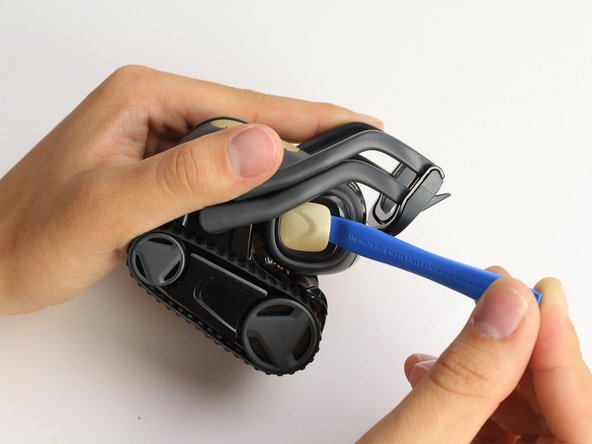
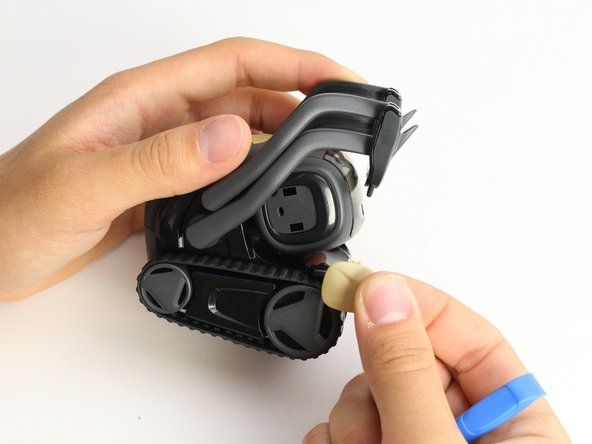
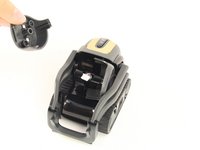
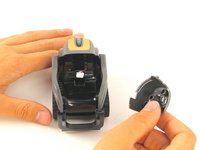
    • Using the iFixit opening tool, insert the corner under Vector's golden side panel and lightly twist.

    • Repeat this step on the other side.

    • The panel should pop off without much force.

    Chiedi a FixBot

    Aggiungi Commento

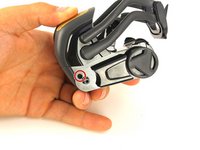
  2. Anki Vector  Battery Replacement: passo 2, immagine 1 di 3 Anki Vector  Battery Replacement: passo 2, immagine 2 di 3 Anki Vector  Battery Replacement: passo 2, immagine 3 di 3
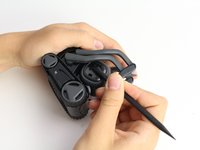
    • Insert the corner of the square end of the spudger under the side plate above the partially visible screw.

    • Lightly turn the spudger to separate the plate from Vector's head.

    • Work the spudger around the plate until it comes off.

    • Repeat this step on the the other side.

    Chiedi a FixBot

    Aggiungi Commento

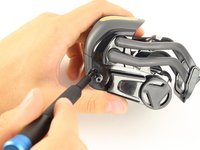
  3. Anki Vector  Battery Replacement: passo 3, immagine 1 di 2 Anki Vector  Battery Replacement: passo 3, immagine 2 di 2
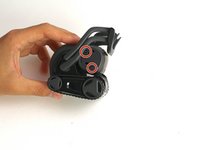
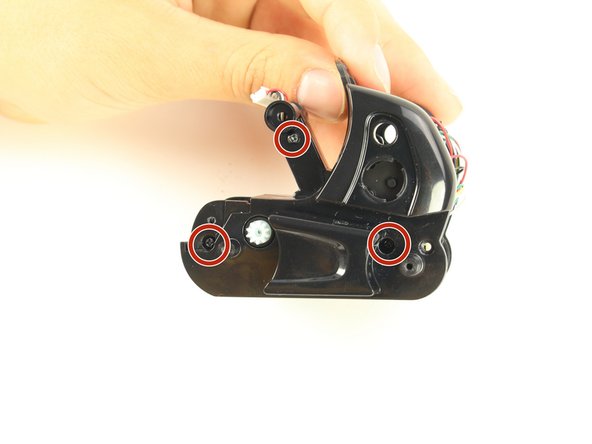
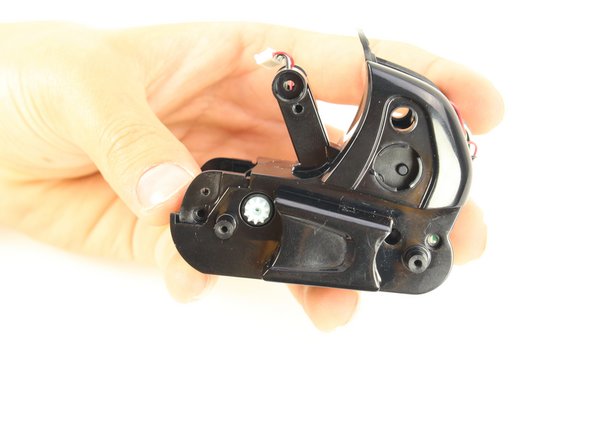
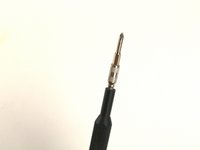
    • Using a Phillips #0 screwdriver, unscrew the two 2 mm screws on the side of Vector's head.

    • Repeat this step on the opposite side.

    Chiedi a FixBot

    Aggiungi Commento

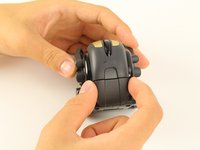
  4. Anki Vector  Battery Replacement: passo 4, immagine 1 di 2 Anki Vector  Battery Replacement: passo 4, immagine 2 di 2
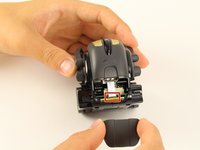
    • Pull apart Vector's head. It should separate down the middle.

    • Remove the screen protector by gently pulling it free from the two face halves.

    Chiedi a FixBot

    Aggiungi Commento

  5. Anki Vector  Battery Replacement: passo 5, immagine 1 di 3 Anki Vector  Battery Replacement: passo 5, immagine 2 di 3 Anki Vector  Battery Replacement: passo 5, immagine 3 di 3
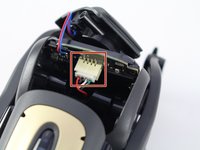
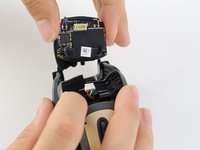
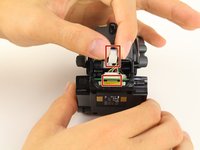
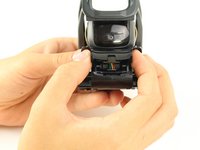
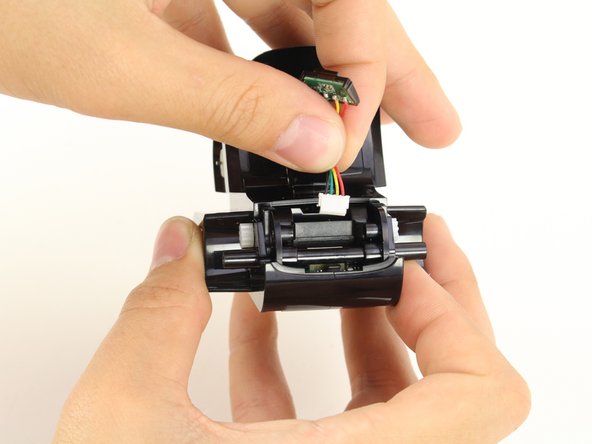
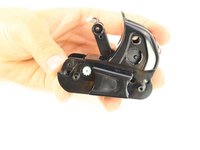
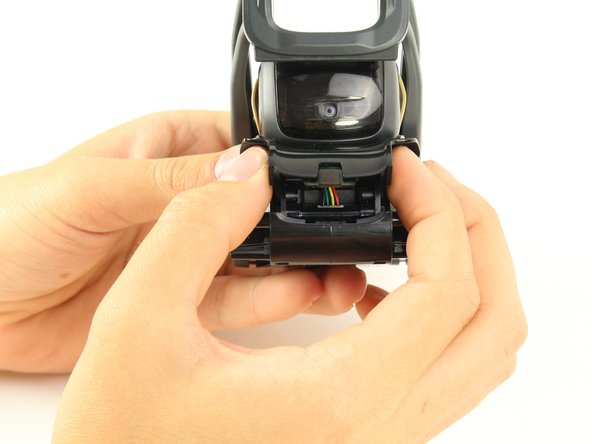
    • Using your thumb and index finger, unplug the display from the plug in Vector's neck.

    • Pull the LCD and speaker assembly from Vector's head.

    • There is a very thin insulating rubber sheet located at the base of the screen. Be careful not to tear it when removing the display.

    Chiedi a FixBot

    Aggiungi Commento

  6. Anki Vector  Battery Replacement, Battery: passo 6, immagine 1 di 3 Anki Vector  Battery Replacement, Battery: passo 6, immagine 2 di 3 Anki Vector  Battery Replacement, Battery: passo 6, immagine 3 di 3
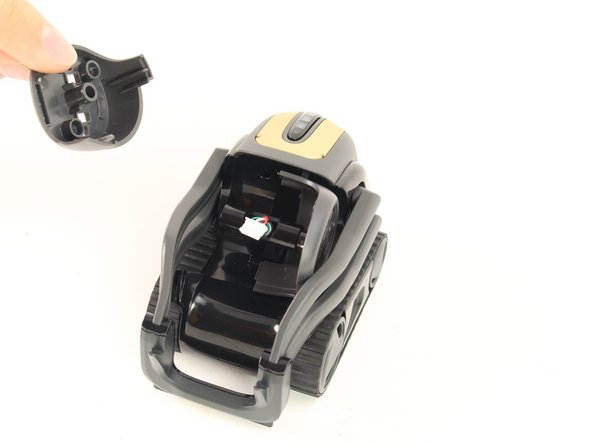
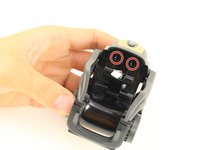
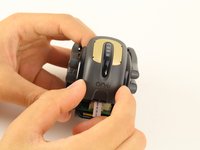
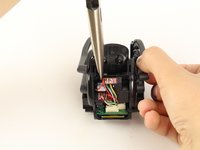
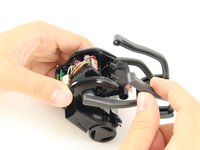
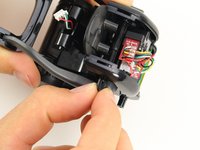
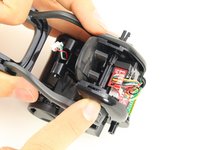
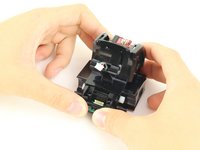
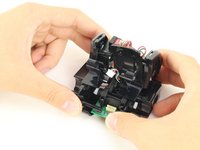
    • Gently pull out the two halves of Vector's head from between his arms.

    Chiedi a FixBot

    Aggiungi Commento

  7. Anki Vector  Battery Replacement: passo 7, immagine 1 di 3 Anki Vector  Battery Replacement: passo 7, immagine 2 di 3 Anki Vector  Battery Replacement: passo 7, immagine 3 di 3
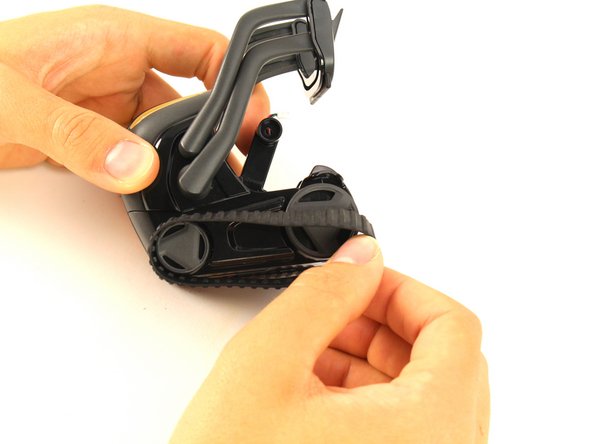
    • Remove the Anki Vector's belts on both sides of its body by gently sliding them off.

    • You should be able to pull them off without much effort.

    Chiedi a FixBot

    Aggiungi Commento

  8. Anki Vector  Battery Replacement: passo 8, immagine 1 di 2 Anki Vector  Battery Replacement: passo 8, immagine 2 di 2
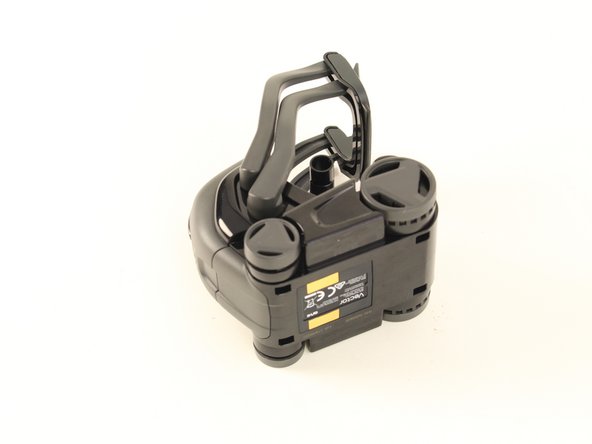
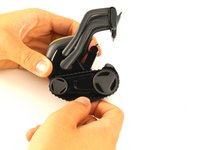
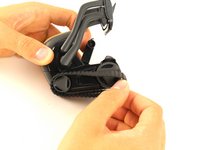
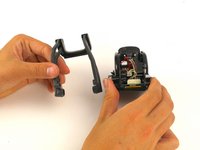
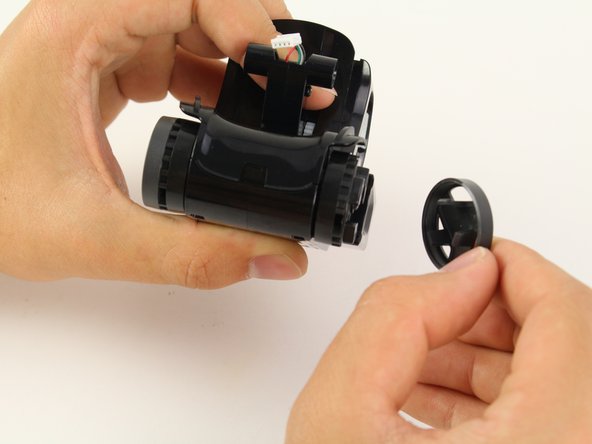
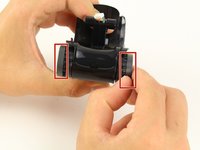
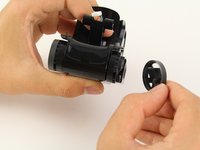
    • Pull off the covers attached to Vector's rear wheels.

    Chiedi a FixBot

    Aggiungi Commento

  9. Anki Vector  Battery Replacement: passo 9, immagine 1 di 3 Anki Vector  Battery Replacement: passo 9, immagine 2 di 3 Anki Vector  Battery Replacement: passo 9, immagine 3 di 3
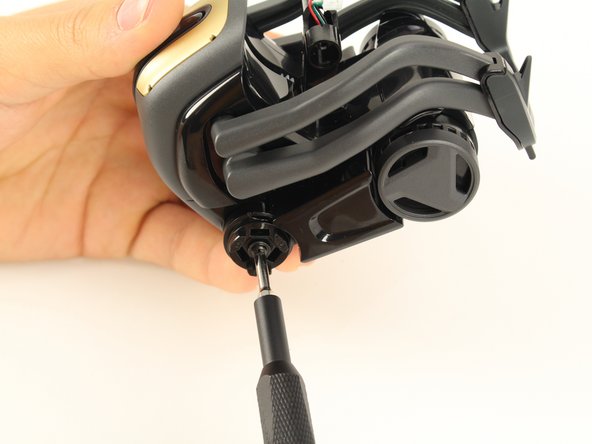
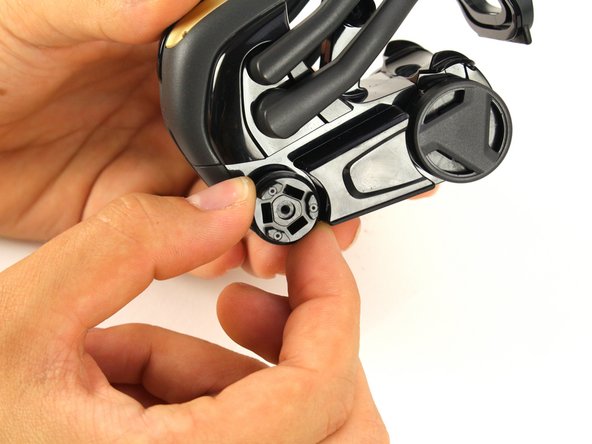
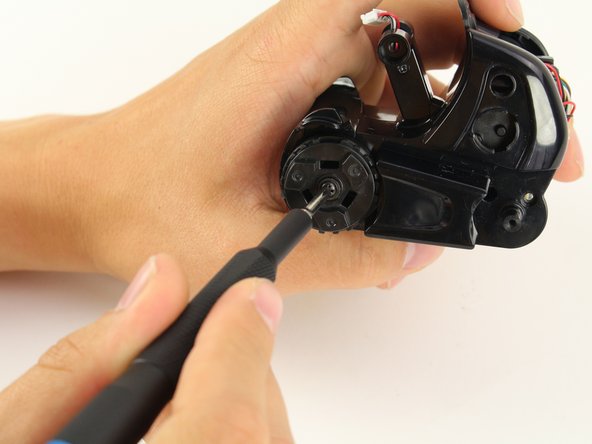
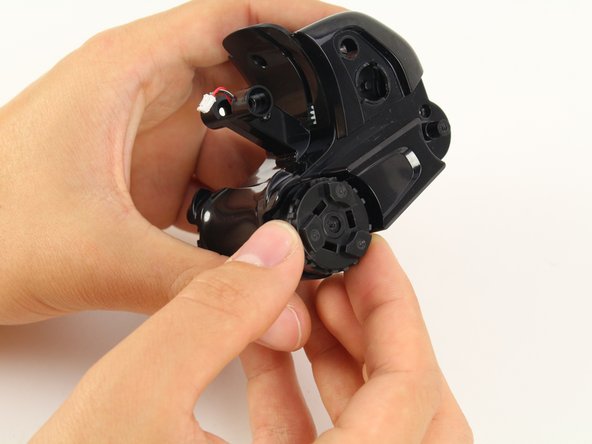
    • Unscrew the 2 mm screws located under the wheel covers using a Phillips #0 screwdriver.

    • Remove the rear wheel.

    Chiedi a FixBot

    Aggiungi Commento

  10. Anki Vector  Battery Replacement: passo 10, immagine 1 di 3 Anki Vector  Battery Replacement: passo 10, immagine 2 di 3 Anki Vector  Battery Replacement: passo 10, immagine 3 di 3
    • Unscrew the two 2 mm body screws using a Phillips #0 screwdriver.

    Chiedi a FixBot

    Aggiungi Commento

  11. Anki Vector  Battery Replacement: passo 11, immagine 1 di 3 Anki Vector  Battery Replacement: passo 11, immagine 2 di 3 Anki Vector  Battery Replacement: passo 11, immagine 3 di 3
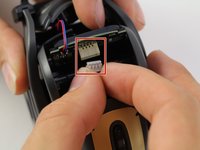
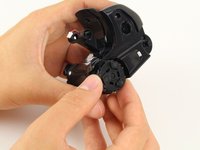
    • Using two fingers gently pull off the lower rear panel.

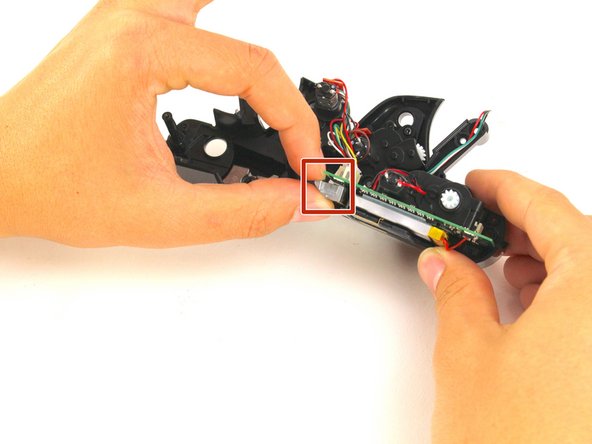
    • Using your fingers, unplug the ribbon connector.

    Chiedi a FixBot

    Aggiungi Commento

  12. Anki Vector  Battery Replacement: passo 12, immagine 1 di 3 Anki Vector  Battery Replacement: passo 12, immagine 2 di 3 Anki Vector  Battery Replacement: passo 12, immagine 3 di 3
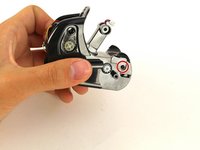
    • Unscrew the two screws behind vector's neck.

    • Remove the capacitive touch assembly.

    Chiedi a FixBot

    Aggiungi Commento

  13. Anki Vector  Battery Replacement: passo 13, immagine 1 di 2 Anki Vector  Battery Replacement: passo 13, immagine 2 di 2
    • With a moderate amount of force pull one of vector's top arms away from his body until it disconnects from the shaft.

    Chiedi a FixBot

    Aggiungi Commento

  14. Anki Vector  Battery Replacement: passo 14, immagine 1 di 2 Anki Vector  Battery Replacement: passo 14, immagine 2 di 2
    • Gripping the shaft with needle nosed pliers, pull the opposite top arm off the main shaft.

    Chiedi a FixBot

    Aggiungi Commento

  15. Anki Vector  Battery Replacement: passo 15, immagine 1 di 3 Anki Vector  Battery Replacement: passo 15, immagine 2 di 3 Anki Vector  Battery Replacement: passo 15, immagine 3 di 3
    • Pinch one end of the arm shaft and push it into the body.

    • Grab the other end and pull the shaft out of the body.

    Chiedi a FixBot

    Aggiungi Commento

  16. Anki Vector  Battery Replacement: passo 16, immagine 1 di 3 Anki Vector  Battery Replacement: passo 16, immagine 2 di 3 Anki Vector  Battery Replacement: passo 16, immagine 3 di 3
    • Raise vectors arms all the way up and gently pull each arm out of its socket.

    Chiedi a FixBot

    Aggiungi Commento

  17. Anki Vector  Battery Replacement: passo 17, immagine 1 di 2 Anki Vector  Battery Replacement: passo 17, immagine 2 di 2
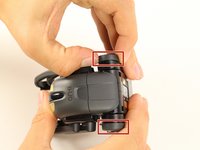
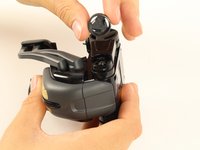
    • Pull the wheel covers off of Vectors forward wheels.

    Chiedi a FixBot

    Aggiungi Commento

  18. Anki Vector  Battery Replacement: passo 18, immagine 1 di 3 Anki Vector  Battery Replacement: passo 18, immagine 2 di 3 Anki Vector  Battery Replacement: passo 18, immagine 3 di 3
    • Using the same Phillips #0 screwdriver, unscrew the 2 mm screw under the wheel cover.

    • Gently pull the wheel off.

    Chiedi a FixBot

    Aggiungi Commento

  19. Anki Vector  Battery Replacement: passo 19, immagine 1 di 3 Anki Vector  Battery Replacement: passo 19, immagine 2 di 3 Anki Vector  Battery Replacement: passo 19, immagine 3 di 3
    • Unscrew the two body screws located behind the front wheels.

    • Gently pull the cover from Vector's body

    • Be careful when removing the cover. The infrared sensor connects the cover to the body by wires.

    Chiedi a FixBot

    Aggiungi Commento

  20. Anki Vector  Battery Replacement: passo 20, immagine 1 di 3 Anki Vector  Battery Replacement: passo 20, immagine 2 di 3 Anki Vector  Battery Replacement: passo 20, immagine 3 di 3
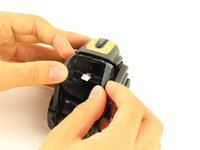
    • Gently unplug and remove the infrared sensor.

    Chiedi a FixBot

    Aggiungi Commento

  21. Anki Vector  Battery Replacement: passo 21, immagine 1 di 3 Anki Vector  Battery Replacement: passo 21, immagine 2 di 3 Anki Vector  Battery Replacement: passo 21, immagine 3 di 3
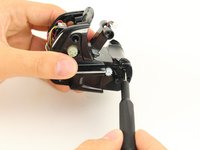
    • Insert your Phillips #0 bit into a 4 mm nut driver and insert both into your bit driver.

    • Unscrew the three body screws.

    Chiedi a FixBot

    Aggiungi Commento

  22. Anki Vector  Battery Replacement: passo 22, immagine 1 di 2 Anki Vector  Battery Replacement: passo 22, immagine 2 di 2
    • Gradually increasing applied force, pull the body apart.

    Chiedi a FixBot

    Aggiungi Commento

  23. Anki Vector  Battery Replacement: passo 23, immagine 1 di 3 Anki Vector  Battery Replacement: passo 23, immagine 2 di 3 Anki Vector  Battery Replacement: passo 23, immagine 3 di 3
    • Remove the shoulder panel.

    • Remove the weight.

    Chiedi a FixBot

    Aggiungi Commento

  24. Anki Vector  Battery Replacement: passo 24, immagine 1 di 3 Anki Vector  Battery Replacement: passo 24, immagine 2 di 3 Anki Vector  Battery Replacement: passo 24, immagine 3 di 3
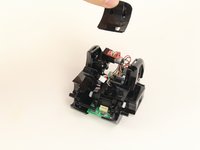
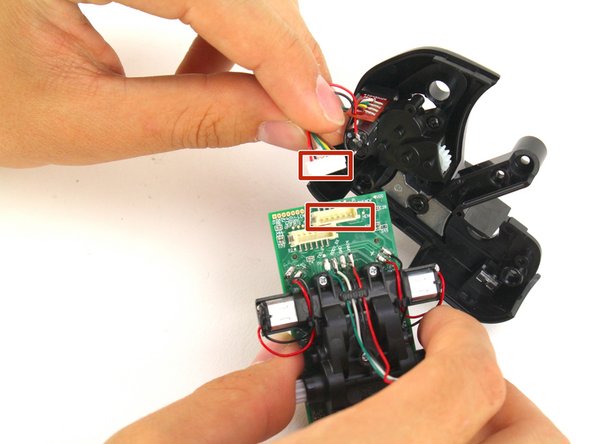
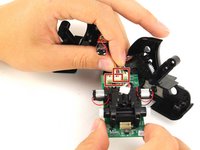
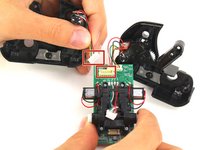
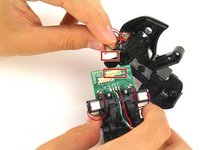
    • Unplug the two motor connectors from the motherboard.

    Chiedi a FixBot

    Aggiungi Commento

  25. Anki Vector  Battery Replacement: passo 25, immagine 1 di 3 Anki Vector  Battery Replacement: passo 25, immagine 2 di 3 Anki Vector  Battery Replacement: passo 25, immagine 3 di 3
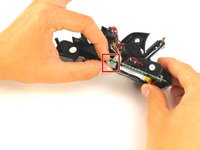
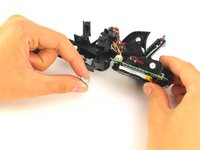
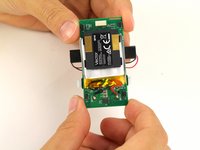
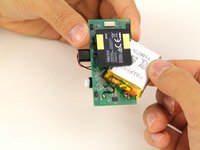
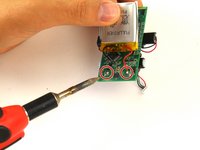
    • Wriggle the battery free from the motherboard.

    • Using a soldering iron, desolder the connections from the battery to the motherboard.

    Chiedi a FixBot

    Aggiungi Commento

Conclusione

To reassemble your device, follow these instructions in reverse order.

Annulla: non ho completato questa guida.

Altre 46 persone hanno completato questa guida.

Shay Takei

Membro da: 04/16/19

1.795 Reputazione

5 guide realizzate

Team

Cal Poly, Team S2-G6, Maness Spring 2019 Membro di Cal Poly, Team S2-G6, Maness Spring 2019

CPSU-MANESS-S19S2G6

4 Membri

10 guide realizzate

25Commenti sulla guida

Ok nice step by step guide but what are the specs for the battery as they’re not visable in any of the pictures…

John Fitzgerald - Rispondi Condividi

Part Number: Li-Ion Poly 500mAh #1578B

3.7V 500mAh

Brian - Rispondi Condividi
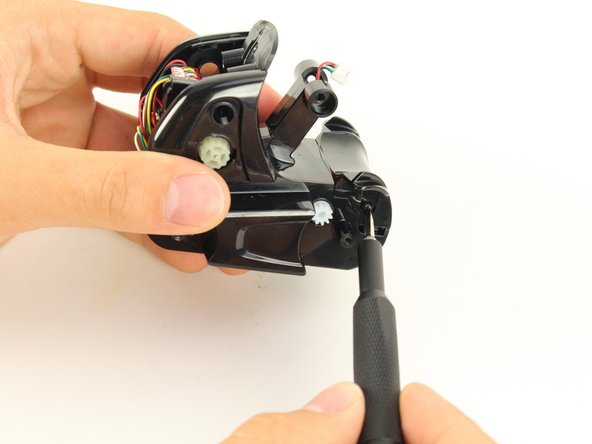
Who manages to do all of this in 7 minutes ? Apparently it is a 3.7V battery, question is what is the max size that fits ? 3.5 x 2.5 x 0.4 cm is reported to fit, 4x3x0.5 might as well.

Holger Brueckner - Rispondi Condividi
Any idea where to get one ?

Gordon Hamilton - Rispondi Condividi

Who manages to do all of this is 7 minutes?

me

Kerigan Creighton - Rispondi Condividi

Aggiungi Commento

Visualizza statistiche:

Ultime 24 ore: 14

Ultimi 7 giorni: 97

Ultimi 30 giorni: 398

Tutti i Tempi: 34,006