Salta al contenuto principale
Unisciti alla Community delle riparazioni - Crea un account

Alienware Pro Wireless Gaming Mouse Optical Lens Replacement

Cosa ti serve

  1. Alienware Pro Wireless Gaming Mouse Optical Lens Replacement, Feet: passo 1, immagine 1 di 3 Alienware Pro Wireless Gaming Mouse Optical Lens Replacement, Feet: passo 1, immagine 2 di 3 Alienware Pro Wireless Gaming Mouse Optical Lens Replacement, Feet: passo 1, immagine 3 di 3
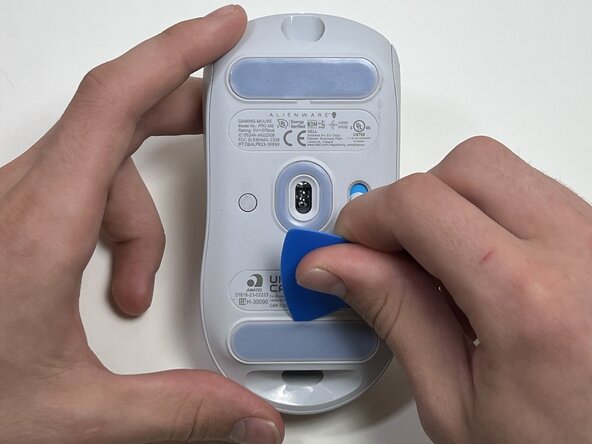
    • Flip the mouse over so the bottom is facing up..

    • Use an opening pick to gently peel the mouse foot off the bottom case.

    • The mouse feet warp easily so if you're not replacing them, be careful and don't rip them off. You will need them when you reassemble the mouse.

    Chiedi a FixBot
  2. Alienware Pro Wireless Gaming Mouse Optical Lens Replacement: passo 2, immagine 1 di 2 Alienware Pro Wireless Gaming Mouse Optical Lens Replacement: passo 2, immagine 2 di 2
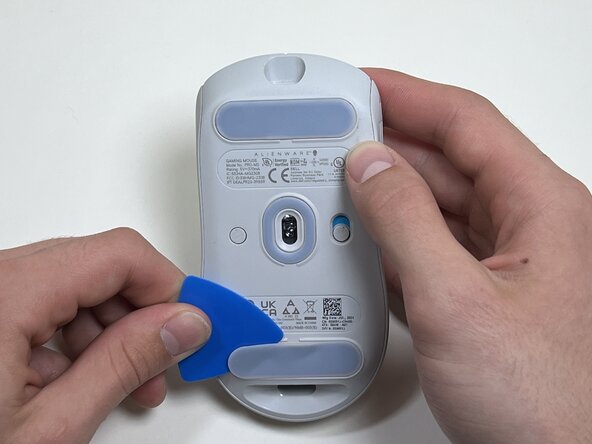
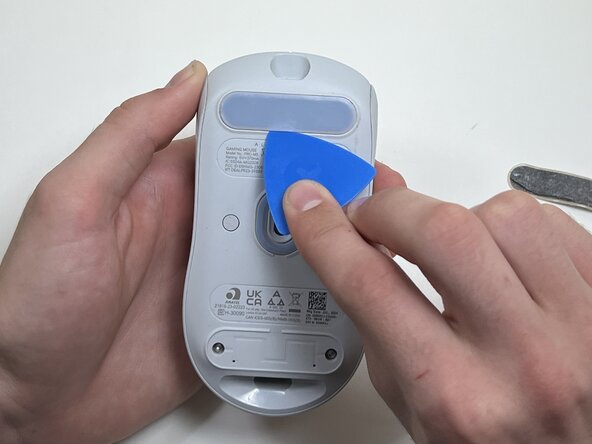
    • Peel and remove the other mouse foot.

    Chiedi a FixBot
  3. Alienware Pro Wireless Gaming Mouse Optical Lens Replacement, Battery: passo 3, immagine 1 di 1
    • Use a TR6 Torx security screwdriver to remove the four 6 mm screws under the foot pads.

    Chiedi a FixBot
  4. Alienware Pro Wireless Gaming Mouse Optical Lens Replacement: passo 4, immagine 1 di 3 Alienware Pro Wireless Gaming Mouse Optical Lens Replacement: passo 4, immagine 2 di 3 Alienware Pro Wireless Gaming Mouse Optical Lens Replacement: passo 4, immagine 3 di 3
    • Use your hands or a spudger to separate the bottom and top of the mouse.

    • Insert the end of the spudger in the seam between the top and bottom case, and slide it around the perimeter to release the clips holding it together.

    • You may hear a cracking sound when the clips are released.

    Chiedi a FixBot
  5. Alienware Pro Wireless Gaming Mouse Optical Lens Replacement: passo 5, immagine 1 di 2 Alienware Pro Wireless Gaming Mouse Optical Lens Replacement: passo 5, immagine 2 di 2
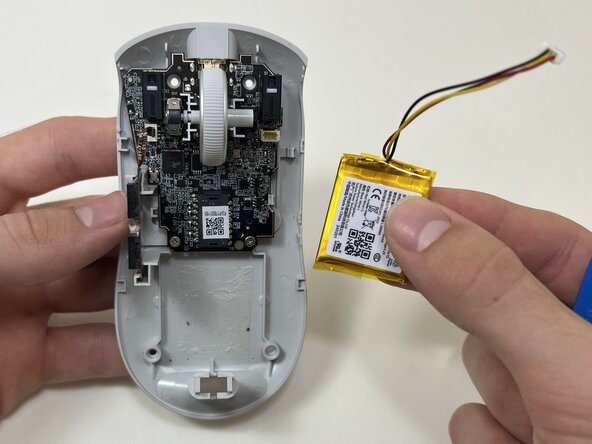
    • Use the pointed end of a spudger to push on alternating sides of the battery connector to "walk" it out of its socket.

    • Avoid pulling on the wires. If necessary, pull as close to the connector as possible to prevent damage to your mouse.

    Chiedi a FixBot
  6. Alienware Pro Wireless Gaming Mouse Optical Lens Replacement: passo 6, immagine 1 di 2 Alienware Pro Wireless Gaming Mouse Optical Lens Replacement: passo 6, immagine 2 di 2
    • The battery is glued to the case.

    • Use an opening tool or spudger to loosen the adhesive under the battery.

    • Remove the battery.

    Chiedi a FixBot
  7. Alienware Pro Wireless Gaming Mouse Optical Lens Replacement, Side Button: passo 7, immagine 1 di 2 Alienware Pro Wireless Gaming Mouse Optical Lens Replacement, Side Button: passo 7, immagine 2 di 2
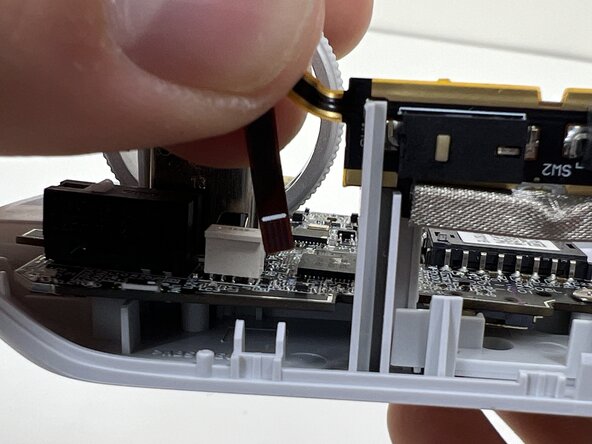
    • Pinch the upper part of the ribbon cable.

    • Pull the ribbon cable gently to detach it from the socket on the motherboard.

    • Make sure the ribbon line is facing the correct direction when reassembling the controller.

    Chiedi a FixBot
  8. Alienware Pro Wireless Gaming Mouse Optical Lens Replacement: passo 8, immagine 1 di 2 Alienware Pro Wireless Gaming Mouse Optical Lens Replacement: passo 8, immagine 2 di 2
    • Lift the side button panel from the plastic frame.

    Chiedi a FixBot
  9. Alienware Pro Wireless Gaming Mouse Optical Lens Replacement, Scroll Wheel: passo 9, immagine 1 di 3 Alienware Pro Wireless Gaming Mouse Optical Lens Replacement, Scroll Wheel: passo 9, immagine 2 di 3 Alienware Pro Wireless Gaming Mouse Optical Lens Replacement, Scroll Wheel: passo 9, immagine 3 di 3
    • Hold the scroll wheel encoder steady and gently pull the scroll wheel to the right to remove it.

    • Only light force is needed—be gentle to avoid damaging nearby parts.

    Chiedi a FixBot
  10. Alienware Pro Wireless Gaming Mouse Optical Lens Replacement, Motherboard: passo 10, immagine 1 di 1
    • Use a Phillips #00 screwdriver to remove the two 5 mm screws at the bottom of the motherboard.

    Chiedi a FixBot
  11. Alienware Pro Wireless Gaming Mouse Optical Lens Replacement: passo 11, immagine 1 di 1
    • Gently pull the side clip away from the motherboard to release it from the plastic frame.

    • Use a spudger to release the board from the clips if that is easier.

    Chiedi a FixBot
  12. Alienware Pro Wireless Gaming Mouse Optical Lens Replacement: passo 12, immagine 1 di 2 Alienware Pro Wireless Gaming Mouse Optical Lens Replacement: passo 12, immagine 2 di 2
    • Bend the front nose of the mouse body to release the motherboard.

    • Remove the motherboard from the bottom case.

    Chiedi a FixBot
  13. Alienware Pro Wireless Gaming Mouse Optical Lens Replacement, Optical Lens: passo 13, immagine 1 di 2 Alienware Pro Wireless Gaming Mouse Optical Lens Replacement, Optical Lens: passo 13, immagine 2 di 2
    • On the bottom of the motherboard, remove the clear plastic lens.

    Chiedi a FixBot
Conclusione

To reassemble your device, follow these instructions in reverse order. Take your e-waste to an R2 or e-Stewards certified recycler.

0Commenti sulla guida

Aggiungi Commento

Visualizza statistiche:

Ultime 24 ore: 1

Ultimi 7 giorni: 5

Ultimi 30 giorni: 16

Tutti i Tempi: 92