Wiki con Collaborazione Studenti
Un fantastico team di studenti del nostro programma educativo ha realizzato questo wiki.
Il dispositivo non si accende
Il dispositivo non riesce a caricarsi o ad accendersi.
Cavo di ricarica difettoso
Assicurati che i collegamenti del cavo siano ben saldi sul dispositivo e alla presa a muro. Se la spia di ricarica non si accende, il caricabatterie è difettoso. Valuta la possibilità di sostituire il caricabatterie.
Batteria difettosa
Se la spia di ricarica del dispositivo è accesa ma il dispositivo non si carica o non rimane acceso quando è scollegato, la batteria è difettosa. Sostituisci la batteria usando questa guida
Qualità di foto e video distorta
Il video o l'immagine sono distorti, sfocati o scoloriti.
Lente della fotocamera sporca
Ispeziona la lente della fotocamera per verificare la presenza di detriti o macchie. Se trovi delle macchie, pulisci la lente della fotocamera con un detergente per vetri. Se trovi detriti sotto la lente, segui questa guida per rimuovere la lente e pulire l'interno.
Lente della fotocamera danneggiata
Ispeziona la lente della fotocamera per verificare la presenza di scheggiature, crepe o graffi. Se ne trovi, usa questa guida per sostituire la lente.
Bassa qualità audio
Hai problemi a sentire l'audio durante la riproduzione video.
Microfono sporco
Se una registrazione riproduce un audio di scarsa qualità, pulisci il microfono sul dispositivo con una bomboletta di aria compressa.
Altoparlante/microfono difettoso
Se la pulizia del microfono con aria compressa non risolve il problema, valuta la sostituzione dell'altoparlante del dispositivo usando questa guida.
Il dispositivo si surriscalda
Il dispositivo si spegne in modo casuale o visualizza un messaggio di surriscaldamento sullo schermo.
Surriscaldamento della batteria
Se senti che la batteria sta diventando molto calda o si surriscalda, rimuovila seguendo questa guida. Con la batteria estratta, lasciala raffreddare a temperatura ambiente prima di provare a usarla di nuovo.
La scheda SD non elabora abbastanza velocemente
In genere, il dispositivo può subire un aumento della temperatura durante la registrazione di foto e video sulla scheda SD. Se la scheda SD è estremamente calda o si surriscalda, prendi in considerazione l'acquisto di una nuova scheda SD.
Esposizione ambientale
Se il dispositivo si trova attualmente in un luogo caldo o secco che causa un'eccessiva esposizione al calore, spostalo in un'area in cui possa raffreddarsi.
Impossibile connettersi ad altri dispositivi
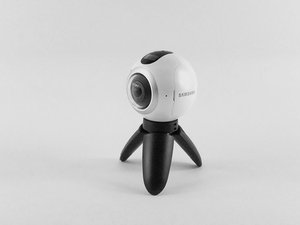
La Samsung Gear 360 non si connette correttamente ad altri dispositivi.
Riconnessione tramite l'applicazione Samsung Gear
Avvia l'applicazione Gear 360 sul tuo smartphone. Il Bluetooth e il Wi-Fi Direct del telefono si attiveranno automaticamente. Tocca semplicemente Connetti e segui le istruzioni sullo schermo per completare la connessione. Se fallisce, prova a riavviare il dispositivo e controlla le impostazioni Bluetooth per assicurarti che la rilevabilità sia attiva.
La Samsung Gear 360 si blocca durante il funzionamento
Estrai la batteria e reinseriscila. Di solito questo riavvia la fotocamera, tuttavia, accade troppo spesso per i miei gusti.
La funzione time lapse non cattura gli scatti all'intervallo impostato
Non ho ancora trovato una soluzione a questo problema.

Team

USF Tampa, Team S3-G5, Sullivan Spring 2017 Membro di USF Tampa, Team S3-G5, Sullivan Spring 2017
USFT-SULLIVAN-S17S3G5
4 Membri
84 guide realizzate

28 Commenti
I have new gear 360 2017. It turns on andconnects.. ...until I put in the sd card.. then it won't turn on.
rob hoy - Rispondi Condividi
If the Samsung 360 will not turn on. Plug it into your power source and hold down the power button and the menu button at the same time, for fifteen seconds. This worked for my 360.
Mary Kelly - Rispondi Condividi
Think I might have stumbled upon a solution of sorts: I had problems connecting my Gear 360 camera with the Gear 360 (New) app on my Samsung S6. No help from tech support, as usual. So, after bumbling around, I thought I'd
1. Uninstall Samsung Accessory Service (in the app manager).
2. I also uninstalled the Gear 360 app.
3. Unpaired the Gear 360 camera on Bluetooth.
4. Re-started everything.
5. Re-installed just the Gear 360 app on my phone.
6. Attempted to re-connect the Gear 360 camera from within the app.
7. I believe this would trigger the app to automatically install the proper Samsung Accessory Service app.
8. The app started to connect properly to the camera.
Now, the app still isn't impressive but at least that got the camera to connect to the phone app.
Good luck.
bastogne97 - Rispondi Condividi
Just had the same problem, but i was able to fix it by reformatting the SD Card.
To check if this is the problem just remove the sd card and see if it turns on. If it does and says "No SD Card" try putting it back in and if it turns off again then you should reformat the SD Card to exFat32 on your computer. It worked for me and maybe it could work for you as well.
W Marketing Group - Rispondi Condividi
I just bought the Gear 360 (2017) and paired it with my Galaxy S8+ .. it took a couple of photos using the phone and the Gear 360 (new) app. Then on taking the third photo it got stuck on "Capturing". No matter what i do it will not take photos now. I restarted it , the phone nothing happens. the shutter button on the camera also doesnt not works. if i reset it using the app, it will take a couple of photos and then the same issue.
any suggestion guys ?
Craig - Rispondi Condividi