Wiki con Collaborazione Studenti
Un fantastico team di studenti del nostro programma educativo ha realizzato questo wiki.
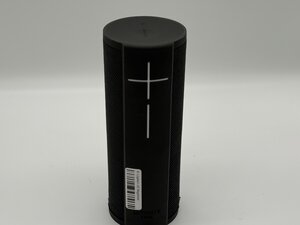
Se il tuo altoparlante Bluetooth Logitech UE Megablast ha una scarsa autonomia della batteria anche dopo una sessione di ricarica completa, questa guida potrebbe offrirti alcune soluzioni.
Connessione lenta alla porta di ricarica
L'alimentatore, il cavo micro-USB e la porta di ricarica lavorano insieme per una ricarica efficiente della batteria.
Presenza di detriti all'interno della porta.
Pulisci la porta di ricarica con uno strumento non metallico (bomboletta di aria compressa o stuzzicadenti) per rimuovere i detriti.
Cavo di ricarica/alimentatore difettoso.
Testa il dispositivo utilizzando un alimentatore o un cavo micro-USB diverso.
Porta usurata dall'uso ripetuto.
Se il cavo micro-USB si connette solo se mosso o se non si carica affatto, stringi o sostituisci la porta di ricarica dell'altoparlante.
Batteria difettosa
La batteria potrebbe presentare un rapido esaurimento o non caricarsi affatto. Puoi provare a:
Eseguire un reset alle impostazioni di fabbrica dell'altoparlante.
Accendi l'altoparlante e tieni premuti contemporaneamente il pulsante di accensione e il tasto Volume giù per circa 10 secondi finché non senti un segnale acustico, quindi rilascia entrambi i pulsanti. L'altoparlante si spegnerà e, quando lo riaccenderai, sarà resettato e pronto per essere accoppiato nuovamente.
Aggiornare il software.
Per aggiornare il software, utilizza l'app Ultimate Ears su uno smartphone o un tablet. Scarica l'app, connetti l'altoparlante, apri l'app, vai nelle impostazioni dell'altoparlante e verifica la presenza di aggiornamenti. Se è disponibile un aggiornamento, tocca "Aggiorna" e mantieni l'altoparlante e l'app aperti finché il processo non è completo.
Eseguire una calibrazione della batteria.
Caricala al 100%, usa l'altoparlante finché non si spegne completamente, quindi ricaricalo senza interruzioni nuovamente al 100%.
Se questo non risolve il problema, potresti dover sostituire la batteria.
Pulsante di accensione
Se il pulsante di accensione non funziona, produce un crepitio o sembra bloccato, potresti dover fare quanto segue:
Hard reset
Potrebbe esserci stato un problema interno ai componenti operativi che un hard reset risolverà premendo contemporaneamente il "pulsante di accensione" e il "tasto Volume giù" per circa 5-10 secondi.
Se questo non risolve il problema, potresti dover cambiare i componenti del pulsante di accensione.
Altoparlante interno danneggiato che causa problemi alla batteria
Sebbene l'altoparlante interno non gestisca direttamente la ricarica, può causare indirettamente il rapido scaricamento della batteria o impedire che si carichi correttamente se qualcosa non funziona internamente.
Consumo energetico costante
Un altoparlante o un amplificatore interno difettoso può rimanere attivo anche quando l'altoparlante è inattivo, prelevando continuamente energia dalla batteria. Ciò porta a un insolito rapido esaurimento della batteria o all'altoparlante che non si accende dopo la ricarica.
Segnali di problemi legati all'altoparlante
Cerca sintomi come:
- Audio distorto o assente
- Surriscaldamento durante o dopo l'uso
- Batteria che scende rapidamente durante la normale riproduzione
Questi possono indicare un problema all'interno dell'hardware dell'altoparlante o del suo circuito.
Soluzione problemi di base
Puoi provare prima questi passaggi:
- Eseguire un reset alle impostazioni di fabbrica dell'altoparlante (vedi i passaggi nella sezione precedente)
- Aggiornare il software utilizzando l'app Ultimate Ears
- Calibrazione della batteria caricandola completamente, scaricandola e poi ricaricandola completamente di nuovo
Questi potrebbero risolvere i problemi audio legati al firmware che causano un consumo energetico inutile.
Quando considerare la riparazione
Se nessuno dei passaggi precedenti risolve il problema, l'altoparlante interno o i componenti correlati potrebbero necessitare di un'ispezione professionale o della sostituzione. Driver dell'altoparlante difettosi o cortocircuiti possono mantenere attivo il sistema audio, scaricando la batteria anche quando non è in uso.
L'altoparlante non si carica/non si accende a causa di una scheda madre difettosa
Se tutti gli altri guasti software e hardware sono stati esclusi, la scheda madre è la causa più probabile. Verifica quanto segue:
Ispeziona la scheda madre per connettori allentati o fisicamente danneggiati. Saranno necessari strumenti aggiuntivi.
Se sono presenti segni di corrosione. Indossa i guanti quando tratti la corrosione. Usa alcol isopropilico al 90%+ e una spazzola morbida per pulire delicatamente le piccole aree corrose. Se la corrosione è troppo grave, è necessaria la sostituzione della scheda madre.
Controlla se i fusi sono bruciati e sostituiscili. Se sono presenti segni di bruciatura o plastica fusa attorno alla porta o all'alimentatore, ciò indicherà danni irreversibili alla scheda madre.
Se è presente uno dei problemi sopra indicati e non può essere risolto, sostituisci la scheda madre.

Team

University of North Texas, Team 5-2, Kilpatrick Fall 2025 Membro di University of North Texas, Team 5-2, Kilpatrick Fall 2025
UNT-KILPATRICK-F25S5G2
4 Membri
60 guide realizzate

0 Commenti