Wiki con Collaborazione Studenti
Un fantastico team di studenti del nostro programma educativo ha realizzato questo wiki.
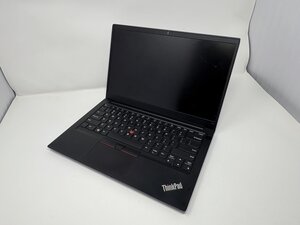
Se la tastiera del tuo Lenovo ThinkPad E14 Gen 2 non funziona come dovrebbe o presenta tasti non reattivi, segui questa pagina per conoscere le possibili soluzioni.
La tastiera ha danni o detriti
Per iniziare la riparazione, è importante controllare il dispositivo per vedere cosa potrebbe causare la mancata risposta della tastiera.
- Riavvia il dispositivo
- Controlla se ci sono danni fisici
- Pulisci la tastiera inclinando e scuotendo delicatamente il dispositivo per rimuovere i detriti.
Driver della tastiera obsoleti
Il driver include tutto il software necessario per far funzionare correttamente il ThinkPad E14 Gen 2. Se il dispositivo non è aggiornato, ciò potrebbe causare il mancato funzionamento della tastiera.
- Apri Gestione dispositivi premendo il tasto Windows e la x
- Espandi la sezione tastiere
- Fai clic con il tasto destro sul dispositivo tastiera
- Seleziona disinstalla dispositivo
- Riavvia il computer e Windows reinstallerà automaticamente il driver.
È necessario un hard reset
Un hard reset dovrebbe essere eseguito solo come ultima soluzione per riparare il tuo ThinkPad E14 Gen 2. Questo cancellerà tutti i dati, ma potrebbe risolvere il problema dei tasti non reattivi se causato da un errore software o di alimentazione.
Se il problema è iniziato di recente, usa Ripristino configurazione di sistema per riportare il sistema a uno stato precedente. Se questo non risolve il problema, esegui un hard reset.
- Spegni il dispositivo
- Scollega l'alimentatore
- Premi e tieni premuto il pulsante di accensione per circa 10-15 secondi per forzare lo spegnimento
- Premilo di nuovo per accendere il dispositivo

Team

Utah Tech University, Team 1-2, McMurrin Fall 2025 Membro di Utah Tech University, Team 1-2, McMurrin Fall 2025
UTAHTECH-MCMURRIN-F25S1G2
3 Membri
84 guide realizzate

0 Commenti