Wiki con Collaborazione Studenti
Un fantastico team di studenti del nostro programma educativo ha realizzato questo wiki.
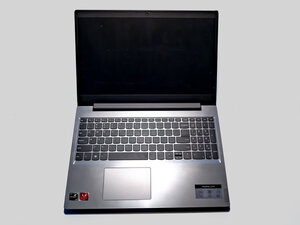
Se il dispositivo non risponde quando premi il pulsante di accensione del tuo portatile Lenovo IdeaPad L340-15API, consulta questa pagina di soluzione problemi per le possibili soluzioni.
Alimentatore malfunzionante
L'alimentatore del dispositivo potrebbe non fornire energia per diversi motivi:
- La presa a cui è collegato il dispositivo potrebbe non erogare abbastanza energia o non funzionarne affatto. Prova con una presa che sai essere funzionante.
- Assicurati che il caricabatterie sia privo di danni e segni di usura. Verifica che i cavi non siano strappati o sfilacciati, che i pin siano dritti e che i collegamenti metallici siano privi di ruggine o corrosione.
Cavo della batteria interna scollegato
Il portatile potrebbe non accendersi a causa di un cavo della batteria interna scollegato:
- Collega il cavo di ricarica al dispositivo. Se il dispositivo non inizia a caricarsi, controlla il lato del dispositivo dove si trova la porta di ricarica. Dovrebbe esserci una piccola spia LED che si accende quando il dispositivo è collegato.
- Se la spia non si accende quando colleghi il dispositivo, potresti avere un cavo scollegato. Se è questo il caso, passa alla sezione “Batteria scarica” qui sotto per le istruzioni.
Batteria scarica
Una batteria scarica significa che ha perso la capacità di mantenere la carica, il che implica che il portatile deve essere collegato all'alimentazione in ogni momento. Ciò è dovuto molto probabilmente al naturale processo di degrado.
- Per testare innanzitutto le condizioni della batteria, eseguire un rapporto sullo stato della batteria dovrebbe aiutare a farsi un'idea di cosa sta succedendo.
- Per determinare se il portatile ha una batteria scarica, caricalo per un paio d'ore e monitora il livello della batteria visualizzato sullo schermo.
- Se dopo il periodo di ricarica il cavo di alimentazione viene rimosso e il portatile si spegne immediatamente, la batteria è probabilmente difettosa e deve essere sostituita.
- Segui questa guida per le istruzioni su come sostituire la batteria.
Cavo dello schermo scollegato
Potrebbe sembrare che il portatile non si accenda, ma in realtà è lo schermo a non funzionare a causa di un cavo interno scollegato:
- Lo schermo del portatile potrebbe non accendersi a causa di un cavo video interno scollegato:
- Prova a controllare l'interno del monitor del portatile e/o la scheda madre per verificare il cavo video che dovrebbe collegare i due componenti affinché il display funzioni.
- Se c'è un collegamento allentato o rotto tra il monitor e la scheda madre tramite il cavo video, prova a ricollegarlo se non è rotto. Se è rotto, dovrai sostituire il cavo con uno nuovo.
Guasto alla scheda madre
Il portatile potrebbe non accendersi a causa di un problema alla scheda madre. Se la scheda madre si guasta, non sarà possibile accendere il dispositivo. Attualmente non è presente una guida alla sostituzione della scheda madre sul sito, ma puoi fare riferimento al manuale di manutenzione hardware per informazioni sulla sostituzione della scheda di sistema principale.

Team

UMass Dartmouth, Team 2-5, Bowman Fall 2025 Membro di UMass Dartmouth, Team 2-5, Bowman Fall 2025
UMASSD-BOWMAN-F25S2G5
4 Membri
48 guide realizzate

0 Commenti