Wiki con Collaborazione Studenti
Un fantastico team di studenti del nostro programma educativo ha realizzato questo wiki.
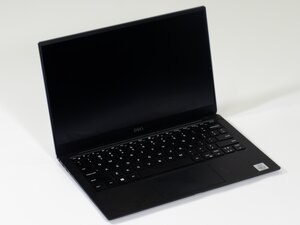
Se il microfono integrato del tuo Dell XPS 13 7390 non rileva l'input audio, potresti avere un problema software; prova i seguenti passaggi per risolvere il problema.
Microfono disattivato o non abilitato nelle impostazioni di Windows
- Assicurati che il microfono non sia disattivato e che sia abilitato nelle impostazioni di Windows e nelle autorizzazioni delle app.
- Seleziona il dispositivo audio corretto se non è quello attualmente selezionato.
- Verifica la privacy del microfono andando su Start > Impostazioni > Privacy e sicurezza > Microfono. Assicurati che "Consenti alle app di accedere al microfono" sia impostato su Attivato e abilita l'accesso per le singole app che desideri utilizzare.
- Assicurati che il microfono sia selezionato come dispositivo di registrazione.
- Assicurati che il microfono sia abilitato in Gestione dispositivi. Fai clic con il tasto destro sul pulsante Start, seleziona Gestione dispositivi, espandi Input e output audio, fai clic con il tasto destro sul microfono e seleziona Abilita dispositivo se risulta disabilitato.
Conflitto software o errore di riconoscimento del sistema
- Vai su Impostazioni > Sistema > Audio. Fai clic su “Soluzione problemi” sotto “Input” per rilevare e risolvere i problemi comuni del microfono. Potrebbe essere necessario riavviare il computer dopo questo passaggio.
Driver audio obsoleto o danneggiato
- Installa “Dell Command Update” per installare automaticamente i driver consigliati.
Se non funziona, puoi installare manualmente il ++driver audio Realtek++ dal sito di supporto Dell. Potrebbe essere necessario riavviare il computer dopo questo passaggio.
Risorse

Team

Linn Benton Community College, Team 1-1, Karnes Fall 2025 Membro di Linn Benton Community College, Team 1-1, Karnes Fall 2025
LBCC-KARNES-F25S1G1
3 Membri
72 guide realizzate

0 Commenti