Introduzione
==ATTENZIONE: Questa guida manca di molti passaggi.==
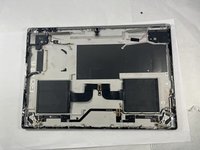
Questa guida spiega come sostituire la batteria nel Microsoft Surface Book 2 15". L'operazione richiede la rimozione della scheda madre, che è molto difficile da eseguire senza rischiare di danneggiare il laptop.
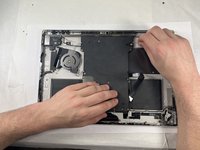
La batteria può essere anche molto difficile da rimuovere. È fissata al laptop con un adesivo molto resistente. Si consiglia di utilizzare alcol isopropilico per ammorbidire la colla e facilitare la rimozione della batteria
La maggior parte dei problemi riscontrati su questo dispositivo può essere risolta tramite soluzioni software. Assicurati di consultare la pagina di risoluzione dei problemi e di provare le soluzioni elencate prima di effettuare qualsiasi riparazione sul dispositivo.
Cosa ti serve
-
-
Apri il laptop e orientalo in modo che il touchpad sia alla tua sinistra
-
Partendo dalla cerniera, conta sei fori verso l'alto sulla parte tablet del laptop
-
-
-
-
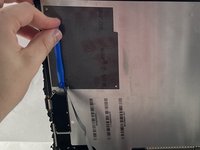
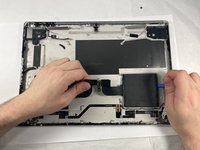
Usa un iOpener o una pistola termica (a bassa temperatura) per scaldare con cautela il retro del tablet per aiutare ad ammorbidire l'adesivo della batteria.
-
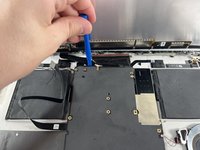
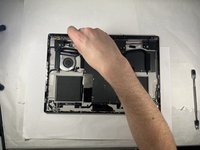
Usa degli strumenti per far leva come un plettro, una scheda di plastica o uno spudger di nylon per aiutarti a tagliare l'adesivo e sollevare la batteria.
-






Per rimontare il dispositivo, segui queste istruzioni in ordine inverso.
Annulla: non ho completato questa guida.
Altre 5 persone hanno completato questa guida.
Un ringraziamento speciale a questi traduttori:
100%


Questi traduttori ci stanno aiutando ad aggiustare il mondo! Vuoi partecipare?
Inizia a tradurre ›


Team

UMass Dartmouth, Team 3-3, Petersen Spring 2023 Membro di UMass Dartmouth, Team 3-3, Petersen Spring 2023
UMASSD-PETERSEN-S23S3G3
4 Membri
23 Guide realizzate
5Commenti sulla guida
The first paragraph of this Surface Book 2 battery replacement guide is:
"This guide explains how to replace the battery in the Microsoft Surface Book 2 15". It requires the motherboard replacement guide as a prerequisite guide, which is a very difficult guide to follow without breaking the laptop."
The first paragraph of the motherboard replacement guide is:
This guide is used to explain how to open up the tablet portion of the Microsoft Surface Book 2 15 and gain access to the motherboard. The motherboard of the Microsoft Surface Book 2 15 has a majority of the cables for parts that can be replaced on it.
Does this mean that I have to go through all the replacement motherboard steps and replace the motherboard before replacing the battery?
You won't need to replace the mobo, but yes, it looks like you'll have to remove it. This guide is pretty confusing right now IMO
I also find it rather confusing.
Thanks darth mango.
Is it true that the battery in the Surface Book 2 has frequently failed completely?
No charging possible, always 0%.
When a battery ages, you can still charge it to 100%.
Very fast (bad), but “full”.
A total failure would rather be the battery management system.
I wonder if there were also failures of the charging current to the battery, i.e. a defect on the circuit board of the tablet screen.
That would be annoying, of course, because you can't just fix the fault by replacing the battery.
But replacing the entire battery would also be annoying if only the BMS is defective.
All you need is a replacement with comparable values and size, which you solder into the center of the battery.
And what about the assembly?
Are there adhesive strips in this form?
Or should you just use BT-7000 liquid glue?
I bought this for a Samsung Galaxy Note-9 to seal it watertight again after replacing the USB port.
Meine Akkus sind plötzlich auf 0% hängen geblieben. Aufladen nicht mehr möglich. Nur noch Netzbetrieb meines Surface 2. Schade. Akkutausch zu teuer.
