Salta al contenuto principale
Unisciti alla Community delle riparazioni - Crea un account

Asus ROG Ally Right Fan Replacement

Cosa ti serve

  1. Asus ROG Ally Right Fan Replacement, Prepare your device for disassembly: passo 1, immagine 1 di 3 Asus ROG Ally Right Fan Replacement, Prepare your device for disassembly: passo 1, immagine 2 di 3 Asus ROG Ally Right Fan Replacement, Prepare your device for disassembly: passo 1, immagine 3 di 3
    • Let your device's battery drain below 25% before starting this repair—a charged lithium‑ion battery may catch fire if damaged.

    • Completely power off your device and unplug all cables.

    • Consider laying your device on a soft cloth to prevent scratching or damaging the screen during your repair.

    Chiedi a FixBot

    Aggiungi Commento

  2. Asus ROG Ally Right Fan Replacement, Unfasten the back cover: passo 2, immagine 1 di 2 Asus ROG Ally Right Fan Replacement, Unfasten the back cover: passo 2, immagine 2 di 2
    Strumento utilizzato in questo passaggio:
    FixMat
    $31.41
    • Throughout this repair, keep track of each screw and make sure it goes back exactly where it came from.

    • Use a Phillips #0 screwdriver to remove the five 17.2 mm‑long screws securing the top edge and bottom corners of the back cover.

    • Use a Phillips #0 screwdriver to fully loosen the remaining captive screw at the center of the bottom edge. This should create a small gap between the back cover and chassis.

    • Don't try to remove this screw.

    Chiedi a FixBot

    Aggiungi Commento

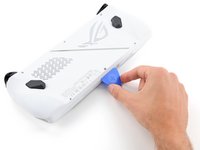
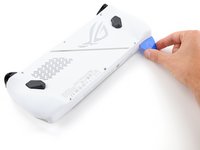
  3. Asus ROG Ally Right Fan Replacement, Insert an opening pick: passo 3, immagine 1 di 3 Asus ROG Ally Right Fan Replacement, Insert an opening pick: passo 3, immagine 2 di 3 Asus ROG Ally Right Fan Replacement, Insert an opening pick: passo 3, immagine 3 di 3
    • Insert the flat edge of an opening pick between the bottom edge of the back cover and chassis, near the captive screw.

    • Angle the pick upward and push it under the back cover.

    Chiedi a FixBot

    Aggiungi Commento

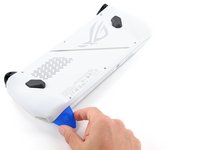
  4. Asus ROG Ally Right Fan Replacement, Release the back cover's clips: passo 4, immagine 1 di 3 Asus ROG Ally Right Fan Replacement, Release the back cover's clips: passo 4, immagine 2 di 3 Asus ROG Ally Right Fan Replacement, Release the back cover's clips: passo 4, immagine 3 di 3
    • Plastic clips secure the perimeter of the back cover. You should feel and hear them release during this step.

    • Slide the opening pick along the bottom edge and around the corners of the back cover to release the clips securing it.

    • Keep the pick at an upward angle under the back cover to help release the clips.

    Chiedi a FixBot

    Aggiungi Commento

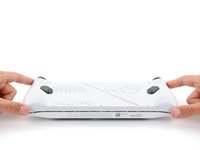
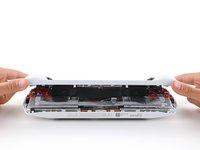
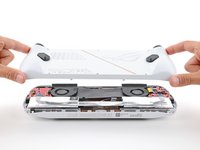
  5. Asus ROG Ally Right Fan Replacement, Remove the back cover: passo 5, immagine 1 di 3 Asus ROG Ally Right Fan Replacement, Remove the back cover: passo 5, immagine 2 di 3 Asus ROG Ally Right Fan Replacement, Remove the back cover: passo 5, immagine 3 di 3
    • Lift the bottom edge of the back cover off the chassis to release the remaining clips.

    • Remove the back cover.

    • During reassembly, lay the back cover onto your device and firmly push down around the perimeter to engage the clips.

    Chiedi a FixBot

    Aggiungi Commento

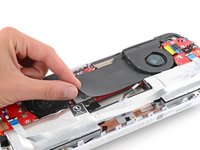
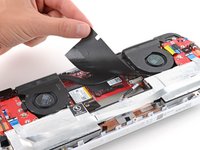
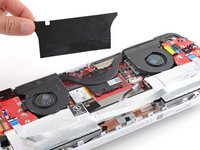
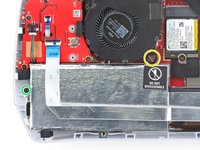
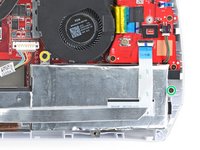
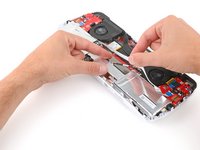
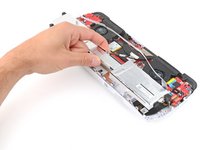
  6. Asus ROG Ally Right Fan Replacement, Remove the plastic cover: passo 6, immagine 1 di 3 Asus ROG Ally Right Fan Replacement, Remove the plastic cover: passo 6, immagine 2 di 3 Asus ROG Ally Right Fan Replacement, Remove the plastic cover: passo 6, immagine 3 di 3
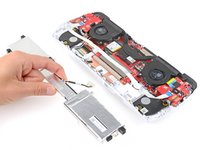
    • Use your fingers to peel up and remove the black plastic cover between the fans.

    • Put the cover aside—you'll use it during reassembly.

    Chiedi a FixBot

    Aggiungi Commento

  7. Asus ROG Ally Right Fan Replacement, Unlatch the locking bar: passo 7, immagine 1 di 3 Asus ROG Ally Right Fan Replacement, Unlatch the locking bar: passo 7, immagine 2 di 3 Asus ROG Ally Right Fan Replacement, Unlatch the locking bar: passo 7, immagine 3 di 3
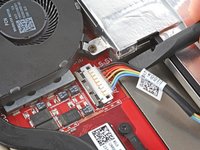
    • A metal locking bar secures the top edge of the battery connector

    • Use the flat end of a spudger to gently push the locking bar away from the connector to unlatch it.

    Chiedi a FixBot

    Aggiungi Commento

  8. Asus ROG Ally Right Fan Replacement, Disconnect the battery: passo 8, immagine 1 di 3 Asus ROG Ally Right Fan Replacement, Disconnect the battery: passo 8, immagine 2 di 3 Asus ROG Ally Right Fan Replacement, Disconnect the battery: passo 8, immagine 3 di 3
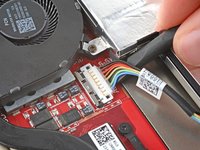
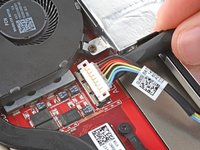
    • Make sure the locking bar is not covering the battery connector at all, or you may damage the socket and the locking bar.

    • Insert the flat end of a spudger under the center of the battery connector.

    • Lift the connector straight up and out of its socket to disconnect the battery.

    • During reassembly, use your fingers or the flat end of a spudger to firmly push the connector onto its socket until it clicks into place.

    Chiedi a FixBot

    Aggiungi Commento

  9. Asus ROG Ally Right Fan Replacement, Unfasten the battery: passo 9, immagine 1 di 3 Asus ROG Ally Right Fan Replacement, Unfasten the battery: passo 9, immagine 2 di 3 Asus ROG Ally Right Fan Replacement, Unfasten the battery: passo 9, immagine 3 di 3
    Strumento utilizzato in questo passaggio:
    Tweezers
    $4.99
    • Use a Phillips #00 screwdriver to remove the four screws securing the battery:

    • Two 9.6 mm‑long screws near the center of the top edge

    • The screw near the left speaker has a warning sticker on it. Pierce through it with your screwdriver or use tweezers to remove it.

    • Two 3.4 mm‑long screws at the left and right edges

    Chiedi a FixBot

    Aggiungi Commento

  10. Asus ROG Ally Right Fan Replacement, Remove the battery: passo 10, immagine 1 di 3 Asus ROG Ally Right Fan Replacement, Remove the battery: passo 10, immagine 2 di 3 Asus ROG Ally Right Fan Replacement, Remove the battery: passo 10, immagine 3 di 3
    • With one hand, hold the ribbon cable that runs along the top of the battery out of the way.

    • With your free hand, lift the battery straight up and remove it.

    Chiedi a FixBot

    Aggiungi Commento

  11. Asus ROG Ally Right Fan Replacement, Separate the fan tape: passo 11, immagine 1 di 3 Asus ROG Ally Right Fan Replacement, Separate the fan tape: passo 11, immagine 2 di 3 Asus ROG Ally Right Fan Replacement, Separate the fan tape: passo 11, immagine 3 di 3
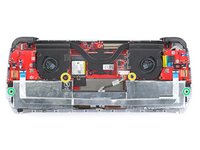
    • The right fan will be on your left-hand side since your device is laying upside down.

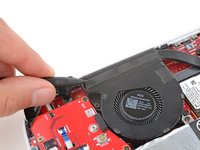
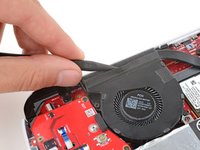
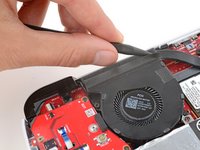
    • Insert the point of a spudger between the tape on the upper edge of the fan and the heatsink foam.

    • Slide the spudger under the length of the tape to separate it from the foam.

    • During reassembly, press the tape back into place to secure it to the heatsink foam.

    Chiedi a FixBot

    Aggiungi Commento

  12. Asus ROG Ally Right Fan Replacement, Unfasten the right fan: passo 12, immagine 1 di 2 Asus ROG Ally Right Fan Replacement, Unfasten the right fan: passo 12, immagine 2 di 2
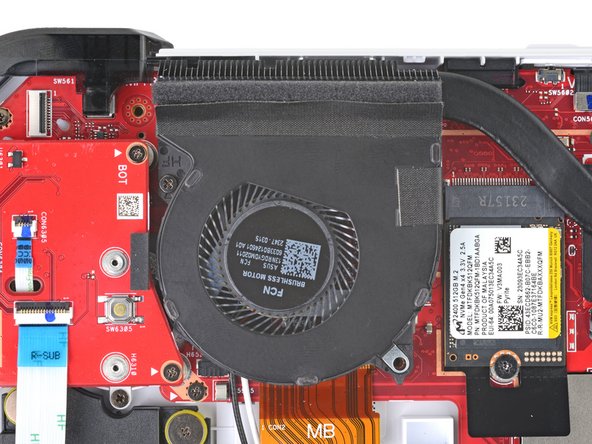
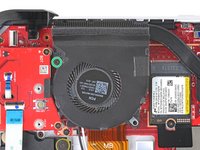
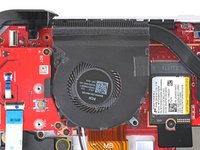
    • Use a Phillips #00 screwdriver to remove the 9.6 mm‑long screw securing the right fan.

    Chiedi a FixBot

    Aggiungi Commento

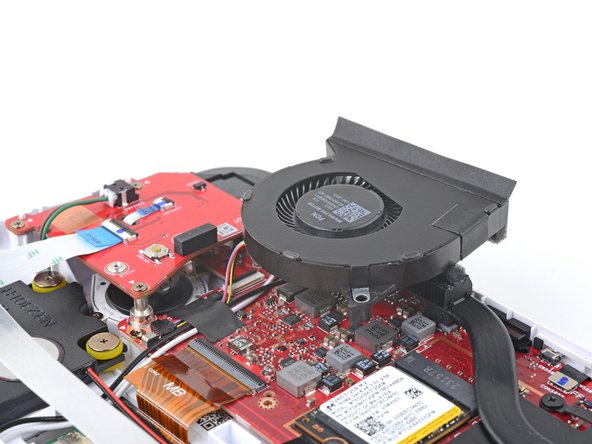
  13. Asus ROG Ally Right Fan Replacement, Reposition the right fan: passo 13, immagine 1 di 3 Asus ROG Ally Right Fan Replacement, Reposition the right fan: passo 13, immagine 2 di 3 Asus ROG Ally Right Fan Replacement, Reposition the right fan: passo 13, immagine 3 di 3
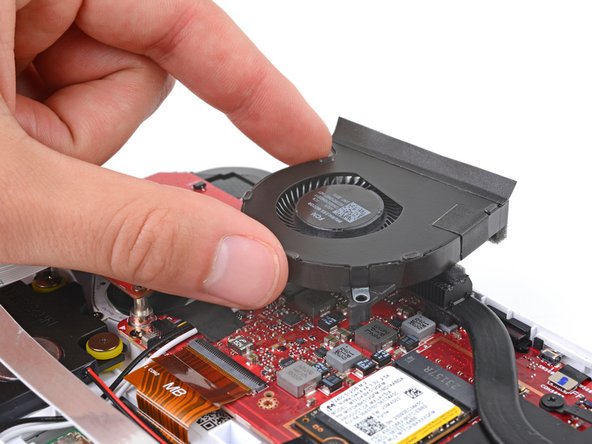
    • Gently lift the fan and set it on top of the heatsink foam so you can access the fan cables.

    • Be very careful not to strain the cables, as they can easily be damaged.

    Chiedi a FixBot

    Aggiungi Commento

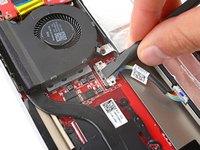
  14. Asus ROG Ally Right Fan Replacement, Remove the fan cable tape: passo 14, immagine 1 di 3 Asus ROG Ally Right Fan Replacement, Remove the fan cable tape: passo 14, immagine 2 di 3 Asus ROG Ally Right Fan Replacement, Remove the fan cable tape: passo 14, immagine 3 di 3
    Strumento utilizzato in questo passaggio:
    Tweezers
    $4.99
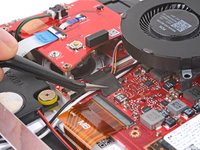
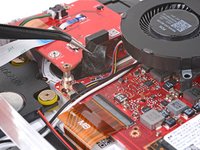
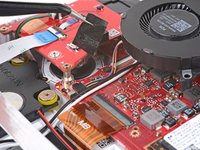
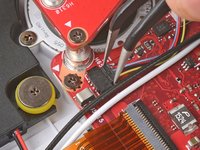
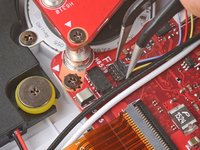
    • Be very careful not to scrape off or damage any of the components on the motherboard during the next two steps.

    • Use tweezers to peel up and remove the piece of tape securing the fan cables to the motherboard.

    • Put the tape aside. You'll use it during reassembly.

    Chiedi a FixBot

    Aggiungi Commento

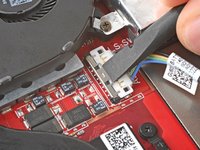
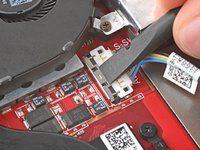
  15. Asus ROG Ally Right Fan Replacement, Disconnect the right fan: passo 15, immagine 1 di 2 Asus ROG Ally Right Fan Replacement, Disconnect the right fan: passo 15, immagine 2 di 2
    • Use angled tweezers to pull the fan cable connector straight out of its socket.

    • If you're having trouble, gently rock the connector side-to-side to help loosen it.

    Chiedi a FixBot

    Aggiungi Commento

  16. Asus ROG Ally Right Fan Replacement, Remove the right fan: passo 16, immagine 1 di 1
    • Remove the right fan.

    • If your replacement fan doesn't come with tape installed, transfer it from the old fan.

    Chiedi a FixBot

    Aggiungi Commento

Conclusione

To reassemble your device, follow these instructions in reverse order.

Take your e-waste to an R2 or e-Stewards certified recycler.

Repair didn’t go as planned? Try some basic troubleshooting, or ask our Answers community for help.

Annulla: non ho completato questa guida.

Un'altra persona ha completato questa guida.

Spencer Day

Membro da: 09/14/22

191.342 Reputazione

1.204 guide realizzate

Team

iFixit Membro di iFixit

Staff

122 Membri

25.947 guide realizzate

0Commenti sulla guida

Aggiungi Commento

Visualizza statistiche:

Ultime 24 ore: 4

Ultimi 7 giorni: 35

Ultimi 30 giorni: 168

Tutti i Tempi: 3,951