Salta al contenuto principale
Unisciti alla Community delle riparazioni - Crea un account

ASUS GL752VW-DH74 Battery Replacement

Cosa ti serve

  1. ASUS GL752VW-DH74 Battery Replacement, Optical Drive: passo 1, immagine 1 di 1
    • Begin by putting the needle into the hole in the disk tray.

    Chiedi a FixBot

    Aggiungi Commento

  2. ASUS GL752VW-DH74 Battery Replacement: passo 2, immagine 1 di 1
    • Use the spudger to help ease out the disk drive.

    Chiedi a FixBot

    Aggiungi Commento

  3. ASUS GL752VW-DH74 Battery Replacement: passo 3, immagine 1 di 1
    • Pull out disk tray entirely.

    Chiedi a FixBot

    Aggiungi Commento

  4. ASUS GL752VW-DH74 Battery Replacement, Battery: passo 4, immagine 1 di 2 ASUS GL752VW-DH74 Battery Replacement, Battery: passo 4, immagine 2 di 2
    • Remove the 3 small screws located underneath the disk drive.

    Chiedi a FixBot

    Aggiungi Commento

  5. ASUS GL752VW-DH74 Battery Replacement: passo 5, immagine 1 di 2 ASUS GL752VW-DH74 Battery Replacement: passo 5, immagine 2 di 2
    • Unscrew the nine remaining 8 mm Phillips-head screws on the back of the device.

    Chiedi a FixBot

    Aggiungi Commento

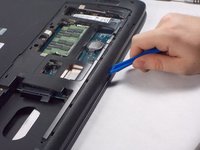
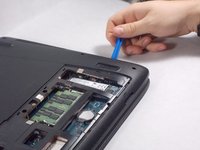
  6. ASUS GL752VW-DH74 Battery Replacement: passo 6, immagine 1 di 2 ASUS GL752VW-DH74 Battery Replacement: passo 6, immagine 2 di 2
    • Use the opening tool to pry the back of the laptop case from the top

    Chiedi a FixBot

    Aggiungi Commento

  7. ASUS GL752VW-DH74 Battery Replacement: passo 7, immagine 1 di 1
    • Disconnect the 3 cables connecting the motherboard to the keyboard.

    Chiedi a FixBot

    Aggiungi Commento

  8. ASUS GL752VW-DH74 Battery Replacement: passo 8, immagine 1 di 1
    • Unscrew the two 8mm screws attached to the battery

    Chiedi a FixBot

    Aggiungi Commento

  9. ASUS GL752VW-DH74 Battery Replacement: passo 9, immagine 1 di 1
    • Disconnect the bundled cable connector and remove the battery.

    Chiedi a FixBot

    Aggiungi Commento

Conclusione

To reassemble your device, follow these instructions in reverse order.

Annulla: non ho completato questa guida.

Altre 22 persone hanno completato questa guida.

5Commenti sulla guida

Step3 Remove Screw next to the serial label in order to remove the disk tray.

Step 5 Hard Drive screws case screws have to also be removed in addition to the screw below the internal clock battery

Great Guide Thank you !!! - Battery Model for GL 752VW-dh51 A41N1501

KN-IL - Rispondi Condividi

Despite the few missing “unscrew” steps, it REALLY helped me. It took quite a bit longer than 20 min as I did not want to wreck something, but overall I could not have changed my battery without this guide. THANK YOU!

Vio Belc - Rispondi Condividi

Thank you for your help, I now know how to change the battery, I tried disconnecting and reconnecting it see if I would get any power at all but zip, I will look on Ebay to try and buy a battery for it but I hope it’s that as it was working fine then said battery had no charge when I always made sure it never ran out so not sure what the problem was, at first I thought it was the chord but wasn’t that as I changed it.

angel - Rispondi Condividi

I have added comments to steps 5, 6, and 7. The biggest piece of advice is just to make sure you have all 20 screws removed before trying to remove the keyboard (the guide does NOT mention all 20 of these screws). This might be more than necessary but I felt safer removing them than risking snapping one of the plastic clips that holds the keyboard in place.

snamjoshi - Rispondi Condividi

Dont forget to put the three screws back in the frame prior to putting the optical drive back in and dont forget to put the battery screws back in, other than that a great guide.

Iain Halliwell - Rispondi Condividi

Aggiungi Commento

Visualizza statistiche:

Ultime 24 ore: 7

Ultimi 7 giorni: 23

Ultimi 30 giorni: 84

Tutti i Tempi: 31,325