Salta al contenuto principale
Unisciti alla Community delle riparazioni - Crea un account

iPhone 16 Taptic Engine Removal

Solo Prerequisita
Questa è una guida che contiene solo i prerequisiti! Questa guida fa parte di un'altra procedura e non è destinata ad essere utilizzata da sola.

Cosa ti serve

  1. iPhone 16 Taptic Engine Removal, Before you begin: passo 1, immagine 1 di 2 iPhone 16 Taptic Engine Removal, Before you begin: passo 1, immagine 2 di 2
    • Allow your phone's battery to drain below 25%, as a charged lithium-ion battery is a potential safety hazard.

    • Unplug any cables from your phone.

    • Hold the power and either volume buttons and slide to power off your phone.

  2. iPhone 16 Taptic Engine Removal, Tape over any cracks: passo 2, immagine 1 di 2 iPhone 16 Taptic Engine Removal, Tape over any cracks: passo 2, immagine 2 di 2
    • If your screen or back glass is badly cracked, lay overlapping strips of packing tape over the glass to protect yourself and make disassembly easier.

    • Make sure there's a smooth area near the bottom edge that's big enough for a suction cup to stick to.

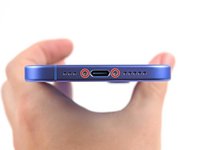
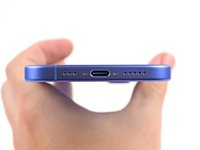
  3. iPhone 16 Taptic Engine Removal, Remove the pentalobe screws: passo 3, immagine 1 di 2 iPhone 16 Taptic Engine Removal, Remove the pentalobe screws: passo 3, immagine 2 di 2
    • Use a P2 pentalobe driver to remove the two 7.7 mm-long screws on either side of the charging port.

  4. iPhone 16 Taptic Engine Removal, Mark your opening picks: passo 4, immagine 1 di 3 iPhone 16 Taptic Engine Removal, Mark your opening picks: passo 4, immagine 2 di 3 iPhone 16 Taptic Engine Removal, Mark your opening picks: passo 4, immagine 3 di 3
    • If inserted too far, an opening pick can damage your device. Follow this step to mark your pick and prevent damage.

    • Measure 3 mm from the tip and mark the opening pick with a permanent marker.

    • You can also mark the other corners of the pick with different measurements.

    • Alternatively, tape a coin to a pick 3 mm from the tip.

    • Apple sells an Adhesive Cutter tool for cutting the display adhesive safely in their Self Repair Store.

  5. iPhone 16 Taptic Engine Removal, Heat the bottom edge: passo 5, immagine 1 di 1
    Attrezzo utilizzato in questo passaggio:
    iOpener
    $14.99
    • Use a hair dryer or heat gun to heat the bottom edge of the back glass until it's hot to the touch.

    • You can also use an iOpener to heat the back glass. Follow these instructions to heat and apply the iOpener properly.

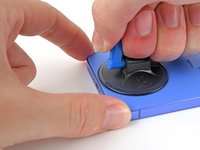
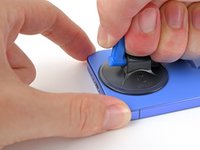
  6. iPhone 16 Taptic Engine Removal, Insert an opening pick: passo 6, immagine 1 di 3 iPhone 16 Taptic Engine Removal, Insert an opening pick: passo 6, immagine 2 di 3 iPhone 16 Taptic Engine Removal, Insert an opening pick: passo 6, immagine 3 di 3
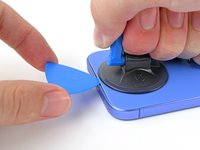
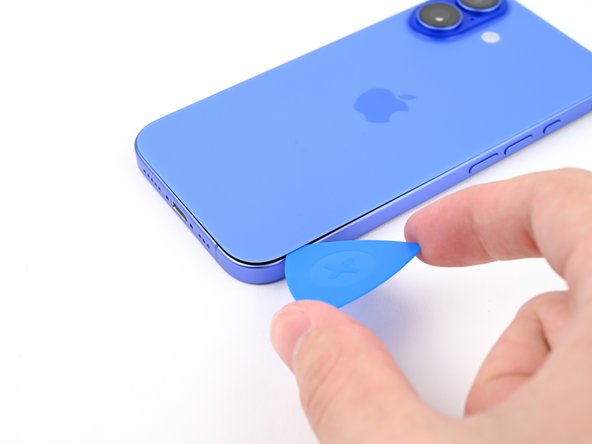
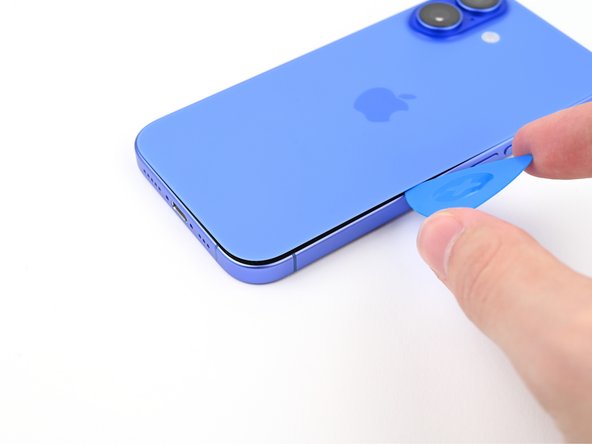
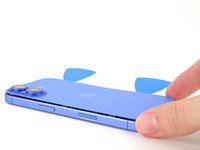
    • Apply a suction handle to the bottom edge of the back glass.

    • While supporting the frame with one hand, pull up on the handle with a strong, steady force to create a gap between the back glass and the frame.

    • Insert the tip of an opening pick into the gap.

  7. iPhone 16 Taptic Engine Removal, Back glass information: passo 7, immagine 1 di 1
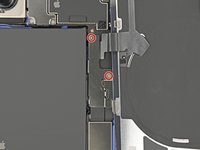
    • As you slice the adhesive securing the back glass in the following steps, don't insert your pick deeper than 3 mm to avoid damaging the following areas:

    • A delicate cable connecting the back glass to the phone, right next to the volume down button. Don't insert your pick here to avoid slicing the cable.

    • Multiple spring contacts around the perimeter of the phone.

  8. iPhone 16 Taptic Engine Removal, Heat the right edge: passo 8, immagine 1 di 1
    • Use a hair dryer or heat gun to heat the right edge of the back glass until it's hot to the touch.

  9. iPhone 16 Taptic Engine Removal, Separate the bottom right adhesive: passo 9, immagine 1 di 3 iPhone 16 Taptic Engine Removal, Separate the bottom right adhesive: passo 9, immagine 2 di 3 iPhone 16 Taptic Engine Removal, Separate the bottom right adhesive: passo 9, immagine 3 di 3
    • Don't insert your pick deeper than 3 mm to avoid damaging the spring contacts.

    • Slide your pick around the bottom right corner and to the volume down button to separate the adhesive and release the metal clip.

    • Don't slide past the volume buttons to avoid damaging the wireless charging cable.

    • You'll hear and feel the metal clip release as you pass it.

    • Leave this pick inserted to prevent the adhesive from resealing.

  10. iPhone 16 Taptic Engine Removal, Heat the left edge: passo 10, immagine 1 di 1
    • Use a hair dryer or heat gun to heat the left edge of the back glass until it's hot to the touch.

  11. iPhone 16 Taptic Engine Removal, Separate the left adhesive: passo 11, immagine 1 di 3 iPhone 16 Taptic Engine Removal, Separate the left adhesive: passo 11, immagine 2 di 3 iPhone 16 Taptic Engine Removal, Separate the left adhesive: passo 11, immagine 3 di 3
    • Don't insert your pick deeper than 3 mm to avoid damaging the spring contacts.

    • Insert a second opening pick at the bottom edge.

    • Slide the second pick around the bottom left corner and along the left edge of the screen to separate the adhesive and release the metal clips.

    • You'll hear and feel the metal clips release as you pass them.

    • Leave this pick inserted at the top left corner to prevent the adhesive from resealing.

  12. iPhone 16 Taptic Engine Removal, Heat the top edge: passo 12, immagine 1 di 1
    • Use a hair dryer or heat gun to heat the top edge of the back glass until it's hot to the touch.

  13. iPhone 16 Taptic Engine Removal, Separate the top right adhesive: passo 13, immagine 1 di 3 iPhone 16 Taptic Engine Removal, Separate the top right adhesive: passo 13, immagine 2 di 3 iPhone 16 Taptic Engine Removal, Separate the top right adhesive: passo 13, immagine 3 di 3
    • Don't insert your pick deeper than 3 mm to avoid damaging the spring contacts.

    • Slide your second opening pick around the top left corner and along the top edge to separate the adhesive and release the metal clips.

    • You'll hear and feel the metal clips release as you pass them.

    • Continue sliding your pick around the top right corner until you reach the Action button.

    • Leave this pick inserted to prevent the adhesive from resealing.

  14. iPhone 16 Taptic Engine Removal, Reposition the back glass: passo 14, immagine 1 di 3 iPhone 16 Taptic Engine Removal, Reposition the back glass: passo 14, immagine 2 di 3 iPhone 16 Taptic Engine Removal, Reposition the back glass: passo 14, immagine 3 di 3
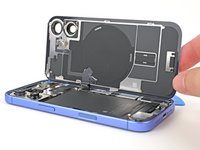
    • At this point, the back glass should be free from the frame. If the back glass feels stuck, go back around the perimeter with your pick to check for missed sections of adhesive or stuck clips.

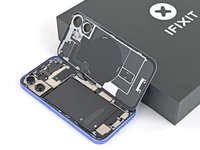
    • Swing open the back glass to the right of the phone to separate the remaining adhesive.

    • Support the back glass with a clean, sturdy object.

    • Remove the opening picks before continuing.

  15. iPhone 16 Taptic Engine Removal, Remove the middle connector cover screws: passo 15, immagine 1 di 2 iPhone 16 Taptic Engine Removal, Remove the middle connector cover screws: passo 15, immagine 2 di 2
    • Use a tri-point Y000 driver to remove the two 1 mm‑long screws securing the middle connector cover.

  16. iPhone 16 Taptic Engine Removal, Remove the middle connector cover: passo 16, immagine 1 di 3 iPhone 16 Taptic Engine Removal, Remove the middle connector cover: passo 16, immagine 2 di 3 iPhone 16 Taptic Engine Removal, Remove the middle connector cover: passo 16, immagine 3 di 3
    • Insert the point of a spudger in either cutout on the middle connector cover.

    • Slide the cover towards the left edge of the phone and release its hook from its slot on the logic board.

    • Remove the cover.

  17. iPhone 16 Taptic Engine Removal, Disconnect the battery: passo 17, immagine 1 di 2 iPhone 16 Taptic Engine Removal, Disconnect the battery: passo 17, immagine 2 di 2
    • Use the point of a spudger to pry up and disconnect the battery press connector.

  18. iPhone 16 Taptic Engine Removal, Disconnect the wireless charging coil: passo 18, immagine 1 di 2 iPhone 16 Taptic Engine Removal, Disconnect the wireless charging coil: passo 18, immagine 2 di 2
    • Use the point of a spudger to pry up and disconnect the wireless charging coil press connector.

  19. iPhone 16 Taptic Engine Removal, Remove the back glass: passo 19, immagine 1 di 1
    • Lift the back glass off the frame and remove it.

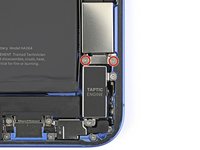
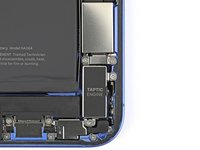
  20. iPhone 16 Taptic Engine Removal, Remove the Taptic Engine bracket screws: passo 20, immagine 1 di 2 iPhone 16 Taptic Engine Removal, Remove the Taptic Engine bracket screws: passo 20, immagine 2 di 2
    • Use a Phillips screwdriver to remove the two 1.8 mm‑long screws securing the Taptic Engine bracket.

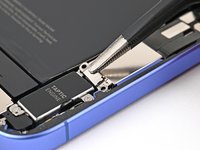
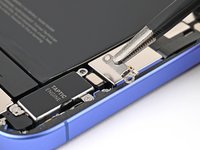
  21. iPhone 16 Taptic Engine Removal, Remove the bracket: passo 21, immagine 1 di 2 iPhone 16 Taptic Engine Removal, Remove the bracket: passo 21, immagine 2 di 2
    • Use tweezers, or your fingers, to remove the Taptic Engine bracket.

  22. iPhone 16 Taptic Engine Removal, Disconnect the Taptic Engine: passo 22, immagine 1 di 2 iPhone 16 Taptic Engine Removal, Disconnect the Taptic Engine: passo 22, immagine 2 di 2
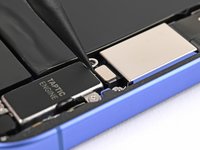
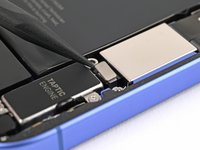
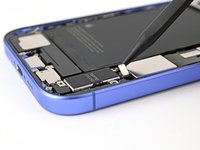
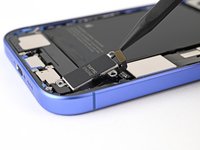
    • Use the point of a spudger to pry up and disconnect the Taptic Engine press connector.

  23. iPhone 16 Taptic Engine Removal, Remove the Taptic Engine screws: passo 23, immagine 1 di 2 iPhone 16 Taptic Engine Removal, Remove the Taptic Engine screws: passo 23, immagine 2 di 2
    • Use a Phillips screwdriver to remove the two screws securing the Taptic Engine:

    • One 2.2 mm‑long screw

    • One 1.7 mm‑long screw

  24. iPhone 16 Taptic Engine Removal, Remove the Taptic Engine: passo 24, immagine 1 di 3 iPhone 16 Taptic Engine Removal, Remove the Taptic Engine: passo 24, immagine 2 di 3 iPhone 16 Taptic Engine Removal, Remove the Taptic Engine: passo 24, immagine 3 di 3
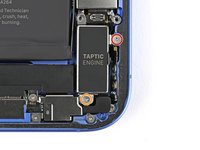
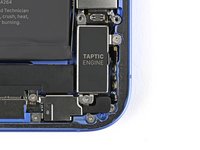
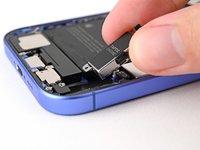
    • Use the point of a spudger to lift the Taptic Engine out of the frame.

    • Remove the Taptic Engine.

Linea Traguardo

Alex Diaz-Kokaisl

Membro da: 01/16/22

225.999 Reputazione

1.106 Guide realizzate

Team

iFixit Membro di iFixit

Staff

124 Membri

24.221 Guide realizzate

0Commenti sulla guida

Aggiungi Commento

Visualizza Statistiche:

Ultime 24 Ore: 0

Ultimi 7 Giorni: 3

Ultimi 30 Giorni: 5

Tutti i Tempi: 193