Questa traduzione è stata generata automaticamente e non è stata ancora revisionata da una persona. Parli questa lingua? Dai un’occhiata.
Introduzione
Il luminoso pulsante Xbox verde ha smesso di illuminarsi? Ha perso sensibilità nel tempo? Questa guida ti mostrerà come aprire il controller, rimuovere il circuito stampato principale e sostituire il pulsante Xbox.
Cosa ti serve
-
-
-
Gira il controller sul retro e premi il pulsante "eject" per sganciare lo sportello del vano batteria situato sul fondo del controller.
-
Estrai le due batterie AA.
 Chiedi a FixBot
-
-
-
-
Strumento utilizzato in questo passaggio:Tweezers$4.99
-
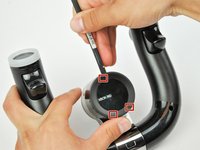
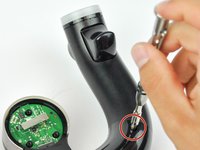
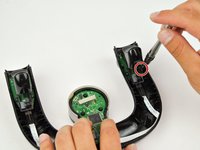
Rimuovi l'adesivo olografico Microsoft con le pinzette di precisione per scoprire una piccola vite.
-
Usa un cacciavite Torx T6 per rimuovere la vite da 1,5 mm.
-
-
-
Inserisci uno spudger e fai leva in questi tre punti per staccare la copertura centrale.
-
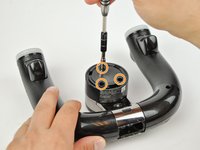
Togli la copertura centrale per rivelare tre viti.
-
Usa un cacciavite Torx T8 per rimuovere le tre viti da 2,3 mm.
-
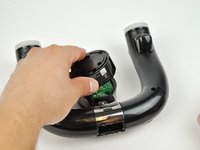
Rimuovi la copertura.
-
-
-
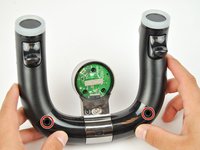
Rimuovi le due viti da 90 mm con un cacciavite Torx T8.
-
Solleva il pezzo centrale argentato per rimuoverlo.
-
-
-
Usa uno spudger per rimuovere il rebbi d'argento.
-
Con lo spudger, pinza la molla metallica e tira lentamente verso l'alto per rimuoverla.
-
Usa lo spudger per rimuovere il pulsante di espulsione.
-
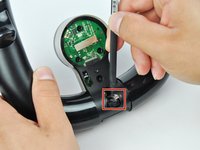
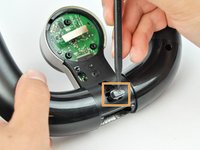
Rimuovi la vite che fissa il pulsante di espulsione con un cacciavite Torx T8.
-
-
-
-
Tira le due metà verso l'esterno dalla parte inferiore per sganciare i due fermi che tengono uniti il pannello anteriore e quello posteriore.
-
Inizia da un lato del controller (sinistro o destro).
-
Fai scorrere lo spudger verso l'estremità delle impugnature e fai leva per separare le due metà. Ripeti l'operazione sul lato opposto.
-
Tira il pannello anteriore e quello posteriore per separarli ed esporre l'interno del controller.
-
-
-
-
Strumento utilizzato in questo passaggio:Tweezers$4.99
-
Solleva il vano batteria dal controller e appoggialo all'esterno del controller.
-
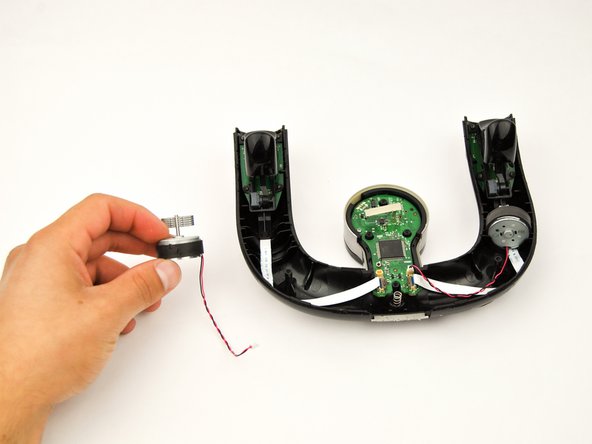
Usa le pinzette di precisione per estrarre il cavo rosso e nero collegato alla spina bianca sul lato inferiore del circuito stampato.
-
-
-
-
Strumento utilizzato in questo passaggio:Tweezers$4.99
-
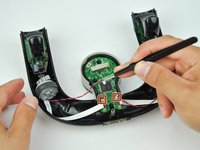
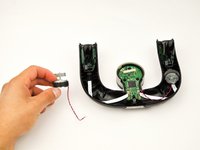
Usa le pinzette di precisione per rimuovere i cavi rosso e nero collegati al circuito stampato.
-
-
-
-
-
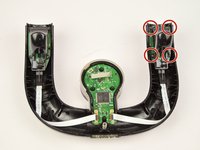
Usa un cacciavite Torx T6 per rimuovere le quattro viti da 2,3 mm.
-
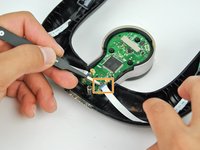
Solleva la linguetta di blocco nera sul connettore ZIF per rilasciare il cavo a nastro.
-
-
-
Solleva il grilletto per rimuoverlo dal controller.
-
Ripeti per l'altro grilletto.
-
-
-
-
-
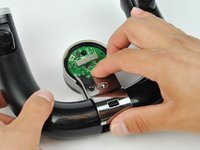
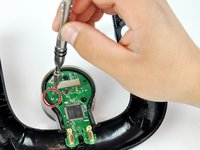
Usa un cacciavite Torx T6 per rimuovere la vite da 2,3 mm.
-
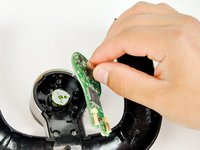
Solleva e rimuovi con attenzione il circuito stampato
-
-
-
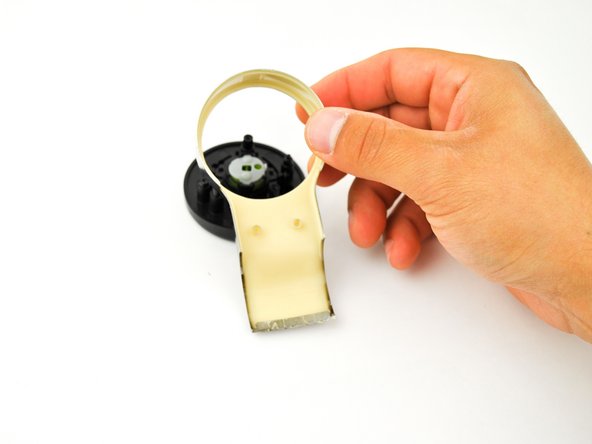
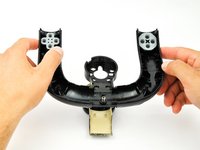
Solleva il controller per separare la parte nera dalla piastra di delimitazione argentata.
-
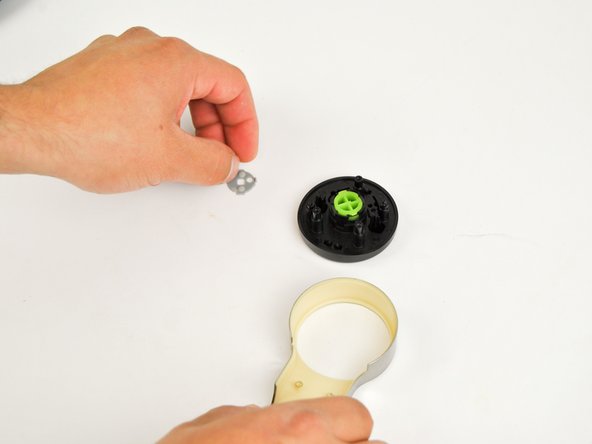
Solleva la piastra di delimitazione argentata per rimuoverla dal pezzo centrale nero rotondo.
-
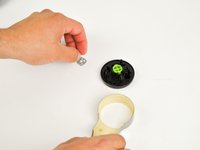
Rimuovi la copertura in silicone grigia per esporre il retro del pulsante "X" rotondo di colore verde brillante.
-
-






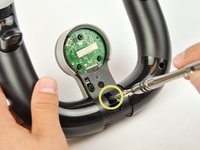


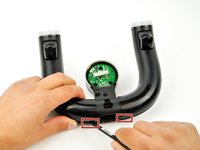
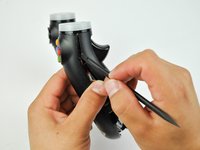
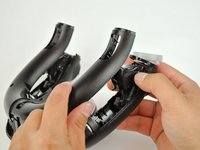








Per rimontare il dispositivo, segui queste istruzioni in ordine inverso.
Annulla: non ho completato questa guida.
Un'altra persona ha completato questa guida.

Team

USF Tampa, Team S16-G5, Boczar Spring 2018 Membro di USF Tampa, Team S16-G5, Boczar Spring 2018
USFT-BOCZAR-S18S16G5
5 Membri
96 guide realizzate
