Salta al contenuto principale
Unisciti alla Community delle riparazioni - Crea un account

VTech MobiGo Touch Learning System Screen Replacement

Cosa ti serve

    1. VTech MobiGo Touch Learning System Screen Replacement, Case: passo 1, immagine 1 di 1
      • Remove the battery covers and the four batteries.

      Chiedi a FixBot

      Aggiungi Commento

    2. VTech MobiGo Touch Learning System Screen Replacement: passo 2, immagine 1 di 2 VTech MobiGo Touch Learning System Screen Replacement: passo 2, immagine 2 di 2
      • Remove the four plastic caps with a metal spudger to expose the 6.0 mm Philips JIS #0 case screws.

      • Remove the eight 6.0 mm JIS #0 case screws.

      Chiedi a FixBot

      Aggiungi Commento

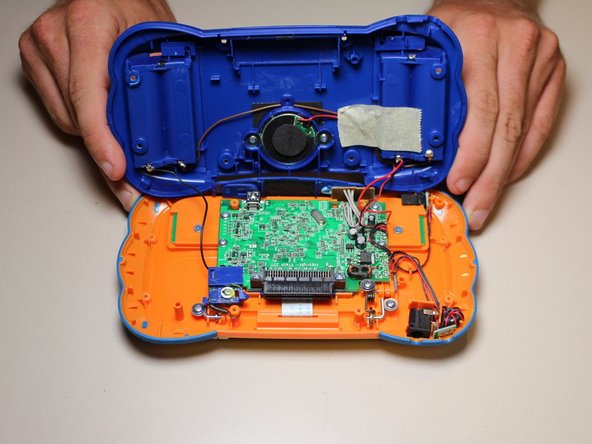
    3. VTech MobiGo Touch Learning System Screen Replacement: passo 3, immagine 1 di 2 VTech MobiGo Touch Learning System Screen Replacement: passo 3, immagine 2 di 2
      • Using a plastic opening tool, separate the two pieces of the case carefully.

      Chiedi a FixBot

      Aggiungi Commento

    1. VTech MobiGo Touch Learning System Screen Replacement, Disassembling VTech MobiGo Touch Learning System Screen Enclosure: passo 4, immagine 1 di 1
      • Remove the three 4.0 mm Philips J0 screws holding the "L" shaped brackets in place.

      Chiedi a FixBot

      Aggiungi Commento

    2. VTech MobiGo Touch Learning System Screen Replacement: passo 5, immagine 1 di 1
      • Remove the three "L" shaped brackets and the spring.

      Chiedi a FixBot

      Aggiungi Commento

    3. VTech MobiGo Touch Learning System Screen Replacement: passo 6, immagine 1 di 1
      • Flip the device over and remove the three 4.0 mm Philips J0 case screws.

      Chiedi a FixBot

      Aggiungi Commento

    4. VTech MobiGo Touch Learning System Screen Replacement: passo 7, immagine 1 di 1
      • Separate the front and back of the case.

      • Use a plastic opening tool if necessary.

      Chiedi a FixBot

      Aggiungi Commento

    1. VTech MobiGo Touch Learning System Screen Replacement, Screen: passo 8, immagine 1 di 1
      • Remove the 4 (3.4 mm Philips J0) screws holding the screen in

      Chiedi a FixBot

      Aggiungi Commento

    2. VTech MobiGo Touch Learning System Screen Replacement: passo 9, immagine 1 di 1
      • Remove the black tape

      Chiedi a FixBot

      Aggiungi Commento

    3. VTech MobiGo Touch Learning System Screen Replacement: passo 10, immagine 1 di 1
      • Remove the circuit board from the back of the screen.

      • The circuit board has double sided tape on the back side holding it to the screen.

      Chiedi a FixBot

      Aggiungi Commento

    4. VTech MobiGo Touch Learning System Screen Replacement: passo 11, immagine 1 di 1
      • Peel the ribbon wire off of the circuit board. Now the screen should be free to remove.

      Chiedi a FixBot

      Aggiungi Commento

    5. VTech MobiGo Touch Learning System Screen Replacement: passo 12, immagine 1 di 1
      • Resolder the new screens ribbon cable on the the circuit board.

      • Always be careful when soldering.

      Chiedi a FixBot

      Aggiungi Commento

Conclusione

To reassemble your device, follow these instructions in reverse order.

Annulla: non ho completato questa guida.

Altre 2 persone hanno completato questa guida.

Team

USF Tampa, Team 8-3, Eyestone Fall 2015 Membro di USF Tampa, Team 8-3, Eyestone Fall 2015

USFT-EYESTONE-F15S8G3

3 Membri

17 guide realizzate

1Commento della guida

mine i droped a rock on so i don’t get it

Jesse Eagan - Rispondi Condividi

Aggiungi Commento

Visualizza statistiche:

Ultime 24 ore: 3

Ultimi 7 giorni: 11

Ultimi 30 giorni: 37

Tutti i Tempi: 1,262