Questa traduzione è stata generata automaticamente e non è stata ancora revisionata da una persona. Parli questa lingua? Dai un’occhiata.
Introduzione
In questa guida sostituiremo la batteria di backup del TI-92.
Cosa ti serve
-
-
-
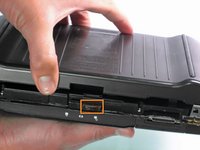
Afferra il retro della calcolatrice con una mano e la copertura con l'altra.
-
Tira la copertura da uno dei lati per facilitarne la rimozione.
 Chiedi a FixBot
-
-
-
Orientate la calcolatrice con la parte superiore rivolta verso di te.
-
Fai scorrere la linguetta di blocco, situata sulla parte superiore della calcolatrice, nella posizione di sblocco.
-
-
-
"Linguetta di blocco"
-
Per rimuovere la cover posteriore, fai scorrere la copertura lontano dalla linguetta di blocco verso la parte inferiore della calcolatrice finché non scorre più.
-
Quindi, con la parte anteriore della calcolatrice rivolta verso il basso, solleva la cover posteriore.
-
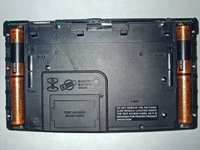
La calcolatrice dovrebbe ora essere orientata con la parte anteriore rivolta verso il basso, come mostrato nell'immagine 2.
-
-
-
-
-
-
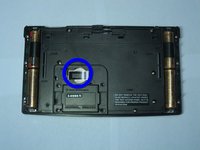
Utilizzando un cacciavite a croce #00, rimuovi la vite da 19 mm situata vicino al centro del retro della calcolatrice, sul pannello con la scritta "Test Access"
-
-
-
La batteria di backup è ora visibile sotto una piccola copertura metallica fissata da una vite.
-
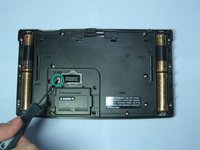
Usando lo stesso cacciavite, svita la vite da 4,6 mm situata sotto il pannello e a sinistra della batteria di backup.
-
-
-
Rimuovi la copertura metallica che tiene in posizione la batteria di backup.
-
-
-
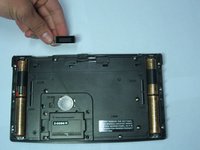
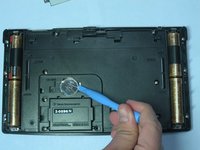
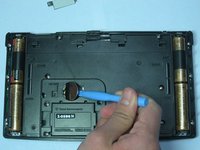
Usa uno strumento di apertura iPod o un attrezzo simile per sollevare il lato destro della batteria di backup.
-
La batteria dovrebbe fuoriuscire dalla sua posizione.
-
-
-
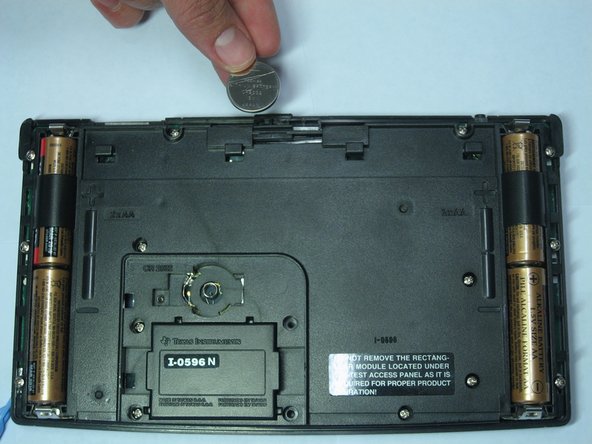
Dopo aver inclinato la batteria fuori dalla sua presa, rimuovila semplicemente con le mani.
-
-





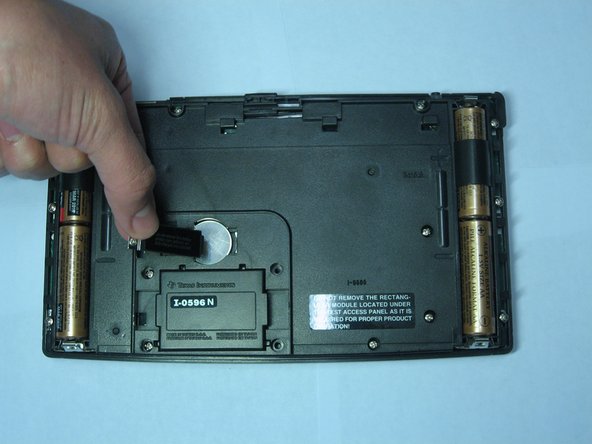
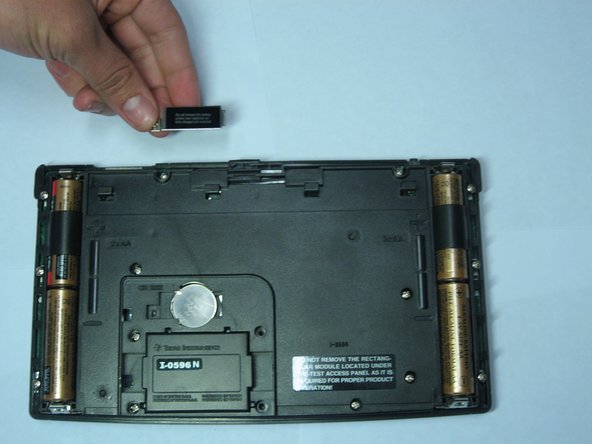



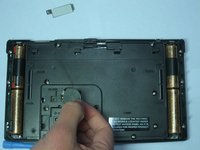
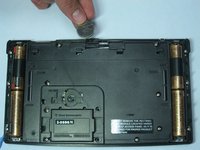
Per rimontare il dispositivo, segui queste istruzioni in ordine inverso.
Annulla: non ho completato questa guida.
Altre 2 persone hanno completato questa guida.

Team

Cal Poly, Team 15-51, Garner Spring 2010 Membro di Cal Poly, Team 15-51, Garner Spring 2010
CPSU-GARNER-S10S15G51
5 Membri
108 guide realizzate
