Salta al contenuto principale
Unisciti alla Community delle riparazioni - Crea un account

Sony VAIO VPCEE26FX RAM Replacement

Cosa ti serve

    1. Sony VAIO VPCEE26FX RAM Replacement, Battery: passo 1, immagine 1 di 2 Sony VAIO VPCEE26FX RAM Replacement, Battery: passo 1, immagine 2 di 2
      • Ensure that the laptop is powered off before disconnecting the battery.

      • Flip the laptop over so the underside of the laptop is facing up.

      Chiedi a FixBot

      Aggiungi Commento

    2. Sony VAIO VPCEE26FX RAM Replacement: passo 2, immagine 1 di 2 Sony VAIO VPCEE26FX RAM Replacement: passo 2, immagine 2 di 2
      • Slide the two tabs towards each other until the battery disconnects slightly from its position.

      • Carefully lift the battery out of its position away from the laptop.

      • The battery is not pictured here, since it is missing from this particular device.

      Chiedi a FixBot

      Aggiungi Commento

    1. Sony VAIO VPCEE26FX RAM Replacement, RAM: passo 3, immagine 1 di 1
      • Using a JIS #0 screwdriver, loosen the captive screw attached to the RAM cover.

      • This screw will not come out all the way, but will remain attached to the cover instead.

      Chiedi a FixBot

      Aggiungi Commento

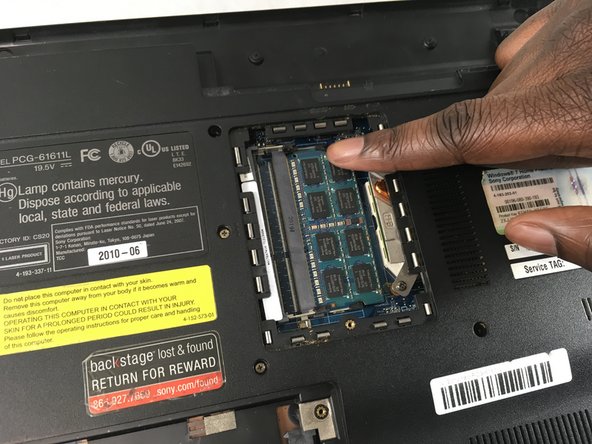
    2. Sony VAIO VPCEE26FX RAM Replacement: passo 4, immagine 1 di 1
      • Remove the cover which will reveal the two RAM sticks.

      Chiedi a FixBot

      Aggiungi Commento

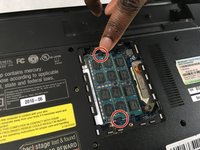
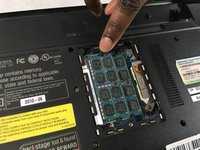
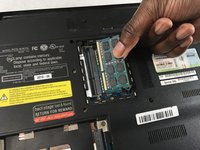
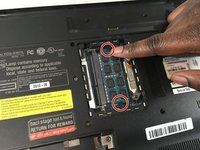
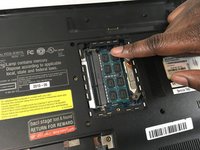
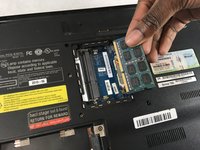
    3. Sony VAIO VPCEE26FX RAM Replacement: passo 5, immagine 1 di 3 Sony VAIO VPCEE26FX RAM Replacement: passo 5, immagine 2 di 3 Sony VAIO VPCEE26FX RAM Replacement: passo 5, immagine 3 di 3
      • Push the two tabs holding the RAM sticks in place, away from each other.

      • The first RAM stick will pop up out of place. Remove it away from its position.

      Chiedi a FixBot

      Aggiungi Commento

    4. Sony VAIO VPCEE26FX RAM Replacement: passo 6, immagine 1 di 3 Sony VAIO VPCEE26FX RAM Replacement: passo 6, immagine 2 di 3 Sony VAIO VPCEE26FX RAM Replacement: passo 6, immagine 3 di 3
      • Push the two tabs holding the second RAM stick in, away from each other.

      • The second RAM stick will pop up out of place. Remove it away from its position.

      Chiedi a FixBot

      Aggiungi Commento

Conclusione

To reassemble your device, follow these instructions in reverse order.

Annulla: non ho completato questa guida.

0Commenti sulla guida

Aggiungi Commento

Visualizza statistiche:

Ultime 24 ore: 3

Ultimi 7 giorni: 9

Ultimi 30 giorni: 24

Tutti i Tempi: 1,905