Salta al contenuto principale
Unisciti alla Community delle riparazioni - Crea un account

Samsung SCV-VLUUST50 Shutter Button Replacement

Cosa ti serve

  1. Samsung SCV-VLUUST50 Shutter Button Replacement, Cover: passo 1, immagine 1 di 3 Samsung SCV-VLUUST50 Shutter Button Replacement, Cover: passo 1, immagine 2 di 3 Samsung SCV-VLUUST50 Shutter Button Replacement, Cover: passo 1, immagine 3 di 3
    • Unscrew all visible screws indicated by red circles with a #00 Phillips driver.

    • Slide memory card cover and unscrew hidden screw underneath with a #00 Phillips driver.

    Chiedi a FixBot
  2. Samsung SCV-VLUUST50 Shutter Button Replacement: passo 2, immagine 1 di 3 Samsung SCV-VLUUST50 Shutter Button Replacement: passo 2, immagine 2 di 3 Samsung SCV-VLUUST50 Shutter Button Replacement: passo 2, immagine 3 di 3
    • Remove the flat side panel by applying gentle pressure toward the bottom of the camera.

    • Remove the corner panel by applying pressure away from the shutter button.

    • The memory card cover will come off with the corner panel.

    • Remove the top panel by applying gentle pressure away from the shutter button.

    Chiedi a FixBot
  3. Samsung SCV-VLUUST50 Shutter Button Replacement: passo 3, immagine 1 di 1
    • Remove screws beneath the top panel indicated by red circles with a #00 Phillips driver.

    Chiedi a FixBot
  4. Samsung SCV-VLUUST50 Shutter Button Replacement: passo 4, immagine 1 di 2 Samsung SCV-VLUUST50 Shutter Button Replacement: passo 4, immagine 2 di 2
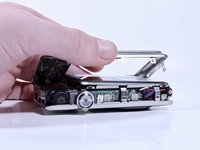
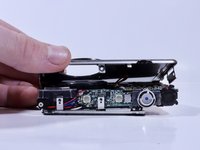
    • Remove the front and back covers by pulling them straight apart.

    Chiedi a FixBot
  5. Samsung SCV-VLUUST50 Shutter Button Replacement, Shutter Button: passo 5, immagine 1 di 3 Samsung SCV-VLUUST50 Shutter Button Replacement, Shutter Button: passo 5, immagine 2 di 3 Samsung SCV-VLUUST50 Shutter Button Replacement, Shutter Button: passo 5, immagine 3 di 3
    • Remove the screw below the shutter button with a Phillips #000 screw driver.

    • Once the screw is removed the shutter button should easily come off, and you can replace it with the new button.

    Chiedi a FixBot
Conclusione

To reassemble your device, follow these instructions in reverse order.

0Commenti sulla guida

Aggiungi Commento

Visualizza statistiche:

Ultime 24 ore: 1

Ultimi 7 giorni: 4

Ultimi 30 giorni: 65

Tutti i Tempi: 496