Salta al contenuto principale
Unisciti alla Community delle riparazioni - Crea un account

Remove IBM WorkPad c3 Battery

Cosa ti serve

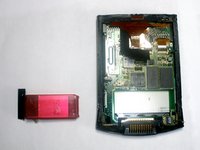
  1. Remove IBM WorkPad c3 Battery, Back Case: passo 1, immagine 1 di 2 Remove IBM WorkPad c3 Battery, Back Case: passo 1, immagine 2 di 2
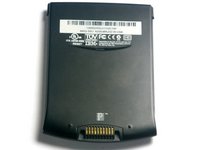
    • Turn the device over so that the screen is facing down.

    • In the next step the device will be heated, so the screen must be turned over to prevent heat damage to the LCD/Digitizer.

    Chiedi a FixBot

    Aggiungi Commento

  2. Remove IBM WorkPad c3 Battery: passo 2, immagine 1 di 1
    • Using a hair dryer, slowly heat the edges of the WorkPad.

    • Spend at least one minute heating each side of the device. This will melt the glue holding the case together, and allow it to be removed.

    • Be sure not to touch the device directly after heating as it will be extremely hot. Use a towel or oven mitt to grab it.

    Chiedi a FixBot

    Aggiungi Commento

  3. Remove IBM WorkPad c3 Battery: passo 3, immagine 1 di 2 Remove IBM WorkPad c3 Battery: passo 3, immagine 2 di 2
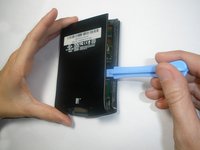
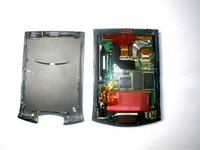
    • Use a plastic opening tool to pry the back case from the WorkPad.

    • If the rear cover is not coming off very easily, you probably need to reheat the case in order to sufficiently melt the glue.

    Chiedi a FixBot

    Aggiungi Commento

  4. Remove IBM WorkPad c3 Battery, Battery: passo 4, immagine 1 di 1
    • Remove the yellow tape that is covering the battery connector

    Chiedi a FixBot

    Aggiungi Commento

  5. Remove IBM WorkPad c3 Battery: passo 5, immagine 1 di 1
    Strumento utilizzato in questo passaggio:
    Tweezers
    $4.99
    • Using the tweezers, carefully disconnect the battery cable from the port

    Chiedi a FixBot

    Aggiungi Commento

  6. Remove IBM WorkPad c3 Battery: passo 6, immagine 1 di 2 Remove IBM WorkPad c3 Battery: passo 6, immagine 2 di 2
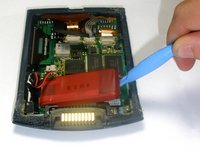
    • Using the plastic opening tools, lift the battery out of the case

    • The battery is secured with adhesive and it will take some effort to remove

    Chiedi a FixBot

    Aggiungi Commento

Conclusione

To reassemble your device, follow these instructions in reverse order.

Annulla: non ho completato questa guida.

Un'altra persona ha completato questa guida.

Team

Cal Poly, Team 21-35, Regan Fall 2010 Membro di Cal Poly, Team 21-35, Regan Fall 2010

CPSU-REGAN-F10S21G35

3 Membri

5 guide realizzate

0Commenti sulla guida

Aggiungi Commento

Visualizza statistiche:

Ultime 24 ore: 1

Ultimi 7 giorni: 5

Ultimi 30 giorni: 35

Tutti i Tempi: 4,808