Questa traduzione è stata generata automaticamente e non è stata ancora revisionata da una persona. Parli questa lingua? Dai un’occhiata.

Programmare l'avvio automatico del PC

Amrounassim e un altro collaboratore
Ultimo aggiornamento il 17 ago 2026
Visualizzazioni: 8373
Visualizza statistiche:
- Ultime 24 ore:
- 9
- Ultimi 7 giorni:
- 52
- Ultimi 30 giorni:
- 208
- Tutti i Tempi:
- 8.373
Commenti: 1
1commento della guida.
Vai ai commenti della guidaCompletato: 2 3
2 persone hanno contrassegnato questa guida come "completata". Sarai il prossimo?
3 persone hanno contrassegnato questa guida come "completata". Compreso te, ottimo lavoro!
Preferiti: 1 2
1 persona ha aggiunto ai preferiti (e si è iscritta a) questa guida. Sarai il prossimo?
2 persone hanno aggiunto ai preferiti (e si sono iscritte a) questa guida, incluso te!
Guida fornita dalla comunità
Un fantastico membro della nostra community ha creato questa guida. Non è stata creata dallo staff di iFixit.
Introduzione
Vai al passo 1 ↓Grazie alla funzione Wake Up Everyday, puoi avviare attività quotidiane a un'ora prestabilita senza dover essere a casa o in ufficio.
-
-
-
All'avvio del computer, premi il tasto Canc o F2 a seconda della scheda madre
 Chiedi a FixBot
-
-
-
Con i tasti freccia, apri la sezione Alimentazione
-
-
-
-
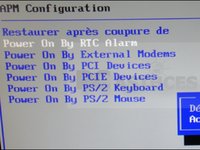
Vai su Power On by RTC alarm e premi Invio. Seleziona l'opzione Abilita
-
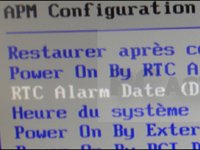
L'opzione RTC Alarm Date ti permette di impostare il numero di giorni durante i quali il computer potrà avviarsi da solo
-
Specifica poi l'ora desiderata per l'avvio
-
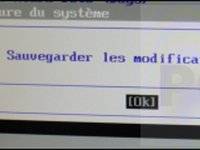
Premi il tasto F10 e conferma con yes. Il computer si avvierà automaticamente all'ora indicata e per il numero di giorni specificato.
-
-


Se il tuo BIOS non dispone di questa opzione, sono disponibili soluzioni software facili da implementare.
Annulla: non ho completato questa guida.
Altre 2 persone hanno completato questa guida.

1Commento della guida
To automatically start up a PC at a specific time, you can set up a scheduled task in the Windows Task Scheduler. Here are the steps:
Open the Task Scheduler by searching for it in the Start menu.
Click on "Create Basic Task" in the right-hand panel.
Give the task a name and description, and click "Next".
Select "Daily" as the trigger and click "Next".
Set the date and time when you want the computer to automatically start up, and click "Next".
Select "Start a program" as the action, and click "Next".
In the "Program/script" field, type "C:\Windows\System32\cmd.exe". In the "Add arguments (optional)" field, type "/c start".
Click "Next" and then "Finish".
The PC will now automatically start up at the specified time. Note that the PC must be in sleep or hibernate mode for this to work, not powered off.
Click here more information: https://crecentech.com/
