Salta al contenuto principale
Unisciti alla Community delle riparazioni - Crea un account

Power Mac G4 Cube Video Card Replacement

Cosa ti serve

  1. Power Mac G4 Cube Video Card Replacement, Outer Case: passo 1, immagine 1 di 3 Power Mac G4 Cube Video Card Replacement, Outer Case: passo 1, immagine 2 di 3 Power Mac G4 Cube Video Card Replacement, Outer Case: passo 1, immagine 3 di 3
    • Release the back handle of the PowerMac. Slowly pull out the cube by holding the end of the handle. Watch for any parts that may become entangled with the outer case.

    • Push back the handle after you have taken the core out of the case.

    Chiedi a FixBot

    Aggiungi Commento

  2. Power Mac G4 Cube Video Card Replacement: passo 2, immagine 1 di 2 Power Mac G4 Cube Video Card Replacement: passo 2, immagine 2 di 2
    • Place the cube upside down and remove the four T10 Torx screws on the front plate. Then remove the two screws on each side.

    Chiedi a FixBot

    Aggiungi Commento

  3. Power Mac G4 Cube Video Card Replacement: passo 3, immagine 1 di 1
    • Slowly lift the plate off the cube and disconnect the power cord.

    Chiedi a FixBot

    Aggiungi Commento

  4. Power Mac G4 Cube Video Card Replacement: passo 4, immagine 1 di 1
    • Remove the four pillars from each corner.

    • The pillars should come out fairly easily.

    Chiedi a FixBot

    Aggiungi Commento

  5. Power Mac G4 Cube Video Card Replacement, Video Card: passo 5, immagine 1 di 1
    • Remove the screws on the back of the VGA port.

    Chiedi a FixBot

    Aggiungi Commento

  6. Power Mac G4 Cube Video Card Replacement: passo 6, immagine 1 di 1
    • Remove the screw attaching the video card to the logic board.

    Chiedi a FixBot

    Aggiungi Commento

  7. Power Mac G4 Cube Video Card Replacement: passo 7, immagine 1 di 2 Power Mac G4 Cube Video Card Replacement: passo 7, immagine 2 di 2
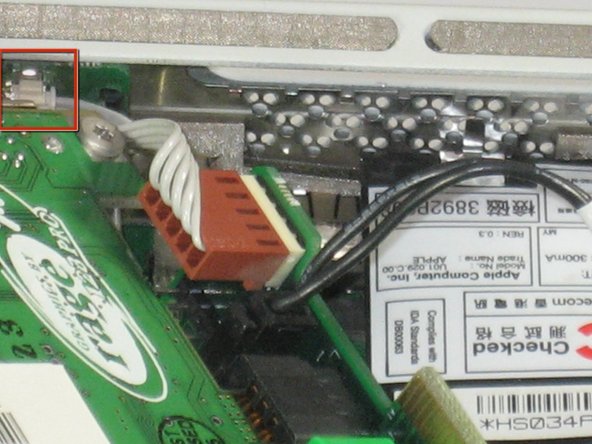
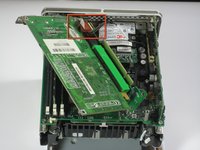
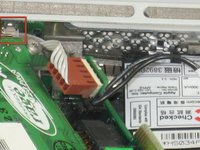
    • Remove power cord from the video card.

    Chiedi a FixBot

    Aggiungi Commento

  8. Power Mac G4 Cube Video Card Replacement: passo 8, immagine 1 di 1
    • Remove the power cord.

    • Remove the connector.

    • Remove the video card from the logic board.

    Chiedi a FixBot

    Aggiungi Commento

  9. Power Mac G4 Cube Video Card Replacement: passo 9, immagine 1 di 1
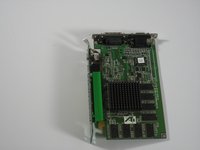
    • Carefully lift the video card from the logic board.

    • The video card should come out easily.

    Chiedi a FixBot

    Aggiungi Commento

  10. Power Mac G4 Cube Video Card Replacement: passo 10, immagine 1 di 2 Power Mac G4 Cube Video Card Replacement: passo 10, immagine 2 di 2
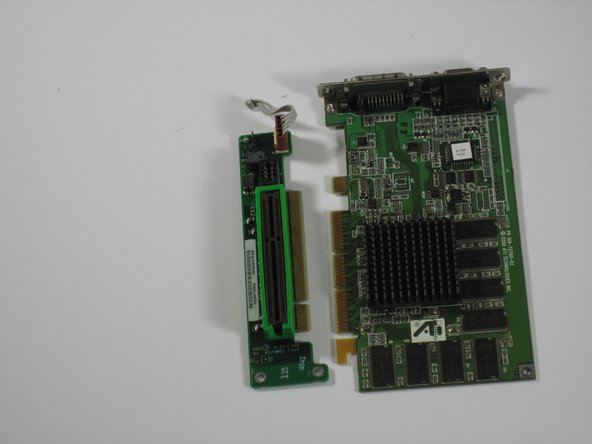
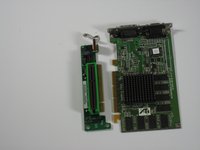
    • Separate the video card from the adapter.

    Chiedi a FixBot

    Aggiungi Commento

Conclusione

To reassemble your device, follow these instructions in reverse order.

Annulla: non ho completato questa guida.

Altre 9 persone hanno completato questa guida.

Ryan Chun

Membro da: 06/24/10

1.076 Reputazione

7 guide realizzate

Team

Cal Poly, Team 2-7, Johann Summer 2010 Membro di Cal Poly, Team 2-7, Johann Summer 2010

CPSU-JOHANN-R10S2G7

5 Membri

21 guide realizzate

0Commenti sulla guida

Aggiungi Commento

Visualizza statistiche:

Ultime 24 ore: 7

Ultimi 7 giorni: 13

Ultimi 30 giorni: 83

Tutti i Tempi: 11,646