Salta al contenuto principale
Unisciti alla Community delle riparazioni - Crea un account

P775DM3 Keyboard replacement

Cosa ti serve

    1. P775DM3 Keyboard replacement, Battery: passo 1, immagine 1 di 2 P775DM3 Keyboard replacement, Battery: passo 1, immagine 2 di 2
      • Unlock the lock circled in red.

      Chiedi a FixBot

      Aggiungi Commento

    2. P775DM3 Keyboard replacement: passo 2, immagine 1 di 3 P775DM3 Keyboard replacement: passo 2, immagine 2 di 3 P775DM3 Keyboard replacement: passo 2, immagine 3 di 3
      • Lift the battery while unlocking the lock circled in red.

      Chiedi a FixBot

      Aggiungi Commento

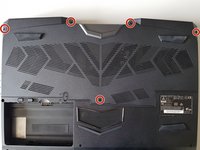
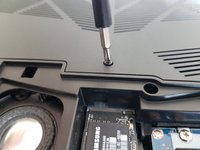
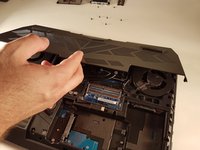
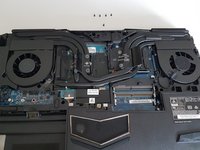
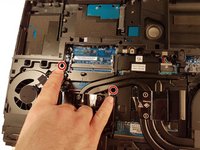
    1. P775DM3 Keyboard replacement, Access to major components: passo 3, immagine 1 di 2 P775DM3 Keyboard replacement, Access to major components: passo 3, immagine 2 di 2
      • Unscrew the five screws circled in red.

      Chiedi a FixBot

      Aggiungi Commento

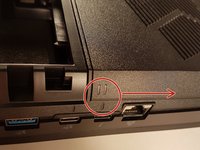
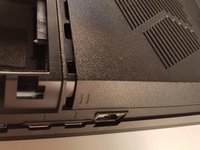
    2. P775DM3 Keyboard replacement: passo 4, immagine 1 di 2 P775DM3 Keyboard replacement: passo 4, immagine 2 di 2
      • Slide the plate in the direction of the red arrow.

      Chiedi a FixBot

      Aggiungi Commento

    3. P775DM3 Keyboard replacement: passo 5, immagine 1 di 2 P775DM3 Keyboard replacement: passo 5, immagine 2 di 2
      • Lift the plate.

      Chiedi a FixBot

      Aggiungi Commento

    1. P775DM3 Keyboard replacement, Keyboard: passo 6, immagine 1 di 2 P775DM3 Keyboard replacement, Keyboard: passo 6, immagine 2 di 2
      • Unscrew the two screws circled in red

      Chiedi a FixBot

      Aggiungi Commento

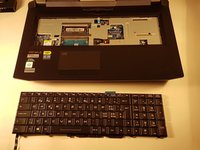
    2. P775DM3 Keyboard replacement: passo 7, immagine 1 di 3 P775DM3 Keyboard replacement: passo 7, immagine 2 di 3 P775DM3 Keyboard replacement: passo 7, immagine 3 di 3
      • Press a paper clip in the three places marked in red

      • Lift the keyboard and feel free to put some strength

      Chiedi a FixBot
      Aggiungi Commento

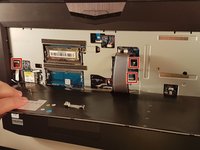
    3. P775DM3 Keyboard replacement: passo 8, immagine 1 di 2 P775DM3 Keyboard replacement: passo 8, immagine 2 di 2
      • Disconnect the three framed connectors in red

      Chiedi a FixBot
      Aggiungi Commento

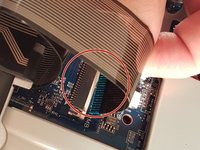
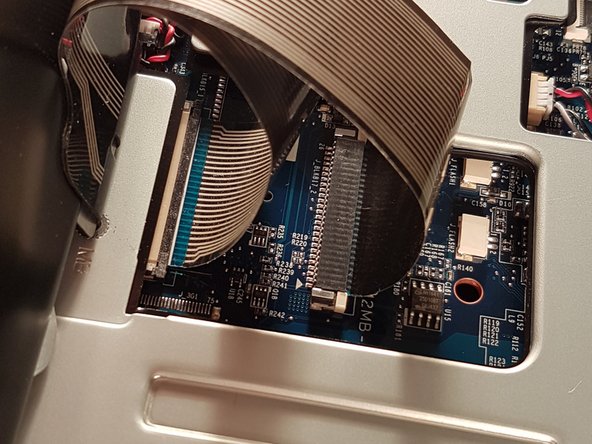
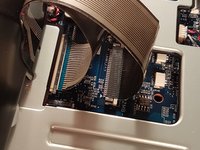
    4. P775DM3 Keyboard replacement: passo 9, immagine 1 di 2 P775DM3 Keyboard replacement: passo 9, immagine 2 di 2
      • Pull the white drawer in the direction of the arrow to unlock the connector

      • Disconnect the red circled connector

      Chiedi a FixBot
      Aggiungi Commento

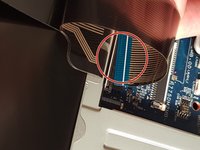
    5. P775DM3 Keyboard replacement: passo 10, immagine 1 di 2 P775DM3 Keyboard replacement: passo 10, immagine 2 di 2
      • Pull the black drawer in the direction of the arrow to unlock the connector

      • Disconnect the red circled connector

      Chiedi a FixBot

      Aggiungi Commento

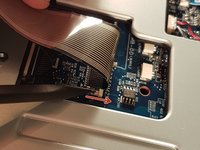
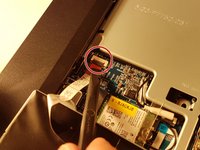
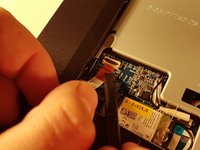
    6. P775DM3 Keyboard replacement: passo 11, immagine 1 di 3 P775DM3 Keyboard replacement: passo 11, immagine 2 di 3 P775DM3 Keyboard replacement: passo 11, immagine 3 di 3
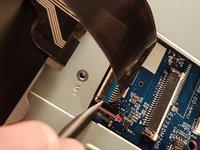
      • Lift the flap that holds the connector circled in red

      • Disconnect the red circled connector

      • Remove the keyboard

      Chiedi a FixBot

      Aggiungi Commento

Conclusione

To reassemble your device, follow the instructions in reverse order.

Annulla: non ho completato questa guida.

Altre 6 persone hanno completato questa guida.

Un ringraziamento speciale a questi traduttori:

fr en

100%

Questi traduttori ci stanno aiutando ad aggiustare il mondo! Vuoi partecipare?
Inizia a tradurre ›

Felice Suglia

Membro da: 06/15/13

33.634 Reputazione

283 guide realizzate

3Commenti sulla guida

I wish to know whether it’s possible to pry off the key to clean off the contacts. (I spilled coffee on the keyboard).

Fortunately for me, the key was on the edge of the board (the down arrow key). It was stuck on.

I lifted the key up as much as I could and I cleaned it with Deoxit. That did the trick. My keyboard is now working.

Thanks for the steps!

Clem Wang - Rispondi Condividi

Oops. Spoke too soon. There’s something wrong with the keyboard: the INSERT key (ESC -[2~ ) is stuck. Also, there’s a red light under the keyboard. I’m not sure what that all means…
Clem Wang - Rispondi Condividi

Great instructions, but for my laptop, step 7 only indicated three of seven places (the other four are the top centre of the keyboard, and the three points symmetrical to the 3 you’ve indacted, on the right hand side of the keyboard).

Josh Greifer - Rispondi Condividi

Aggiungi Commento

Visualizza statistiche:

Ultime 24 ore: 1

Ultimi 7 giorni: 13

Ultimi 30 giorni: 49

Tutti i Tempi: 5,118