Salta al contenuto principale
Unisciti alla Community delle riparazioni - Crea un account

OnePlus 2 Screen Replacement

Cosa ti serve

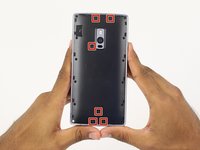
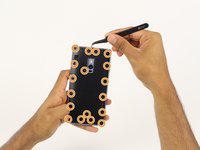
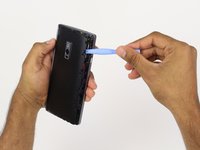
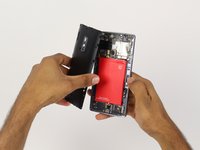
  1. OnePlus 2 Screen Replacement, SIM Card: passo 1, immagine 1 di 3 OnePlus 2 Screen Replacement, SIM Card: passo 1, immagine 2 di 3 OnePlus 2 Screen Replacement, SIM Card: passo 1, immagine 3 di 3
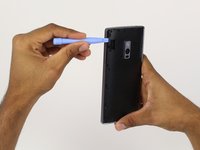
    • Make sure that your phone is turned off before proceeding

    • Use an opening pick, your thumbnail, or a spudger to gently pry off the external casing

    Chiedi a FixBot

    Aggiungi Commento

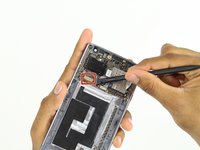
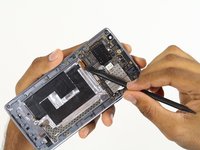
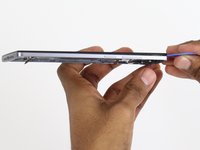
  2. OnePlus 2 Screen Replacement: passo 2, immagine 1 di 3 OnePlus 2 Screen Replacement: passo 2, immagine 2 di 3 OnePlus 2 Screen Replacement: passo 2, immagine 3 di 3
    • Locate the SIM card tray on the back of the phone

    • Use your thumb to gently slide out the tray

    Chiedi a FixBot

    Aggiungi Commento

  3. OnePlus 2 Screen Replacement: passo 3, immagine 1 di 1
    • Remove the SIM card tray

    Chiedi a FixBot

    Aggiungi Commento

  4. OnePlus 2 Screen Replacement, Battery: passo 4, immagine 1 di 3 OnePlus 2 Screen Replacement, Battery: passo 4, immagine 2 di 3 OnePlus 2 Screen Replacement, Battery: passo 4, immagine 3 di 3
    Strumento utilizzato in questo passaggio:
    Tweezers
    $4.99
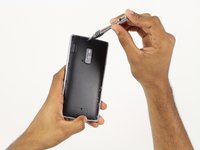
    • Find and carefully remove all 6 rubber screw covers with the tweezers.

    • Unscrew all 18 screws from the mid frame.

    Chiedi a FixBot

    Aggiungi Commento

  5. OnePlus 2 Screen Replacement: passo 5, immagine 1 di 3 OnePlus 2 Screen Replacement: passo 5, immagine 2 di 3 OnePlus 2 Screen Replacement: passo 5, immagine 3 di 3
    • Carefully pry up the mid frame from the back of the phone with the plastic opening tools.

    • Slowly work your way around the phone releasing all the clips that hold the frame in place.

    Chiedi a FixBot

    Aggiungi Commento

  6. OnePlus 2 Screen Replacement: passo 6, immagine 1 di 3 OnePlus 2 Screen Replacement: passo 6, immagine 2 di 3 OnePlus 2 Screen Replacement: passo 6, immagine 3 di 3
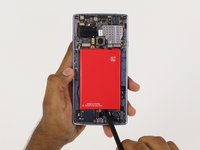
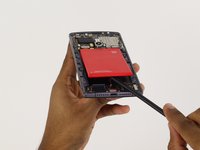
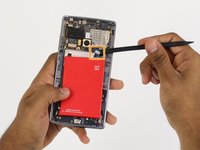
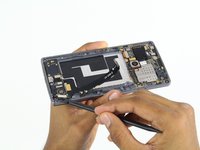
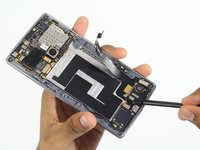
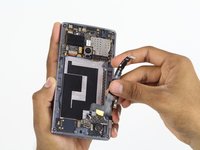
    • Using the spudger tool, pry the battery up from the adhesive.

    • Once the battery is loose from the adhesive holding it down, use the spudger tool to pry up the connection from the battery to the phone on the top right hand side.

    Chiedi a FixBot

    Aggiungi Commento

  7. OnePlus 2 Screen Replacement, Charging Port: passo 7, immagine 1 di 2 OnePlus 2 Screen Replacement, Charging Port: passo 7, immagine 2 di 2
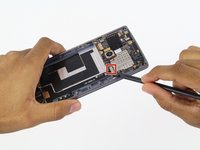
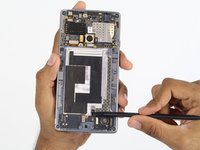
    • Use the spudger tool to pry up the top connection of the charging port.

    • Follow the cable with the spudger and slowly pry it up from the adhesive holding it down.

    • Stop at the next connection.

    Chiedi a FixBot

    Aggiungi Commento

  8. OnePlus 2 Screen Replacement: passo 8, immagine 1 di 3 OnePlus 2 Screen Replacement: passo 8, immagine 2 di 3 OnePlus 2 Screen Replacement: passo 8, immagine 3 di 3
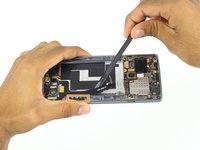
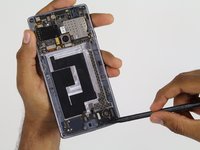
    • Again, using the spudger tool, pry up the final 4 connections on the charging port

    • Again, just like before, slowly follow the cable with the spudger tool lifting it up from the adhesive backing.

    Chiedi a FixBot

    Aggiungi Commento

  9. OnePlus 2 Screen Replacement: passo 9, immagine 1 di 3 OnePlus 2 Screen Replacement: passo 9, immagine 2 di 3 OnePlus 2 Screen Replacement: passo 9, immagine 3 di 3
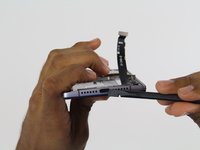
    • Using the spudger tool on the bottom of the phone, push the charging part inward.

    • Once the charging port is free from the frame, use your fingers to remove the charging port the rest of the way.

    Chiedi a FixBot

    Aggiungi Commento

  10. OnePlus 2 Screen Replacement, Screen: passo 10, immagine 1 di 3 OnePlus 2 Screen Replacement, Screen: passo 10, immagine 2 di 3 OnePlus 2 Screen Replacement, Screen: passo 10, immagine 3 di 3
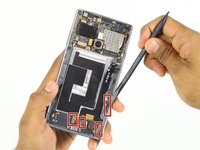
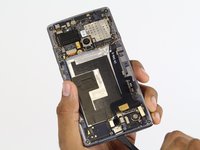
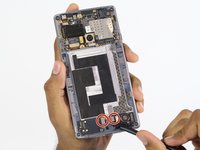
    • Locate two connections at the bottom of the phone.

    • Using a spudger, carefully bend the connections up and towards the top of the phone.

    Chiedi a FixBot

    Aggiungi Commento

  11. OnePlus 2 Screen Replacement: passo 11, immagine 1 di 2 OnePlus 2 Screen Replacement: passo 11, immagine 2 di 2
    Strumento utilizzato in questo passaggio:
    Tweezers
    $4.99
    • Locate connection left of the rear facing camera.

    • If black tape covers the connector, use tweezers to carefully peel it back.

    • Using a spudger, carefully pry the connector out and bend it towards the bottom of the phone.

    Chiedi a FixBot

    Aggiungi Commento

  12. OnePlus 2 Screen Replacement: passo 12, immagine 1 di 1
    • Flip your phone so that the screen is facing up

    • Place a warm iOpener on the screen to heat up the adhesive holding the screen in place

    • Leave on for one minute

    Chiedi a FixBot

    Aggiungi Commento

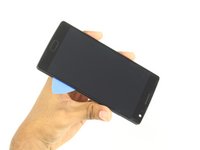
  13. OnePlus 2 Screen Replacement: passo 13, immagine 1 di 2 OnePlus 2 Screen Replacement: passo 13, immagine 2 di 2
    • Use a pick to carefully separate the screen and the rest of the phone.

    • Make sure to go around every edge and corner.

    Chiedi a FixBot

    Aggiungi Commento

  14. OnePlus 2 Screen Replacement: passo 14, immagine 1 di 2 OnePlus 2 Screen Replacement: passo 14, immagine 2 di 2
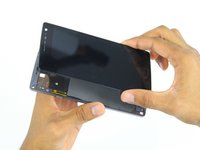
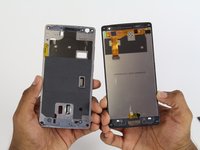
    • Slowly separate the screen from the rest of the phone.

    Chiedi a FixBot

    Aggiungi Commento

Conclusione

To reassemble your device, follow these instructions in reverse order.

Annulla: non ho completato questa guida.

Altre 65 persone hanno completato questa guida.

Team

Cal Poly, Team 4-5, Maness Fall 2015 Membro di Cal Poly, Team 4-5, Maness Fall 2015

CPSU-MANESS-F15S4G5

4 Membri

19 guide realizzate

29Commenti sulla guida

Screen is available on internet but without frame and buttons. I bought one of those so the only pb i had was to separate capacitive buttons and fingerprint scanner from the screen. i had to separate the black plastic frame from the screen too. It takes me around 2 hours to do it but now my OP2 works with a brand new screen. Changing screen on OnePlus2 is doable and cost around 100€ but you have to be careful and patient.

cperverie - Rispondi Condividi

Is the screen working properly??

Jagadeesh Sp - Rispondi Condividi

It's the glue on the back of the screen or on the frame? Do you need to apply new glue?

krugern - Rispondi Condividi

Hi, can you recommend the place where you bought your screen?

Tamara Diez - Rispondi Condividi

You need glue when installing a new digitizer?

Steven - Rispondi Condividi

Aggiungi Commento

Visualizza statistiche:

Ultime 24 ore: 5

Ultimi 7 giorni: 23

Ultimi 30 giorni: 89

Tutti i Tempi: 60,895