Salta al contenuto principale
Unisciti alla Community delle riparazioni - Crea un account

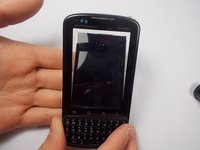
Motorola Droid Pro Screen Replacement

Cosa ti serve

  1. Motorola Droid Pro Screen Replacement, Battery: passo 1, immagine 1 di 1
    • Remove the back cover using the thumb tab located on the bottom of the phone.

    Chiedi a FixBot
  2. Motorola Droid Pro Screen Replacement: passo 2, immagine 1 di 2 Motorola Droid Pro Screen Replacement: passo 2, immagine 2 di 2
    • Remove the battery using the thumb tab.

    Chiedi a FixBot
  3. Motorola Droid Pro Screen Replacement, SD Card/SIM Card PCB Board: passo 3, immagine 1 di 2 Motorola Droid Pro Screen Replacement, SD Card/SIM Card PCB Board: passo 3, immagine 2 di 2
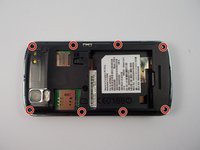
    • Using a T4 Torx driver, remove the eight 4 mm back panel screws.

    Chiedi a FixBot
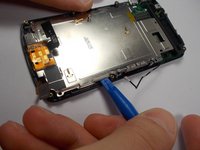
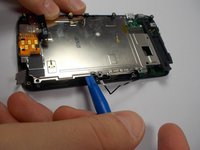
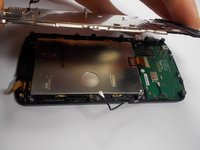
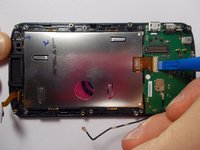
  4. Motorola Droid Pro Screen Replacement: passo 4, immagine 1 di 3 Motorola Droid Pro Screen Replacement: passo 4, immagine 2 di 3 Motorola Droid Pro Screen Replacement: passo 4, immagine 3 di 3
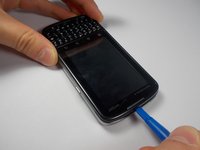
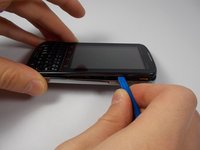
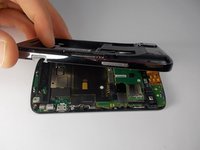
    • Use a plastic opening tool to open the phone along the sides between the front panel and the chrome trim.

    • It is held together by small clips that lock in. You may have to use extra force to unlock them.

    • Go around on all sides of the phone, unlocking the clips. Then pull the back panel off.

    Chiedi a FixBot
  5. Motorola Droid Pro Screen Replacement: passo 5, immagine 1 di 2 Motorola Droid Pro Screen Replacement: passo 5, immagine 2 di 2
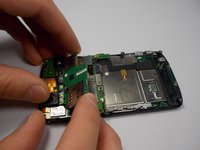
    • Gently lift the SD & SIM card board (PCB) as shown.

    • There is a ribbon cable attached underneath. Gently pull the PCB board away from the phone and it will detach easily.

    Chiedi a FixBot
  6. Motorola Droid Pro Screen Replacement, Motherboard: passo 6, immagine 1 di 2 Motorola Droid Pro Screen Replacement, Motherboard: passo 6, immagine 2 di 2
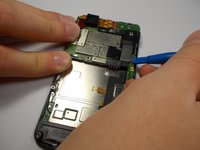
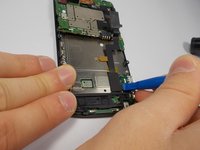
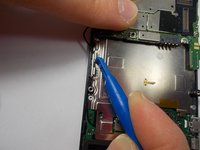
    • Use your plastic opening tool to disconnect the motherboard/keyboard ribbon cable.

    • There are small tabs on the side of the connectors to wedge your tool under.

    Chiedi a FixBot
  7. Motorola Droid Pro Screen Replacement: passo 7, immagine 1 di 2 Motorola Droid Pro Screen Replacement: passo 7, immagine 2 di 2
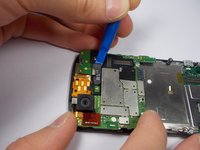
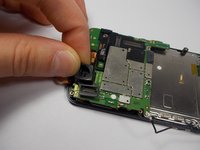
    • Use your plastic opening tool to disconnect the two ribbon cables at the top of the phone.

    Chiedi a FixBot
  8. Motorola Droid Pro Screen Replacement: passo 8, immagine 1 di 2 Motorola Droid Pro Screen Replacement: passo 8, immagine 2 di 2
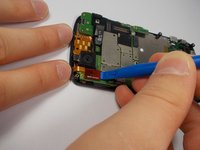
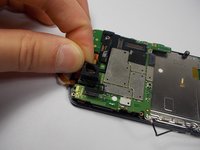
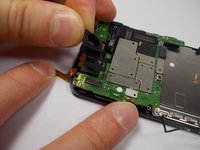
    • Disconnect the 2nd keyboard connector from the motherboard and remove it from its side holders.

    • This cable is fragile so be careful when disconnecting and moving it around.

    Chiedi a FixBot
  9. Motorola Droid Pro Screen Replacement: passo 9, immagine 1 di 1
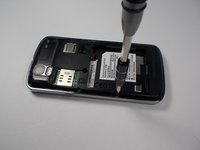
    • Use a T5 Torx Screwdriver to unscrew the 2mm screw.

    Chiedi a FixBot
  10. Motorola Droid Pro Screen Replacement: passo 10, immagine 1 di 3 Motorola Droid Pro Screen Replacement: passo 10, immagine 2 di 3 Motorola Droid Pro Screen Replacement: passo 10, immagine 3 di 3
    • Remove the camera's rubber seal by pulling it off. It is not connected to anything.

    Chiedi a FixBot
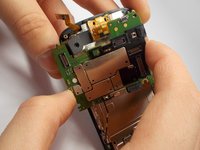
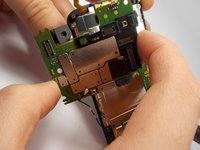
  11. Motorola Droid Pro Screen Replacement: passo 11, immagine 1 di 2 Motorola Droid Pro Screen Replacement: passo 11, immagine 2 di 2
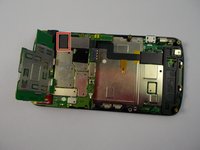
    • To remove the motherboard, pull it to the side. The camera that is connected to the motherboard does not pull straight up and out from its holder.

    Chiedi a FixBot
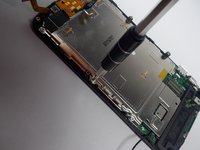
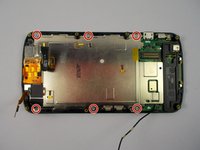
  12. Motorola Droid Pro Screen Replacement, Screen: passo 12, immagine 1 di 2 Motorola Droid Pro Screen Replacement, Screen: passo 12, immagine 2 di 2
    • Use a T4 Torx Screwdriver to remove the (6) 1mm screws.

    Chiedi a FixBot
  13. Motorola Droid Pro Screen Replacement: passo 13, immagine 1 di 3 Motorola Droid Pro Screen Replacement: passo 13, immagine 2 di 3 Motorola Droid Pro Screen Replacement: passo 13, immagine 3 di 3
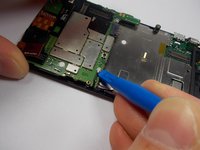
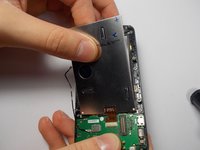
    • Using a plastic opening tool or spudger lift the rear screen plate up and pull it off.

    Chiedi a FixBot
  14. Motorola Droid Pro Screen Replacement: passo 14, immagine 1 di 3 Motorola Droid Pro Screen Replacement: passo 14, immagine 2 di 3 Motorola Droid Pro Screen Replacement: passo 14, immagine 3 di 3
    • Unlock the screen's ribbon cable.

    • The mechanism that locks the ribbon cable in place for the screen is very weak, so be careful.

    • To remove the screen, you have to flip the phone over and let it fall out slowly into your hand. Be careful not to put any tension on the ribbon cable.

    • Then pull the screen away from the ribbon cable connector and it will slide out easily. Do not use excessive force.

    Chiedi a FixBot
Conclusione

To reassemble your device, follow these instructions in reverse order.

Altre 4 persone hanno completato questa guida.

Kyle Shays

Membro da: 10/28/15

836 Reputazione

4 guide realizzate

Team

UMass Dartmouth, Team 1-6, Miles Fall 2015 Membro di UMass Dartmouth, Team 1-6, Miles Fall 2015

UMASSD-MILES-F15S1G6

3 Membri

12 guide realizzate

0Commenti sulla guida

Aggiungi Commento

Visualizza statistiche:

Ultime 24 ore: 3

Ultimi 7 giorni: 7

Ultimi 30 giorni: 52

Tutti i Tempi: 620