Salta al contenuto principale
Unisciti alla Community delle riparazioni - Crea un account

Motorola Cliq Camera Replacement

Cosa ti serve

  1. Motorola Cliq Camera Replacement, Battery: passo 1, immagine 1 di 2 Motorola Cliq Camera Replacement, Battery: passo 1, immagine 2 di 2
    • Turning over your phone, place two fingers on the back cover and apply pressure away from the camera to slide the back cover off.

    Chiedi a FixBot
  2. Motorola Cliq Camera Replacement: passo 2, immagine 1 di 2 Motorola Cliq Camera Replacement: passo 2, immagine 2 di 2
    • Pinch the battery pull tab located below the camera, pull it upwards, and remove the battery.

    • The pull tab may be tucked under the battery.

    Chiedi a FixBot
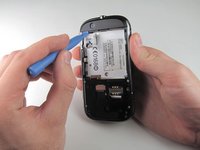
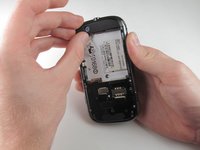
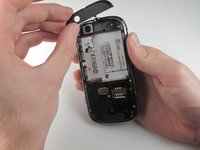
  3. Motorola Cliq Camera Replacement, Rear Casing: passo 3, immagine 1 di 3 Motorola Cliq Camera Replacement, Rear Casing: passo 3, immagine 2 di 3 Motorola Cliq Camera Replacement, Rear Casing: passo 3, immagine 3 di 3
    • Wedge a plastic opening tool behind the panel covering the camera, pry it up, and remove it using your fingers.

    • The panel is held down by adhesive and may require you to wedge and pry the right side of the panel before it can be easily removed.

    Chiedi a FixBot
  4. Motorola Cliq Camera Replacement: passo 4, immagine 1 di 1
    • Remove the six 4.0 mm T4 Torx screws which line the edge of the back of the phone.

    Chiedi a FixBot
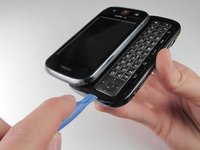
  5. Motorola Cliq Camera Replacement: passo 5, immagine 1 di 3 Motorola Cliq Camera Replacement: passo 5, immagine 2 di 3 Motorola Cliq Camera Replacement: passo 5, immagine 3 di 3
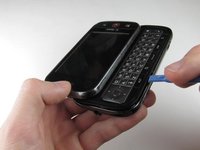
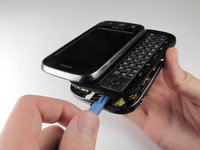
    • Turn the phone over and slide out the keyboard.

    • Wedge a plastic opening tool where the keyboard meets the back casing of the phone next to the headphone jack.

    • Carefully pry open the back casing along the keyboard's edge until at least two corners of the back casing are separated from the keyboard.

    • Do not fully separate the rear panel from the phone. A cable is connecting the two parts together.

    Chiedi a FixBot
  6. Motorola Cliq Camera Replacement: passo 6, immagine 1 di 1
    • Carefully separate the back casing from the rest of the phone.

    Chiedi a FixBot
  7. Motorola Cliq Camera Replacement: passo 7, immagine 1 di 2 Motorola Cliq Camera Replacement: passo 7, immagine 2 di 2
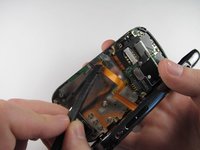
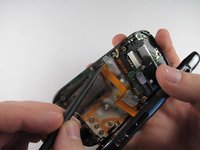
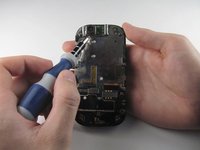
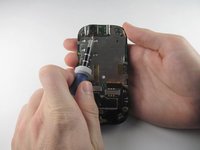
    • Gently pry ZIF connector upwards using the flat end of a spudger tool.

    • The ZIF connector is glued down. Be gentle! Ripping it off or breaking it will make your phone inoperable.

    • You may need adhesive to keep your power cable in place when reassembling your phone.

    Chiedi a FixBot
  8. Motorola Cliq Camera Replacement: passo 8, immagine 1 di 3 Motorola Cliq Camera Replacement: passo 8, immagine 2 di 3 Motorola Cliq Camera Replacement: passo 8, immagine 3 di 3
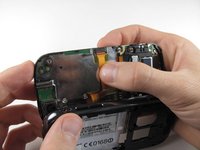
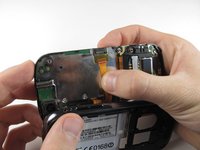
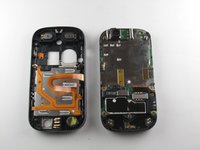
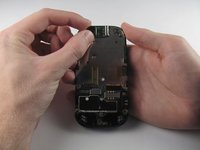
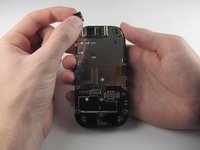
    • Press your thumb against the orange power cable and pull it down slowly to disconnect the power cable from the bottom of the keyboard.

    • The rear casing and the rest of the phone should now be completely separated.

    Chiedi a FixBot
  9. Motorola Cliq Camera Replacement, Camera: passo 9, immagine 1 di 3 Motorola Cliq Camera Replacement, Camera: passo 9, immagine 2 di 3 Motorola Cliq Camera Replacement, Camera: passo 9, immagine 3 di 3
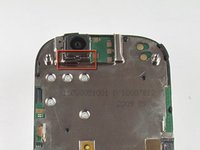
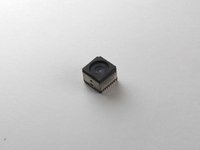
    • Insert a 1.5mm flat head screw in the slit in between the camera housing and the bottom of the camera.

    • Lightly pry upwards and the camera should come loose from the housing.

    Chiedi a FixBot
  10. Motorola Cliq Camera Replacement: passo 10, immagine 1 di 3 Motorola Cliq Camera Replacement: passo 10, immagine 2 di 3 Motorola Cliq Camera Replacement: passo 10, immagine 3 di 3
    • Carefully grab the sides of the camera with your fingers and remove the camera.

    • The foam cover on the top of the camera deforms and tears easily, so handle it with care.

    Chiedi a FixBot
Conclusione

To reassemble your device, follow these instructions in reverse order.

Altre 2 persone hanno completato questa guida.

Team

Cal Poly, Team 10-42, Amido Spring 2013 Membro di Cal Poly, Team 10-42, Amido Spring 2013

CPSU-AMIDO-S13S10G42

4 Membri

16 guide realizzate

0Commenti sulla guida

Aggiungi Commento

Visualizza statistiche:

Ultime 24 ore: 1

Ultimi 7 giorni: 14

Ultimi 30 giorni: 67

Tutti i Tempi: 663