Salta al contenuto principale

Microsoft Surface Pro 11 SSD Replacement

Cosa ti serve

  1. Microsoft Surface Pro 11 SSD Replacement, Before you begin: passo 1, immagine 1 di 3 Microsoft Surface Pro 11 SSD Replacement, Before you begin: passo 1, immagine 2 di 3 Microsoft Surface Pro 11 SSD Replacement, Before you begin: passo 1, immagine 3 di 3
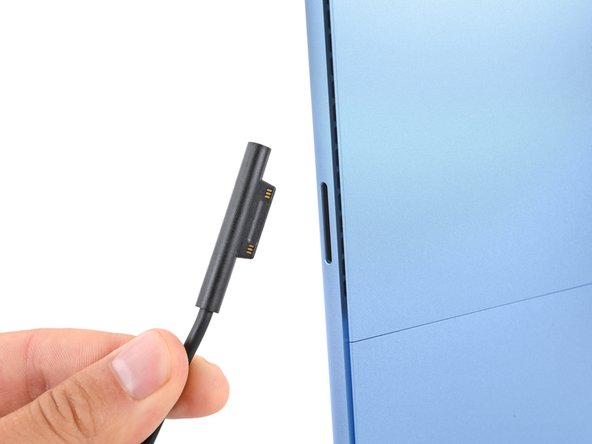
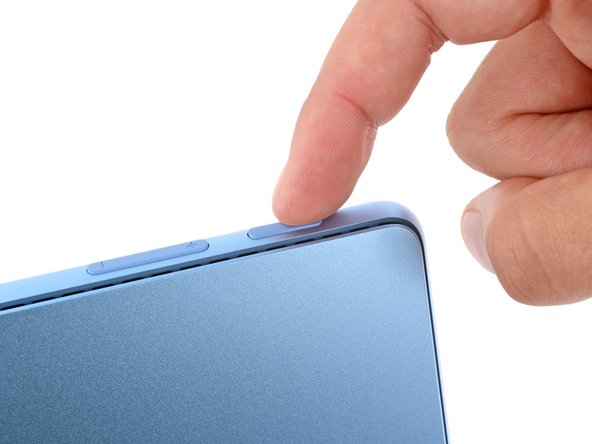
    • Before starting this repair, allow your laptop's battery to drain below 25%. A charged battery may catch fire if damaged.

    • Unplug all cables and fully shut down your laptop.

  2. Microsoft Surface Pro 11 SSD Replacement, Open the kickstand: passo 2, immagine 1 di 3 Microsoft Surface Pro 11 SSD Replacement, Open the kickstand: passo 2, immagine 2 di 3 Microsoft Surface Pro 11 SSD Replacement, Open the kickstand: passo 2, immagine 3 di 3
    • Lay your Surface Pro screen side down and open the kickstand to about a 90‑degree angle.

  3. Microsoft Surface Pro 11 SSD Replacement, Remove the SSD door: passo 3, immagine 1 di 3 Microsoft Surface Pro 11 SSD Replacement, Remove the SSD door: passo 3, immagine 2 di 3 Microsoft Surface Pro 11 SSD Replacement, Remove the SSD door: passo 3, immagine 3 di 3
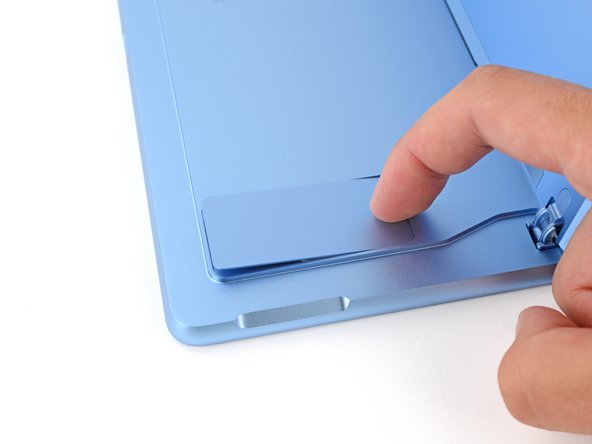
    • Use your finger to firmly press down on the SSD door indent until the door pops up.

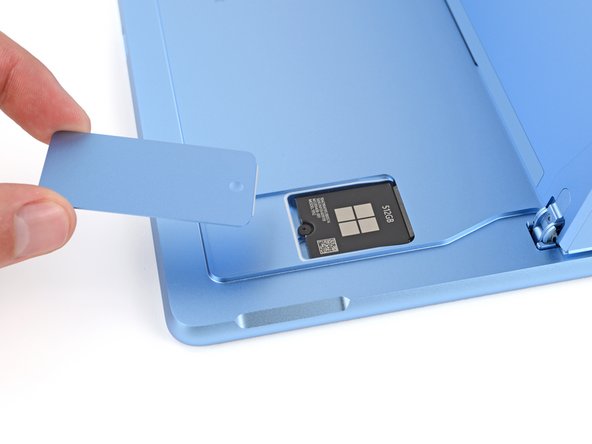
    • Remove the SSD door.

  4. Microsoft Surface Pro 11 SSD Replacement, Remove the SSD screw: passo 4, immagine 1 di 2 Microsoft Surface Pro 11 SSD Replacement, Remove the SSD screw: passo 4, immagine 2 di 2
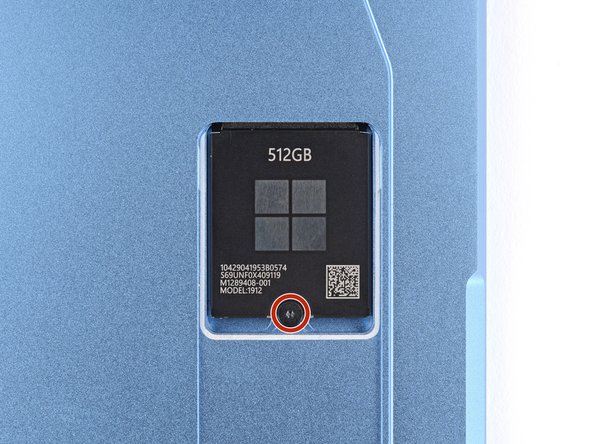
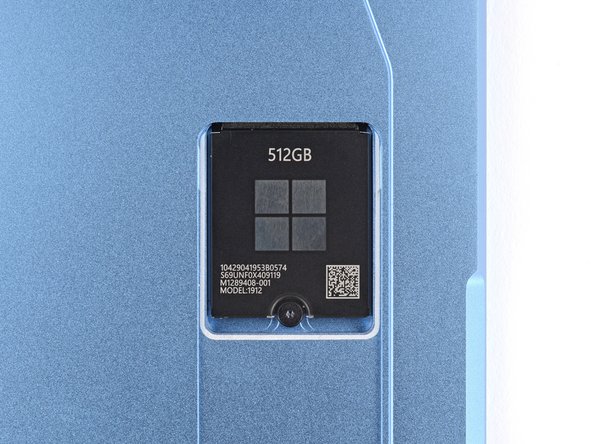
    • Use a Torx Plus 3IP screwdriver to remove the 2.4 mm‑long screw securing the SSD.

    • Removing the SSD also functions as a battery disconnect and should be done before all major repairs.

  5. Microsoft Surface Pro 11 SSD Replacement, Remove the SSD: passo 5, immagine 1 di 3 Microsoft Surface Pro 11 SSD Replacement, Remove the SSD: passo 5, immagine 2 di 3 Microsoft Surface Pro 11 SSD Replacement, Remove the SSD: passo 5, immagine 3 di 3
    • Don't pull up at a sharp angle, or you may damage the SSD and its socket.

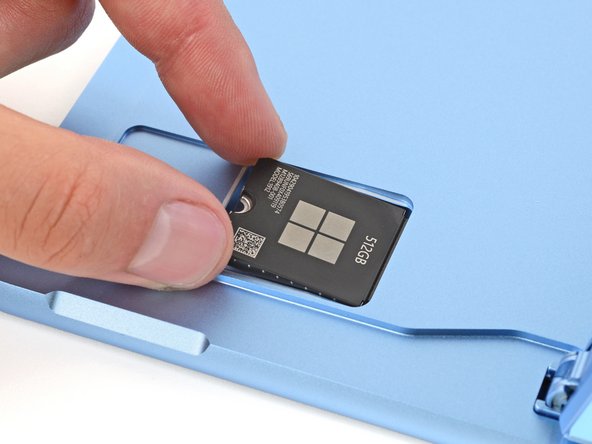
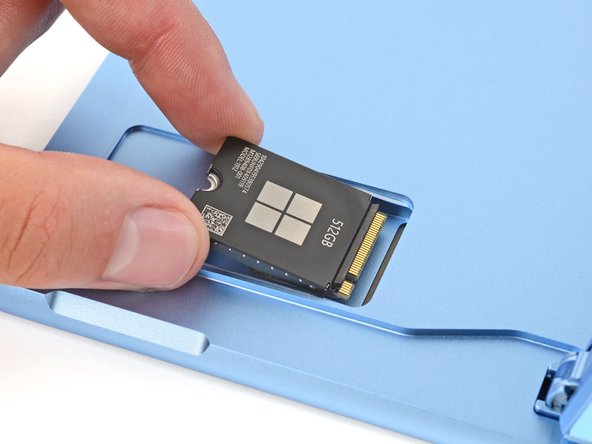
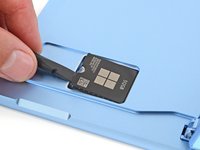
    • Use the flat end of a spudger to gently lift the notched edge of the SSD enough that you can grip the bottom corners with your fingers.

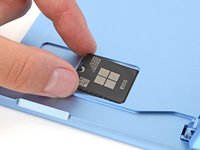
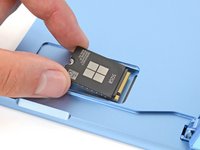
    • Use your fingers or tweezers to pull the SSD straight out of its socket and remove it.

    • During reassembly, getting the SSD fully inserted in its socket can be tricky. If you're having trouble, hold the SSD in place and use the flat end of a spudger to push on the notched edge.

Conclusione

To reassemble your device, follow these instructions in reverse order.

Once your laptop is reassembled, follow Microsoft's post SSD replacement guide.

Take your e-waste to an R2 or e-Stewards certified recycler.

Repair didn’t go as planned? Try some basic troubleshooting, or ask our Answers community for help.

Altre 3 persone hanno completato questa guida.

Spencer Day

Membro da: 09/14/22

153.535 Reputazione

1.024 Guide realizzate

Team

iFixit Membro di iFixit

Staff

123 Membri

23.743 Guide realizzate

0Commenti sulla guida

Aggiungi Commento

Visualizza Statistiche:

Ultime 24 Ore: 16

Ultimi 7 Giorni: 129

Ultimi 30 Giorni: 719

Tutti i Tempi: 3,637