Salta al contenuto principale
Unisciti alla Community delle riparazioni - Crea un account

Microsoft Surface 3 Kickstand Replacement

Cosa ti serve

    1. Microsoft Surface 3 Kickstand Replacement, Casing: passo 1, immagine 1 di 2 Microsoft Surface 3 Kickstand Replacement, Casing: passo 1, immagine 2 di 2
      • Warm up an iOpener following the instructions found in the iOpener guide.

      • Place the warm iOpener on top of the edges of the screen. This heat will weaken the strength of the adhesive between the display and body.

      Chiedi a FixBot

      Aggiungi Commento

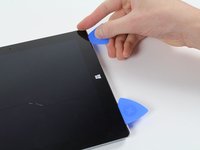
    2. Microsoft Surface 3 Kickstand Replacement: passo 2, immagine 1 di 2 Microsoft Surface 3 Kickstand Replacement: passo 2, immagine 2 di 2
      • Use iFixit opening picks to wedge under the edge of the screen at the speaker port.

      • This may take significant force. A fingernail might work better for the initial lift

      • If you push straight down near the edge you will go through the speaker mesh and possibly end up damaging your speaker; try to push the pick in at a shallow angle.

      Chiedi a FixBot

      Aggiungi Commento

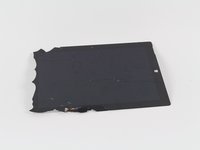
    3. Microsoft Surface 3 Kickstand Replacement: passo 3, immagine 1 di 2 Microsoft Surface 3 Kickstand Replacement: passo 3, immagine 2 di 2
      • Carefully try to work your way around the device using the picks, reapplications of the heated iOpener, and luck.

      • If you break the glass on one side you might want to try again starting from the other side so that you have a clean, unbroken, edge on that side.

      • While the glass on this display is not particularly sharp when broken, it is still broken glass and you should be careful with it.

      Chiedi a FixBot

      Aggiungi Commento

    4. Microsoft Surface 3 Kickstand Replacement: passo 4, immagine 1 di 1
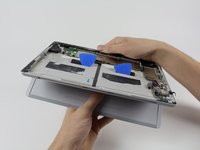
      • Flip the display over so that parts underneath it are easily accessible.

      • Do not pull out the display as it is still attached to the motherboard.

      • If you are replacing the display, or want it out of the way, continue with the display replacement guide steps.

      Chiedi a FixBot

      Aggiungi Commento

    1. Microsoft Surface 3 Kickstand Replacement, Battery: passo 5, immagine 1 di 1
      • Now that you've gotten the casing off of the Surface 3, you can start removing the battery pack.

      Chiedi a FixBot

      Aggiungi Commento

    2. Microsoft Surface 3 Kickstand Replacement: passo 6, immagine 1 di 3 Microsoft Surface 3 Kickstand Replacement: passo 6, immagine 2 di 3 Microsoft Surface 3 Kickstand Replacement: passo 6, immagine 3 di 3
      Strumento utilizzato in questo passaggio:
      Plastic Cards
      $2.99
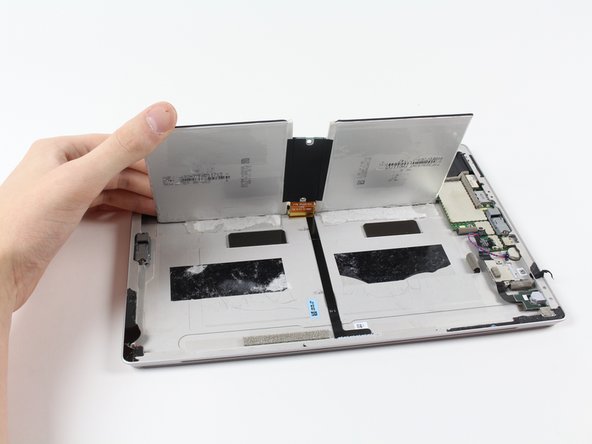
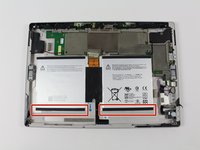
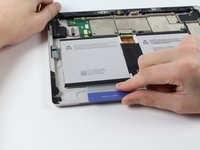
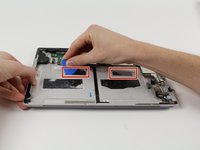
      • Slide the iFixit plastic cards under the compartments of the battery pack.

      • Slide the card around to undo the adhesive under the battery pack

      Chiedi a FixBot

      Aggiungi Commento

    3. Microsoft Surface 3 Kickstand Replacement: passo 7, immagine 1 di 3 Microsoft Surface 3 Kickstand Replacement: passo 7, immagine 2 di 3 Microsoft Surface 3 Kickstand Replacement: passo 7, immagine 3 di 3
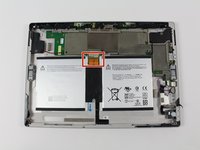
      • Carefully slide the battery's flat power and data connector from its insert.

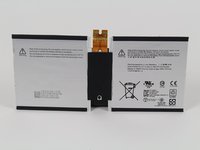
      • You may now switch out the battery pack for a new one.

      Chiedi a FixBot

      Aggiungi Commento

    1. Microsoft Surface 3 Kickstand Replacement, Kickstand: passo 8, immagine 1 di 2 Microsoft Surface 3 Kickstand Replacement, Kickstand: passo 8, immagine 2 di 2
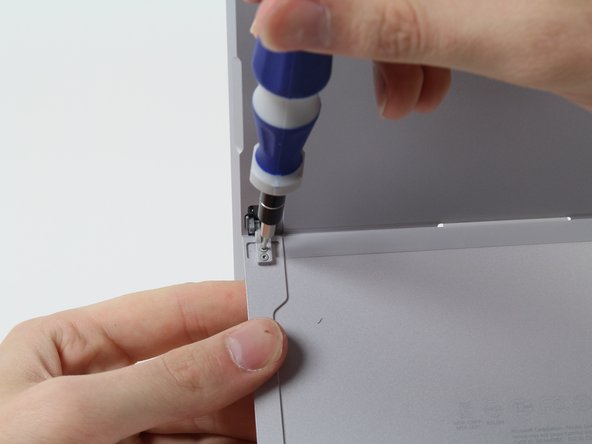
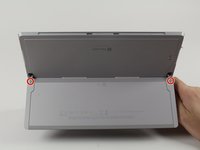
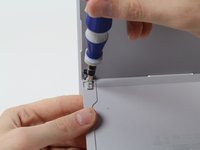
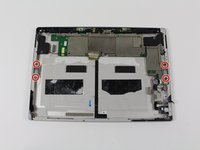
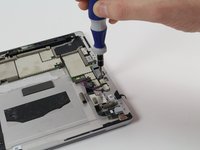
      • Remove these four 3/32" Torx #3 screws.

      • If you do not need to remove the hinges, skip to the step that handles the retaining tabs.

      Chiedi a FixBot

      Aggiungi Commento

    2. Microsoft Surface 3 Kickstand Replacement: passo 9, immagine 1 di 2 Microsoft Surface 3 Kickstand Replacement: passo 9, immagine 2 di 2
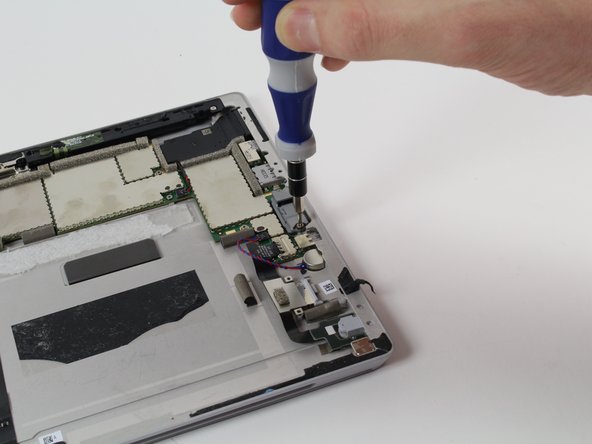
      • Remove these four 3/16" Torx #5 screws that hold in the hinges to replace the hinges.

      Chiedi a FixBot

      Aggiungi Commento

    3. Microsoft Surface 3 Kickstand Replacement: passo 10, immagine 1 di 3 Microsoft Surface 3 Kickstand Replacement: passo 10, immagine 2 di 3 Microsoft Surface 3 Kickstand Replacement: passo 10, immagine 3 di 3
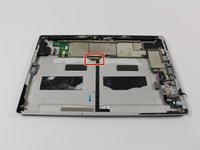
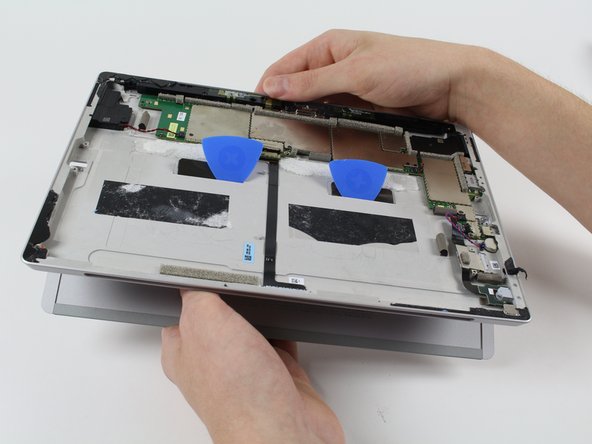
      • These two retaining tabs need to be fed through the slots in the case to release the kickstand.

      • Use picks to make the tab slide through the slot then simply pull out the kickstand,

      Chiedi a FixBot

      Aggiungi Commento

Conclusione

To reassemble your device, follow these instructions in reverse order.

Annulla: non ho completato questa guida.

Altre 4 persone hanno completato questa guida.

Harold Hall

Membro da: 10/08/15

1.332 Reputazione

3 guide realizzate

Team

Cal Poly, Team 5-12, Maness Fall 2015 Membro di Cal Poly, Team 5-12, Maness Fall 2015

CPSU-MANESS-F15S5G12

4 Membri

22 guide realizzate

2Commenti sulla guida

I think I will NOT be trying to do this. To many potentials for something to go wrong beyond your control, even when being extra careful. I do not feel like replacing someone’s device if that happens.

QuickTech - Rispondi Condividi

Please can you tell me which kickstand the surface pro 3 64 GB (2013) needs? Is it the same as the surface pro 4 ? I have broken the stand and am trying yo source a replacement.

Tilly Mortimore - Rispondi Condividi
Aggiungi Commento

Visualizza statistiche:

Ultime 24 ore: 1

Ultimi 7 giorni: 10

Ultimi 30 giorni: 37

Tutti i Tempi: 10,089