Salta al contenuto principale
Unisciti alla Community delle riparazioni - Crea un account

Macintosh Powerbook 5300cs RAM Replacement

Cosa ti serve

  1. Macintosh Powerbook 5300cs RAM Replacement, Battery: passo 1, immagine 1 di 1
    • The battery compartment is located in the front-right side of the laptop.

    Chiedi a FixBot

    Aggiungi Commento

  2. Macintosh Powerbook 5300cs RAM Replacement: passo 2, immagine 1 di 1
    • To insert the battery, gently slide it into the compartment until it clicks in place.

    • To remove, slide the button highlighted in the red rectangle to the right to release the battery and slide it from the compartment.

    Chiedi a FixBot

    Aggiungi Commento

  3. Macintosh Powerbook 5300cs RAM Replacement, Keyboard: passo 3, immagine 1 di 1
    • With the laptop upside down and with the battery removed, use a Torx #9 screw driver to remove the three .84 in. screws shown.

    Chiedi a FixBot

    Aggiungi Commento

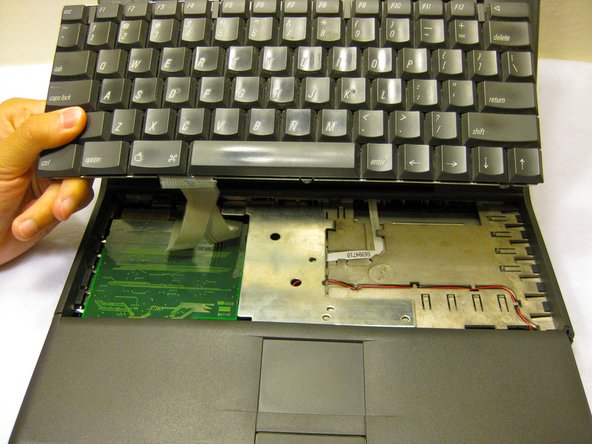
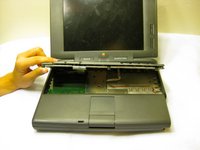
  4. Macintosh Powerbook 5300cs RAM Replacement: passo 4, immagine 1 di 2 Macintosh Powerbook 5300cs RAM Replacement: passo 4, immagine 2 di 2
    • Carefully pull up on the front of the keyboard to pop it out from the case.

    • Then slide the back out so the keyboard becomes nearly free.

    Chiedi a FixBot

    Aggiungi Commento

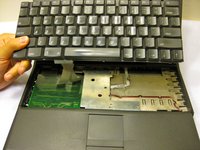
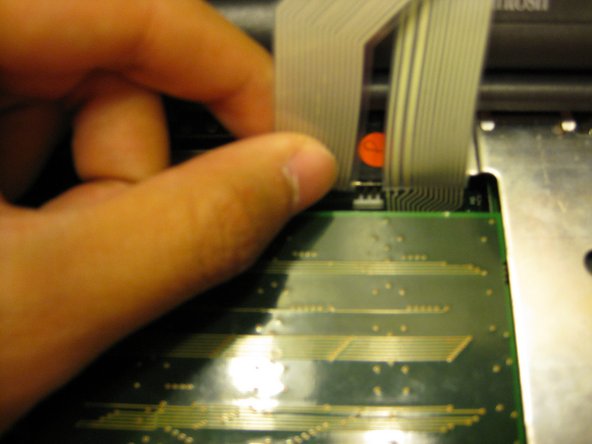
  5. Macintosh Powerbook 5300cs RAM Replacement: passo 5, immagine 1 di 3 Macintosh Powerbook 5300cs RAM Replacement: passo 5, immagine 2 di 3 Macintosh Powerbook 5300cs RAM Replacement: passo 5, immagine 3 di 3
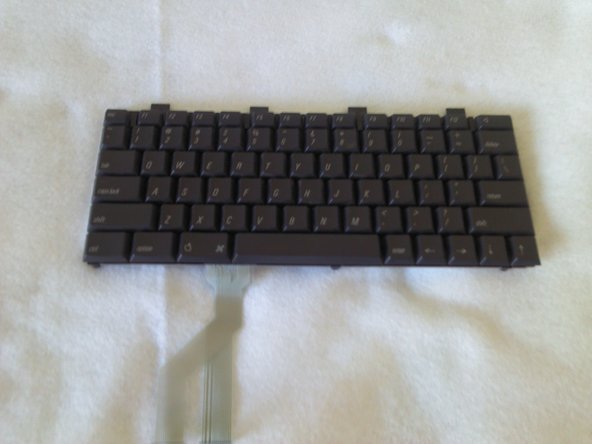
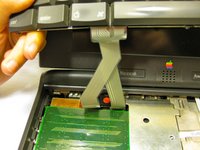
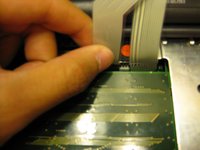
    • Disconnect the ribbon that is connecting the keyboard to the rest of the computer.

    • Pull the keyboard out and repair or replace as needed.

    Chiedi a FixBot

    Aggiungi Commento

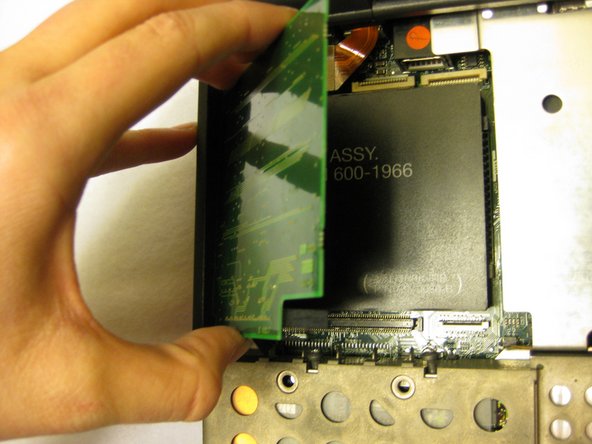
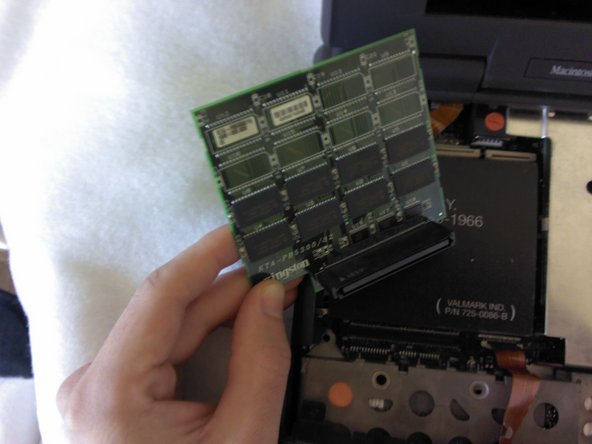
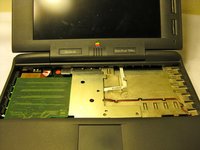
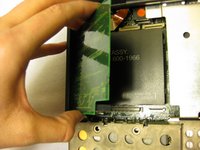
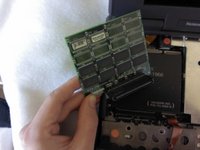
  6. Macintosh Powerbook 5300cs RAM Replacement, RAM: passo 6, immagine 1 di 3 Macintosh Powerbook 5300cs RAM Replacement, RAM: passo 6, immagine 2 di 3 Macintosh Powerbook 5300cs RAM Replacement, RAM: passo 6, immagine 3 di 3
    • Remove the RAM board located underneath the keyboard by carefully popping it out from its connection. Reinstall or replace as necessary.

    Chiedi a FixBot

    Aggiungi Commento

Conclusione

To reassemble your device, follow these instructions in reverse order.

Annulla: non ho completato questa guida.

Ronan

Membro da: 10/10/11

72 Reputazione

4 guide realizzate

Team

Cal Poly, Team 6-1, Regan Fall 2011 Membro di Cal Poly, Team 6-1, Regan Fall 2011

CPSU-REGAN-F11S6G1

4 Membri

6 guide realizzate

0Commenti sulla guida

Aggiungi Commento

Visualizza statistiche:

Ultime 24 ore: 0

Ultimi 7 giorni: 5

Ultimi 30 giorni: 29

Tutti i Tempi: 1,325