Salta al contenuto principale
Unisciti alla Community delle riparazioni - Crea un account

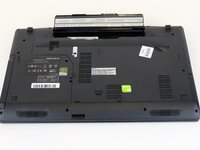
MSI GP60 2PE Leopard RAM Replacement

Cosa ti serve

    1. MSI GP60 2PE Leopard RAM Replacement, Battery: passo 1, immagine 1 di 1
      • Flip MSI GP60 2PE Leopard, so that the back is facing up.

      Chiedi a FixBot

      Aggiungi Commento

    2. MSI GP60 2PE Leopard RAM Replacement: passo 2, immagine 1 di 1
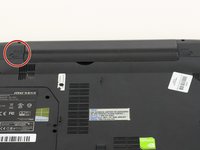
      • Find the unlock tab located on the upper right side of the device, then slide it to the right.

      Chiedi a FixBot

      Aggiungi Commento

    3. MSI GP60 2PE Leopard RAM Replacement: passo 3, immagine 1 di 3 MSI GP60 2PE Leopard RAM Replacement: passo 3, immagine 2 di 3 MSI GP60 2PE Leopard RAM Replacement: passo 3, immagine 3 di 3
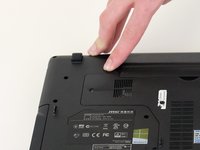
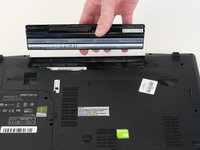
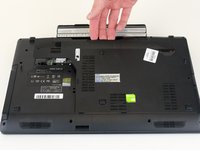
      • Slide and hold the release tab on the left side of the battery, so that you can remove the battery.

      Chiedi a FixBot

      Aggiungi Commento

    4. MSI GP60 2PE Leopard RAM Replacement: passo 4, immagine 1 di 3 MSI GP60 2PE Leopard RAM Replacement: passo 4, immagine 2 di 3 MSI GP60 2PE Leopard RAM Replacement: passo 4, immagine 3 di 3
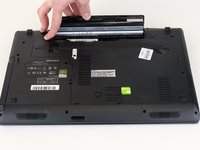
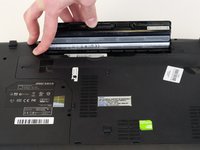
      • While holding the release tab, remove the battery slowly.

      Chiedi a FixBot

      Aggiungi Commento

    1. MSI GP60 2PE Leopard RAM Replacement, Back Panel: passo 5, immagine 1 di 1
      • Flip the device over so the back is facing up.

      Chiedi a FixBot

      Aggiungi Commento

    2. MSI GP60 2PE Leopard RAM Replacement: passo 6, immagine 1 di 2 MSI GP60 2PE Leopard RAM Replacement: passo 6, immagine 2 di 2
      • Remove the four 5mm screws from the back of the device using a Phillips #00 screwdriver.

      • There is a screw located under the battery; lift the battery up to access it.

      Chiedi a FixBot

      Aggiungi Commento

    3. MSI GP60 2PE Leopard RAM Replacement: passo 7, immagine 1 di 2 MSI GP60 2PE Leopard RAM Replacement: passo 7, immagine 2 di 2
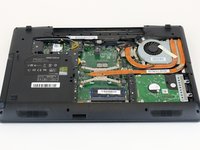
      • Once all four screws are removed, lift the back off.

      Chiedi a FixBot

      Aggiungi Commento

    1. MSI GP60 2PE Leopard RAM Replacement, RAM: passo 8, immagine 1 di 1
      • Press the tabs on the side of the RAM to remove it.

      Chiedi a FixBot

      Aggiungi Commento

    2. MSI GP60 2PE Leopard RAM Replacement: passo 9, immagine 1 di 1
      • Slide the RAM out of the slot carefully.

      Chiedi a FixBot

      Aggiungi Commento

Conclusione

To reassemble your device, follow these instructions in reverse order.

Annulla: non ho completato questa guida.

Altre 3 persone hanno completato questa guida.

0Commenti sulla guida

Aggiungi Commento

Visualizza statistiche:

Ultime 24 ore: 1

Ultimi 7 giorni: 6

Ultimi 30 giorni: 38

Tutti i Tempi: 1,742