Introduzione
Replacing the L2-R2 triggers for the Logitech G Cloud is sophisticated and can be accomplished in six steps. You will need a wedge tool and a Phillips #00 screwdriver. Carefully read the instructions before starting to disassemble the Logitech G Cloud. You may hear loud popping noises when you remove the interior plating. Once the screws are removed, the triggers should be simple to pop out.
Cosa ti serve
-
-
Power the device off and turn it over so the screen is face down.
-
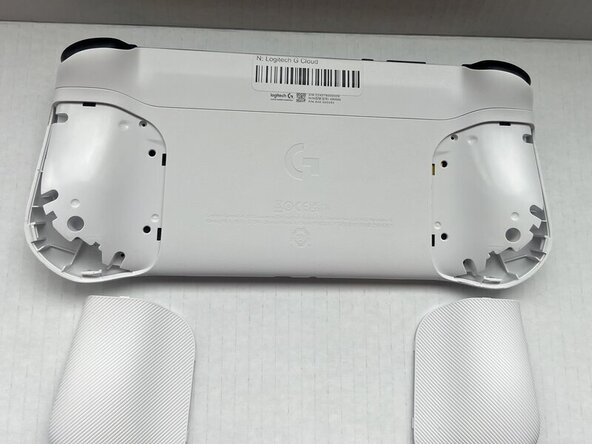
Insert an opening pick into the seam between the back plate and left handguard.
-
Pry around the entire perimeter until the handguard fully releases.
-
Remove the handguard.
-
Repeat the previous three bullets on the right handguard.
 Chiedi a FixBot
-
-
-
Use a Phillips #00 screwdriver to remove all eight 10 mm screws from the rear case located under where the handguards were.
-
-
-
-
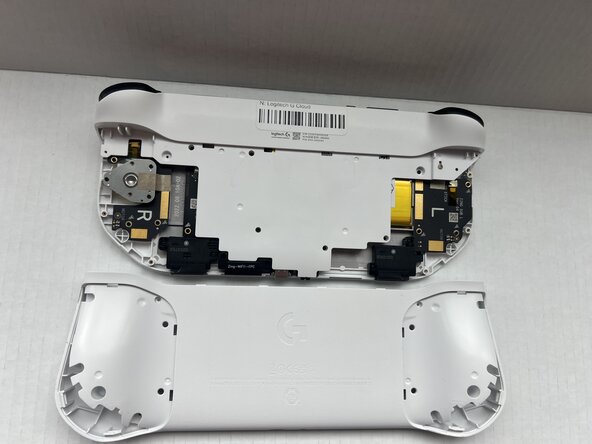
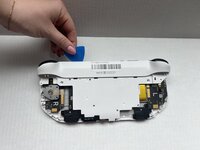
Insert an opening pick into the seam between the midframe and rear case.
-
Gently pry the rear case upwards to separate it from the midframe.
-
-
-
Use a Phillips #00 screwdriver to remove all seven 10 mm screws that secure the midframe.
-
-
-
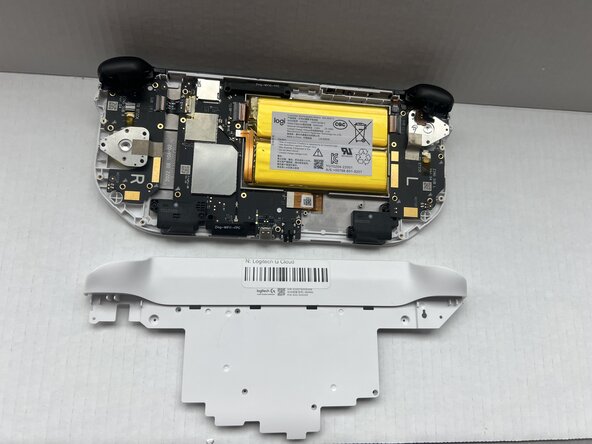
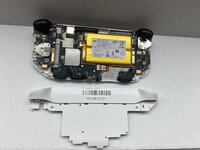
Insert an opening pick into the seam between the midframe and front case at the top of the device to separate the interior plating.
-
Gently pry out the midframe by lifting an opening pick.
-
-
-
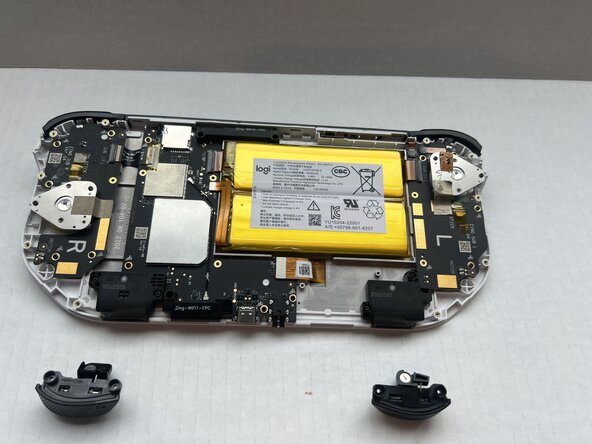
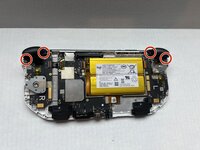
Use a Phillips #00 screwdriver to remove all four 10 mm screws that secure the L2 and R2 triggers.
-
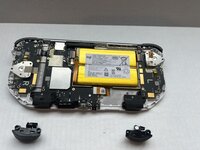
Pop the L2 and R2 triggers out with your fingers.
-






To reassemble your device, follow these instructions in reverse order.

Team

Western Carolina University, Team 1-1, Virtue Spring 2025 Membro di Western Carolina University, Team 1-1, Virtue Spring 2025
WCU-VIRTUE-S25S1G1
4 Membri
12 guide realizzate
