Introduzione
This guide helps you replace the Lenovo Flex 2-15 keyboard. You might need to replace your keyboard when the keys start to stick or some keys no longer functions. The keyboard is one of most important part of the computer because It handles most of the human interface.
Cosa ti serve
-
-
Begin by taking the back plate off of your device. Using a Phillips head screw driver, take out the highlighted screws for your device.
-
-
-
-
Once you have the battery removed, locate the cable for your new battery and connect it on the same port from your old battery. Secure it onto the laptop by using the screws. After this step is complete, complete step 1 in reverse order to secure the plate cover over your motherboard.
-
-
-
Apply gentle pressure with the Philips #00 screwdriver through the hole to pop out the keyboard.
-


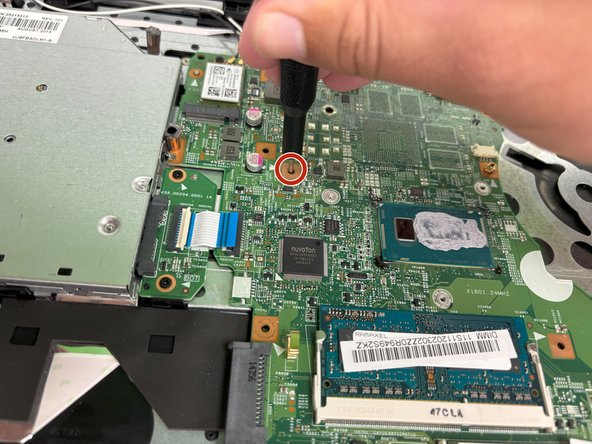
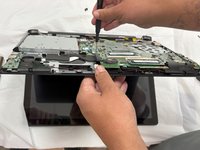
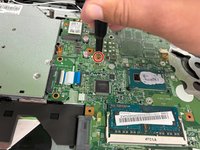


To reassemble your device, follow the above steps in reverse order.
Take your e-waste to an R2 or e-Stewards certified recycler.
Repair didn’t go as planned? Try some basic troubleshooting or ask our Answers community for help.


Team

University of North Texas, Team 3-6, Coppersmith Fall 2024 Membro di University of North Texas, Team 3-6, Coppersmith Fall 2024
UNT-COPPERSMITH-F24S3G6
4 Membri
4 Guide realizzate
