Salta al contenuto principale
Unisciti alla Community delle riparazioni - Crea un account

LG Cosmos 2 QWERTY Keyboard Replacement

Cosa ti serve

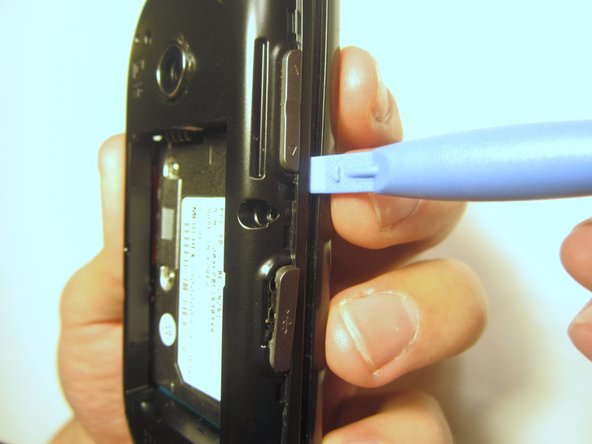
  1. LG Cosmos 2 QWERTY Keyboard Replacement, Battery: passo 1, immagine 1 di 3 LG Cosmos 2 QWERTY Keyboard Replacement, Battery: passo 1, immagine 2 di 3 LG Cosmos 2 QWERTY Keyboard Replacement, Battery: passo 1, immagine 3 di 3
    • Insert the plastic opener into the slot at the top of the device.

    • Apply gentle pressure with the plastic tool to pop the back case off.

    Chiedi a FixBot
  2. LG Cosmos 2 QWERTY Keyboard Replacement: passo 2, immagine 1 di 3 LG Cosmos 2 QWERTY Keyboard Replacement: passo 2, immagine 2 di 3 LG Cosmos 2 QWERTY Keyboard Replacement: passo 2, immagine 3 di 3
    • Use the plastic opener to lift, and remove, the device battery.

    Chiedi a FixBot
  3. LG Cosmos 2 QWERTY Keyboard Replacement, Rear Case: passo 3, immagine 1 di 1
    • Use a screwdriver and corresponding bit to remove the six 2mm screws that are located along the edge of the rear case. Set the screws aside.

    Chiedi a FixBot
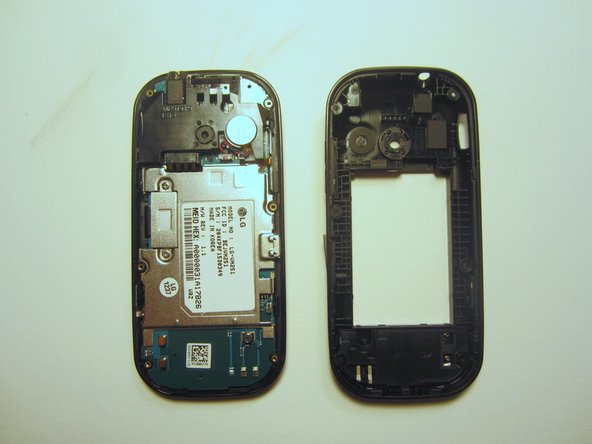
  4. LG Cosmos 2 QWERTY Keyboard Replacement: passo 4, immagine 1 di 3 LG Cosmos 2 QWERTY Keyboard Replacement: passo 4, immagine 2 di 3 LG Cosmos 2 QWERTY Keyboard Replacement: passo 4, immagine 3 di 3
    • Use the plastic opener to pry the rear case loose.

    • This can be difficult. You will need to pry around the entire edge of the rear case, not just in one place.

    Chiedi a FixBot
  5. LG Cosmos 2 QWERTY Keyboard Replacement, Motherboard: passo 5, immagine 1 di 1
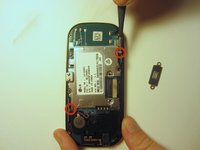
    • Use a screwdriver and corresponding bit to remove the two 3mm screws that attach the motherboard to the front case. Set the screws aside

    Chiedi a FixBot
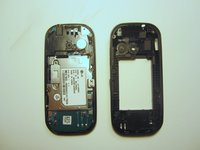
  6. LG Cosmos 2 QWERTY Keyboard Replacement: passo 6, immagine 1 di 1
    • Rotate the phone 180 degrees and use the plastic opener to lift the metal piece that covers the ribbon cable.

    Chiedi a FixBot
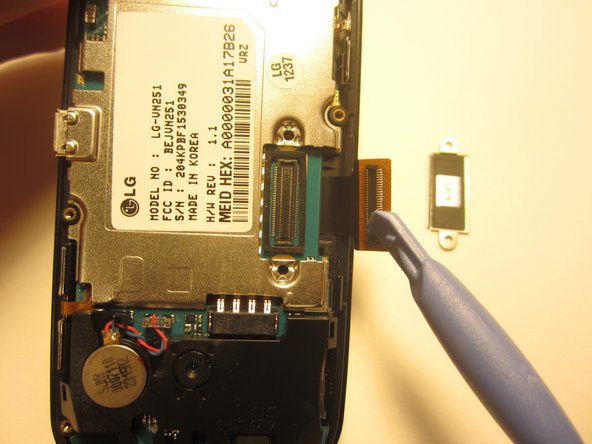
  7. LG Cosmos 2 QWERTY Keyboard Replacement: passo 7, immagine 1 di 2 LG Cosmos 2 QWERTY Keyboard Replacement: passo 7, immagine 2 di 2
    • Use the plastic opener to disconnect the ribbon cable.

    Chiedi a FixBot
  8. LG Cosmos 2 QWERTY Keyboard Replacement: passo 8, immagine 1 di 2 LG Cosmos 2 QWERTY Keyboard Replacement: passo 8, immagine 2 di 2
    Strumento utilizzato in questo passaggio:
    Tweezers
    $4.99
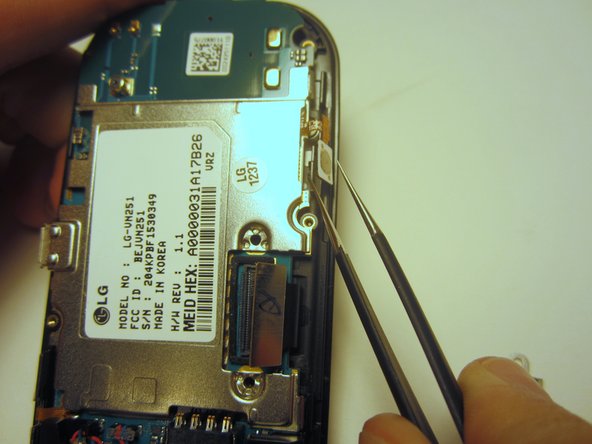
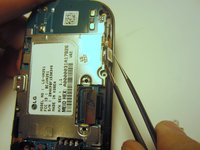
    • Use tweezers to disconnect the two cables that attach the motherboard to the case.

    • Note: Pull on the cables gently to prevent damage for future use.

    Chiedi a FixBot
  9. LG Cosmos 2 QWERTY Keyboard Replacement: passo 9, immagine 1 di 1
    • Remove the motherboard from the front case.

    Chiedi a FixBot
  10. LG Cosmos 2 QWERTY Keyboard Replacement, QWERTY Keyboard: passo 10, immagine 1 di 1
    • Flip the front case over. If the keyboard doesn't fall out, push it through the front case.

    Chiedi a FixBot
Conclusione

To reassemble your device, follow these instructions in reverse order.

Un'altra persona ha completato questa guida.

Nick White

Membro da: 10/18/13

866 Reputazione

8 guide realizzate

Team

Clemson, Team 13-1, Benson Fall 2013 Membro di Clemson, Team 13-1, Benson Fall 2013

CLEM-BENSON-F13S13G1

3 Membri

18 guide realizzate

0Commenti sulla guida

Aggiungi Commento

Visualizza statistiche:

Ultime 24 ore: 3

Ultimi 7 giorni: 9

Ultimi 30 giorni: 67

Tutti i Tempi: 794