Questa traduzione è stata generata automaticamente e non è stata ancora revisionata da una persona. Parli questa lingua? Dai un’occhiata.
Introduzione
Questa guida presuppone che tu abbia già familiarità con l'installazione di Windows su altri dispositivi. Non tutte le funzionalità potrebbero funzionare perfettamente con questa installazione. *Non* dovrai flashare il BIOS per eseguire l'installazione di Windows, ma dovrai farlo se vuoi che tutti i dispositivi funzionino correttamente.
Nota importante: A metà 2019, non esiste un metodo valido per far funzionare il trackpad del Pixel su Windows 10. Ciò è dovuto al firmware proprietario utilizzato nel pacchetto del trackpad, il cui codice non è disponibile presso il produttore. Se ti va bene usarlo con un mouse USB, o tentare la fortuna con il Bluetooth, procedi pure! A metà 2023, è in fase di test un cacciavite I2C per il trackpad e il touch screen del Pixel. Sarà disponibile a breve.
Cosa ti serve
-
-
-
Esegui il backup dei tuoi dati prima di iniziare
-
Dovrai preparare un'unità USB avviabile MBR con Windows 8.1/10 utilizzando Rufus o lo strumento di installazione di Windows 10
-
Tieni pronti una tastiera e un mouse USB esterni
 Chiedi a FixBot
-
-
-
Abilita la modalità sviluppatore e l'avvio USB legacy
-
Esegui l'avvio in ChromeOS
-
Arriverai alla schermata della modalità sviluppatore. Premi "ctrl" + "L" per eseguire l'avvio nel SeaBIOS legacy
-
-
-
Collega la tua tastiera USB
-
Seleziona l'unità flash contenente l'installazione di Windows 10
-
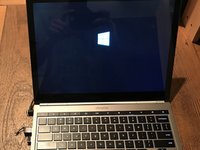
Esegui l'avvio in Windows 10
-
-
-
-
Usa gli strumenti avanzati per aprire un prompt dei comandi con privilegi elevati
-
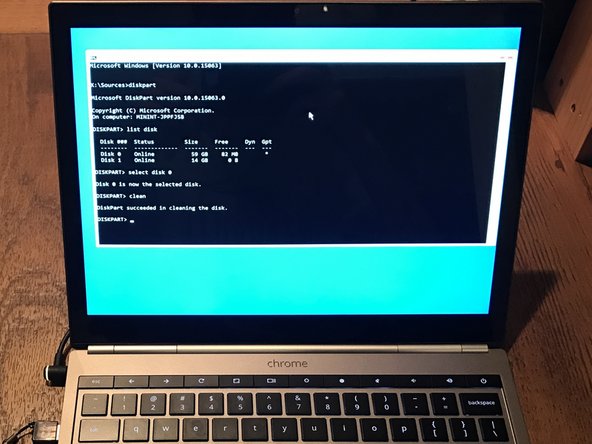
Esegui diskpart e pulisci l'archiviazione sull'unità di avvio SSD
-
-
-
Riavvia il computer nell'installer di Windows dalla tua unità USB
-
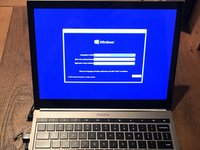
Clicca su Installa per installare Windows 10
-
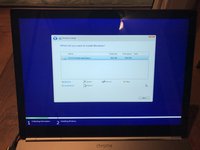
Seleziona il tuo SSD come posizione di installazione predefinita
-
-
-
Lascia che Windows 10 si installi
-
Ogni volta che il computer si riavvia, premi "ctrl" + "L" per tornare al BIOS
-
-
-
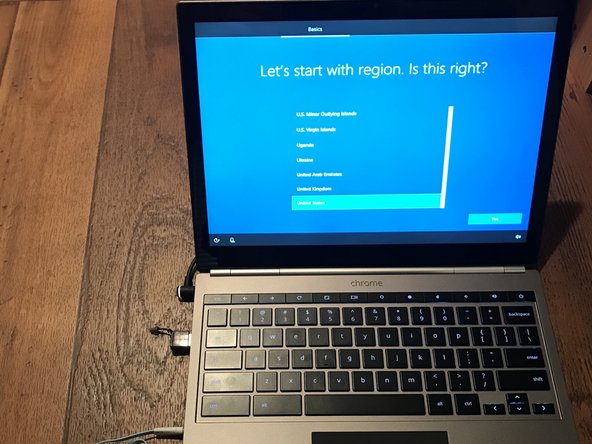
Segui la guida visualizzata sullo schermo per completare l'installazione di Windows
-
Il Wi-Fi e l'audio dovrebbero funzionare immediatamente, ma avrai comunque bisogno di tastiera/mouse USB per continuare con la configurazione
-
Installeremo i cacciavite a breve
-
È probabile che Cortana abbia un volume molto alto.
-
Collega un paio di cuffie o silenziala facendo clic sul pulsante muto nell'angolo in basso a destra dello schermo.
-
-
-
Installa tutti i driver del tuo dispositivo Windows (tastiera, trackpad, touchscreen) dalla pagina web di Coolstar
-
Tieni presente che i driver potrebbero presentare bug. Potresti dover reinstallare ChromeOS utilizzando il ripristino per poter eseguire il flash/riflash del BIOS.
-
Si tratta di un'operazione rischiosa, quindi procedi al flash solo se i tuoi driver non funzionano immediatamente e se possiedi le competenze tecniche per risolvere il problema.
-
-



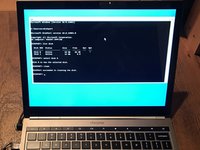


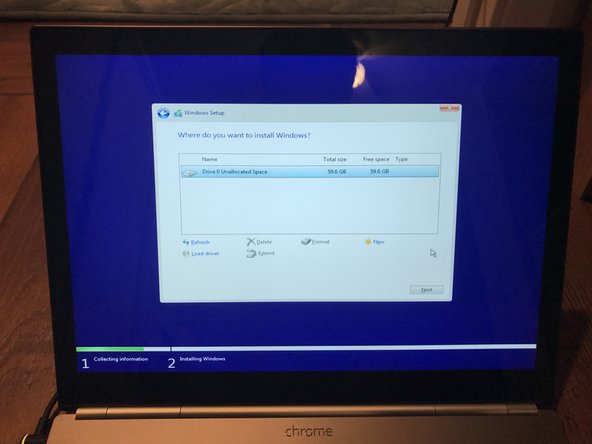


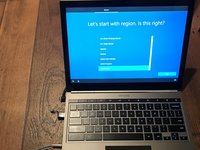
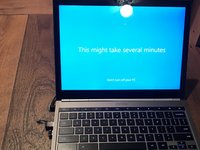

Divertiti a usare Windows sul tuo Pixel e goditi la soddisfazione di aver tentato un'impresa che non molti hanno provato!
Annulla: non ho completato questa guida.
Altre 19 persone hanno completato questa guida.

17Commenti sulla guida
Hello, have you successfully gotten the trackpad to work? Last time I heard Coolstar claimed that this wouldn't be possible.
Yup, the track-pad works (mostly) how it supposed to. I just can't post the driver since Mr. Chromebox noted that it's closed source; therefore I've decided to go solo with my work. It's definitely not impossible, just hard to figure out how to use the Intel I2C interface which drives the touchpad. I'd recommend starting your research on the official Intel datasheet for the specification and take a look at the Linux community drivers written in C for inspiration. You should check the Reddit page in case Coolstar or Mr. Chromebox has found a way to circumvent the legality issues or issued a fix of their own.
Hey did you end up doing this therealpurplesound? I want to do this as well but the trackpad, touchscreen, audio and other basic features that I haven't got a solid answer on stop me.
Does it rotate when you do it?
Hi, in a comment above you mention that the touchpad / trackpad mostly works as it's supposed to , but for reasons you cannot link it, can you elaborate on this? Is there a public solution as I am a bit confused and wish to gather more information before going forward.
I just wish to understand if the Pixel 2013 will work (keyboard, touchpad, touchscreen, etc) under Windows 10 as a normal functioning laptop.
Thank you.
