Introduzione
Follow this guide to open your Logitech G703 wireless mouse.
Opening your mouse gives you access to clean its internals, troubleshoot mechanical problems, or replace a part.
Cosa ti serve
-
-
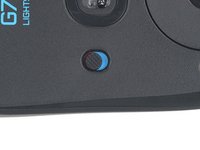
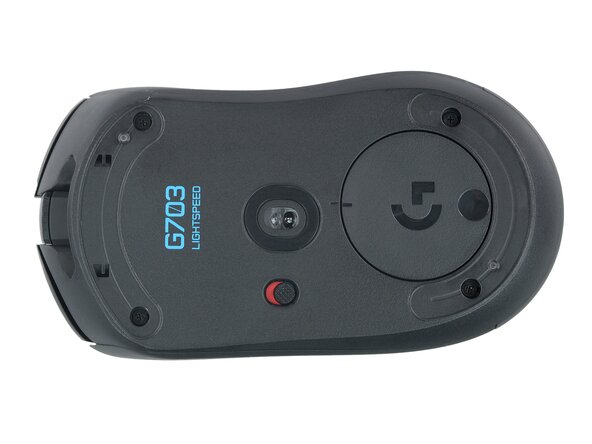
Slide the mouse's power switch down so it's in the OFF position.
-
Unplug all cables from the mouse.
-
-
-
Heat an iOpener and lay it on the mouse feet for one minute to heat the adhesive.
-
-
-
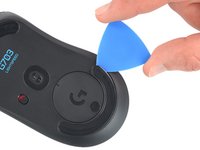
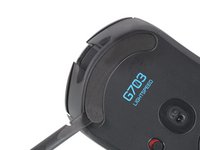
Slide the tip of an opening pick under an edge of the bottom mouse foot, making sure it goes under both the foot and its adhesive pad.
-
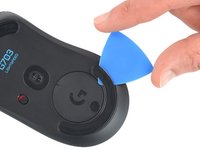
Gently slide the pick farther under the foot and lift until you can grip it with your fingers.
-
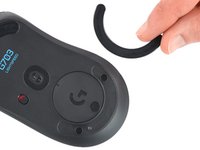
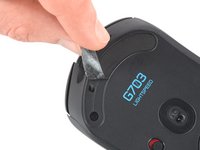
Use your fingers to peel up and remove the foot.
-
Repeat the procedure to remove the top mouse foot.
-
-
-
-
Slide the flat end of a spudger under an edge of the adhesive. If the adhesive seems stuck, you may need to heat it further.
-
Peel the adhesive off.
-
Use a spudger to carefully scrape up and remove any remaining adhesive bits.
-
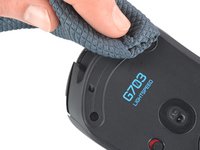
Use isopropyl alcohol and a microfiber cloth to thoroughly clean all adhesive residue from the foot recesses. Allow the surface to completely dry.
-
Remove the feet from their backing and firmly press them into place.
-
-
-
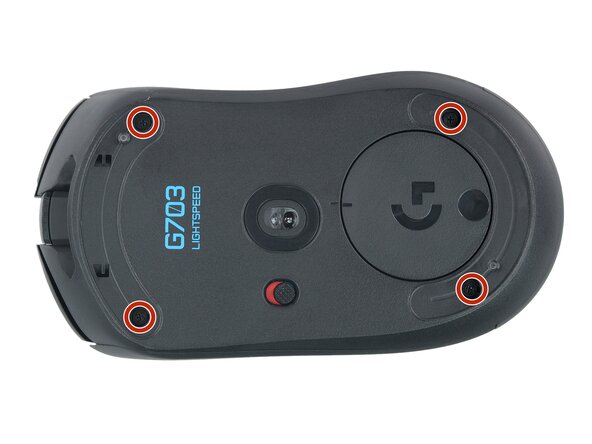
Use a Phillips screwdriver to remove the four 5.4 mm‑long screws securing the two halves of the mouse together.
-
-
-
Grasp the mouse cases near the back and pull the two halves apart slightly, so there's a gap at the back of the mouse.
-
-
-
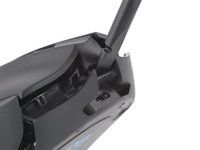
Insert the flat end of a spudger into the small gap between the top and bottom cases, just above the charging port.
-
Use the spudger to pry the top case up to release the clip.
-
-
-
Set the mouse down and position the top half so you can access the interconnect cable on the right side.
-
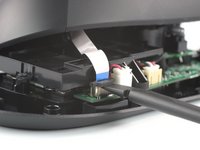
Use the flat end of a spudger to gently lift the black sliding tab on the interconnect cable socket until it's in the unlocked position.
-
Slide the interconnect cable straight up and out of its socket.
-












Compare your new replacement part to the original part—you may need to transfer remaining components or remove adhesive backings from the new part before you install it.
To reassemble your device, follow these instructions in reverse order.
Repair didn’t go as planned? Try some basic troubleshooting, or ask our Answers community for help.
Reuse or Recycle—Never put discarded electronic parts in household waste. Visit Logitech Recycling to find your nearest recycling points, including the option to mail back old devices to Logitech for free if there’s no convenient solution in your area. You can also take your e-waste to any R2 or e-Stewards certified recycler. And don’t let good working parts or repaired devices die a slow death in your sock drawer—pass them along to someone who can use them.
Share your experience—Leave a comment here or send your feedback directly to Logitech at repair@logitech.com to help shape future repair guides and product design.
Annulla: non ho completato questa guida.
Altre 13 persone hanno completato questa guida.



5Commenti sulla guida
Thanks for this guide :)
It helped me diagnose the issue in my mouse and order the correct replacement parts.
One thing that I did find helpful is removing the ribbon cable before trying to unclip the top half
How do you glue back the old adhesive feet?
Where can I buy a replacement ribbon cable?
worthless mouse. I tried every instruction out there and nothingg worked. I threw mine in the garbage and tot a new mouse.
Simple disassembly guide that helped me out! I've had good luck with Logitech mice in the recent past with the adhesive pads on the bottom. I just set them aside sticky side up and had no problem sticking them back on. The clip in the front did give me some issue though.
