Cosa ti serve
-
-
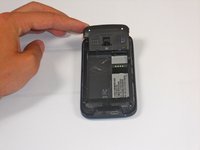
Apply pressure and slide upward to remove back cover.
-
Lift the back cover up away from the phone.
 Chiedi a FixBot
-
-
-
Lift battery upward on the upper right-hand side to remove it.
-
Check the battery to make sure there's no bent corners.
-
-
-
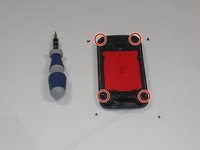
Using a T5 screwdriver, remove the four screws in corners as shown.
-
Lift the top portion of the rear case.
-
-
-
-
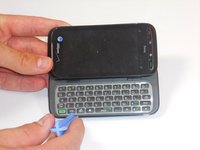
Using an IfixIt Plastic Tool, detach the plastic casing from the keyboard. This may require some force.
-
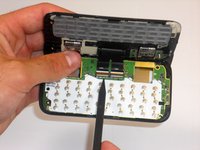
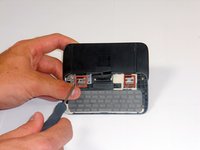
Using a spudger or other thin tool, carefully pry up ZIF connectors as shown. This will allow the black ribbons to detach from the keyboard.
-
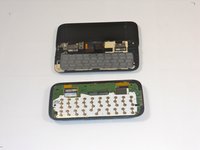
Slide the two parts away from each other so that the black ribbons slide through the slots and you will now have housing into two parts.
-
-
-
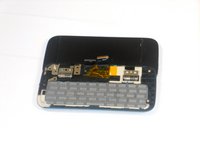
Peel off the yellow ribbon shown slowly.
-
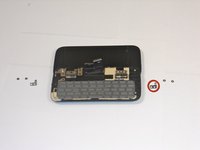
Unscrew the fours screws shown in red squares (two in each square) using a 00 screwdriver.
-
After the screws are out, you will be able to easily take off the small metal pieces circled in red.
-
-
Strumento utilizzato in questo passaggio:Tweezers$4.99
-
Slowly pull dual black strip off using force.
-
Behind the dual black strip is very sticky piece of grey tape. Use tweezers (preferably ones with ridges) to peel off the tape. Be careful not to rip it.
-
-
-
Lift ZIF connectors up.
-
Carefully lift keyboard frame away from display screen.
-
You now have the keyboard detached.
-








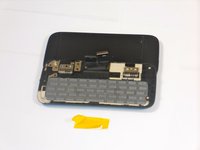
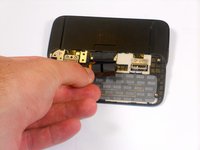
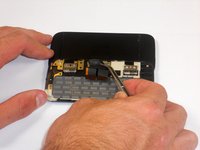


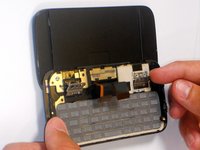
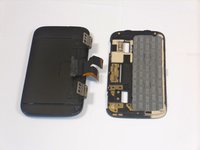
To reassemble your device, follow these instructions in reverse order.
Annulla: non ho completato questa guida.
Un'altra persona ha completato questa guida.

Team

Cal Poly, Team 9-64, Walters Spring 2011 Membro di Cal Poly, Team 9-64, Walters Spring 2011
CPSU-WALTERS-S11S9G64
5 Membri
27 guide realizzate
