Salta al contenuto principale
Unisciti alla Community delle riparazioni - Crea un account

HTC Thunderbolt Volume Buttons Replacement

Cosa ti serve

  1. HTC Thunderbolt Volume Buttons Replacement, Rear Panel: passo 1, immagine 1 di 1
    • Insert the plastic opening tool into the top of the Thunderbolt near the power button.

    • Gently pry up on the rear panel around the edges until it is loose.

    Chiedi a FixBot
  2. HTC Thunderbolt Volume Buttons Replacement: passo 2, immagine 1 di 1
    • Lift and remove the rear panel.

    Chiedi a FixBot
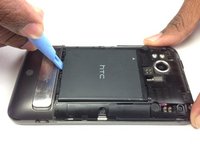
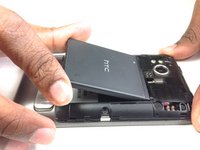
  3. HTC Thunderbolt Volume Buttons Replacement, Battery: passo 3, immagine 1 di 2 HTC Thunderbolt Volume Buttons Replacement, Battery: passo 3, immagine 2 di 2
    • Using the plastic opening tool, lift up the battery from the bottom near the kickstand.

    • Remove the battery from the inner frame.

    Chiedi a FixBot
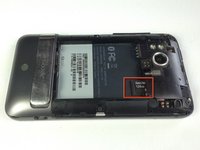
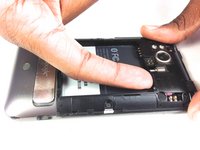
  4. HTC Thunderbolt Volume Buttons Replacement, MicroSD Card: passo 4, immagine 1 di 2 HTC Thunderbolt Volume Buttons Replacement, MicroSD Card: passo 4, immagine 2 di 2
    • Use your finger to push the MicroSD card in towards the top of the phone, allowing it to be released from the casing.

    Chiedi a FixBot
  5. HTC Thunderbolt Volume Buttons Replacement: passo 5, immagine 1 di 1
    Strumento utilizzato in questo passaggio:
    Tweezers
    $4.99
    • Use tweezers to grab onto the MicroSD card and carefully remove it from the casing.

    Chiedi a FixBot
  6. HTC Thunderbolt Volume Buttons Replacement, Rear Frame: passo 6, immagine 1 di 1
    • Remove the six Phillips screws from the perimeter of the rear frame.

    • By removing the screw with the "void" sticker on it, your Thunderbolt will no longer be covered under warranty.

    Chiedi a FixBot
  7. HTC Thunderbolt Volume Buttons Replacement: passo 7, immagine 1 di 2 HTC Thunderbolt Volume Buttons Replacement: passo 7, immagine 2 di 2
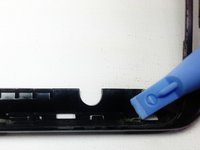
    • Insert the plastic opening tool into the bottom of the phone underneath the soft keys.

    • Gently pry up on the plastic cover by sliding the plastic opening tool across the bottom of the phone.

    • Remove the plastic cover.

    • The plastic cover will have adhesive on it making it difficult to remove.

    Chiedi a FixBot
  8. HTC Thunderbolt Volume Buttons Replacement: passo 8, immagine 1 di 1
    • Remove the two Phillips screws where the plastic cover was.

    Chiedi a FixBot
  9. HTC Thunderbolt Volume Buttons Replacement: passo 9, immagine 1 di 2 HTC Thunderbolt Volume Buttons Replacement: passo 9, immagine 2 di 2
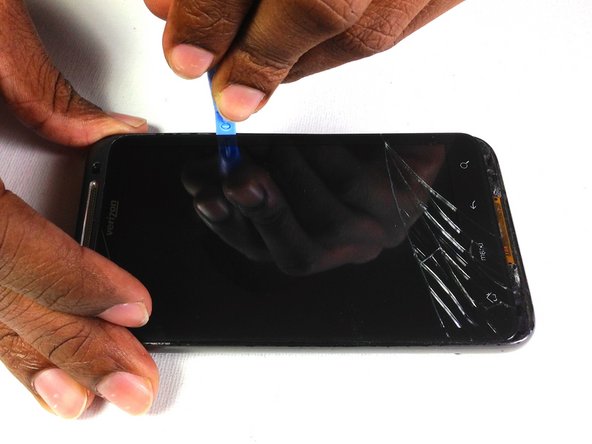
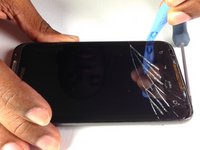
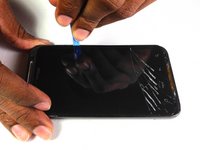
    • Insert the plastic opening tool in between the screen and the frame on the side of the phone.

    • Slowly slide the the plastic opening tool along the side of the phone until the screen begins to separate from the frame.

    • Do the same for the opposite side of the phone.

    Chiedi a FixBot
  10. HTC Thunderbolt Volume Buttons Replacement: passo 10, immagine 1 di 3 HTC Thunderbolt Volume Buttons Replacement: passo 10, immagine 2 di 3 HTC Thunderbolt Volume Buttons Replacement: passo 10, immagine 3 di 3
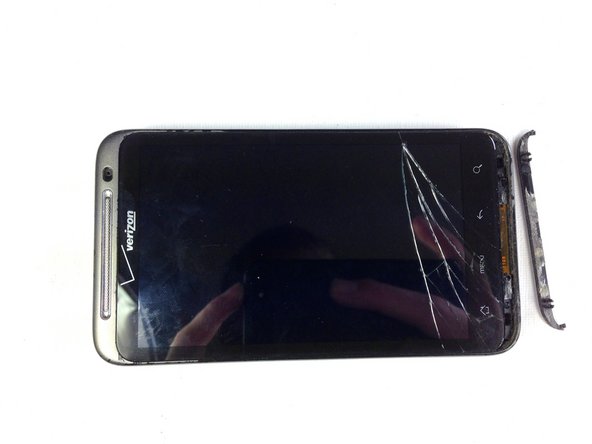
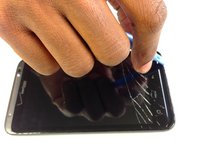
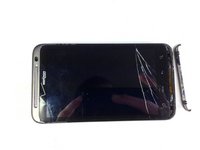
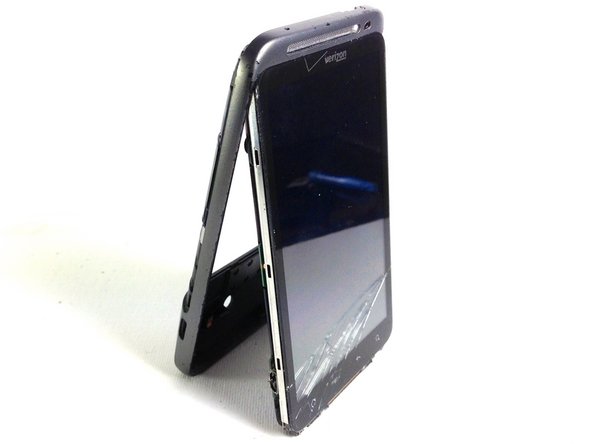
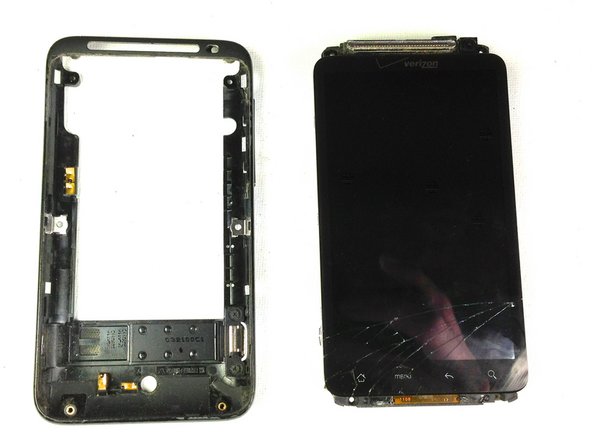
    • Carefully separate the screen and phone from the rear frame, starting from the bottom.

    • Gently pull down on the phone and screen to fully separate it from the rear frame.

    Chiedi a FixBot
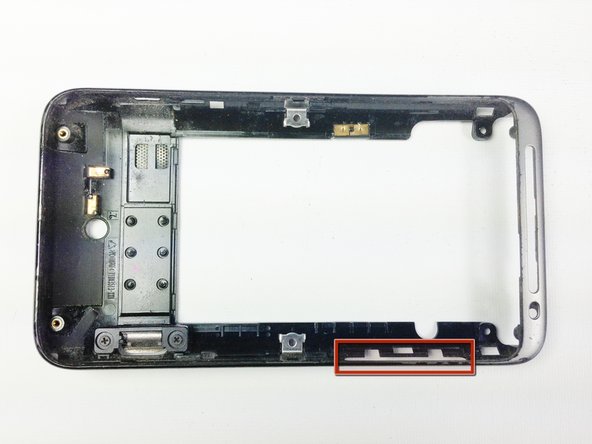
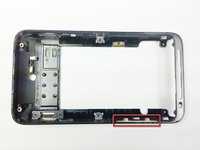
  11. HTC Thunderbolt Volume Buttons Replacement, Volume Buttons: passo 11, immagine 1 di 1
    • Locate the side volume buttons

    Chiedi a FixBot
  12. HTC Thunderbolt Volume Buttons Replacement: passo 12, immagine 1 di 2 HTC Thunderbolt Volume Buttons Replacement: passo 12, immagine 2 di 2
    • Use a pry tool to lift the buttons out of the case

    Chiedi a FixBot
Conclusione

To reassemble your device, follow these instructions in reverse order.

Vanessa

Membro da: 01/18/13

60 Reputazione

4 guide realizzate

Team

Cal Poly, Team 19-45, Regan Winter 2013 Membro di Cal Poly, Team 19-45, Regan Winter 2013

CPSU-REGAN-W13S19G45

4 Membri

24 guide realizzate

0Commenti sulla guida

Aggiungi Commento

Visualizza statistiche:

Ultime 24 ore: 0

Ultimi 7 giorni: 6

Ultimi 30 giorni: 67

Tutti i Tempi: 891